
Robust and Popular Ways for Emacs to Interact with Google Drive
A comprehensive guide to accessing, editing, and managing Google Drive from Emacs
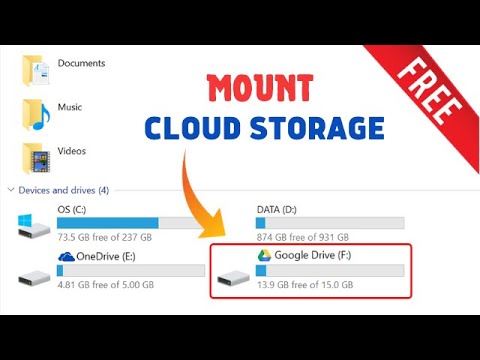
Key Highlights
- Direct Remote Access: Utilize TRAMP with GVFS for seamless remote file manipulation.
- Local Synchronization: Leverage third-party synchronization tools like Insync, Google Drive for desktop, or rclone for local file access.
- Format Conversion: Employ conversion tools such as Pandoc to work with Google Docs by converting to plain text or Org mode formats.
Introduction
Emacs, recognized for its extensibility and versatility, offers several robust methods for exploring, opening, and saving files stored on Google Drive. Given the diverse workflows and requirements of users, there is no one-size-fits-all solution. Instead, Emacs can interact with Google Drive using multiple techniques, each catering to different use cases and technical preferences.
This guide explores the most popular and reliable methods used to integrate Google Drive with Emacs. Whether you prefer direct remote access, local file synchronization, or converting formats to edit Google Docs, these techniques empower you to harness the full potential of Emacs when working with cloud-based file storage.
Methods to Explore, Open, and Save Google Drive Files in Emacs
1. TRAMP with GVFS Integration
Overview
TRAMP (Transparent Remote Access, Multiple Protocols) is a built-in Emacs package that allows you to work with remote files transparently, treating them as if they were local. With TRAMP's integration with GVFS (GNOME Virtual File System), you can directly access files stored on Google Drive. This method is popular amongst Emacs users, as it provides real-time access to files without the need to first download them locally.
Setup Requirements
- Emacs version 26 or later.
- GVFS installed and running on your system.
- Google account added and configured in your GNOME Online Accounts application.
- Proper D-Bus integration to enable communication between Emacs and GVFS.
Usage
With the setup in place, you can access Google Drive files using the TRAMP file name syntax. For example:
/gdrive:your.email@gmail.com:/path/to/file
This syntax can be used with standard Emacs commands such as dired for directory browsing and editing commands to modify files directly on Google Drive.
2. Local Synchronization with Cloud Clients
Overview
A straightforward way to work with Google Drive files in Emacs is to synchronize your cloud storage with a local folder. Once your files are available locally, Emacs can edit them directly as if they were saved on a typical file system.
Popular Tools
- Google Drive for Desktop: Official application by Google that synchronizes files between your computer and Google Drive.
- Insync: A popular third-party synchronization client that offers enhanced features and supports multiple accounts.
- rclone: A command-line tool that supports many cloud storage services, including Google Drive. When configured with TRAMP’s rclone method, it facilitates direct remote access as well.
Workflow
Once you have installed and configured your chosen synchronization tool, follow these steps:
- Sync your Google Drive with a designated local folder.
- Open and edit the files using Emacs as you would with any local file.
- The cloud client periodically updates the cloud storage, ensuring your changes are reflected in Google Drive.
This method is especially effective in environments where network latency can be an issue or when offline editing is required.
3. Using rclone with TRAMP
Overview
rclone is a powerful command-line program designed for managing files on cloud storage. It can be configured to work with Google Drive, and when paired with TRAMP, it offers an alternative pathway to interact with your Google Drive.
Setup and Syntax
After installing and setting up rclone to work with your Google Drive account, you can access the files via Emacs using a TRAMP path that follows the structure:
/rclone:gdrive:/path/to/directory
This syntax enables you to browse, open, and edit files directly. rclone's integration ensures compatibility with various cloud storage providers, making it a versatile option for Emacs users who require cross-platform file management.
4. Google Drive Mounting via FUSE or Ocamlfuse
Overview
Google Drive can be mounted as a local file system using FUSE-based tools such as google-drive-ocamlfuse. By mounting the cloud storage, the drive behaves like any local directory, allowing Emacs to operate on these files without needing remote-specific configurations.
Installation and Setup
- Install a FUSE-based mounting tool compatible with Google Drive.
- Configure the tool according to its documentation and ensure that the mount is successful.
- Once mounted, the Google Drive folder appears within your file system, accessible from Emacs.
Usage and Advantages
Editing and managing files in this setup is identical to working with any local file. The benefits include simplicity and often faster response times due to local caching. However, ensure that the mount is maintained and updated to reflect changes made outside of Emacs.
5. Editing Google Docs Using Format Conversion
Overview
Google Docs do not store files in a plain text format and require a conversion process to be conveniently edited in Emacs. For this reason, techniques involving conversion from Google Docs' native format to a more Emacs-friendly format (like Markdown or Org mode) are popular.
Conversion Tools and Process
- Pandoc: A universal document converter that can transform Google Docs (exported as DOCX or similar formats) into Markdown or Org mode.
- gdrive Command-line Tool: This tool can be used to fetch or export Google Docs files from Google Drive.
The typical workflow is as follows:
- Export the Google Doc to a DOCX or Markdown file.
- Convert the file using Pandoc if necessary:
pandoc input.docx -f docx -t markdown -o output.md
Elisp Integration: Emacs users sometimes create custom elisp functions to automate the export and conversion process. This provides a seamless transition from Google Docs to a working document format within Emacs.
6. Additional Tips and Advanced Usage
Emacs Bookmarks and recentf Mode
To further streamline your workflow, consider leveraging Emacs’ bookmarking facilities as well as enabling recentf mode:
- Bookmarks: Create bookmarks for frequently accessed files or directories on your Google Drive (via TRAMP paths or local sync directories). This improves navigation efficiency.
- Recent Files (recentf mode): Activate recentf mode to quickly access files that you have recently opened or edited. This features files accessed via TRAMP or locally synchronized folders.
Custom Emacs Functions
Advanced users often write custom elisp functions to better integrate these services. For example, one can write a function to automate conversion tasks from Google Doc formats to Org mode. Below is an illustrative snippet:
;; ;;; Function to export a Google Doc to Org mode using Pandoc
(defun export-google-doc-to-org-buffer ()
  "Prompt for a Google Docs URL, convert the DOCX to Org using Pandoc,
   and display it in a new Emacs buffer."
  (interactive)
  (let ((url (read-string "Enter Google Docs URL: "))
        (temp-file (make-temp-file "gdoc" nil ".docx")))
    ;; Fetch the file using a command-line tool like gdrive or curl
    (shell-command (format "gdrive download --path=%s %s" temporary-file-directory url))
    ;; Convert the file using Pandoc from DOCX to Org
    (shell-command (format "pandoc %s -f docx -t org -o %s.org" temp-file temp-file))
    (find-file (concat temp-file ".org"))
    (message "Google Doc exported successfully to Org mode.")))
Such customizations can significantly enhance your workflow by tailoring the integration to your specific needs.
Comparison of Methods
The following table summarizes the various methods discussed, including their key features and requirements:
| Method | Description | Setup Requirements | Advantages |
|---|---|---|---|
| TRAMP with GVFS | Direct remote access to Google Drive via Emacs TRAMP interface | Emacs 26+, GVFS installed, GNOME Online Accounts configured, D-Bus enabled | Seamless integration, real-time file manipulation |
| Local Synchronization | Syncing Google Drive with a local folder | Cloud sync client (Google Drive for Desktop, Insync, or similar) | Works offline, simplifies local file editing |
| rclone with TRAMP | Using rclone’s integration with TRAMP for remote file management | rclone configured with Google Drive | Cross-platform support, customizable |
| Google Drive Mounting | Mount Google Drive as a local file system | FUSE-based mounting software (e.g., google-drive-ocamlfuse) | Local file system performance, familiar navigation |
| Format Conversion | Export and convert Google Docs for editing in Emacs | Tools such as Pandoc and gdrive command-line utility | Enables use of plain text formats (Markdown, Org mode), integration with custom scripts |
Choosing the Right Approach
Considerations
Selecting the best method depends largely on your workflow and how you intend to interact with Google Drive. Here are some factors to consider:
- Real-Time Remote Access: If your work demands real-time editing and manipulation of remote files, TRAMP with GVFS is a robust solution that minimizes the need for local storage management.
- Offline Accessibility: For those requiring consistent access without network connectivity, syncing Google Drive to a local folder (via Google Drive for Desktop or Insync) ensures you always have access to the needed files.
- Platform Flexibility: Utilizing rclone with TRAMP offers flexibility if you regularly navigate between different cloud platforms beyond just Google Drive.
- Document Types and Format Management: When working with Google Docs, the conversion workflow (using Pandoc) is essential since it enables you to convert proprietary formats into plain text formats that Emacs can manipulate efficiently.
Maintenance and Stability
Maintaining such integrations involves ensuring that underlying mechanisms like GVFS, rclone, or your sync client remain updated. Regular maintenance prevents downtime and compatibility issues. Depending on the intensity of your workflow, you might choose to rely on either automated local synchronization or direct mounting, based on your trust in system stability and your need for real-time access.
Advanced Customization and Integration
Automating Workflows with Emacs Lisp
Emacs’ inherent flexibility means that beyond manual set-ups, you can customize routines to fully automate your interactions with Google Drive. For instance, you might write functions that automatically sync files after a particular edit, or convert and back-convert documents to maintain formatting consistency with Google Docs.
Example Workflow
Consider a scenario where you need to constantly edit a collaborative Google Doc in Org mode. A custom function can:
- Fetch the latest version using the gdrive tool.
- Convert the format with Pandoc.
- Automatically open the file in Emacs for immediate editing.
- Enable you to push changes back to Google Drive after editing.
Such automation reduces friction, ensuring that your workflow remains smooth and integrated, without manual intervention at every step.
Integration with Other Emacs Packages
Numerous Emacs packages (such as Org mode for note-taking and document structuring) can further enhance your interaction with files on Google Drive. By integrating TRAMP paths into Org mode, you can embed external file links directly into your notes or documentation. This synergy between tools makes for a highly productive environment where management and editing of cloud-based files are second nature.
Conclusion and Final Thoughts
Emacs offers a rich ecosystem of methods to interact with Google Drive, catering to users who value both the traditional Emacs workflow and the modern demands of cloud storage. In this discussion, we explored methods ranging from direct remote access via TRAMP with GVFS, to local synchronization strategies using Google Drive for Desktop, Insync, or rclone, and finally, to handling format conversion for Google Docs through Pandoc and custom elisp functions.
Each method has its own strengths, with direct remote access providing real-time updates and local synchronization offering offline reliability. The choice of which approach to use depends on your specific workflow, technical setup, and the kinds of files you deal with. Moreover, advanced customization through Emacs Lisp allows savvy users to integrate these methods seamlessly into their broader workflow.
Ultimately, by understanding these robust and popular methods, you can fine-tune your Emacs environment to interact efficiently with Google Drive, enjoying the flexibility of cloud storage while maintaining the power of a fully customizable text editing system.
References
- TRAMP with GVFS - GNU Emacs Manual
- Modifying Local Google Drive Files – Emacs StackExchange
- Your Google Drive within Emacs – EmacsNotes
- Google Docs integration in Emacs – EmacsWiki
- Emacs Sync to Google Drive – Reddit
Recommended Queries for Further Exploration
 emacsnotes.wordpress.com
Last updated February 21, 2025