
Lifting Email Filters on Your iPhone
A Comprehensive Guide to Managing and Removing Filters on Your Device
Highlights
- Easy Navigation: Detailed steps to access and adjust filters directly from the Mail app.
- Comprehensive Solutions: Guidelines for both built-in and server-side filters on various email platforms.
- Troubleshooting Tips: Effective methods to resolve common issues including Focus mode interference and app refresh techniques.
Understanding Email Filters on the iPhone
Email filters on the iPhone are designed to help users manage their inbox by displaying only specific sets of emails, such as unread messages or emails from a particular folder. While this feature is useful for organizing emails during busy periods, there are times when you may want to lift these filters to view your entire inbox or adjust your filtering criteria as needed.
Primary Methods for Lifting Email Filters
Using the Default Mail App
The most straightforward method to lift email filters is via the built-in Mail app on your iPhone. Follow these simple steps:
- Launch the Mail App: Open the Mail application from your home screen.
- Access Mailboxes: Tap the "Mailboxes" button typically located at the bottom-left corner of the screen.
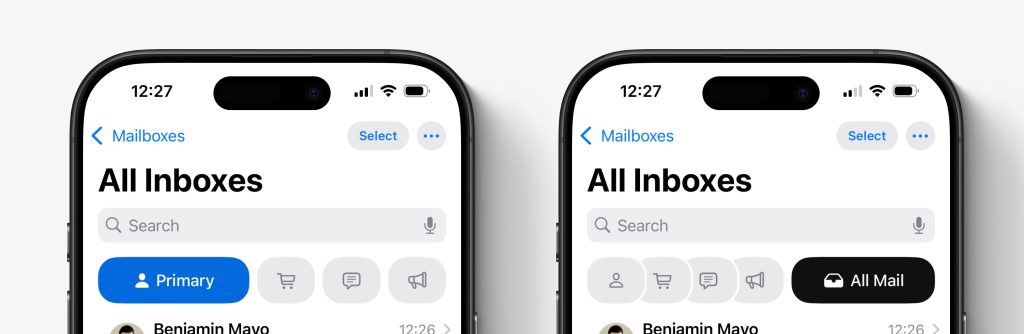
- Activate the Filter Icon: Look for a circular filter icon, often depicted with three horizontal lines. This icon may be highlighted (commonly in blue) if any filter is active.
-
Disable Active Filters:
- To turn off all filters simultaneously, tap the filter icon until it turns gray. This action disables every active filter, allowing you to view your complete set of emails.
- To selectively deactivate a filter, tap "Filtered by" and then deselect the filter criteria you wish to remove. Confirm your changes by tapping any available confirmation button such as "Done."
These steps allow you to quickly and efficiently manage your inbox by removing any restrictive filters applied to your email view.
Troubleshooting Common Issues
If you encounter difficulties while attempting to lift filters, consider the following troubleshooting tips:
- Force Close and Reopen: Fully close the Mail app by swiping it away from your recent apps and then reopen it. This can resolve temporary glitches where the interface might not properly update the change in filter settings.
- Recheck the "Filtered by" Settings: Sometimes, filters might be set to display only unread emails or specific folders. Revisit the “Filtered by” option and deselect any criteria that appear to be active.
- Focus Mode Interference: iOS Focus modes can sometimes interact with email notification and filtering settings. To rule this out, open the Settings app, navigate to Focus, and check if the active Focus mode includes Mail filters. Adjust these settings if necessary.
Managing Server-Side and Third-Party Email Filters
In addition to the built-in Mail app filters, many email accounts (like Gmail, Yahoo, and Outlook) have server-side filters that may affect which emails are shown on your iPhone. Addressing these filters might require adjustments outside the Mail app:
Server-Side Filter Adjustments
Gmail Filters
For Gmail users, custom filters are typically set up on the Gmail web interface. If you suspect that filtering issues are related to Gmail:
- Open a web browser on your iPhone and navigate to Gmail.
- Access Settings in your Gmail account via the gear icon.
- Select "See all settings", then navigate to the "Filters and Blocked Addresses" tab.
- Identify any active filters that may be excluding emails you wish to receive, and either edit or delete these filters.
Yahoo Mail and Outlook Filters
Filters on Yahoo Mail and Outlook can also affect the emails seen on your iPhone. Since these are managed on their respective servers:
- For Yahoo Mail, you may need to use the Clean Email app or log in via a web browser to modify or remove filtering rules.
- Outlook’s mobile app offers limited filtering options, so for in-depth adjustments, it’s advisable to use the Outlook web interface.
Third-Party Email Management Applications
Several third-party applications, such as Clean Email, offer enhanced email organization and filtering capabilities that operate independently of the iOS Mail app. If you use such an application, follow these guidelines:
- Open the third-party email management app.
- Navigate to the section often labeled as "Auto Clean" or similar.
- Locate the active rules and filters that may be filtering your emails.
- Either pause the filtering or delete the unwanted filter rules.
Practical Example: Step-by-Step Guidance
The table below provides a practical comparison of the procedures for lifting filters across several email service environments:
| Environment | Steps to Lift Filters | Additional Considerations |
|---|---|---|
| Apple Mail |
|
Focus mode and app refresh issues may affect visibility. |
| Gmail |
|
Browser-based adjustments; filters cannot be managed in the Gmail app. |
| Yahoo Mail |
|
Clean Email is often recommended for easier management. |
| Outlook |
|
The mobile app offers limited filtering control. |
Additional Settings Affecting Email Filters
In some cases, your email display might be affected by additional settings outside of the dedicated filter options in your Mail app. It is important to be aware of these potential impacts:
Focus Modes and Notifications
With the introduction of Focus modes in iOS, certain notifications and email displays can be altered based on your current mode (such as Do Not Disturb, Work, or Personal):
- Navigate to Settings and select Focus to review which modes are active.
- Check if any active Focus mode includes Mail as one of its filtered applications.
- Adjust the settings to either allow all emails or change filtering parameters within the Focus mode (this may require turning off certain rules temporarily).
Account-Specific Settings
For accounts that support server-side filtering, such as corporate or education-based email accounts, adjustments might need to be made on dedicated administrative portals:
- Contact your IT department or system administrator for assistance if you notice persistent filtering issues.
- Verify if there are any configured rules in your account on the server side that are overriding local device settings.
Enhancing Your Email Experience
Removing or adjusting filters is only one element of optimizing your email experience on your iPhone. Incorporating additional practices can help maintain an organized and efficient inbox:
Regular Maintenance
Regularly review your filter settings and email rules to ensure they still match your daily communication needs. Over time, as your email volume grows, refining these rules can significantly improve productivity and ensure important messages are never missed.
Using Search and Sorting Functions
In addition to lifting filters, you can use the built-in search and sorting functions within the Mail app to locate emails quickly. The iOS Mail app offers priority-based sorting and search filters that can provide seamless navigation even when no explicit filters are applied.
Customizing Notification Settings
Adjust your notification settings to ensure you receive alerts for critical emails. By customizing your notification preferences, you can reduce clutter and manage priority messages effectively.
Summary and Implementation Best Practices
In summary, lifting email filters on your iPhone can be accomplished through a series of straightforward actions within the Mail app or via web-based editing on your email provider’s site. Whether you are using the default Mail app or handling server-side filters for Gmail, Yahoo, or Outlook, understanding the interface and the underlying filter settings is key.
Start with the built-in Mail app by identifying active filters via the dedicated filter icon, and then simply disable either the entire filter set or only the specific filtering rules you wish to remove. For any persistent issues, consider troubleshooting by force closing the app or checking for interference from Focus modes on iOS. For server-side filtering issues, directly log in to the respective web portal associated with your email provider and adjust the filter settings there.
By understanding and effectively managing these settings, you ensure that your emails are always visible when needed, and you gain greater control over your digital communications. Regular maintenance of your filter settings further contributes to a streamlined, efficient email environment.
Conclusion
Effectively lifting email filters on your iPhone involves a combination of managing local device settings in the Mail app and, where applicable, modifying server-side filtering rules through a web interface. Whether you are dealing with the default Mail app’s filtering features or more complex configurations involving third-party apps and server-side filters, the steps outlined in this guide provide an in-depth understanding of each process. By following the detailed procedures and employing troubleshooting best practices, you can ensure that your email experience remains uninterrupted and personalized to your needs. Regular review and maintenance of filter settings, as well as leveraging built-in search and notification adjustments, will also help maintain an optimized communication environment.
References
- Filter emails in Mail on iPhone - Apple Support
- How to filter and sort emails on your iPhone and iPad - CyberGuy
- How do you turn off unread filter on iPhone - Blinks and Buttons
Recommended
Last updated February 24, 2025