
Conditional Synchronization with Exalate for Jira
Exploring the Power of Conditions in Exalate Jira Connections
Key Highlights
- Sync Rules: Exalate leverages Groovy-based scripts to implement filtering, mapping, and transformation, enabling conditional synchronization.
- Triggers: You can set up triggers with specific conditions to automate the synchronization of entities, ensuring only relevant data is synced.
- Flexibility: Exalate offers highly customizable options, allowing teams to define sync rules, filters, mappings, and workflows tailored to their needs.
Yes, it is possible to use conditions in an Exalate connection for Jira. Exalate provides a flexible synchronization engine that allows you to implement filtering, mapping, and transformation using Groovy-based scripts known as sync rules. These rules are essential for controlling how data is synchronized between Jira instances or other integrated systems. Additionally, triggers can be configured to initiate synchronization automatically when specific conditions are met.
Understanding Exalate's Conditional Synchronization Capabilities
Exalate stands out as a powerful integration solution, offering the flexibility of a custom-built integration with the convenience of a ready-to-use product. It allows you to synchronize data in real-time across different systems and teams, adapting to various use cases from simple to intricate workflows.
How Exalate Achieves Conditional Synchronization
Exalate achieves conditional synchronization through a combination of sync rules and triggers, which provide fine-grained control over the synchronization process.
Sync Rules for Granular Control
Sync rules are Groovy-based scripts that define how data is filtered, mapped, and transformed during synchronization. These rules allow you to set conditions that determine whether specific data should be synchronized or how it should be transformed. For example, you can set a condition to only synchronize comments if the resolution is set to "Won't Fix" or "Won't Do".
Conditional Synchronization with Exalate
With sync rules, you can also set values for local issues based on received data from the remote side. For instance, if an issue status changes to "Done" on the remote side, you can configure the local issue status to automatically change to "Resolved".
Triggers for Automated Synchronization
Triggers enable you to set up automatic synchronization of entities that meet specific search query conditions. You can create triggers by navigating to the "Triggers" tab in the Exalate admin menu and defining the entity type and conditions for synchronization.
For example, you can set up a trigger to automatically sync issues when they move to an "In Progress" status. Triggers ensure that synchronization occurs only when the defined conditions are met, automating the process and keeping data consistent across systems.
Implementing Conditional Synchronization in Practice
To implement conditional synchronization, you need to configure both sync rules and triggers according to your specific requirements. Here’s a step-by-step approach:
- Set Up a Connection: Establish a connection between your Jira instances or other systems you want to integrate.
- Define Sync Rules:
- Navigate to the sync rules section in Exalate.
- Write Groovy scripts to define the conditions for filtering, mapping, and transforming data.
- Use script helper methods to configure advanced conditions.
- Configure Triggers:
- Go to the "Triggers" tab in the Exalate admin menu.
- Create a new trigger and select the entity type you want to synchronize.
- Define the conditions that must be met for the trigger to activate.
- Test and Refine:
- Test your configuration to ensure that the conditions are correctly applied.
- Refine your sync rules and triggers as needed to achieve the desired synchronization behavior.
Example Use Cases
Here are a few practical use cases that demonstrate the power of conditional synchronization with Exalate:
- Conditional Comment Synchronization: Only synchronize comments between Jira instances when the issue's resolution is set to "Won't Fix".
- Status-Based Synchronization: Automatically update the status of a local issue to "Resolved" when the corresponding remote issue’s status changes to "Done".
- Role-Based Synchronization: Synchronize watchers in Jira DC to watchers (if internal) and request participants (if external) in Jira Service Management.
Benefits of Using Conditions in Exalate
Using conditions in Exalate for Jira connections offers several key benefits:
- Enhanced Control: Fine-grained control over what data is synchronized, ensuring only relevant information is exchanged.
- Automation: Automated synchronization based on predefined conditions, reducing manual effort and improving efficiency.
- Customization: Highly customizable sync rules and triggers that can be tailored to meet specific integration needs.
- Data Consistency: Ensures data consistency across systems by synchronizing updates based on defined conditions.
The video explains how to complete a Jira to Jira integration using Exalate. Exalate offers a flexible synchronization engine, syncing issues automatically and securely between multiple Jira instances, regardless of hosting. The video is relevant because it visually demonstrates how Exalate facilitates conditional synchronization by allowing users to define specific rules and triggers for data exchange between Jira instances.
Advanced Configuration with Groovy Scripts
Exalate's Groovy scripting engine provides advanced users with the ability to define highly specific conditions for synchronization. This allows for complex scenarios to be automated, ensuring that data exchange is precise and aligned with business requirements.
Example: Conditional Synchronization of Components and Versions
To synchronize components and versions between two projects (P1 and P2), you can set up a connection that transports and creates these elements. Exalate’s flexible configuration options allow you to define sync rules, filters, mappings, and workflows to handle this synchronization effectively.
Ensuring Data Integrity During Synchronization
Exalate employs an advanced transaction-based synchronization engine that records and queues every change to ensure they are applied in the correct order. This is particularly useful when moving data from one instance type to another, as it ensures the sync rules work seamlessly across platforms.
Configuring Exalate Connections
Setting up an Exalate connection involves several steps, including initiating the connection, defining sync rules, and configuring triggers. The connection can be established in either Basic mode or Script mode, depending on the level of customization required.
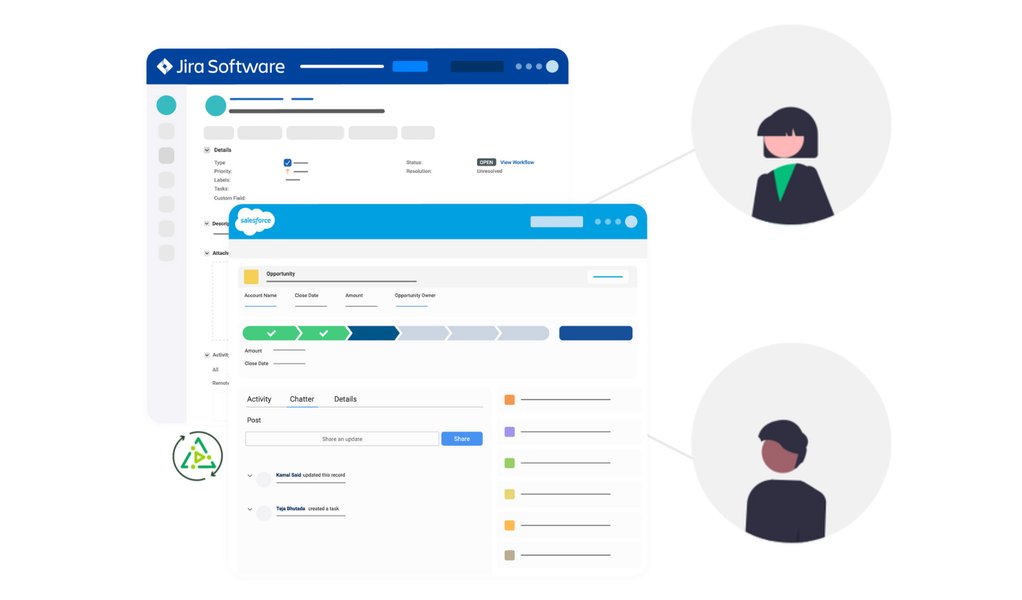
Jira and Salesforce Integration
When configuring a connection, it’s essential to consider the type of connection (public or private) and the direction of the synchronization. Public connections involve HTTP/HTTPS requests initiated from both sides, while private connections are initiated from one side.
Understanding Basic and Script Modes
Exalate offers two primary modes for configuring connections: Basic mode and Script mode. Basic mode is designed for simple synchronization needs, while Script mode provides greater flexibility and control through Groovy scripting.
Basic Mode:
- Suitable for synchronizing basic issue fields such as summary, description, comments, attachments, and issue types.
- Generates sync rules automatically.
- Ideal for users who need a straightforward, out-of-the-box solution.
- Allows for advanced customization using Groovy scripts.
- Provides precise control over data exchange.
- Enables the implementation of complex synchronization scenarios.
Troubleshooting Common Issues
While Exalate is a powerful tool, you may encounter some issues during configuration or synchronization. Here are a few common problems and their solutions:
-
Connection Problems: Ensure that both Jira instances can communicate with each other. Check network settings and firewall configurations.
-
Sync Rule Errors: Review your Groovy scripts for syntax errors or logical issues. Use Exalate’s debugging tools to identify and resolve problems.
-
Trigger Activation Issues: Verify that the trigger conditions are correctly defined and that the entities meet those conditions.
Exalate and its Compatibility
Exalate is designed to work with a variety of issue trackers and work management systems, providing integration capabilities across different platforms. This includes Jira, Salesforce, ServiceNow, Azure DevOps, and more.
The following table summarizes the key aspects of using Exalate for conditional synchronization:
| Feature | Description |
|---|---|
| Sync Rules | Groovy-based scripts for filtering, mapping, and transforming data. |
| Triggers | Automated synchronization based on specific conditions. |
| Basic Mode | Simple synchronization with automatically generated sync rules. |
| Script Mode | Advanced customization using Groovy scripts. |
| Connection Types | Public and private connections with different initiation methods. |
| Synchronization Engine | Transaction-based engine ensuring data integrity. |
FAQ
How do I set up a basic connection in Exalate?
To set up a basic connection, navigate to the Connections tab in the Exalate console, click "Initiate connection", and enter the destination instance URL. Follow the prompts to establish the connection.
Can I sync custom fields with Exalate?
Yes, Exalate can sync custom fields, attachments, comments, labels, and work logs. It provides flexible configuration options to define how these fields are synchronized.
How do I troubleshoot connection problems in Exalate?
Ensure that both Jira instances can communicate with each other. Check network settings, firewall configurations, and review the Exalate logs for any error messages.
What is the difference between Basic mode and Script mode in Exalate?
Basic mode is designed for simple synchronization needs and generates sync rules automatically. Script mode allows for advanced customization using Groovy scripts, providing precise control over data exchange.
How can I ensure data integrity during synchronization?
Exalate uses a transaction-based synchronization engine that records and queues every change to ensure they are applied in the correct order, maintaining data integrity.
References
Last updated April 15, 2025