
Excel conditional formatting not working? Check rule range, order and data types
Dive deep into the common pitfalls and expert solutions for stubborn conditional formatting in Excel.

- Rule Priority is Paramount: Conflicting or overlapping rules are a primary culprit. Excel processes rules top-down, meaning a higher-priority rule can override a lower one, preventing your desired color change.
- Data Integrity and Type Mismatch: Conditional formatting rules are highly sensitive to data types. A common error is applying a numeric rule to cells formatted as text, or vice-versa, leading to no visible changes.
- Correct Range and Formula Precision: Ensuring your conditional formatting "Applies To" range is accurate and that any formulas used return a clear TRUE or FALSE is critical for successful application.
In Excel’s Conditional Formatting Rules Manager, confirm that the “Applies to” range includes the affected cells. Then check rule priority, relative references and whether values that look like numbers are actually stored as text.
Related reading: keep identifier columns as text when importing CSV files.
Conditional formatting is a powerful Excel feature that visually highlights data based on specified criteria, making spreadsheets more readable and insights more immediate. However, it can be frustrating when your carefully set rules don't produce the desired cell color changes. This comprehensive guide will explore the most common reasons behind conditional formatting failures and provide actionable solutions to get your cells glowing as intended.
The Core Reasons Your Conditional Formatting Isn't Working
Several factors can prevent conditional formatting from working correctly. Understanding these underlying issues is the first step toward effective troubleshooting.
Incorrect Rule Configuration and Application Range
Ensuring the Right Rules in the Right Places
One of the most frequent reasons for conditional formatting not working is a mismatch between the rule and the target cells. If the rule isn't applied to the correct range, or if the rule itself is misconfigured, no changes will occur.
- Incorrect Selection Range: Before applying any conditional formatting, you must ensure the correct cell or range is selected. If you apply formatting to the wrong cells, the intended area will remain unchanged. Always highlight the exact cells you wish to format before proceeding.
- No Rules or Misconfigured Rules: It might seem obvious, but sometimes no rules are applied, or the existing rules are incorrectly set up. For instance, if you intend cells to turn red when a value is greater than 8, but the actual cell value is 5, the rule won't trigger. Always double-check your rule criteria in the Conditional Formatting > Manage Rules dialog.
Rule Priority, Overlap, and Conflicts
Managing Multiple Rules for Harmony
When multiple conditional formatting rules are applied to the same cells, their order and potential overlaps become critical. Excel processes rules in priority order, from top to bottom. A rule higher in the list can override a lower one, preventing your desired formatting from appearing.
Mindmap: Common Conditional Formatting Troubleshooting Paths
The mindmap above visually organizes the various reasons conditional formatting might fail, from selection errors to software glitches. It serves as a quick reference for the diagnostic steps discussed.
- Managing Rule Order: In the Conditional Formatting > Manage Rules dialog, you can adjust the order of rules using the up and down arrows. Moving a rule higher in the list gives it precedence.
- "Stop If True" Option: For situations where you want a specific rule to take absolute priority and prevent any subsequent rules from being applied to the same cell, you can check the "Stop If True" box next to that rule.
Data Type Mismatches and Formatting Issues
When Numbers Aren't Numbers (to Excel)
Excel's conditional formatting is sensitive to the underlying data type of a cell. If your rule expects a number but the cell contains text (even if it looks like a number), or vice versa, the formatting won't apply.
- Text vs. Numbers: A common pitfall is having cells formatted as text when they contain numerical values you wish to format. For example, if you're trying to highlight values greater than 10, but the cells are formatted as text, Excel won't recognize '15' as a numerical value for comparison.
- Solution: Select the affected cells, go to the Home tab, and change the number format to "Number" or "General."
- Formula-Based Rules and Data Types: If you're using a formula (e.g.,
=ISNUMBER(A2)or=ISTEXT(A2)), ensure it correctly evaluates the data type you're targeting.
Formula-Based Rules: Precision is Key
Crafting Formulas That Excel Understands
When employing formulas in your conditional formatting, their accuracy is paramount. The formula must return either TRUE or FALSE for the formatting to apply or not apply.
- Correct References: Ensure your formula refers to the correct cell(s) and uses appropriate relative or absolute references. For example, to color cell B2 based on the value in A2, a formula like
=A2>8should be applied to B2. If you use=$A$2>8, it will always reference A2, regardless of the cell it's applied to in the "Applies To" range. - Testing Formulas: Always test your formula in a regular cell first to confirm it returns
TRUEorFALSEas expected for various conditions. This helps isolate formula errors before they complicate conditional formatting. - Syntax and Case Sensitivity: Be mindful of syntax. For text comparisons,
=A1="TEXT"will look for an exact, case-sensitive match.
Manual Overrides and Protection
Clearing the Path for Conditional Colors
Sometimes, conditional formatting might not appear because manual formatting or sheet protection is blocking it.
- Manual Formatting: If you've manually set a cell's fill color or font color, it can override conditional formatting. Remove any manual formatting by selecting the cell and choosing "No Fill" or "Automatic" for font color.
- Sheet Protection: If your sheet or workbook is protected, you might not be able to apply or see conditional formatting changes. You'll need to unprotect the sheet (Review tab > Unprotect Sheet) to make changes.
- Table Styles: If you're working with Excel Tables, default table styles can sometimes interfere. Consider choosing a plain table style or modifying it to allow conditional formatting to show through.
Software Glitches and Corruption
Addressing Deeper Excel Issues
In rare cases, the problem might stem from Excel itself, rather than your specific formatting rules.
- File Corruption: If all troubleshooting steps fail, the Excel file itself might be corrupted. Try copying the data and rules to a new, blank workbook.
- Excel Updates: Ensure your Excel application is up to date. Outdated software can sometimes have bugs that affect conditional formatting.
- Hardware Acceleration: (Very rare) Issues with hardware acceleration can sometimes prevent display changes. You can try disabling it in Excel's advanced options (File > Options > Advanced > Display).
- Add-ins: Conflicting Excel add-ins can sometimes interfere. Try disabling them temporarily to see if the issue resolves.
Step-by-Step Troubleshooting Checklist
Here’s a systematic approach to diagnose and fix conditional formatting issues:
- Verify Cell Selection: Ensure you've selected the exact cells or range you intend to format.
- Inspect Rules (Manage Rules):
- Go to Home > Conditional Formatting > Manage Rules.
- Set the "Show formatting rules for:" dropdown to "This Worksheet" to see all rules.
- Confirm the "Applies to" range for each rule is correct.
- Check the rule criteria – do they logically match what you want to achieve?
- Review the order of rules. Drag rules up or down to adjust priority. Consider using "Stop If True."
- If using a formula, make sure it evaluates to TRUE or FALSE for the intended cells.
- Check Data Types: Select a few cells, go to Home > Number section, and ensure they are formatted as "Number" or "General," not "Text."
- Remove Manual Formatting: Select the affected cells, then go to Home > Fill Color (the paint bucket icon) and select "No Fill." Do the same for font color, choosing "Automatic."
- Test with a Simple Rule: If still stuck, try applying a very basic conditional formatting rule (e.g., cell value > 0, make it yellow) to a small, isolated range. If this works, expand incrementally.
- Clear and Recreate: As a last resort, clear all rules from the sheet (Conditional Formatting > Clear Rules > Clear Rules from Entire Sheet) and then re-create your desired rule(s).
- File Integrity: If persistent, copy your data to a new Excel workbook.
Understanding Specific Issue Scenarios
Let's delve into some practical scenarios and their corresponding fixes.
When Formulas Are the Problem
Formulas in conditional formatting require precise construction. Here’s a detailed look:
Consider a scenario where you want to highlight rows where a specific date is a weekend. Your formula might look like =WEEKDAY($A2,2)>5. Here, $A2 uses an absolute column reference and a relative row reference, allowing the formula to correctly evaluate each row in the "Applies To" range based on the date in column A.
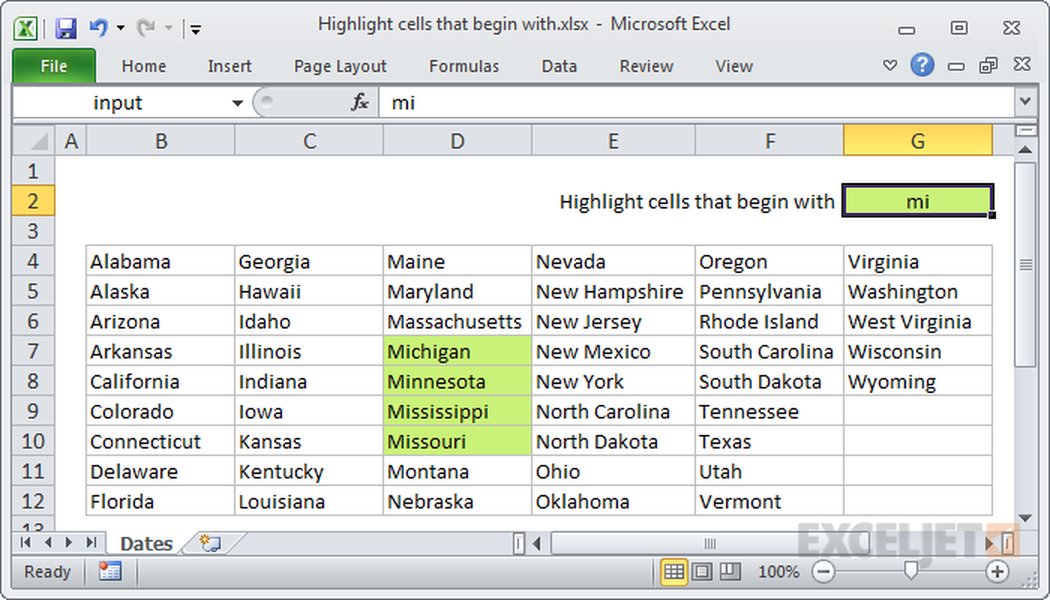
Highlighting cells based on specific text using conditional formatting.
Troubleshooting Specific Color Change Failures
Here's a table summarizing common conditional formatting issues and their typical solutions, offering a quick reference for problem-solving:
| Symptom | Likely Cause | Solution |
|---|---|---|
| No color change at all | Incorrect 'Applies To' range, no rule defined, or rule criteria not met. | Verify selected cells, check 'Manage Rules' for correct range and active rules. |
| Partial or inconsistent color change | Conflicting rules with higher priority overriding desired formatting. | Review rule order in 'Manage Rules', adjust priority, use 'Stop If True'. |
| Numeric rule not working (e.g., >10) | Cells are formatted as 'Text' instead of 'Number' or 'General'. | Change cell format to 'Number' or 'General' in the Home tab. |
| Formula-based rule fails | Formula does not return TRUE/FALSE, incorrect relative/absolute references, or syntax errors. | Test formula in a separate cell, verify references, check syntax. |
| Desired color is ignored | Manual cell fill or font color overrides conditional formatting. | Remove manual formatting ('No Fill', 'Automatic' font color). |
| Cannot apply/edit rules | Sheet or workbook is protected. | Unprotect the sheet via 'Review' tab. |
| Unexplained issues | Workbook corruption or software glitches. | Copy data to a new workbook, update Excel, or repair Office installation. |
Empowering Your Data with Visual Clarity
Conditional formatting is an indispensable tool for data analysis and presentation in Excel. By systematically addressing the potential issues—from rule conflicts and data type mismatches to formula errors and manual overrides—you can ensure your spreadsheets effectively communicate critical information through visual cues. Regular review of your conditional formatting rules and attention to detail during their creation will save you significant troubleshooting time and unlock the full potential of this powerful Excel feature.
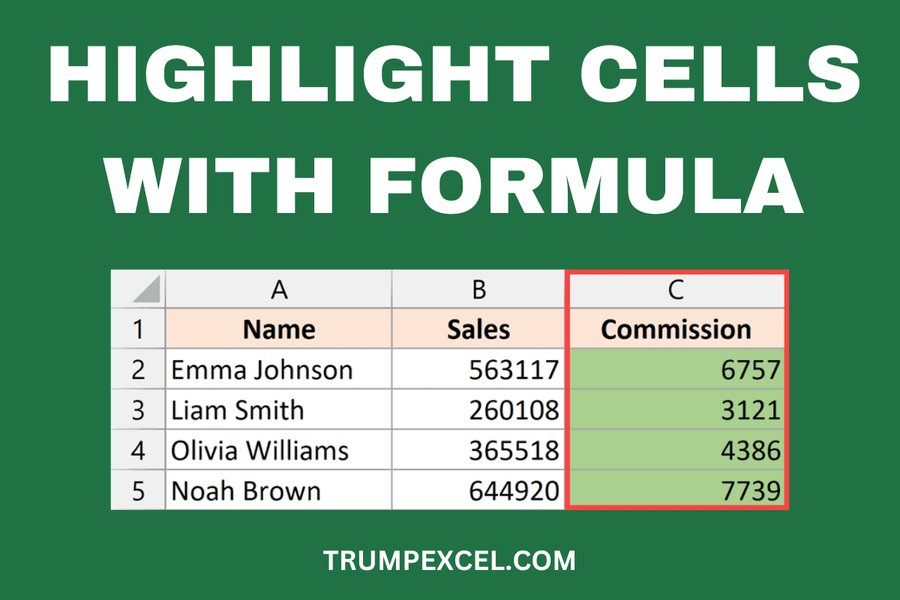
Highlighting cells based on complex formulas for advanced analysis.
For a visual walkthrough of some common conditional formatting problems and solutions, especially concerning text and fill colors, you might find this video helpful:
Video: Fixing common issues when cell and font colors aren't changing in Excel.
This video specifically addresses issues related to cell, text, and font color changes, offering practical steps that complement the detailed explanations provided above. It's particularly relevant if you suspect hardware acceleration or general display settings might be impacting the visual application of your formatting.
Frequently Asked Questions (FAQ)
Why isn't my conditional formatting changing cell color even when the rule is met?
How do I check for conflicting conditional formatting rules?
My numbers are not being highlighted by a numeric conditional formatting rule. What's wrong?
What if my formula in conditional formatting isn't working?
Can manual formatting override conditional formatting?
Conclusion
Successfully implementing conditional formatting in Excel requires attention to detail across several critical areas: precise rule definition, correct application range, careful data type management, and an understanding of rule priority. By systematically checking for these common issues—from verifying cell selections and formula accuracy to managing rule conflicts and addressing potential software glitches—you can overcome most conditional formatting challenges. Embrace a methodical troubleshooting approach, and your Excel sheets will soon be highlighting data with the visual clarity you desire, transforming raw numbers into actionable insights.
Recommended Further Reading
- How to use advanced conditional formatting with custom formulas in Excel?
- What are best practices for managing conditional formatting rules and priorities?
- How to troubleshoot common data type mismatches in Excel?
- Does extensive conditional formatting impact Excel performance and how to optimize it?