
Mastering Data Manipulation in Excel: A Comprehensive Guide to Copy, Paste, and Fill
Unlock Efficiency and Precision in Your Spreadsheets
Microsoft Excel is a cornerstone of data management and analysis, offering a robust suite of tools that cater to users across all proficiency levels. For a one-hour presentation aimed at a diverse audience—from beginners to advanced users—it's crucial to cover the fundamental yet powerful features of copy, paste, and fill. These functionalities are not merely basic operations; they are essential for efficient data entry, manipulation, and analysis, enabling users to streamline workflows and maintain data integrity.
Key Highlights for Your Presentation
- Versatile Copy and Paste: Beyond basic duplication, Excel's Paste Special options allow for precise control over what elements (values, formats, formulas, comments, etc.) are transferred, facilitating complex data transformations.
- Dynamic Fill Functionality: The AutoFill and Flash Fill features automate sequential data entry and pattern recognition, significantly reducing manual effort and improving data consistency across large datasets.
- Real-time Collaboration and Efficiency: Excel supports real-time co-authoring, enabling multiple users to edit the same workbook simultaneously, which is critical for collaborative projects and enhances overall productivity.
Introduction to Excel's Core Editing Capabilities
Understanding the Foundation of Spreadsheet Interaction
At its heart, Excel is designed to empower users to manage, analyze, and visualize data effectively. The ability to efficiently move, duplicate, and extend data within a spreadsheet is fundamental to this process. This section will lay the groundwork by explaining the basic concepts of editing in Excel, emphasizing its role in day-to-day tasks.
The Significance of Efficient Data Handling
Efficient data handling in Excel is paramount for productivity. Whether you're a novice or an experienced user, mastering copy, paste, and fill operations can dramatically reduce time spent on repetitive tasks. These tools enable swift data replication, formatting consistency, and automated pattern recognition, transforming a time-consuming manual process into a streamlined workflow.
Moreover, modern Excel versions, including Excel for the web and Microsoft 365, have significantly enhanced collaborative features, allowing real-time editing with multiple users. This capability is vital for teams working on shared projects, ensuring everyone has access to the most current information and can contribute seamlessly.
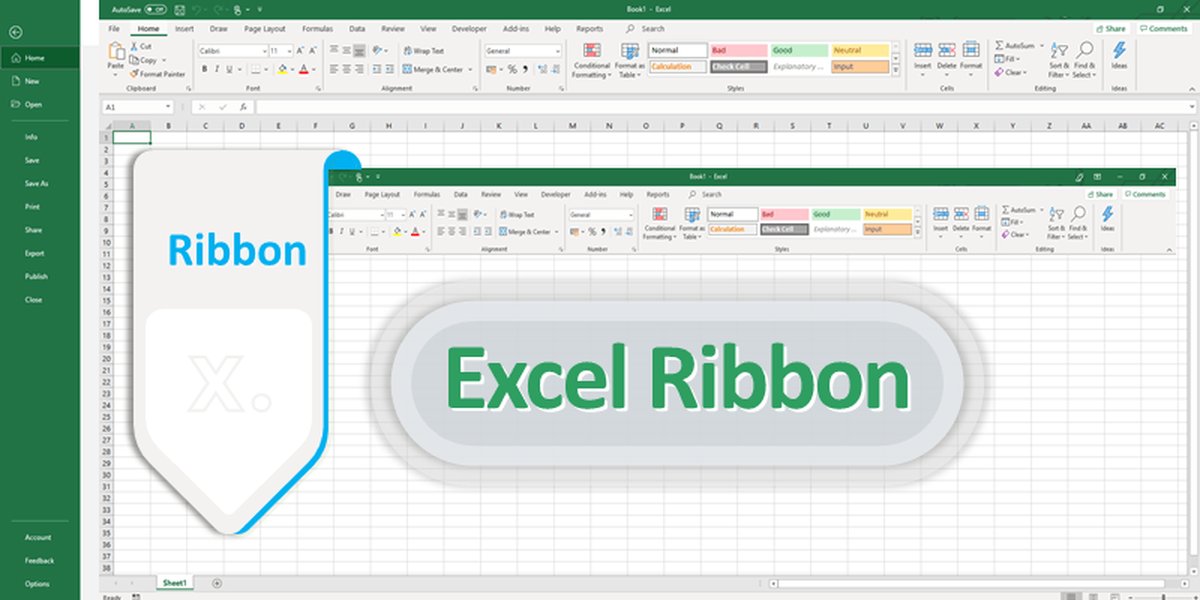
A comprehensive view of the Microsoft Excel Ribbon, showcasing various tabs and tools available for data manipulation.
Diving Deep into Copy and Paste Functionalities
Beyond Ctrl+C and Ctrl+V: Precision Pasting for All Scenarios
While Ctrl+C (copy) and Ctrl+V (paste) are universally known shortcuts, Excel's "Paste Special" feature elevates these basic operations into a powerful data manipulation tool. This section will explore the various options available within Paste Special, demonstrating how they provide granular control over what elements are copied from a source to a destination.
Standard Copy and Paste Operations
By default, when you copy and paste cells in Excel, everything—data, formatting, formulas, validation, and comments—is transferred. This is the most common use case and works well for simple duplication. However, for more advanced scenarios, such as when you only want the values of calculated cells or need to transpose data, Paste Special becomes indispensable.
    -- Basic Copy (Ctrl+C)
    -- Select Cell(s) -> Ctrl+C

    -- Basic Paste (Ctrl+V)
    -- Select Destination Cell -> Ctrl+V
Unlocking the Power of Paste Special
Paste Special (accessed via Ctrl+Alt+V on Windows or by right-clicking the destination cell and selecting "Paste Special") offers a dialog box with a multitude of options. These options allow you to specify exactly what properties of the copied data you want to paste. This includes:
- Values: Pastes only the results of formulas, ignoring the formulas themselves and formatting. This is extremely useful when you want to "freeze" data or copy it to another application without carrying over Excel's underlying calculations.
- Formats: Applies only the formatting from the source cells to the destination, leaving the existing content untouched.
- Formulas: Copies the formulas exactly as they are, adjusting relative references automatically. This is ideal for replicating calculations across different parts of your worksheet.
- Comments and Notes: Transfers only the comments or notes attached to cells.
- Column Widths: Adjusts the width of destination columns to match the source columns.
- Operations (Add, Subtract, Multiply, Divide): This is a powerful feature that allows you to perform mathematical operations on the existing values in the destination cells using the copied values. For instance, you can multiply a range of numbers by a constant copied from a single cell.
- Transpose: Changes data in columns into rows, and vice versa. This is invaluable for reorganizing datasets for better readability or analysis.
- Paste Link: Creates a dynamic link to the original data. If the source data changes, the pasted data updates automatically. This is achieved by creating cell references as formulas (e.g.,
=A2). - Skip Blanks: When pasting, this option prevents blank cells in the copy area from replacing existing values in the paste area.
Understanding and utilizing these options can significantly streamline your workflow, especially when dealing with complex datasets or preparing data for reports. It ensures data integrity and helps in presenting information exactly as intended.
Automating Data Entry with Fill Features
The Magic of AutoFill and Flash Fill
Excel's fill features, primarily AutoFill and Flash Fill, are designed to automate repetitive data entry and recognize patterns, saving immense time and reducing errors. These tools are indispensable for quickly populating cells with sequential data, repeating values, or extracting/combining text based on observed patterns.
The Versatile AutoFill Handle
The AutoFill handle is the small green square at the bottom-right corner of a selected cell or range. When you drag this handle, Excel intelligently attempts to fill the adjacent cells based on the content of the selected cells. Its capabilities include:
- Copying Cells: If you drag the fill handle from a single cell containing text or numbers, it will copy that content to the adjacent cells.
- Filling Series: For numerical sequences (e.g., 1, 2, 3), dates (e.g., Jan, Feb, Mar), or custom lists, Excel can automatically extend the pattern. For series like "1, 2, 3...", you'd type 1 and 2 in the first two cells, select both, and then drag. For "2, 4, 6...", you'd type 2 and 4.
- Copying Formulas: When a cell containing a formula is selected and its fill handle is dragged, Excel copies the formula, adjusting relative cell references automatically. This allows for quick application of calculations across rows or columns. You can also use Ctrl+D to fill down a column or Ctrl+R to fill right in a row.
- AutoFill Options: After dragging the fill handle, a small icon appears, offering various fill options such as "Copy Cells," "Fill Series," "Fill Formatting Only," "Fill Without Formatting," "Fill Days," "Fill Weekdays," "Fill Months," and "Fill Years," providing more control over the autofill outcome.
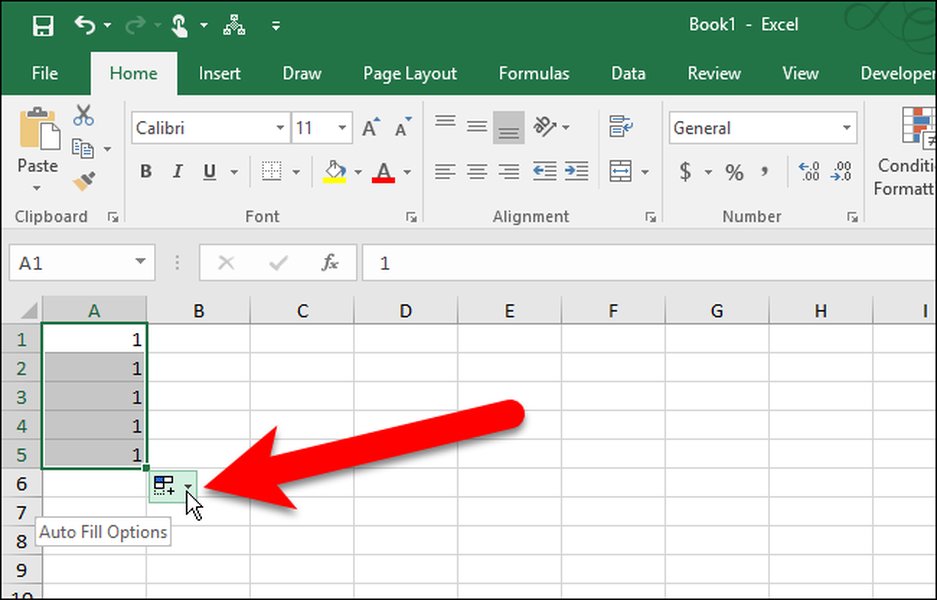
An illustration of the AutoFill options menu in Excel, which appears after dragging the fill handle.
The Intelligent Flash Fill
Introduced in Excel 2013, Flash Fill is a powerful feature that automatically fills data when it detects a pattern based on your input. Instead of needing formulas, Flash Fill uses artificial intelligence to recognize patterns. For example, if you have a column of full names and start typing only the first names in an adjacent column, Excel will sense the pattern and suggest filling the rest of the column accordingly. This works for splitting data (e.g., full names into first and last names) or combining data (e.g., first and last names into full names).
To use Flash Fill, simply start typing your desired output in an adjacent column. After typing one or two examples, Excel typically shows a preview. If the preview is correct, press Enter. If not, you can manually trigger it by going to Data > Flash Fill or pressing Ctrl+E.
Optimizing Your Workflow: Tips and Tricks
Enhancing Efficiency with Advanced Techniques
Beyond the basic operations, there are several advanced techniques and settings that can significantly enhance your efficiency when using Excel's copy, paste, and fill features.
Customizing AutoFill Lists
Excel allows you to create custom lists for AutoFill. This is particularly useful for sequences that are not standard (e.g., departmental names, employee IDs, product categories). By defining a custom list (File > Options > Advanced > Edit Custom Lists), you can use the AutoFill handle to populate these specific sequences quickly.
Troubleshooting Copy/Paste Issues
Occasionally, users might encounter issues with copy and paste, such as Excel freezing or features being unavailable. Common troubleshooting steps include:
- Checking Excel's Settings: Ensure that "Enable fill handle and cell drag-and-drop" is checked under File > Options > Advanced > Editing options.
- Clearing the Clipboard: Sometimes, a large or corrupted clipboard content can cause issues.
- Repairing Microsoft Office: For persistent problems, a quick repair of your Microsoft Office installation can resolve underlying software glitches.
The Role of AI and Automation
Modern Excel versions are increasingly integrating AI-powered tools like Copilot, which can assist in generating formulas, analyzing data, and adding visuals. While not directly a copy/paste or fill feature, these AI capabilities further automate and simplify data manipulation tasks, complementing the traditional Excel tools. For instance, Copilot might suggest patterns for Flash Fill or optimize formula structures that you could then copy and paste.
Learn how Microsoft Copilot in Excel can assist in various data manipulation tasks, showcasing the evolving landscape of intelligent spreadsheet management.
Comparative Analysis of Data Manipulation Features
A Holistic View of Efficiency and Control
To provide a comprehensive understanding for both beginners and advanced users, a comparative analysis of these features highlights their strengths and ideal use cases. The radar chart below illustrates the perceived effectiveness and control offered by each feature across different aspects of data manipulation.
This radar chart evaluates Excel's data manipulation features across key performance indicators.
Summary of Features and Their Applications
A Quick Reference for Key Data Operations
This table summarizes the core functionalities of copy, paste, and fill, providing a concise overview of their applications and benefits, suitable for quick reference during and after the presentation.
| Feature | Description | Primary Use Cases | Benefit for Users |
|---|---|---|---|
| Basic Copy/Paste (Ctrl+C / Ctrl+V) | Duplicates all content, formatting, and properties from source to destination. | General data duplication, moving cells. | Quick and straightforward content transfer. |
| Paste Special (Various Options) | Allows selective pasting of specific attributes (values, formats, formulas, transpose, operations, etc.). | Pasting formula results, applying specific formatting, reorganizing data, performing mathematical operations during paste. | Precise control over data integrity and appearance, complex data transformations. |
| AutoFill Handle | Extends data patterns, numbers, dates, and formulas to adjacent cells by dragging. | Creating sequential lists, copying formulas with relative references, populating common series (days, months). | Automated data entry, rapid population of large ranges. |
| Flash Fill (Ctrl+E) | Automatically fills data by recognizing patterns in user input. | Splitting text into multiple columns, combining text from multiple columns, reformatting data. | Intelligent automation, eliminates need for complex formulas for pattern-based data manipulation. |
Audience Engagement and Practical Application
Making It Stick: Interactive Elements for Your Presentation
To ensure the presentation is engaging and informative for a diverse audience, incorporating interactive elements and real-world examples is crucial. For beginners, live demonstrations of basic copy, paste, and autofill will be highly beneficial. For advanced users, focus on the nuances of Paste Special operations and how Flash Fill can replace complex text functions.
Consider dedicating time to:
- Live Demos: Showcasing each feature with simple, relatable examples.
- Q&A Sessions: Encouraging questions throughout or at designated intervals.
- Mini-Challenges: Presenting small, solvable data manipulation problems for the audience to think about or try.
Frequently Asked Questions
What is the difference between copying and cutting in Excel?
How can I paste only the values of a formula in Excel?
My Excel fill handle isn't appearing. How do I enable it?
Can I use Flash Fill to combine data from different columns?
Is it possible to paste special operations like "Multiply" in Excel for Mac?
Conclusion
Mastering the copy, paste, and fill functionalities in Microsoft Excel is not just about learning shortcuts; it's about fundamentally transforming how you interact with and manipulate data. From the basic duplication to the nuanced control offered by Paste Special, and the intelligent automation provided by AutoFill and Flash Fill, these tools are indispensable for anyone working with spreadsheets. By leveraging these features effectively, users of all levels can achieve greater efficiency, accuracy, and overall productivity in their daily tasks and complex analytical projects.
Recommended Queries
- Explore advanced Excel formula writing techniques for complex calculations.
- Discover how to maximize real-time collaboration with Excel Online's co-authoring features.
- Learn about data validation and conditional formatting to improve data quality and visualization.
- Understand how to automate repetitive tasks using Excel macros and VBA scripting.
References
Last updated May 21, 2025