
Troubleshooting IF Statements in Excel
Ensure Your Conditional Formulas Work Correctly
Key Takeaways
- Correct Syntax is Crucial: Ensure your IF function follows the proper structure with all necessary arguments.
- Data Consistency: Verify that the data types and formats of the cells you are comparing are compatible.
- Avoid Common Errors: Be aware of issues like hidden spaces, case sensitivity, and calculation settings that can affect formula results.
Understanding the IF Function Syntax
The IF function in Excel is a powerful tool for making logical comparisons between a value and what you expect. It allows you to return different values based on whether a condition is met. Properly structuring your IF statement is essential for it to work correctly.
Basic Syntax of the IF Function
The basic syntax of the IF function is as follows:
=IF(logical_test, value_if_true, value_if_false)Components of the IF Function
-
logical_test: The condition you want to evaluate (e.g., A2=B2).
-
value_if_true: The value you want to return if the condition is true.
-
value_if_false: The value you want to return if the condition is false.
Correct Formula Structure
For instance, to check if cell B2 equals A2 and return "Yes" if true and "No" if false, the formula should be:
=IF(B2=A2, "Yes", "No")It's imperative to include all three arguments. Omitting any can lead to unexpected results or errors.
Common Issues Preventing IF Statements from Working
1. Syntax Errors
One of the most common reasons an IF function doesn't return a result is incorrect syntax. Ensure that your formula includes all necessary components and that each part is correctly separated by commas.
Example of Incorrect Syntax
=IF(cell=A2)This formula lacks the value_if_true and value_if_false arguments, making it incomplete.
Correcting the Syntax
=IF(cell=A2, "Match", "No Match")2. Incorrect Cell Referencing
Ensure that the cells referenced in your formula are accurate. A typo in a cell reference can cause the formula to return unexpected results or errors.
Proper Cell Referencing
If you're comparing B2 to A2, make sure both cell references are correct:
=IF(B2=A2, "Yes", "No")3. Calculation Settings Set to Manual
If Excel is set to manual calculation mode, your formulas won't update automatically, and you might not see the results immediately.
Switching to Automatic Calculation
- Go to the Formulas tab.
- Select Calculation Options.
- Choose Automatic.
4. Data Type Mismatch
Comparing cells with different data types (e.g., one is text and the other is a number) can result in the IF function evaluating the condition as FALSE, even if they appear similar.
Ensuring Data Type Consistency
Use functions like VALUE() or TEXT() to convert data types before comparison.
=IF(VALUE(A2)=VALUE(B2), "Equal", "Not Equal")5. Cell Formatted as Text
If a cell is formatted as text, Excel might not evaluate formulas within it, leading to the formula being displayed as plain text rather than executing.
Changing Cell Format
- Select the cell.
- Navigate to the Home tab.
- In the Number Format dropdown, select General.
- Press F2 and then Enter to recalculate.
6. Hidden Spaces and Characters
Leading or trailing spaces in cells can cause comparisons to fail. Even a single invisible space can prevent the IF function from recognizing equality.
Removing Hidden Spaces
Use the TRIM() function to eliminate unwanted spaces:
=IF(TRIM(A2)=TRIM(B2), "Match", "No Match")7. Circular References
A circular reference occurs when a formula refers back to its own cell, either directly or indirectly, causing Excel to loop indefinitely without producing a result.
Identifying and Resolving Circular References
- Go to the Formulas tab.
- Click on Error Checking.
- Select Circular References and navigate to the cell causing the issue.
- Adjust the formula to remove the self-reference.
Step-by-Step Troubleshooting Guide
1. Verify Formula Syntax
Double-check the structure of your IF statement. Ensure that all components are present and correctly placed.
=IF(condition, value_if_true, value_if_false)2. Check Cell References
Ensure that the cells you're referencing actually contain the data you intend to compare. Misreferencing can lead to false conditions.
3. Confirm Data Types
Ensure that both cells being compared are of the same data type. Use conversion functions if necessary.
4. Remove Excess Spaces
Eliminate any hidden spaces that might interfere with the comparison using the TRIM function.
5. Set Calculation to Automatic
Ensure that Excel recalculates formulas automatically to reflect changes instantly.
6. Test with a Simple Formula
To isolate the issue, simplify your formula to just the logical test:
=B2=A2This should return TRUE or FALSE based on the condition.
Advanced Techniques for IF Statements
Using IF with EXACT for Case-Sensitive Comparisons
By default, the IF function is case-insensitive. If you require a case-sensitive comparison, incorporate the EXACT function within your IF statement.
=IF(EXACT(A2, B2), "Exact Match", "No Match")Combining IF with TRIM and VALUE
Enhance your IF statements by integrating functions that sanitize and convert data:
=IF(TRIM(VALUE(A2))=TRIM(VALUE(B2)), "Match", "No Match")Examples of Correct IF Formulas
Basic Equality Check
To check if A2 equals B2 and return "Match" or "No Match":
=IF(A2=B2, "Match", "No Match")Returning a Blank Result When False
If you prefer to return nothing when the condition is false:
=IF(B1=A2, "Match", "")Nested IF Statements
For more complex conditions, you can nest multiple IF functions:
=IF(A2>B2, "A2 is greater", IF(A2<B2, "B2 is greater", "Equal"))Common IF Statement Errors and Solutions
| Error | Cause | Solution |
|---|---|---|
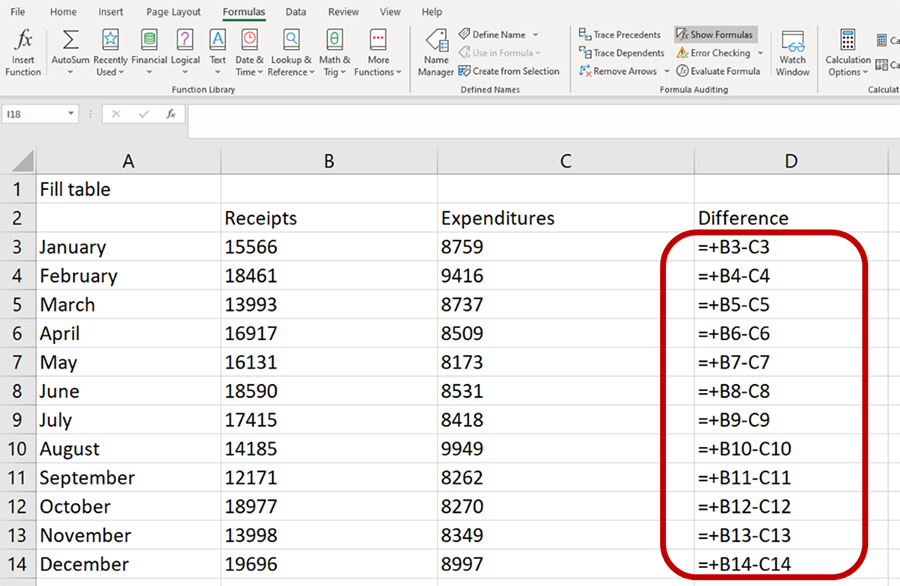
| Formula Not Showing Results | Excel is in "Show Formulas" mode. | Press Ctrl + ` or go to Formulas tab > Show Formulas to toggle off. |
| Incorrect Results | Data type mismatch or hidden spaces. | Use TRIM() and ensure identical data types. |
| #VALUE! Error | Invalid arguments in the IF function. | Check the syntax and ensure all arguments are correctly provided. |
| Circular Reference | The formula refers back to its own cell. | Remove the self-reference from the formula. |
| Always Returning FALSE | Case sensitivity or extra spaces. | Use EXACT() for case-sensitive comparisons and TRIM() to remove spaces. |
Conclusion
Writing effective IF statements in Excel involves understanding the correct syntax, ensuring data consistency, and being aware of common pitfalls that can hinder formula performance. By meticulously checking each component of your IF function and utilizing additional Excel functions like TRIM and EXACT, you can create robust and reliable conditional formulas. Regularly verifying cell formats, avoiding circular references, and ensuring that Excel's calculation settings are appropriately configured are essential steps in troubleshooting and resolving issues with IF statements. With these strategies, you can enhance your Excel proficiency and leverage the full potential of conditional logic in your spreadsheets.
References
Last updated February 17, 2025