
Excel JavaScript Glitches? Unraveling Why Your Scripts Might Be Failing
A deep dive into common causes and actionable solutions to get your Excel JavaScript functionality back on track as of Sunday, 2025-05-18.
If you've suddenly found that JavaScript functionalities in Microsoft Office Excel are no longer working, you're not alone. This can be a frustrating experience, impacting everything from custom add-ins to Office Scripts. Fortunately, many common issues have identifiable causes and straightforward solutions. This guide will walk you through them.
Key Takeaways: What to Check First
- Browser & Environment: Often, the culprit lies in your browser settings (JavaScript disabled, corrupted cache, restrictive extensions) or Excel's operating environment, especially for web-based Excel or add-ins.
- File Format & Compatibility: Older Excel file formats (.xls) can prevent modern JavaScript (ExcelScript) from running. Ensuring your file is in a newer format (.xlsx, .xlsm) is crucial.
- API, Add-in, or Script Issues: Problems can stem from outdated Office JavaScript libraries, API limitations (like payload size), bugs in the add-in platform, or errors within your custom scripts.
Understanding the Landscape: Excel JavaScript and Office Scripts
Microsoft enables JavaScript in Excel primarily through two mechanisms, and understanding their distinction can help pinpoint issues:
Excel JavaScript API (for Office Add-ins)
This is used for building sophisticated Office Add-ins that can extend Excel's functionality across desktop (Windows, Mac), web, and mobile platforms. These add-ins interact with Excel objects like worksheets, ranges, tables, and charts using a rich API. Issues here might relate to the add-in's manifest, the Office.js library version, or the API's interaction with the specific Excel client.
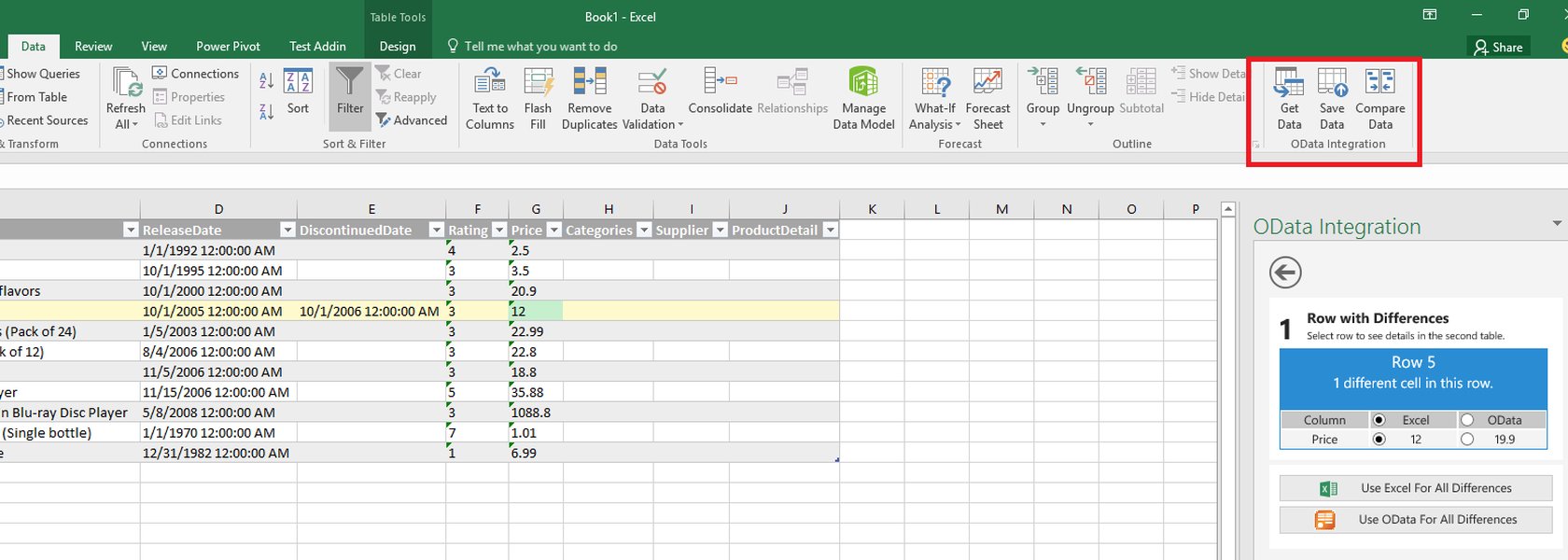
Add-in commands appearing in the Excel ribbon, enabled by the Excel JavaScript API.
Office Scripts
Primarily designed for Excel on the web (though runnable from desktop if synced), Office Scripts allow users to automate repetitive tasks using TypeScript (a superset of JavaScript). These scripts are stored in OneDrive and can be integrated with Power Automate. Problems with Office Scripts might involve platform limitations, unsupported API calls within the script, or tenant-level administrative settings.
Pinpointing the Culprits: Common Reasons for JavaScript Failures
Several factors can contribute to JavaScript not working in Excel. Here's a breakdown of the most frequent causes:
Browser and Environment Hiccups
JavaScript Disabled or Restricted
If you're using Excel on the web or an add-in that relies on a web view (like modern desktop add-ins), JavaScript must be enabled in the browser or the embedded browser control (e.g., Edge WebView2). Security settings or browser extensions (ad blockers, privacy tools) can sometimes interfere with script execution.
Corrupted Cache and Cookies
A common cause for web-based functionalities failing is a corrupted browser cache or outdated cookies. This can prevent scripts from loading correctly or cause unexpected behavior. Clearing the cache and cookies for your browser, or specifically for the Excel web application, often resolves these issues.
Third-Party Cookies
For Office Scripts and some add-ins, third-party cookies might need to be allowed in your browser settings, as authentication or certain functionalities rely on them.
File Format and Compatibility Snags
Compatibility Mode
ExcelScript, the JavaScript API for Excel, does not run in files opened in "Compatibility Mode." This mode is typically active for older Excel 97-2003 (.xls) files. Saving the file in a modern format like .xlsx (for regular workbooks) or .xlsm (for macro-enabled workbooks, though Office Scripts don't use VBA macros) is essential.
Unsupported Excel Versions
While the modern JavaScript API was introduced with Office 2016, older versions like Excel 2013 have limited or no support for these features. Ensure you are using a compatible version of Excel.
Office Add-in and API Challenges
Outdated Office.js Library
If an add-in loads the Office.js library from a local copy instead of the official Content Delivery Network (CDN), an outdated library can lead to API failures. It's recommended to always reference the CDN version (https://appsforoffice.microsoft.com/lib/1/hosted/office.js) to ensure you're using the latest, compatible version.
API Limitations and Errors
The Excel JavaScript API has certain limitations, such as a 5MB payload size limit for requests and responses in Excel on the web. Exceeding this can cause errors. Additionally, asynchronous operations require careful handling (e.g., using context.sync() correctly) and robust error handling (try...catch blocks around Excel.run calls).
Platform Bugs or Changes
Occasionally, bugs in the Office Add-ins platform or changes in Microsoft's services can affect add-in functionality. Checking official Microsoft support channels or developer communities (like GitHub's OfficeDev/office-js repository) can provide insights into known issues.
Event Handling Issues
Specific event handlers, like onChange for tables, might not fire as expected under certain conditions (e.g., when data is updated via dropdowns in data validation). This could be due to platform-specific bugs or limitations.
Office Scripts Specific Issues
Unsupported APIs or Data Types
Office Scripts have a specific set of supported APIs. Using unsupported methods or data types will cause the script to fail, often with warnings in the Code Editor or Script Run Status pane.
Administrative Settings
Office Scripts functionality can be enabled or disabled at the tenant level by Microsoft 365 administrators. If scripts suddenly stop working, it's worth checking if these settings have been changed.
Performance and Timeouts
Office Scripts have execution time limits. Scripts performing very large operations or excessive communication with the workbook might time out. Optimizing script performance is key.
Updates, Outages, and External Factors
Office or Operating System Updates
Recent updates to Microsoft Office or your operating system (Windows/macOS) can sometimes introduce incompatibilities or bugs that affect JavaScript execution.
Service Disruptions
Microsoft 365 services, including those underpinning Office Scripts and online add-in functionality, can occasionally experience outages. Checking the Microsoft 365 Service Health Dashboard can confirm if there's an ongoing issue.
Security Software or Network Restrictions
Overly aggressive antivirus software, firewalls, or network proxy configurations can sometimes block the connections necessary for scripts or add-ins to function correctly, especially if they need to access external resources.
Visualizing Potential Blockers
The impact of various factors on Excel JavaScript functionality can differ. The radar chart below offers a conceptual visualization of the potential frequency or severity of these common issues. This is an opinionated analysis based on recurring themes in troubleshooting discussions.
This chart suggests that issues related to browser settings/cache, API usage, and administrative/security configurations are often significant contributors to JavaScript problems in Excel.
Restoring Functionality: A Troubleshooting Toolkit
Here’s a structured approach to diagnosing and fixing issues with Excel JavaScript:
Initial Checks: Browser & File Settings
Verify Browser Settings (for Excel on the Web & Web-Based Add-ins)
- Enable JavaScript: Ensure JavaScript is enabled in your browser (e.g., Edge: Settings > Cookies and site permissions > JavaScript > Allowed).
- Clear Cache and Cookies: This is often the first and most effective step.
- Allow Third-Party Cookies: Check if this setting is required for the specific script or add-in.
- Disable Extensions: Temporarily disable browser extensions (especially ad blockers or privacy tools) to see if they are interfering.
- Try Incognito/Private Mode: This can help isolate whether extensions or cached data are the problem.
- Test in a Different Browser: This helps determine if the issue is browser-specific.
Check File Format and Mode
- Save As Modern Format: If your file is an old .xls file, go to File > Save As and choose .xlsx or .xlsm. This will disable Compatibility Mode.
Diving Deeper: Add-ins, APIs, and Scripts
For Office Add-ins
- Update Office.js Reference: If you're a developer, ensure your add-in references the Office.js library from the CDN.
- Check Manifest File: Ensure the add-in's manifest file is valid and correctly configured.
- Clear Office Cache: For desktop add-ins, sometimes clearing the Office cache is necessary. Microsoft provides documentation on how to do this for different platforms.
- Implement Error Handling: Ensure your JavaScript code includes robust error handling (e.g.,
try...catchblocks withExcel.run, and checking theerror.debugInfoobject). - Review API Usage: Double-check for API limitations (like payload size) and ensure correct asynchronous pattern usage (
context.sync()).
For Office Scripts
- Review Script Code: Check for unsupported API calls or data types. The Office Scripts editor often provides warnings.
- Simplify and Test: Break down complex scripts into smaller parts to isolate the problematic section.
- Check Script Run Status: The details pane in the Office Scripts environment often provides error messages or clues.
- Verify Admin Settings: Confirm with your M365 admin that Office Scripts are enabled for your account/tenant.
System-Level Fixes and Verifications
Update Office and Operating System
Ensure both your Microsoft Office suite and your operating system are up to date. Microsoft frequently releases patches and updates that can resolve known bugs.
Check Microsoft Service Health
Visit the [Microsoft 365 Service health dashboard](https://admin.microsoft.com/Adminportal/Home#/servicehealth) (requires admin access or appropriate permissions) to check for any ongoing service incidents that might be affecting Excel, Office Scripts, or add-in platforms.
Consult Official Documentation and Communities
Refer to Microsoft's official documentation for Office Add-ins and Office Scripts. Developer communities like GitHub (OfficeDev/office-js issues) and Stack Overflow can also provide solutions to specific error messages or behaviors.
Navigating the Troubleshooting Maze
The mindmap below provides a visual guide to the troubleshooting process when Excel JavaScript stops working. It outlines the key areas to investigate and the general flow of diagnosis.
This mindmap helps to systematically explore potential causes, starting from general checks and moving towards more specific investigations depending on whether you're dealing with an add-in or an Office Script.
Common Error Scenarios & Solutions at a Glance
Here's a table summarizing some common issues and their typical resolutions:
| Symptom / Error Message | Potential Cause(s) | Recommended Action(s) |
|---|---|---|
| "JavaScript required to sign in" or similar messages when opening Excel files or using add-ins. | JavaScript disabled in browser/webview; Corrupted cache/cookies; Browser extension conflict. | Enable JavaScript in browser settings; Clear browser cache and cookies; Try incognito mode or disable extensions. |
| Office Script gets stuck "Running script..." or fails to load/save. | Service outage; Script contains unsupported APIs; Tenant admin disabled Office Scripts; Performance issues with large datasets. | Check M365 Service Health; Review script for unsupported calls; Confirm admin settings; Optimize script for performance. |
| Excel Add-in fails to load or function correctly. | Outdated Office.js library (if local); Bug in Office Add-ins platform; Incorrect manifest; API usage error; Office update conflict. | Use CDN for Office.js; Check GitHub for known issues; Validate manifest; Implement robust error handling; Check for recent Office updates. |
RichAPI.Error or similar API errors when script/add-in runs. |
Exceeded API limits (e.g., 5MB payload); Incorrect asynchronous operation handling; Object not found or invalid operation. | Optimize data handling to stay within limits; Ensure correct use of context.sync(); Add detailed error logging to identify the failing API call. |
onChange event not firing for a table. |
Platform bug (especially reported for certain Excel versions/web); Incorrect binding of the event handler. | Test in different Excel environments (web vs. desktop); Check GitHub OfficeDev issues for workarounds; Ensure event handler is correctly registered. |
| Scripts or add-ins stop working after an Office update. | Compatibility issue with the new Office version; Bug introduced in the update. | Check Microsoft's official "Fixes or workarounds for recent issues in Excel" page; Report the issue to Microsoft; Look for community-reported workarounds. |
Troubleshooting JavaScript Sign-In Issues
A common scenario where JavaScript issues manifest is during sign-in processes for Microsoft services, including those integrated with Excel. If you encounter a "JavaScript required" error, it often points to browser settings. The following video provides a walkthrough for addressing such problems, which typically involve enabling JavaScript and adjusting security settings in your browser.
This video demonstrates how to resolve JavaScript-related sign-in problems by adjusting browser settings.
While the video specifically addresses sign-in issues, the principles of ensuring JavaScript is enabled and that cache/cookies are not causing conflicts are broadly applicable to many Excel JavaScript problems, especially those encountered in Excel for the web or with web-dependent add-ins.
Frequently Asked Questions (FAQ)
Why did my Excel JavaScript suddenly stop working?
This can be due to several reasons:
- Recent Updates: Updates to Excel, your OS, or even browser updates can introduce incompatibilities.
- Service Changes/Outages: Microsoft might have made changes to their online services, or there could be a temporary outage.
- Corrupted Cache/Settings: Browser cache, cookies, or local Office settings can become corrupted.
- Security Policy Changes: Your organization's IT department might have implemented new security policies affecting script execution.
- Script/Add-in Issues: If it's a custom script or add-in, an underlying API might have been deprecated, or a bug might have surfaced under new conditions.
Does JavaScript in Excel pose a security risk?
Like any scripting capability, there can be potential security considerations. Microsoft implements several safeguards:
- Add-in Model: Office Add-ins run in a sandboxed environment with specific permissions that users often need to grant.
- Office Scripts: These are generally tied to a user's Microsoft 365 account and have permission models. Scripts accessing external data often require explicit user consent.
- Trust: It's always crucial to only run scripts and install add-ins from trusted sources. Avoid enabling or running JavaScript from unfamiliar or unsolicited Excel files.
How can I tell if it's a problem with my script or with Excel itself?
Here are a few ways to differentiate:
- Test a Simple Script: Try running a very basic, known-good script (e.g., one that writes a value to a cell). If that works, the issue is likely with your specific complex script.
- Check Error Messages: Detailed error messages from the Excel JavaScript API or Office Scripts console can point to problems in your code (e.g., "InvalidReference", "APINotSupported"). Vague or no errors might suggest a platform issue.
- Test in Different Environments: If the script works in Excel on the web but not desktop (or vice-versa), it could indicate an environment-specific Excel issue or compatibility problem.
- Check Official Channels: Look at the Microsoft 365 Service Health Dashboard or OfficeDev GitHub issues for reports of wider problems.
- Isolate Code: Comment out sections of your script to pinpoint which part is failing.
Can I use JavaScript from VBA or vice-versa?
Directly calling JavaScript functions from VBA or VBA macros from modern Excel JavaScript (Office Scripts or Office Add-ins) is generally not straightforward or supported in a direct, seamless way. They operate in different runtime environments.
- Office Scripts & Power Automate: You can trigger Office Scripts (which are JavaScript-based) using Power Automate, and Power Automate flows can also interact with VBA-enabled workbooks to some extent (e.g., by running macros if the file is stored appropriately and certain actions are configured).
- Office Add-ins: These are self-contained and don't directly interact with the VBA runtime.
Recommended Next Steps
If you're still facing issues or want to learn more, consider exploring these related queries:
- How can I effectively debug my Office Scripts directly in Excel for the web?
- What are the best practices for optimizing the performance of Excel JavaScript API calls in an Office Add-in?
- What steps can I take to troubleshoot manifest validation errors for my Excel Office Add-in?
- Where can I find the latest information on Excel JavaScript API compatibility across different platforms like Windows, Mac, and Web?
References
The information in this response was synthesized from various sources, including:
Last updated May 18, 2025