
Unlock Production Efficiency: A Comprehensive Guide to Building a Production Management System with Excel VBA
Master production planning, tracking, and reporting by leveraging the power of Visual Basic for Applications within your familiar Excel environment.
Automating your production management processes using VBA (Visual Basic for Applications) in Excel can dramatically improve efficiency, reduce manual errors, and provide valuable insights into your operations. This comprehensive tutorial will guide you through creating a robust system to manage production orders, track inventory, schedule tasks, and generate reports, all within Microsoft Excel.
Key Highlights of This Tutorial
- Comprehensive Workbook Setup: Learn to structure your Excel file with dedicated sheets for orders, production logs, inventory, and dashboards, forming the backbone of your management system.
- Core VBA Automation: Discover how to write VBA code to automate critical tasks such as updating order statuses, logging daily production, managing inventory levels, and generating dynamic reports.
- Enhanced User Interaction: Explore methods to make your system user-friendly by adding control buttons to execute macros and understanding the potential of UserForms for streamlined data entry.
Getting Started: Prerequisites
Before diving into coding, you need to prepare your Excel environment.
Enable the Developer Tab
The Developer tab in Excel is your gateway to VBA. If it's not visible on your ribbon:
- Go to File > Options.
- In the Excel Options dialog box, click on Customize Ribbon.
- In the right-hand list under "Customize the Ribbon," check the box next to Developer.
- Click OK.
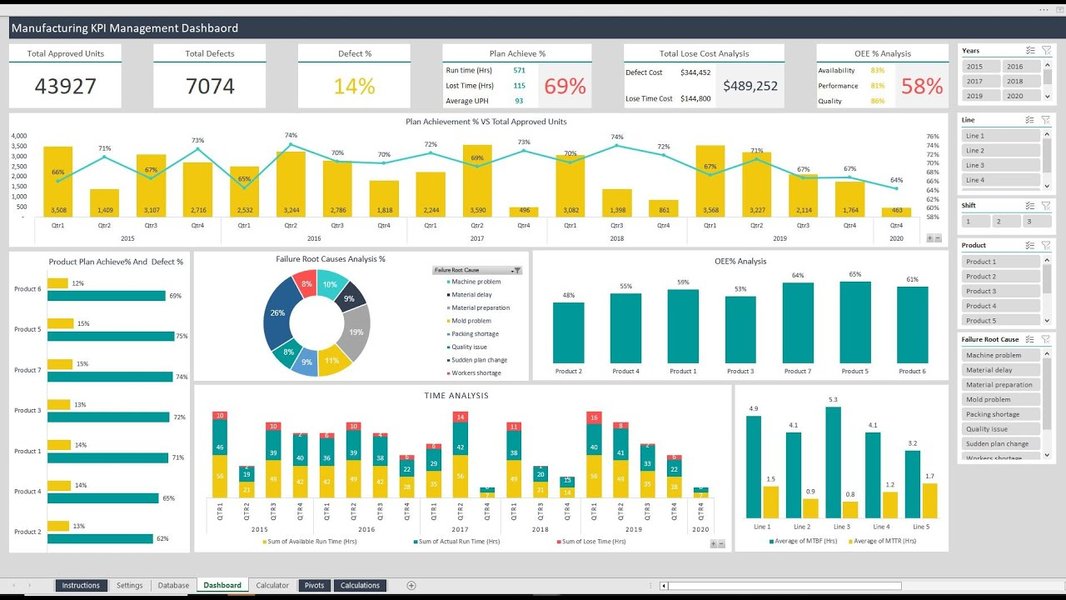
An example of a manufacturing KPI dashboard, which can be a goal for your VBA project.
Access the VBA Editor
The VBA Editor (VBE) is where you'll write, edit, and manage your VBA code.
- With the Developer tab visible, click on Visual Basic.
- Alternatively, press Alt + F11 on your keyboard.
Inside the VBE, you'll primarily work with Modules. To add a new module: In the VBE, go to Insert > Module.
Step 1: Defining Your Production Management Needs
Before structuring your Excel workbook, clearly define what aspects of production you want to manage. Typical requirements include:
- Managing a list of products or materials.
- Tracking production orders: ID, product, quantity, start/due dates, status.
- Logging daily production output.
- Monitoring inventory levels of raw materials and finished goods.
- Scheduling production tasks.
- Generating reports on production status, efficiency, and inventory.
Tailor these to your specific operational needs.
Step 2: Structuring Your Excel Workbook
A well-organized workbook is crucial. Create the following sheets (you can rename them as needed):
- Products: To list all products or raw materials (e.g., ProductID, ProductName, UnitCost, CurrentStock).
- Orders: To manage production orders (e.g., OrderID, ProductID, ProductName, QuantityOrdered, StartDate, DueDate, Status).
- ProductionLog: To record daily production activities (e.g., LogID, OrderID, DateProduced, QuantityProduced, MachineUsed, Operator).
- InventoryTransactions: To track movements of stock (e.g., TransactionID, ProductID, TransactionType (e.g., 'Usage', 'Receipt'), Quantity, Date).
- Dashboard: To display key performance indicators (KPIs), summaries, and charts.
- Schedule: (Optional) For a visual representation of production tasks over time.
Example: Orders Sheet Structure
The "Orders" sheet is central to managing what needs to be produced. Below is a typical structure. You can use Excel's table feature (Insert > Table) for better data management and easier referencing in VBA.
| OrderID | ProductID | ProductName | QuantityOrdered | StartDate | DueDate | Status | Notes |
|---|---|---|---|---|---|---|---|
| PO001 | PROD01 | Widget A | 100 | 2025-05-15 | 2025-05-25 | Pending | Urgent |
| PO002 | PROD02 | Gizmo B | 250 | 2025-05-18 | 2025-06-05 | Pending |
Clear headers and consistent data entry are key for effective VBA manipulation.
Step 3: Writing VBA Code for Core Functionalities
Now, let's bring your production management system to life with VBA. Open the VBA Editor (Alt + F11) and insert a new module (Insert > Module) to house your code.
Managing Products
Adding a New Product
This subroutine can be linked to a button or a UserForm to add new products to your "Products" sheet.
Sub AddNewProduct()
    Dim wsProducts As Worksheet
    Dim lRow As Long
    Dim productID As String
    Dim productName As String
    Dim unitCost As Currency
    Dim initialStock As Long

    Set wsProducts = ThisWorkbook.Sheets("Products")

    ' Prompt user for product details (consider using UserForms for a better experience)
    productID = InputBox("Enter Product ID:")
    If productID = "" Then Exit Sub ' User cancelled

    productName = InputBox("Enter Product Name:")
    If productName = "" Then Exit Sub

    On Error Resume Next ' Basic error handling for non-numeric input
    unitCost = CCur(InputBox("Enter Unit Cost:"))
    If Err.Number <> 0 Then
        MsgBox "Invalid Unit Cost. Please enter a numeric value.", vbExclamation
        Err.Clear
        Exit Sub
    End If

    initialStock = CLng(InputBox("Enter Initial Stock Quantity:"))
    If Err.Number <> 0 Then
        MsgBox "Invalid Stock Quantity. Please enter a whole number.", vbExclamation
        Err.Clear
        Exit Sub
    End If
    On Error GoTo 0 ' Reset error handling

    ' Find the next empty row
    lRow = wsProducts.Cells(Rows.Count, "A").End(xlUp).Row + 1

    ' Write data to the sheet
    wsProducts.Cells(lRow, "A").Value = productID
    wsProducts.Cells(lRow, "B").Value = productName
    wsProducts.Cells(lRow, "C").Value = unitCost
    wsProducts.Cells(lRow, "D").Value = initialStock

    MsgBox "Product '" & productName & "' added successfully!", vbInformation
End Sub
Managing Production Orders
Updating Order Status
This macro loops through orders on the "Orders" sheet and updates their status based on criteria like production progress (which could be fetched from "ProductionLog") or dates.
Sub UpdateOrderStatus()
    Dim wsOrders As Worksheet
    Dim wsProdLog As Worksheet
    Dim lastRowOrders As Long
    Dim i As Long
    Dim orderID As String
    Dim qtyOrdered As Long
    Dim qtyProduced As Long
    Dim startDate As Date
    Dim dueDate As Date
    Dim todayDate As Date

    Set wsOrders = ThisWorkbook.Sheets("Orders")
    Set wsProdLog = ThisWorkbook.Sheets("ProductionLog") ' Assuming ProductionLog has OrderID and QuantityProduced
    todayDate = Date

    lastRowOrders = wsOrders.Cells(wsOrders.Rows.Count, "A").End(xlUp).Row

    For i = 2 To lastRowOrders ' Assuming headers are in row 1
        orderID = wsOrders.Cells(i, "A").Value ' Assuming OrderID is in Column A
        qtyOrdered = wsOrders.Cells(i, "D").Value ' Assuming QuantityOrdered is in Column D
        startDate = wsOrders.Cells(i, "E").Value ' Assuming StartDate is in Column E

        ' Calculate total quantity produced for this order from ProductionLog
        ' This is a simplified sum; more robust lookup might be needed
        On Error Resume Next ' Handle cases where VLOOKUP might fail or SUMIF doesn't find matches
        qtyProduced = Application.WorksheetFunction.SumIf(wsProdLog.Columns("B"), orderID, wsProdLog.Columns("D")) ' Assumes OrderID in Col B, QtyProduced in Col D of ProductionLog
        On Error GoTo 0

        If qtyProduced >= qtyOrdered Then
            wsOrders.Cells(i, "G").Value = "Completed" ' Assuming Status is in Column G
        ElseIf qtyProduced > 0 Or startDate <= todayDate Then
            wsOrders.Cells(i, "G").Value = "In Progress"
        Else
            wsOrders.Cells(i, "G").Value = "Pending"
        End If
    Next i

    MsgBox "Order statuses updated.", vbInformation
End Sub
Logging Daily Production
This macro provides a simple way to log daily production output. Ideally, this would be done via a UserForm for better data validation and user experience.
Sub LogDailyProduction()
    Dim wsProdLog As Worksheet
    Dim nextRow As Long
    Dim orderID As String
    Dim qtyProd As Long

    Set wsProdLog = ThisWorkbook.Sheets("ProductionLog")

    orderID = InputBox("Enter Order ID for production log:")
    If orderID = "" Then Exit Sub ' User cancelled

    qtyProd = InputBox("Enter Quantity Produced today for Order " & orderID & ":")
    If Not IsNumeric(qtyProd) Or qtyProd <= 0 Then
        MsgBox "Invalid quantity. Please enter a positive number.", vbExclamation
        Exit Sub
    End If

    nextRow = wsProdLog.Cells(wsProdLog.Rows.Count, "A").End(xlUp).Row + 1

    wsProdLog.Cells(nextRow, "A").Value = "LOG" & Format(nextRow -1, "000") ' Example LogID
    wsProdLog.Cells(nextRow, "B").Value = orderID
    wsProdLog.Cells(nextRow, "C").Value = Date ' Production Date
    wsProdLog.Cells(nextRow, "D").Value = CLng(qtyProd) ' Quantity Produced
    ' Add more fields as needed (e.g., Machine, Operator)

    MsgBox "Production logged successfully for Order ID: " & orderID, vbInformation

    ' Optional: Automatically update inventory and order status
    Call UpdateInventoryAfterProduction(orderID, CLng(qtyProd))
    Call UpdateOrderStatus ' Refresh statuses
End Sub

Sub UpdateInventoryAfterProduction(ByVal prodOrderID As String, ByVal producedQty As Long)
    ' This is a placeholder for more complex inventory logic.
    ' You would typically:
    ' 1. Find the ProductID associated with the prodOrderID from the "Orders" sheet.
    ' 2. Update the stock of that finished ProductID in the "Products" sheet.
    ' 3. Deduct raw materials used for this production from "Products" or a separate "Materials" sheet.
    Dim wsOrders As Worksheet, wsProducts As Worksheet
    Dim productID As String, productRow As Range

    Set wsOrders = ThisWorkbook.Sheets("Orders")
    Set wsProducts = ThisWorkbook.Sheets("Products")

    ' Find ProductID for the given OrderID (simplified lookup)
    On Error Resume Next
    productID = Application.WorksheetFunction.VLookup(prodOrderID, wsOrders.Range("A:B"), 2, False) ' Assumes OrderID in Col A, ProductID in Col B of Orders
    If Err.Number <> 0 Then
        MsgBox "Could not find ProductID for Order " & prodOrderID, vbExclamation
        Exit Sub
    End If
    On Error GoTo 0

    ' Find the product in Products sheet and update stock
    Set productRow = wsProducts.Columns("A").Find(What:=productID, LookIn:=xlValues, LookAt:=xlWhole)

    If Not productRow Is Nothing Then
        wsProducts.Cells(productRow.Row, "D").Value = wsProducts.Cells(productRow.Row, "D").Value + producedQty ' Assuming Stock is in Column D
    Else
        MsgBox "ProductID " & productID & " not found in Products sheet for inventory update.", vbExclamation
    End If
End Sub
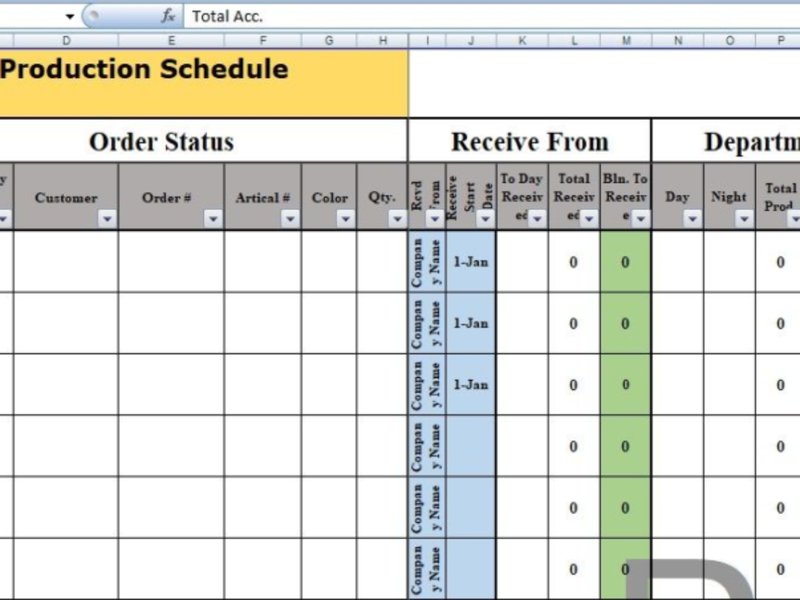
Visualizing production schedules, like this template, can be an output of your system.
Step 4: Visualizing the System Structure
A mindmap can help visualize the components and relationships within your Excel VBA Production Management System. This system integrates data management, process automation, user interface elements, and reporting capabilities to provide a comprehensive solution.
Step 5: Comparing System Effectiveness
A VBA-enhanced Excel system offers significant advantages over purely manual Excel tracking for production management. The radar chart below illustrates a conceptual comparison across key performance aspects. Higher values (on a scale of 1 to 10) indicate better performance. This highlights how VBA automation can elevate data accuracy, process efficiency, and reporting capabilities.
Step 6: Adding User Interface Elements
Assigning Macros to Buttons
To make your VBA macros easily accessible, assign them to buttons on your worksheets:
- Go to the Developer tab.
- Click Insert in the Controls group, and choose Button (Form Control).
- Click and drag on the worksheet where you want the button.
- The "Assign Macro" dialog box will appear. Select the macro you want to assign (e.g.,
LogDailyProduction) and click OK. - Right-click the button to edit its text (e.g., "Log Production").
Using UserForms (Advanced)
For more sophisticated data entry, VBA UserForms are highly recommended. They allow you to create custom dialog boxes with text boxes, dropdowns, checkboxes, and command buttons. You can create UserForms in the VBA Editor (Insert > UserForm) and then write code to handle their events and transfer data to your worksheets. This can significantly improve data accuracy and user experience.
Step 7: Enhancing Your System Further (Optional)
- Automate on Workbook Open: Use the
Workbook_Open()event in the "ThisWorkbook" module to run macros automatically when the file is opened (e.g., to update statuses or refresh reports).' In ThisWorkbook module Private Sub Workbook_Open() Call UpdateOrderStatus ' Call other initialization macros if needed MsgBox "Production Management System Initialized.", vbInformation End Sub - Conditional Formatting: Use VBA to apply conditional formatting to highlight late orders, low stock levels, or other critical information.
- Advanced Reporting: Create more complex reports or dashboards using PivotTables driven by VBA, or charts that update dynamically.
- Error Handling: Implement robust error handling (
On Error GoTo ErrorHandler) in your VBA code to manage unexpected issues gracefully. - Data Validation: Use Excel's built-in data validation or VBA to ensure users enter correct data types and values.
Video Tutorial: Building an Inventory System
While this tutorial focuses on overall production management, inventory control is a critical component. The following video provides an excellent demonstration of building an inventory system using Excel VBA, including UserForms. Many concepts shown can be adapted and integrated into your broader production management project.
This video demonstrates building an inventory system, a key part of production management.
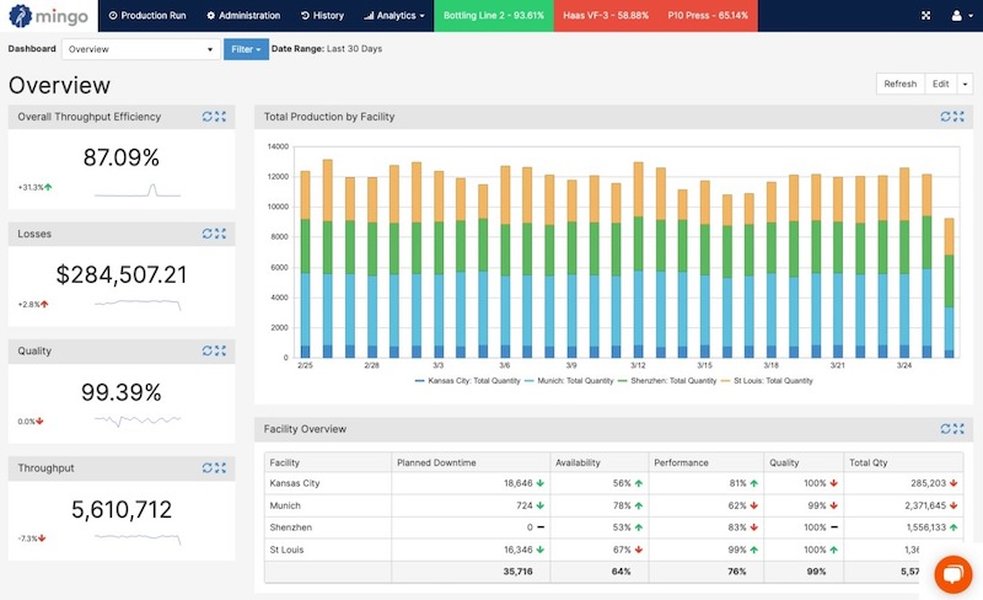
An effective dashboard provides a quick overview of key production metrics.
Frequently Asked Questions (FAQ)
What are the main benefits of using VBA for production management in Excel?
Using VBA in Excel for production management offers several benefits:
- Automation: Automates repetitive tasks like data entry, calculations, status updates, and report generation, saving time and reducing manual errors.
- Customization: Allows you to create a system tailored precisely to your specific production workflows and requirements.
- Familiar Environment: Leverages the widely-used Excel interface, making it easier for staff to adopt and use.
- Cost-Effective: Utilizes existing software (Microsoft Excel), avoiding the cost of specialized production management software, which can be beneficial for small to medium-sized businesses.
- Integration: Data is centralized within one workbook, making it easier to link different aspects of production (orders, inventory, scheduling).
Is an Excel VBA system scalable for larger operations?
Excel VBA systems are generally best suited for small to medium-sized operations. While VBA can handle significant amounts of data and complex logic, scalability can become an issue for very large operations due to:
- Performance: Excel can slow down with extremely large datasets or very complex VBA code.
- Concurrency: Excel is not inherently a multi-user system in the way dedicated databases are. Concurrent editing by multiple users can be problematic.
- Data Integrity: Maintaining data integrity and security can be more challenging compared to database-backed systems.
How can I protect my VBA code and the data in my production management workbook?
You can protect your VBA project and worksheet data in several ways:
- Protect VBA Project: In the VBA Editor, go to Tools > [Your Project Name] Properties. On the Protection tab, you can lock the project for viewing and set a password. This prevents unauthorized users from viewing or modifying your code.
- Protect Worksheets: You can protect individual worksheets to prevent changes to cells (Review tab > Protect Sheet). You can allow users to interact with specific cells or objects if needed.
- Protect Workbook Structure: You can prevent users from adding, deleting, or renaming sheets (Review tab > Protect Workbook).
- Password to Open/Modify: When saving the file (File > Save As > Tools (next to Save button) > General Options), you can set a password to open the file or a password to modify it.
- Regular Backups: Always maintain regular backups of your production management workbook to prevent data loss.
What are some common challenges when building a VBA production management system?
Common challenges include:
- Debugging: VBA code can have bugs. Thorough testing and using VBA's debugging tools (breakpoints, step-through execution) are essential.
- Scope Creep: It's easy to keep adding features, making the project overly complex. Define clear requirements upfront.
- User Training: Users need to be trained on how to use the system correctly to avoid data entry errors.
- Maintenance: As business processes change, the VBA code may need updates and maintenance.
- Performance with Large Data: As mentioned, very large datasets can slow down Excel. Optimizing VBA code and data structures is important.
- Error Handling: Ensuring the system handles unexpected inputs or situations gracefully requires careful error handling in the VBA code.
Recommended Further Exploration
- How can I create advanced UserForms in Excel VBA for data entry and validation in a production system?
- What are the best practices for optimizing Excel VBA code for performance in a production tracking application?
- How do I integrate real-time data from machines or other sources into an Excel VBA production dashboard?
- Can you provide examples of generating Gantt charts for production scheduling using Excel VBA?
References
Last updated May 10, 2025