
Extending the Root Filesystem by Allocating Space from /home
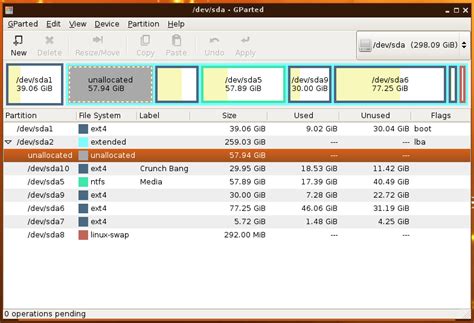
In Linux-based systems, effective disk space management is crucial for maintaining optimal system performance and stability. From the provided df -h output, it is evident that the root filesystem (/) is completely utilized, while the /home directory has a substantial amount of unused space. Allocating a portion of the /home space to the root filesystem can alleviate space constraints and ensure smoother system operations. This guide provides a comprehensive, step-by-step approach to safely reallocate space from /home to /, focusing on systems utilizing Logical Volume Management (LVM).
Understanding the Current Filesystem Layout
The output from the df -h command highlights the current disk usage across various filesystems:
| Filesystem | Size | Used | Avail | Use% | Mounted on |
|---|---|---|---|---|---|
| devtmpfs | 16G | 0 | 16G | 0% | /dev |
| tmpfs | 16G | 0 | 16G | 0% | /dev/shm |
| tmpfs | 16G | 1.6G | 15G | 10% | /run |
| tmpfs | 16G | 0 | 16G | 0% | /sys/fs/cgroup |
| /dev/mapper/centos-root | 50G | 50G | 20K | 100% | / |
| /dev/vda1 | 1014M | 194M | 821M | 20% | /boot |
| /dev/mapper/centos-home | 933G | 2.9G | 930G | 1% | /home |
From the table, it is clear that while the root filesystem is completely utilized, the /home directory has a significant portion of unused space (933G total with only 2.9G used). To address the root filesystem's space constraints, we can reallocate 200G from /home to /.
Prerequisites and Precautions
Backup Important Data
Before performing any operations that modify disk partitions or filesystems, it is imperative to back up all important data. Reallocating disk space involves modifying filesystem sizes, which carries a risk of data loss if not executed correctly. Use reliable backup methods such as rsync, tar, or other backup utilities to ensure that your data is safe.
Ensure Sufficient Rights
All operations required for modifying disk partitions and filesystems must be performed with administrative privileges. Ensure that you have root access or can use sudo to execute necessary commands.
Check Disk Management Tool
This guide assumes the use of Logical Volume Management (LVM) for disk management. Verify that your system utilizes LVM by executing:
lsblk
or
lvs
If LVM is not used, the steps will differ significantly.
Step-by-Step Guide to Allocate Space
Step 1: Identify Filesystem and Logical Volume Structure
First, identify the filesystem types and the logical volume structure to understand how space is allocated:
df -T
Additionally, list all block devices and logical volumes:
lsblk
lvs
This will display information similar to:
| DEVICE | SIZE | PE | ATTR | VSize | VFree |
|---|---|---|---|---|---|
| centos-root | 50G | 50G | 0 | ||
| centos-home | 933G | 933G | 930G |
Ensure that the volume group (VG), likely named centos, has sufficient free space available for reallocation.
Step 2: Check Filesystem Type of /home
Determine the filesystem type of /home to decide the appropriate resizing tools:
df -T /home
The output will indicate whether the filesystem is ext4, xfs, or another type. The resizing method depends on this:
- ext4: Can be reduced using
resize2fs. - xfs: Does not support shrinking; requires backup and restoration.
Step 3: Backup /home Data
Given the risks associated with resizing filesystems, perform a backup of the /home directory:
rsync -a /home/ /path/to/backup/
Replace /path/to/backup/ with your actual backup destination.
Step 4: Unmount /home
Before resizing, unmount the /home filesystem to ensure data integrity:
umount /home
If unmounting fails because the filesystem is busy, identify and terminate processes using /home, or use the lazy unmount option:
umount -l /home
Step 5: Resize the /home Filesystem
Assuming the filesystem is ext4, perform a filesystem check and then resize it:
e2fsck -f /dev/mapper/centos-home
resize2fs /dev/mapper/centos-home 733G
This example resizes the /home filesystem to 733G, freeing up 200G for reallocation.
Step 6: Reduce the /home Logical Volume Size
After resizing the filesystem, reduce the size of the logical volume to match:
lvreduce -L 733G /dev/mapper/centos-home
This command reduces the logical volume to 733G. Confirm the action when prompted.
Step 7: Extend the Root Logical Volume
With 200G now available, extend the root logical volume to utilize this space:
lvextend -L +200G /dev/mapper/centos-root
This command adds 200G to the existing root logical volume.
Step 8: Resize the Root Filesystem
After extending the logical volume, resize the root filesystem to occupy the newly allocated space:
resize2fs /dev/mapper/centos-root
This command automatically resizes the filesystem to fill the logical volume.
Step 9: Remount /home and Verify Changes
Once all resizing operations are complete, remount the /home filesystem:
mount /home
Finally, verify the changes using:
df -h
Ensure that:
- The root filesystem (
/) reflects the increased space (e.g., 250G). - The
/homedirectory shows the reduced size (e.g., 733G).
Additional Considerations
Filesystem Type: ext4 vs xfs
As highlighted earlier, the filesystem type dictates the resizing approach:
-
ext4: Supports both expansion and reduction of filesystem size. Utilize
resize2fsfor resizing. -
xfs: Supports expansion but not reduction. To reduce an XFS filesystem, you must backup the data, recreate the filesystem with a smaller size, and restore the data.
For systems using XFS on /home, consider migrating data to a new smaller volume or exploring alternative methods to manage disk space.
Single-User Mode Operations
Performing filesystem modifications is safest in single-user mode or when the filesystem is unmounted. To enter single-user mode, execute:
systemctl isolate multi-user.target
Alternatively, reboot the system and select single-user mode from the bootloader.
Potential Risks and Troubleshooting
Reallocating disk space involves risks such as data corruption or loss. To mitigate these:
- Always Back Up Data: Ensure that all critical data is backed up before commencing operations.
- Verify Commands: Double-check all commands for correctness to prevent inadvertent data loss.
- Monitor System Health: Use monitoring tools to observe system behavior during and after the process.
- Seek Professional Assistance: If uncertain, consult with a system administrator or professional.
Conclusion
Reallocating disk space from /home to the root filesystem is a practical solution to resolve space constraints in the root partition. By carefully following the outlined steps—identifying the current filesystem structure, backing up data, unmounting and resizing filesystems, and verifying changes—system administrators can effectively manage disk space to ensure system reliability and performance. Always prioritize data safety through comprehensive backups and consider the specific filesystem types in use to choose the appropriate resizing tools. Proper execution of these steps will result in a more balanced and efficient utilization of disk resources.
Last updated January 9, 2025