
Unlocking Your Apple Mail Settings: Is Direct Export an Option?
Discover the methods available to back up or transfer your Apple Mail configurations, even without a dedicated export feature.
Many Apple Mail users wonder if there's a straightforward way to export their mail account settings, perhaps when moving to a new Mac or creating a backup. While Apple Mail doesn't offer a simple one-click "export settings" button, understanding how and where Mail stores its configurations can help you achieve a similar outcome. This guide will walk you through the available methods, their nuances, and best practices.
Key Takeaways: Managing Your Apple Mail Settings
- No Direct Export Feature: Apple Mail lacks a built-in function to export all account settings (like server details, rules, and preferences) into a single, portable file.
- Manual File Transfer is Key: The primary method involves manually locating and copying specific configuration files and folders from your user Library.
- Passwords Handled Separately: Account passwords are securely stored in your macOS Keychain and are not part of the main configuration files you'd copy. They often require manual re-entry or separate Keychain management.
Why Can't I Just Export My Apple Mail Settings?
Apple Mail integrates deeply with macOS. Its settings, preferences, and email data are stored in specific system locations rather than being packaged for easy export. This design prioritizes system integrity and security. While this means there isn't a dedicated export utility for account settings, it doesn't mean you're without options for transferring or backing them up.
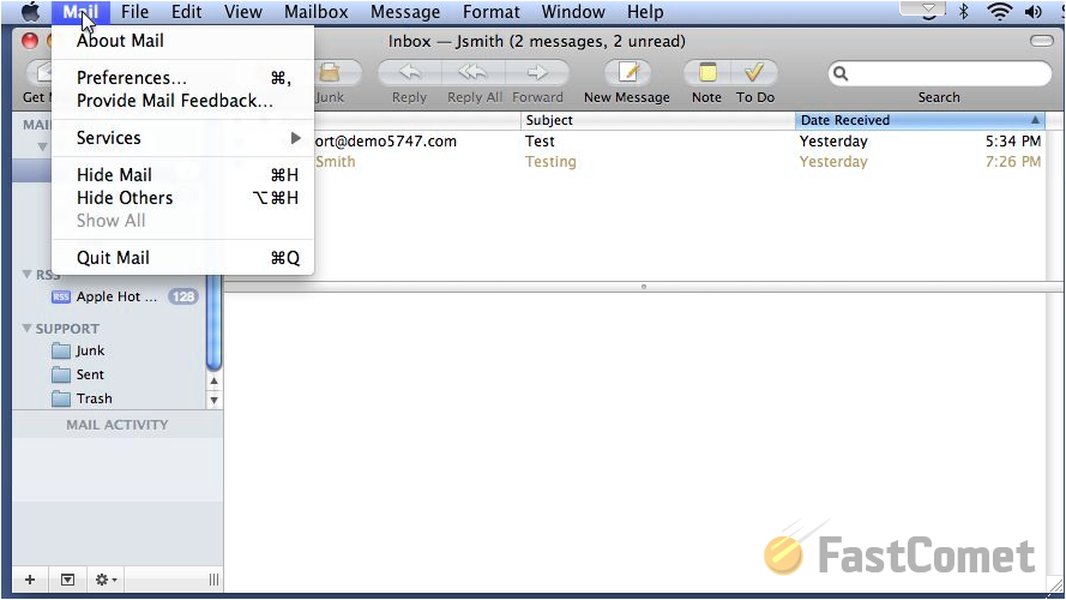
The Apple Mail Preferences window, where account settings are configured.
Primary Methods for Backing Up or Transferring Apple Mail Configurations
Since a direct export isn't available, users typically rely on manual methods or broader system migration tools. Here are the most common approaches:
1. Manual Backup and Transfer of Configuration Files
This is the most direct way to "export" your settings by copying the files where Mail stores them. It requires careful handling of system files.
Locating the Key Files and Folders
The crucial data is stored within your user's Library folder, which is hidden by default. To access it:
- Open Finder.
- Click on the Go menu in the top menu bar.
- Press and hold the Option (⌥) key on your keyboard. The "Library" folder will appear in the dropdown menu. Click on it.
Once inside your Library folder, these are the items you'll need:
- Mail Preferences File:
- Path:
~/Library/Preferences/com.apple.mail.plist - Contains: Most of your Mail app's configurations, including account details (server information, port numbers, account names), and various application preferences. Note: This file does not contain your email account passwords for security reasons.
- Path:
- Mail Data Folder:
- Path:
~/Library/Mail/ - Contains: Your actual emails, mailboxes, attachments, account-specific folders, rules, and signatures. This folder can be quite large if you have many emails.
- Path:
Steps for Manual Transfer (e.g., to a New Mac)
- On the Source Mac (Old Computer):
- Quit Apple Mail completely.
- Navigate to the
~/Library/Preferences/folder and copy thecom.apple.mail.plistfile. - Navigate to the
~/Library/folder and copy the entireMailfolder. - Save these items to an external drive or a shared network location.
- On the Destination Mac (New Computer):
- Ensure Apple Mail is quit.
- Navigate to the
~/Library/Preferences/folder and paste thecom.apple.mail.plistfile, replacing the existing one if prompted. - Navigate to the
~/Library/folder and paste theMailfolder, replacing the existing one if prompted. - Restart your Mac or, at least, launch Apple Mail.
- You will likely need to re-enter the passwords for your email accounts as they are stored in the Keychain, not in these files. Go to Mail > Preferences > Accounts, select each account, and enter the password if prompted.
Managing Passwords with Keychain Access
Your email account passwords are securely stored in macOS's Keychain. While the .plist file transfers settings, it doesn't move passwords. You'll typically need to re-enter them manually on the new Mac. For advanced users, Keychain Access utility allows viewing and, cautiously, exporting/importing keychain items, but this process is separate and must be handled with extreme care due to security implications.
2. Using Apple's Migration Assistant
If you are moving all your data from an old Mac to a new one, Apple's Migration Assistant is the most comprehensive and often easiest solution. It's designed to transfer user accounts, applications, settings (including Mail settings, emails, and passwords stored in the Keychain), and files.
- This process transfers much more than just Mail settings.
- It's ideal when setting up a new Mac or restoring from a Time Machine backup.
3. Exporting Mailboxes (for Email Content Only)
If your primary goal is to back up or transfer the email messages themselves, rather than the account settings, you can export mailboxes directly from Apple Mail.
- Open Apple Mail.
- In the sidebar, select one or more mailboxes you wish to export.
- Choose Mailbox > Export Mailbox... from the menu bar.
- Select a destination for the exported files. Mail will save them in the
.mboxformat. You can choose to export subfolders as well.
These .mbox files can be imported into Apple Mail on another Mac (Mailbox > Import Mailboxes...) or into many other email clients. However, this method does not export account settings like server details or passwords.
4. Manual Record-Keeping (Screenshots or Text File)
A more rudimentary, but sometimes practical, approach for simply recreating settings on a new machine is to manually document them:
- Open Mail > Preferences > Accounts.
- For each account, navigate through the "Server Settings" or equivalent tabs.
- Take screenshots of these settings windows or carefully note down all server names, port numbers, authentication methods, and SSL/TLS settings in a secure text file.
- This method requires manual re-entry of all settings and passwords on the new setup but provides a clear reference.
Visualizing Apple Mail Transfer Methods
The following mindmap illustrates the various approaches to transferring your Apple Mail data and settings, highlighting the components each method addresses. This can help you choose the best strategy for your needs.
com.apple.mail.plist"]
id2aa["Location: ~/Library/Preferences/"]
id2ab["Contains: Account Config (no passwords), App Preferences"]
id2b["Mail Folder"]
id2ba["Location: ~/Library/"]
id2bb["Contains: Emails, Mailboxes, Attachments, Rules, Signatures"]
id2c["Password Management"]
id2ca["Stored in macOS Keychain"]
id2cb["Requires manual re-entry or Keychain migration"]
id3["Apple's Migration Assistant"]
id3a["Comprehensive Transfer"]
id3b["Use Case: New Mac Setup, Full System Restore"]
id3c["Includes: Settings, Emails, Passwords (via Keychain)"]
id4["Exporting Mailboxes (.mbox)"]
id4a["Method: Mailbox > Export Mailbox..."]
id4b["Content: Email Messages & Attachments"]
id4c["Excludes: Account Settings, Passwords"]
id5["Manual Record-Keeping"]
id5a["Method: Screenshots, Text Notes"]
id5b["Content: Visible Account Settings"]
id5c["Requires: Full Manual Reconfiguration"]
id6["Considerations & Limitations"]
id6a["Accessing Hidden Library Folder"]
id6b["macOS Version Compatibility"]
id6c["Importance of Backups"]
id6d["Technical Comfort Level for Manual Methods"]
This mindmap provides a visual overview of the primary paths and considerations when attempting to back up or migrate your Apple Mail setup.
Comparing Mail Data Transfer Methods
Different methods for transferring Apple Mail data excel in different areas. The radar chart below offers a visual comparison of common approaches based on several factors, such as how well they handle account settings, email messages, password portability, ease of execution, typical time investment, and overall data completeness. The scores (1-5, where 5 is best) are illustrative.
This chart helps illustrate that while Migration Assistant is generally the most complete and straightforward for full Mac transfers, manual file copying is a strong contender for targeted Mail data migration, though it requires more technical steps, especially concerning passwords.
Summary of Key Files for Manual Transfer
For those opting for the manual file copy method, understanding the specific files and their roles is crucial. The table below summarizes this information:
| File/Folder Name | Location | Content/Purpose | Notes |
|---|---|---|---|
com.apple.mail.plist |
~/Library/Preferences/ |
Main Mail application preferences, account configurations (server details, ports, usernames, SSL settings), window states. | Does not store email passwords. Quit Mail before copying/replacing. |
Mail (folder) |
~/Library/ |
Contains all local email messages, mailbox structures, attachments, mail rules, signatures, and account-specific data folders (V-named folders, e.g., V10). | Can be very large. Quit Mail before copying/replacing. Essential for transferring email data. |
| Keychain Data (various items) | Keychain Access app | Securely stores email account passwords, certificates. | Not directly copied with files. Passwords typically need re-entry or careful migration via Keychain Access utility if moving between Macs. |
Visual Guide: Transferring Mail Data
The process of backing up and transferring mail can seem complex. The video below provides a general overview of managing mail data on a Mac, which can be helpful context, although it may not specifically detail the plist file method for settings.
This video discusses general strategies for backing up and transferring mail on a Mac, offering insights into managing your email data.
While the video provides a broader perspective on mail data management, remember that for specific account settings, the manual copying of the com.apple.mail.plist file and the ~/Library/Mail folder, combined with password re-entry, is the most targeted approach discussed for non-Migration Assistant scenarios.
Important Considerations and Best Practices
- Quit Mail: Always ensure Apple Mail is completely quit on both the source and destination Macs before copying, deleting, or replacing any of its configuration files or folders.
- Backup First: Before making any changes to your Library folder, it's wise to have a current backup of your Mac (e.g., using Time Machine). This provides a safety net if something goes wrong.
- macOS Versions: Transferring settings between Macs with significantly different macOS versions can sometimes lead to unexpected issues. Ideally, both Macs should be on the same or very similar macOS versions.
- Permissions: Ensure that file permissions are correctly set on the new Mac after transferring files. Usually, macOS handles this, but issues can occasionally arise.
- Patience with Large Mailboxes: Copying the
~/Library/Mail/folder can take a considerable amount of time if you have a very large email archive. - Test Thoroughly: After transferring settings and data, thoroughly test each email account by sending and receiving emails to ensure everything is working correctly.
Frequently Asked Questions (FAQ)
Why doesn't Apple Mail have a simple "Export Settings" button?
Apple Mail is designed for deep integration with macOS. Its settings are stored as part of the user's system preferences and application support data rather than as a standalone, easily exportable package. This approach prioritizes system cohesion and security but makes direct settings export less straightforward than in some other applications. For comprehensive transfers, Apple encourages using tools like Migration Assistant.
What happens to my email passwords when I manually copy the configuration files?
The `com.apple.mail.plist` file, which contains most account settings, does not include your email passwords for security reasons. Passwords are securely stored in your macOS Keychain. When you manually transfer the Mail configuration files to a new Mac or a new user account, you will almost always need to re-enter your email account passwords in Mail's preferences. Migration Assistant, if used, typically handles the transfer of Keychain items, including passwords.
Is manually copying Library files risky?
Modifying files in the user Library folder carries some risk if not done carefully. Incorrectly deleting or altering files can lead to application malfunctions. It's crucial to:
- Always back up your Mac before attempting these procedures.
- Ensure Apple Mail is completely quit before touching its files.
- Copy files to the exact correct locations.
Can I just export my emails without the settings?
Yes, you can easily export your email messages. Apple Mail allows you to export individual mailboxes (or multiple selections) in the `.mbox` format. To do this, select the mailbox(es) in the Mail sidebar, then go to Mailbox > Export Mailbox... This is an excellent way to archive or transfer your email content, but it does not include your account settings (like server details, rules, or signatures).
Recommended Further Exploration
- Learn more about using Migration Assistant for a complete Mac data transfer.
- Discover detailed steps for managing passwords and sensitive data using macOS Keychain Access.
- Explore troubleshooting tips for common issues that might arise after manually transferring Apple Mail data.
- Find out the best practices for comprehensively backing up your entire Mac system.
References
Last updated May 11, 2025