
Is Your Amazon Fire Tablet Crawling? Unlock the Secrets to Its Sluggishness!
Discover the top 10 reasons your Fire tablet feels slow and learn how to reignite its speed.
Quick Performance Boosters: Key Insights
- Storage is King: Running low on internal storage space is the single biggest performance killer for Fire tablets. Prioritize freeing up space.
- Cache Clogs Performance: Accumulated temporary data (cache) can severely bog down your tablet. Regularly clearing it can provide a significant speed boost.
- Background Activity Drain: Too many apps and services running silently in the background consume precious RAM and CPU power, leading to lag.
Decoding the Slowdown: Top 10 Factors Ranked by Impact
Amazon Fire tablets offer great value, but over time, they can become frustratingly slow. Understanding the primary causes is the first step toward restoring their responsiveness. Here are the 10 most common culprits, ranked from highest to lowest impact:
1. Critically Low Internal Storage
Impact: Critical
This is consistently cited as the most significant cause of slowdowns. When your tablet's internal storage is nearly full (often below 10-15% free), the Fire OS struggles to manage essential tasks. There isn't enough space for apps to cache data efficiently, download updates, or store temporary files needed for smooth operation. This leads to system-wide lag, slow app launches, and unresponsiveness.
Solutions:
- Uninstall Unused Apps: Regularly go through your apps and remove those you no longer use.
- Delete Unneeded Files: Remove downloaded movies, music, photos, or large documents you don't need stored locally. Cloud storage or transferring to a computer are good alternatives.
- Use Files by Google (or similar): Apps like these can help identify large files, duplicates, and unused apps to clear space effectively.
- Utilize MicroSD (for Media): While not ideal for running apps (see point #6), use a microSD card to store photos, videos, and music files, freeing up internal storage.

Managing apps and storage is crucial for Fire tablet performance.
2. Accumulated Cache Data
Impact: Severe
Apps store temporary files (cache) to load faster next time. However, this cache can become bloated, corrupted, or outdated over time, consuming valuable storage and causing apps to misbehave or the system to slow down significantly. Clearing the cache is often one of the most effective ways to quickly improve performance.
Solutions:
- Clear Individual App Cache: Go to Settings → Apps & Notifications → See All Apps → [Select App] → Storage → Clear Cache.
- Wipe Cache Partition (System-wide): This is more thorough. Power off the tablet. Hold the Power and Volume Down (or sometimes Volume Up, depending on the model) buttons simultaneously until the recovery menu appears. Use the volume buttons to navigate to "Wipe cache partition" and the power button to select it. Confirm and then reboot the system. (Note: This does not delete your personal data).
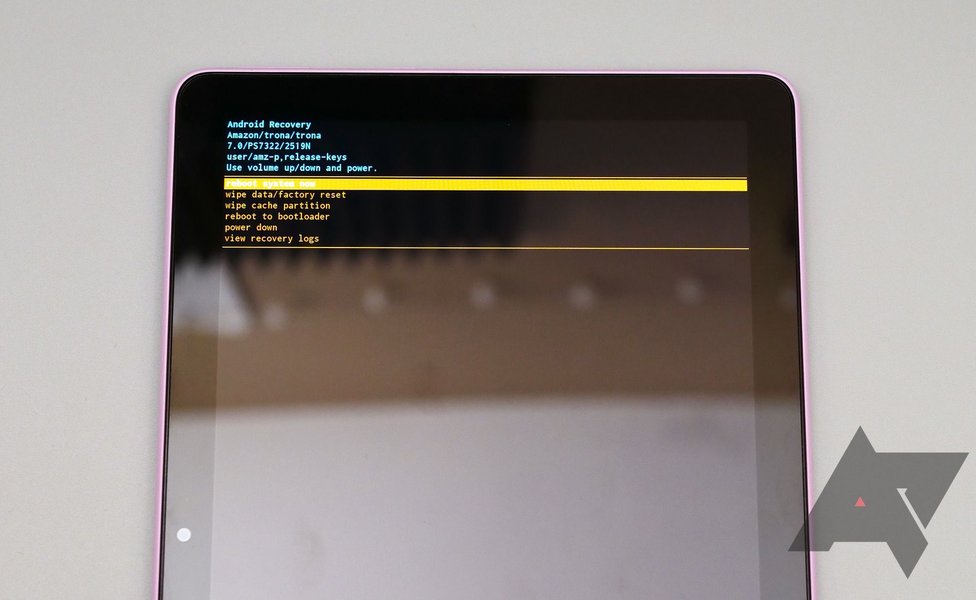
Clearing cached data can resolve many performance issues.
3. Too Many Background Apps & Processes
Impact: Major
Fire OS, being based on Android, allows apps to run processes in the background even when you're not actively using them. This includes Amazon's own services (like syncing, telemetry, Alexa), social media apps checking for notifications, and more. Each background process consumes RAM and CPU cycles, which are often limited on Fire tablets. Too many active processes lead to multitasking slowdowns and general sluggishness.
Solutions:
- Close Recent Apps: Regularly swipe away apps from the 'Recent Apps' screen (usually accessed via a square or overlapping rectangles icon).
- Force Stop Apps: If an app seems to be consuming resources, go to Settings → Apps & Notifications → See All Apps → [Select App] → Force Stop.
- Restart Regularly: A simple reboot clears temporary background processes and frees up RAM. Aim for at least once a week.
- Limit Background Data (Optional): Restrict background data usage for specific apps in their settings, though this might affect notifications.
4. App Bloat (Too Many Installed/Unused Apps)
Impact: High
Similar to low storage, simply having a large number of apps installed can slow down your tablet, even if you have free space. Apps might run background services, register for system events, or simply take longer for the system to manage. Regularly curating your installed applications is essential.
Solutions:
- Be Ruthless: If you haven't used an app in months, uninstall it. You can always reinstall it later if needed.
- Prioritize Lightweight Apps: When available, choose "Lite" versions of apps (e.g., Facebook Lite, Messenger Lite) which consume fewer resources.
5. Outdated Fire OS Software
Impact: Moderate-High
Amazon periodically releases updates for Fire OS that include performance improvements, bug fixes, and security patches. Running an older version might mean you're missing out on crucial optimizations or suffering from known bugs that cause slowdowns or instability.
Solutions:
- Check for Updates: Go to Settings → Device Options → System Updates → Check Now. Ensure your tablet is connected to Wi-Fi and has sufficient battery life before updating.
6. Running Apps from a Slow MicroSD Card
Impact: Moderate-High
While expanding storage with a microSD card is beneficial for media, running applications directly from it can significantly hinder performance. Even the fastest microSD cards generally have slower read/write speeds compared to the tablet's internal flash storage, especially for the small, random data access patterns typical of app usage. This results in longer app load times and potential stuttering.
Solutions:
- Keep Apps on Internal Storage: Use the microSD card primarily for photos, videos, music, and offline downloads. Avoid formatting the card as "Internal Storage" if app performance is a priority.
- Move Apps Back: If you previously moved apps to the SD card, consider moving frequently used or performance-sensitive apps back to internal storage via the App settings.
- Use a Faster Card (Minor Help): If you must run apps from SD, ensure you use a card rated at least Class 10, U1, or preferably U3/A1/A2, but expect performance to still be lower than internal storage.
7. Hardware Limitations (Low RAM/CPU, Aging)
Impact: Moderate (but less fixable)
Amazon Fire tablets are budget devices, often equipped with modest processors and limited RAM (sometimes 2GB or less). As apps and the operating system become more demanding over time, the hardware simply may not keep up. Older tablets will naturally feel slower compared to newer models due to both hardware aging and increased software demands.
Solutions:
- Manage Expectations: Understand the limitations of your specific model. Avoid heavy multitasking or running graphically intensive games if your tablet struggles.
- Perform Other Optimizations: Diligently apply the other fixes (storage, cache, background apps) to maximize the potential of the existing hardware.
- Consider an Upgrade: If performance remains inadequate despite optimizations, the hardware might be the bottleneck, and upgrading to a newer Fire tablet (like a Plus or Max model with more RAM) may be necessary.
8. Problematic, Heavy, or Poorly Optimized Apps
Impact: Variable/Moderate
Some apps are inherently resource-hungry due to their complexity (e.g., advanced photo editors, complex games) or are simply poorly coded. A single misbehaving or buggy app can cause system-wide instability, freezes, battery drain, and slowdowns.
Solutions:
- Identify Culprits: Pay attention to when the slowdowns occur. If it's always after using a specific app, that app might be the issue.
- Update Apps: Ensure all your apps are updated to their latest versions, as developers often fix performance bugs.
- Clear App Data/Cache: Try clearing the specific app's cache and data (Settings → Apps & Notifications → ... → [Select App] → Storage → Clear Cache / Clear Storage - Note: Clear Storage resets the app).
- Reinstall or Replace: If problems persist, try uninstalling and reinstalling the problematic app. If it's still causing issues, look for alternative, lighter apps that perform similar functions.
9. Telemetry & Background Services (e.g., Alexa)
Impact: Low-Moderate
Fire tablets constantly run various Amazon services in the background, including telemetry (sending usage data back to Amazon), location services, and Alexa voice services (even if not actively listening). While designed to be efficient, these services cumulatively consume resources.
Solutions:
- Disable Marketing Analytics/Telemetry: Look in Settings → Security & Privacy → Device Usage Data (or similar wording) and turn off options related to marketing or usage data collection.
- Disable Alexa: If you don't use Alexa features, disable it via Settings → Alexa → Toggle Alexa Off.
- Manage Location Services: Set location services to "Battery Saving" or turn it off when not needed via the quick settings panel.
10. Network Congestion or Slow Wi-Fi
Impact: Moderate (for online tasks)
While not directly slowing down the tablet's processing power, a poor Wi-Fi connection can make the device feel slow. Apps that rely on internet connectivity (streaming video, web browsing, social media, downloading) will lag, buffer, or load slowly if the network is congested (too many devices) or the signal is weak. This is often mistaken for a tablet hardware issue.
Solutions:
- Test Network Speed: Use a speed test app on your tablet to check your connection quality.
- Move Closer to Router: Improve signal strength by reducing distance and obstructions.
- Restart Router/Modem: Power cycling your network equipment can resolve temporary glitches.
- Reduce Network Load: Disconnect other devices from the Wi-Fi network temporarily to see if performance improves.
- Check for Interference: Ensure your router isn't placed near devices that cause interference (like microwaves).
Visualizing Performance Factors
To better understand how these factors relatively impact your Fire tablet's speed, consider the following visualization. Factors with higher scores generally contribute more significantly to slowdowns.
This chart illustrates that issues like low storage and cache buildup generally have the highest impact, while factors like telemetry or network speed, while noticeable, tend to be less severe overall contributors to system lag.
Factor Interconnections: A Mindmap View
The reasons behind a slow Fire tablet are often interconnected. This mindmap shows how different factors relate to each other and contribute to the overall performance degradation.
Understanding these connections can help you tackle the root causes more effectively. For instance, managing app bloat helps with both storage issues and reducing background processes.
Actionable Fixes: Summary Table
Here's a quick reference table summarizing the common slowdown factors and their primary solutions:
| Factor | Primary Solution(s) |
|---|---|
| Low Internal Storage | Delete unused apps/files; Move media to SD card. |
| Accumulated Cache | Wipe cache partition (recovery mode) or clear individual app caches. |
| Background Apps/Processes | Close recent apps; Restart tablet regularly; Force stop apps. |
| App Bloat | Uninstall unused applications. |
| Outdated Software | Check for and install system updates. |
| Apps on Slow MicroSD | Keep apps on internal storage; Use SD for media only. |
| Hardware Limitations | Manage expectations; Optimize software; Consider upgrade. |
| Problematic Apps | Update, clear data/cache, reinstall, or replace the app. |
| Telemetry/Background Services | Disable optional usage data reporting; Disable Alexa if unused. |
| Network Congestion | Restart router; Move closer; Reduce network load; Test speed. |
Video Guide: Practical Steps to Speed Up Your Tablet
Watching someone walk through the steps can be helpful. This video provides practical solutions you can try to fix a lagging or slow Fire tablet, covering common issues like restarting and managing resources.
The video demonstrates techniques such as restarting the tablet and potentially other quick fixes that align with the factors discussed, such as managing background processes implicitly through a restart.
Frequently Asked Questions (FAQ)
+ Why did my Fire tablet become slow all of a sudden?
Sudden slowdowns are often caused by a specific problematic app recently installed or updated, a system update that introduced a bug, or critically low storage space reached abruptly (e.g., after downloading large media files). Try reversing recent changes (uninstalling new apps) or clearing the system cache partition.
+ Will a factory reset make my Fire tablet faster?
Yes, a factory reset often makes a Fire tablet significantly faster, at least temporarily. It wipes all user data, apps, and accumulated clutter, returning the software to its initial state. However, it's a last resort as you'll need to set up the tablet again and reinstall apps. The underlying cause (e.g., limited hardware, installing too many apps again) might eventually lead to slowdowns again if usage habits don't change.
+ Does restarting the Fire tablet actually help speed it up?
Absolutely. Restarting (or rebooting) your Fire tablet clears temporary files, closes all running background processes, and frees up RAM that might have been occupied by apps you're no longer using or by minor software glitches. It's one of the simplest and most effective ways to quickly resolve temporary sluggishness. Doing this regularly (e.g., weekly) is good practice.
+ Is it better to use a microSD card formatted as internal or portable storage?
For performance, it's generally better to use the microSD card as portable storage. Formatting it as "internal storage" (adoptable storage) allows you to install apps directly onto it, but as mentioned (Factor #6), SD cards are significantly slower than built-in storage, leading to slower app performance. Use portable storage for media files (photos, videos, music) to free up the faster internal storage for the OS and apps.
Recommended Further Exploration
- Learn the step-by-step process to wipe the cache partition on your specific Fire tablet model.
- Discover alternative apps that use fewer resources on your Fire tablet.
- Find out how to transfer apps back to internal storage for better performance.
- Explore how newer Fire tablet models compare in terms of speed and responsiveness.
References
 amazonforum.my.site.com
 amazonforum.com
amazonforum.com
amazonforum.com
 us.amazon.com
amazonforum.com
us.amazon.com
amazonforum.com
 amazon.com
amazonforum.com
amazon.com
amazon.com
amazonforum.com
amazon.com
Last updated May 2, 2025