
Unleash the Speed: Running Fedora 42 Entirely from RAM
Discover how to boot Fedora 42 into a blazing-fast, volatile environment by leveraging your system's RAM for peak performance and privacy.
Key Insights into RAM-Only Fedora 42
- Transient Operation: Running Fedora 42 entirely from RAM creates a transient system, meaning all changes are lost upon reboot, ensuring a clean slate and enhanced privacy for each session.
- Performance Boost: Utilizing RAM as the primary storage dramatically increases read/write speeds, leading to a snappier, more responsive operating system experience compared to traditional disk-based installations.
- CoreOS Advantage: Fedora CoreOS is particularly well-suited for RAM-only operations, designed for immutable, container-focused environments that can be provisioned and run directly from memory with specific kernel arguments.
Running an operating system entirely from RAM offers a unique blend of speed, security, and transience. For Fedora 42, this capability transforms a standard Live environment into a powerful, high-performance workspace where applications launch almost instantly and system responsiveness is maximized. This guide will delve into the methods and considerations for configuring Fedora 42 to operate in a RAM-only mode, primarily focusing on Live images and Fedora CoreOS.
Understanding RAM-Only Booting Principles
When you boot Fedora into RAM, the entire operating system, or at least its core components, is loaded into your computer's volatile memory (RAM) instead of being read continuously from a hard drive or USB stick. This has several profound implications:
- Speed: RAM is significantly faster than any traditional storage device (SSD or HDD). Loading the OS into RAM eliminates disk I/O bottlenecks, making everything from boot-up to application launch and file operations incredibly swift.
- Transience/Privacy: RAM is volatile memory. When the computer is shut down or rebooted, all data stored in RAM is erased. This feature is excellent for privacy and security, as no traces of your session are left behind on local storage. It's ideal for public kiosks, testing environments, or simply ensuring a clean system after each use.
- Reduced Wear on Storage Devices: Since the system is running from RAM, your persistent storage (SSD/HDD) is not actively being written to or read from for OS operations, potentially extending its lifespan.
- Resource Requirements: Running an OS entirely from RAM requires sufficient system memory to hold the entire operating system image, plus any applications and user data. Fedora Live images, especially Fedora CoreOS, have specific RAM requirements for this mode.
The Role of Live Images in RAM Booting
Fedora's Live images are designed to be run from removable media (like a USB stick or DVD) without installing the OS to a hard drive. These images are the foundation for a RAM-only boot. When a Live CD/DVD or USB is booted, temporary storage is prepared in RAM by /sbin/dmsquash-live-root within the initial ramdisk filesystem (initrd.img). This allows the system to function even if the original media is removed.
While Live USBs typically offer "persistence" options (where changes are saved back to the USB drive), a true RAM-only boot bypasses this, ensuring all changes are ephemeral.
Methods for RAM-Only Booting Fedora 42
Standard Live Image with Kernel Parameters
For most Fedora Workstation Live ISOs, you can instruct the system to copy the entire image to RAM using specific kernel boot parameters. This is typically done by editing the boot arguments at the GRUB menu or similar bootloader interface during startup.
Identifying the Boot Option
When booting from a Fedora Live USB or ISO, you will usually see a boot menu. Before proceeding with the standard boot, you need to access the kernel command line. This is often done by pressing the e key for UEFI boot or TAB key for BIOS/Legacy boot when the boot menu appears.
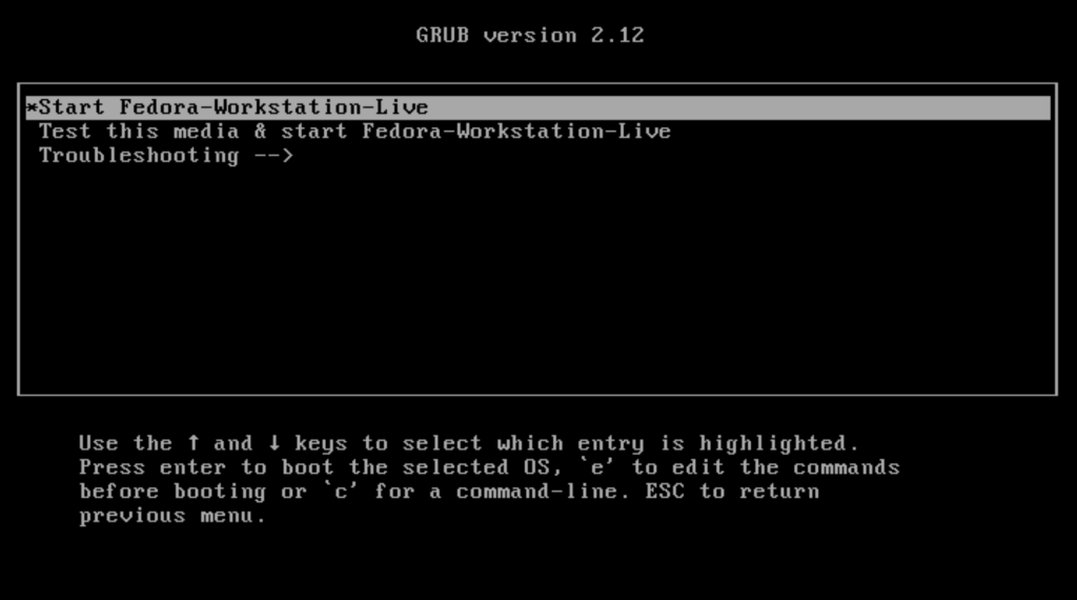
An example of a Fedora 42 installation screen, often the first step in booting from live media.
Adding the Key Parameter
The crucial kernel parameter for copying the complete image to RAM is rd.live.ram=1. You need to append this to the existing linux line (for UEFI) or the kernel line (for BIOS) in the bootloader's editable configuration. After adding it, you typically press F10 or Ctrl+X to boot with the modified parameters.
# Example of a modified kernel line (for UEFI)
# ... initrd=.../initrd0.img rd.live.ram=1 quiet rhgb

# Example of a modified kernel line (for BIOS)
# kernel /vmlinuz-x.y.z-RELEASE root=/dev/mapper/live-root rd.live.ram=1 quiet rhgb
It's important to note that while this option exists, some users have reported varying success or issues with specific Fedora spins or versions, sometimes leading to a dead system in virtual environments if not enough RAM is available. However, for a physical machine with sufficient RAM, it generally works.
Fedora CoreOS for RAM-Only Deployment
Fedora CoreOS (FCOS) is specifically designed for immutable, container-focused environments and is well-suited for direct booting from RAM. FCOS can be provisioned via Ignition and run entirely from memory, making it ideal for transient infrastructure or diskless systems.
PXE/iPXE Booting FCOS to RAM
One of the most common ways to run Fedora CoreOS entirely from RAM is through PXE (Preboot Execution Environment) or iPXE booting. This method involves fetching the kernel, initramfs, and root filesystem image over the network and loading them directly into RAM.
For PXE booting, the kernel command line must include ignition.firstboot ignition.platform.id=metal. Additionally, the coreos.live.rootfs_url kernel argument can be used to specify the location of the root filesystem image, requiring at least 2 GiB of RAM. Without this argument, 4 GiB of RAM are typically required.
# Example iPXE script for booting Fedora CoreOS directly from RAM
#!ipxe
set STREAM stable
set VERSION 42.20250427.3.0
set CONFIGURL https://example.com/config.ign
set BASEURL https://builds.coreos.fedoraproject.org/prod/streams/${STREAM}/builds/${VERSION}/x86_64
kernel ${BASEURL}/fedora-coreos-${VERSION}-live-kernel-x86_64 initrd=main coreos.live.rootfs_url=${BASEURL}/fedora-coreos-${VERSION}-live-rootfs.x86_64.img ignition.firstboot ignition.platform.id=metal ignition.config.url=${CONFIGURL}
initrd --name main ${BASEURL}/fedora-coreos-${VERSION}-live-initramfs.x86_64.img
boot
This method ensures that the FCOS system is loaded into memory, providing a fresh, consistent environment on every boot, which is crucial for container orchestration and automated deployments.
RAM Requirements and Performance Considerations
While running Fedora from RAM offers significant performance benefits, it's critical to have adequate system memory. The recommended minimum RAM for Fedora Workstation 42 is 4GB, with 8GB or more recommended for a better experience, especially with the GNOME desktop environment.
For Fedora CoreOS, booting the live PXE image requires at least 2 GiB of RAM with the coreos.live.rootfs_url kernel argument, and 4 GiB otherwise. If you attempt to boot a Live image into RAM without sufficient memory, you may encounter errors or system instability.
Memory Usage Trends in Fedora 42
Fedora 42, especially with the GNOME desktop, can have notable RAM consumption. While a minimal boot might use around 1GB of RAM, applications like GNOME Software can consume a significant amount (up to 900MB). Features like ZRAM (a compressed block device in RAM) can help mitigate performance issues by reducing the amount of data written to disk, effectively expanding usable RAM by compressing data.
Below is a radar chart illustrating the perceived performance and resource efficiency of a Fedora 42 system running in RAM-only mode compared to a standard disk installation and a system with ZRAM enabled. These are generalized perceptions and can vary based on hardware and workload.
Comparing Performance and Use Cases
The radar chart highlights that RAM-only Fedora 42 excels in application launch speed, system responsiveness, and data privacy due to its transient nature. While disk installations offer better resource efficiency by not consuming all RAM for the OS, enabling ZRAM can bridge some of this gap for disk-based systems.
Consider the following comparison of Fedora 42 installation types:
| Feature | RAM-Only Boot (Live Image) | Standard Disk Installation | Disk Installation with ZRAM |
|---|---|---|---|
| Primary Storage | RAM | Hard Disk/SSD | Hard Disk/SSD with Compressed RAM |
| Data Persistence | None (volatile) | Full persistence | Full persistence |
| Performance | Excellent (fastest I/O) | Good (disk-dependent) | Very Good (reduced disk I/O, better memory utilization) |
| Privacy/Security | High (no data traces left) | Moderate (requires secure erase) | Moderate (requires secure erase) |
| RAM Requirement | High (needs to fit OS + apps) | Moderate (OS uses some RAM, swaps to disk) | Moderate (ZRAM compresses memory, uses less swap to disk) |
| Ideal Use Cases | Forensics, public terminals, testing, secure browsing | Daily driver, general computing | Daily driver on systems with less RAM, performance optimization |
Prerequisites and Setup Considerations
Creating a Bootable Fedora 42 Live USB
Before you can boot Fedora 42 into RAM, you'll need a bootable Live USB. The official and supported tool for this is the Fedora Media Writer. You can download the Fedora Workstation 42 ISO from the official Fedora project website. Once you have the ISO, use Fedora Media Writer to flash it to a USB stick (at least 4GB, but larger is better for Live images).

Confirmation screen indicating successful creation of a Fedora Live USB using Fedora Media Writer.
Ensure your system's BIOS/UEFI settings are configured to boot from USB or optical media. Accessing the boot menu during startup (often by pressing F2, F10, F12, or Delete, depending on your motherboard) allows you to select your USB drive.
Potential Challenges and Troubleshooting
- Insufficient RAM: As highlighted, trying to boot to RAM without enough memory can lead to boot failures or system freezes. Always verify your system's RAM capacity against Fedora's requirements and the specific needs of the
rd.live.ramoption. - Graphics Issues: After upgrading to Fedora 42, some users have reported screen tearing or artifacts when suspending to RAM, indicating potential memory-related issues with specific hardware configurations. Updating drivers or kernel might be necessary.
- Disk Detection Issues: If you are trying to install Fedora from a Live environment but encounter "No Local Disks found," this is typically unrelated to RAM-only booting but can be a common installation hurdle. It often relates to BIOS disk mode settings (e.g., RAID instead of AHCI) or missing storage controller drivers.
A Visual Guide to Fedora 42 Installation and Features
To provide a broader context on Fedora 42 and its features, especially concerning system setup and performance, the following video offers a comprehensive overview of installing Fedora 42. While not specifically about RAM-only booting, understanding the general installation process and the new Anaconda Web UI is crucial, as the Live environment is often the starting point for both temporary and permanent Fedora deployments. The video showcases the user-friendly interface and some of the performance enhancements in Fedora 42, which can be further amplified when running entirely from RAM.
A comprehensive guide on installing Fedora Linux Version 42, highlighting key steps and new features.
This video provides an excellent visual walkthrough of the installation experience with the new Anaconda Web UI in Fedora 42. It underscores how the Live environment is used for both trying out Fedora and initiating a full installation. While our primary focus is on the RAM-only experience, recognizing these foundational aspects can help users navigate the initial setup and appreciate the performance gains of an in-RAM system.
Conclusion: The Power of Ephemeral Fedora
Running Fedora 42 entirely from RAM provides an unparalleled user experience in terms of speed and privacy. By leveraging kernel boot parameters like rd.live.ram=1 for Live images or designing a Fedora CoreOS deployment through PXE, users can achieve a transient, high-performance system that leaves no digital footprint on local storage. This approach is invaluable for secure browsing, system testing, or any scenario demanding a clean, fast environment with every boot. While it necessitates sufficient RAM, the benefits in responsiveness and data integrity often outweigh the higher memory requirements, transforming your Fedora experience into something truly ephemeral and exceptionally fast.
Frequently Asked Questions
How much RAM do I need to run Fedora 42 entirely from RAM?
coreos.live.rootfs_url argument, and 4 GiB otherwise. Less RAM may lead to instability or failure to boot into RAM-only mode.Are my changes saved when I run Fedora 42 from RAM?
Can I install Fedora 42 to a hard drive from a RAM-only boot?
What is the main benefit of running Fedora from RAM?
Recommended Further Exploration
- How to improve Fedora 42 performance?
- Fedora CoreOS installation and configuration?
- Understanding Linux kernel boot parameters?
- Fedora Live USB persistence vs RAM boot?