
Unlock Pristine Video: The Ultimate FFmpeg Command for Deinterlacing, Sharpening, and Unrivaled Quality
Transform your interlaced footage into stunning, crisp progressive video with this expert FFmpeg guide.
Key Insights for Superior Video Transformation
- Optimal Deinterlacing: For the best quality, utilize the
bwdiffilter withmode=send_fieldto effectively double the frame rate and preserve all original motion, oryadif=1for a balance of quality and efficiency. - Subtle Sharpening: Achieve a light sharpening effect with the
unsharpfilter by carefully adjusting its parameters, such asluma_amountto a value like 0.5, ensuring detail enhancement without over-processing. - Peak Encoding Quality: Prioritize visual fidelity by employing the
libx264codec, a low Constant Rate Factor (-crf) of 18, and averyslowpreset, which together yield "visually lossless" results.
FFmpeg is a versatile and powerful command-line tool for handling multimedia files, allowing for complex transformations like deinterlacing and sharpening while maintaining exceptional quality. When dealing with older video formats, such as those from VHS tapes, analog broadcasts, or some camcorders, you often encounter "interlaced" footage. Interlacing displays alternating lines of a video frame, which can result in visible combing artifacts on modern progressive displays. Deinterlacing converts this interlaced video into a progressive format, where each frame contains all the lines, eliminating these artifacts and improving playback smoothness.
In addition to deinterlacing, applying a light sharpening effect can enhance the visual clarity of the video, bringing out fine details that might appear soft. The challenge lies in performing both operations without introducing new artifacts or degrading the overall quality. This comprehensive guide will detail the FFmpeg commands and parameters necessary to achieve the highest possible output quality for your deinterlaced and sharpened video.
Understanding Interlacing and Its Impact
Interlaced video signals capture and display video fields (half frames) sequentially. For instance, in a 60i (interlaced) signal, the odd lines are scanned first, followed by the even lines, creating a complete frame over two cycles. While this was efficient for older CRT televisions, it causes issues on progressive displays, leading to a "combing" effect where motion blur or jagged lines appear on moving objects. Deinterlacing algorithms reconstruct full frames from these fields, eliminating these visual disturbances.
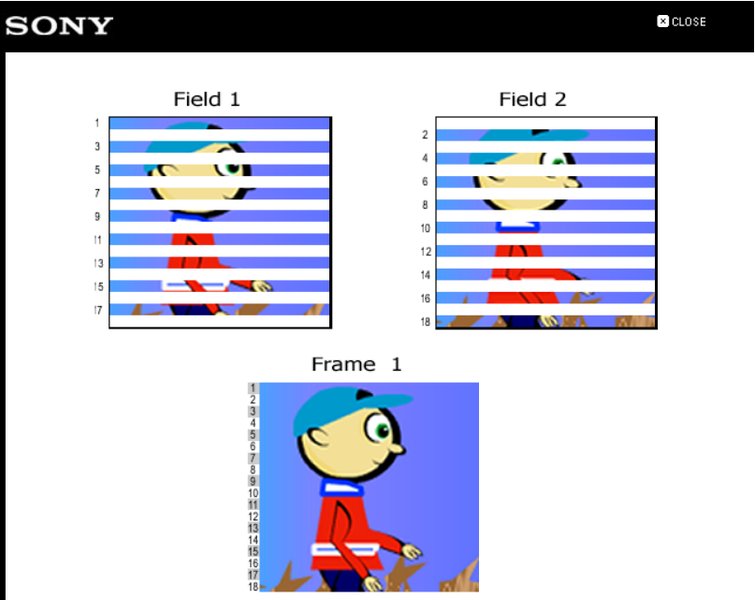
Comparison illustrating interlaced fields combining to form a progressive frame.
Choosing the Right Deinterlacing Filter
FFmpeg offers several deinterlacing filters, each with its strengths. For achieving the highest quality, two filters stand out: bwdif and yadif.
bwdif(Bob Weaver Deinterlacing Filter): This filter is widely regarded as superior toyadif, especially for high-motion videos, while maintaining similar performance characteristics. It's excellent at preserving motion and reducing artifacts. The common setting `mode=send_field` effectively doubles the frame rate (e.g., 29.97i to 59.94p or 25i to 50p), preserving every piece of motion data from the original fields. `parity=auto` allows FFmpeg to automatically detect the field order, and `deint=all` ensures all frames are processed for deinterlacing.yadif(Yet Another DeInterlacing Filter): While often recommended for general use,yadifis a robust and popular choice, particularly when configured to output one frame for each field (e.g., `yadif=1`). This setting is similar to VLC's "yadif 2x" and helps preserve motion by generating a full progressive frame for each interlaced field, effectively doubling the frame rate for smoother playback.
Applying Subtle Sharpening with unsharp
Sharpening can significantly improve the perceived detail in a video, but over-sharpening can introduce halos, noise, and an unnatural look. The FFmpeg unsharp filter provides fine-grained control to achieve a light, natural sharpening effect.
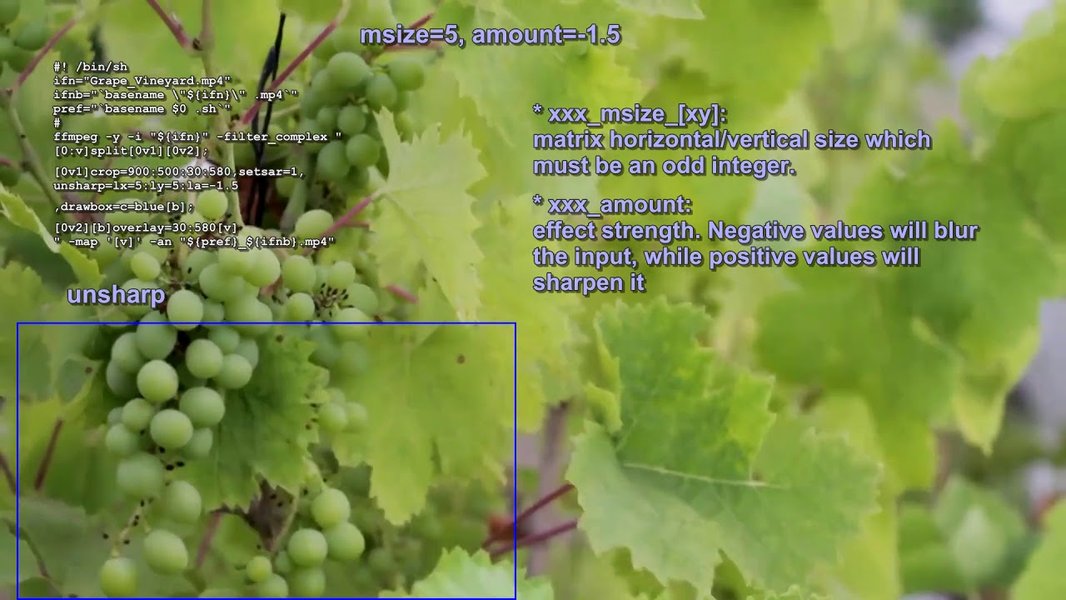
Demonstration of the unsharp filter in FFmpeg, showing its effect on video clarity.
The key parameters for the unsharp filter are:
luma_msize_xandluma_msize_y: These define the width and height of the sharpening matrix applied to the luma (brightness) component. Common values are 3 or 5, with 5 being a good balance for general use.luma_amount: This controls the strength of the sharpening effect for luma. Positive values sharpen, while negative values blur. For a "light" sharpening, values between 0.3 and 0.7 are recommended. A value of 0.5 provides a mild yet noticeable enhancement.chroma_msize_x,chroma_msize_y, andchroma_amount: These are analogous parameters for the chroma (color) component. Often, sharpening is best applied only to luma, as sharpening chroma can introduce color artifacts. Setting `chroma_amount` to 0.0 effectively disables chroma sharpening.
Optimizing for Highest Quality Output
Achieving "highest quality output" involves selecting the right codecs and encoding parameters that prioritize visual fidelity over file size or encoding speed. This typically means using a highly efficient codec and settings that minimize compression artifacts.
Video Codec and Quality Settings
- Codec (`-c:v libx264`): H.264, encoded with `libx264`, is the industry standard for high-quality, efficient video compression. It offers an excellent balance of visual quality and file size, with broad compatibility across devices and platforms.
- Constant Rate Factor (`-crf 18`): CRF is the recommended quality control mechanism for `libx264`. It aims to maintain a consistent perceptual quality throughout the video. The range is 0 (lossless) to 51 (worst quality). A CRF of 18 is widely considered "visually lossless," meaning most viewers cannot distinguish it from the original source. For even higher quality, values like 17 or 8 (near-lossless) can be used, though they result in significantly larger files.
- Encoding Preset (`-preset veryslow`): The `-preset` option dictates the encoding speed versus compression efficiency. Slower presets like `veryslow` allow the encoder more time to analyze the video and apply more sophisticated compression techniques, resulting in better quality at a given CRF or a smaller file size for the same quality. While `veryslow` takes considerable time, it yields superior results.
- Pixel Format (`-pix_fmt yuv420p`): Specifying `yuv420p` ensures broad compatibility and correct color representation, especially for H.264 output, without any quality compromise.
Audio Codec and Bitrate
For audio, it's often best to preserve the original quality. If re-encoding is necessary, AAC is a suitable choice.
- Audio Copy (`-c:a copy`): The most straightforward way to maintain audio quality is to copy the audio stream directly from the input to the output without re-encoding. This ensures no generation loss.
- AAC Audio (`-c:a aac -b:a 320k`): If re-encoding is required, AAC (Advanced Audio Coding) is a high-quality lossy audio codec. A bitrate of 320 kbps for AAC is considered very high quality, ensuring excellent fidelity.
Constructing the FFmpeg Command
Combining these elements, here is the comprehensive FFmpeg command that deinterlaces, applies light sharpening, and produces the highest quality output:
ffmpeg -i input.mp4 \
-vf "bwdif=mode=send_field:parity=auto:deint=all,unsharp=luma_msize_x=5:luma_msize_y=5:luma_amount=0.5:chroma_amount=0.0" \
-c:v libx264 -preset veryslow -crf 18 -pix_fmt yuv420p \
-c:a copy \
output_high_quality.mp4
Command Breakdown:
-i input.mp4: Specifies the input video file. Replace `input.mp4` with the actual path to your file.-vf "bwdif=mode=send_field:parity=auto:deint=all,unsharp=luma_msize_x=5:luma_msize_y=5:luma_amount=0.5:chroma_amount=0.0": This is the video filter chain.bwdif=mode=send_field:parity=auto:deint=all: Applies the `bwdif` deinterlacing filter. `send_field` outputs one frame for each original interlaced field (e.g., 29.97i becomes 59.94p). `parity=auto` auto-detects field parity, and `deint=all` processes all frames.unsharp=luma_msize_x=5:luma_msize_y=5:luma_amount=0.5:chroma_amount=0.0: Applies the unsharp mask filter. `luma_msize_x=5` and `luma_msize_y=5` define a 5x5 matrix for sharpening. `luma_amount=0.5` sets a light sharpening strength. `chroma_amount=0.0` disables sharpening for chroma, preventing potential color artifacts.
-c:v libx264: Sets the video codec to H.264 using the `libx264` encoder.-preset veryslow: Uses the `veryslow` preset for optimal quality-to-file-size ratio, at the cost of encoding time.-crf 18: Sets the Constant Rate Factor to 18 for high visual quality.-pix_fmt yuv420p: Specifies the YUV 4:2:0 pixel format for broad compatibility and proper color handling.-c:a copy: Copies the audio stream without re-encoding, preserving its original quality. If your audio needs re-encoding (e.g., to standardize the format), use `-c:a aac -b:a 320k`.output_high_quality.mp4: The desired name for your output video file.
Visualizing Filter Parameters and Quality Settings
To better understand the interplay of different parameters and their impact on quality, consider this radar chart. It illustrates the relative "performance" of various settings across key attributes relevant to your task.
This chart provides a qualitative assessment. Higher values indicate better performance in that attribute. For instance, "Deinterlace Quality (bwdif)" and "Perceptual Quality (CRF)" are rated high for the recommended settings, reflecting their effectiveness. "Encoding Speed (Preset)" is low for "veryslow" as it indicates longer processing times, but this directly correlates with higher "Encoding Efficiency" and "Perceptual Quality."
The FFmpeg Workflow for Video Enhancement
The process of enhancing video with FFmpeg can be visualized as a step-by-step workflow. This mindmap outlines the key components and their relationships in achieving high-quality video output.
This mindmap serves as a quick reference, detailing the major decisions and parameters involved in deinterlacing and sharpening for optimal quality. Each node represents a crucial aspect of the FFmpeg command, guiding you through the recommended settings.
Important Considerations for Best Results
While the provided command is robust, a few additional points can help you fine-tune your results:
- Testing with Short Clips: Before processing an entire video, it's highly recommended to test the command on a short segment of your input file. Use the `-ss` (start time) and `-t` (duration) options to extract a small clip (e.g., `-ss 00:01:00 -t 00:00:30`). This allows for quick iteration and ensures the chosen parameters deliver the desired visual outcome without committing to a long encoding process.
- File Size vs. Quality: The `-crf 18` setting prioritizes quality, which will result in a larger file size. If file size is a significant constraint, you can experiment with slightly higher CRF values (e.g., 20-23). However, be aware that increasing CRF reduces quality.
- Hardware Acceleration: While FFmpeg supports hardware encoders (like `h264_nvenc` for NVIDIA or `h264_vaapi` for Intel/AMD), these often do not produce the same level of quality as software encoders like `libx264` at the `veryslow` preset, especially for complex filtering operations. For absolute highest quality, stick with software encoding.
- Content Type: The optimal sharpening and deinterlacing parameters can sometimes be content-dependent. For very noisy or low-quality source material, very subtle sharpening might be preferred. For cleaner sources, slightly stronger sharpening could be acceptable.
Watch and Learn: FFmpeg Sharpening in Action
For those who prefer a visual demonstration and a deeper dive into FFmpeg's sharpening capabilities, the following video offers practical insights:
This video, titled "FFmpeg Basics: unsharp filter," provides a practical look at how the unsharp filter works within FFmpeg. It demonstrates the filter's effect and parameter adjustments, which is highly relevant to applying a light sharpening effect. Understanding the visual impact of parameter changes can help you fine-tune the luma_amount for your specific video content, ensuring the sharpening is subtle and enhances details rather than creating an artificial look. It complements the command-line explanation by showing the real-world results of applying this filter.
Detailed Parameter Overview
This table summarizes the essential parameters discussed, providing a quick reference for their purpose and recommended values for high-quality output.
| Parameter Category | Parameter/Filter | Description | Recommended Value for High Quality |
|---|---|---|---|
| Input/Output | -i |
Specifies the input file. | input.mp4 (your file) |
| Deinterlacing Filter | bwdif |
Bob Weaver Deinterlacing Filter for high-quality deinterlacing. | mode=send_field:parity=auto:deint=all |
| Sharpening Filter | unsharp |
Applies a sharpening or blurring mask to luma and/or chroma. | luma_msize_x=5:luma_msize_y=5:luma_amount=0.5:chroma_amount=0.0 |
| Video Codec | -c:v libx264 |
Sets the video encoder to H.264 via `libx264`. | libx264 |
| Quality Control | -crf |
Constant Rate Factor for `libx264`, lower values mean higher quality. | 18 (visually lossless) |
| Encoding Speed/Efficiency | -preset |
Determines encoding speed vs. compression efficiency. | veryslow (highest quality, slowest speed) |
| Pixel Format | -pix_fmt |
Specifies the output pixel format. | yuv420p (wide compatibility) |
| Audio Codec | -c:a |
Sets the audio encoder. | copy (to preserve original quality) or aac |
| Audio Bitrate | -b:a |
Sets the audio bitrate (if re-encoding). | 320k (for AAC, excellent quality) |
| Output File | Output filename | Desired name and format for the resulting video. | output_high_quality.mp4 |
Frequently Asked Questions
What is interlaced video and why does it look bad on modern screens?
Can I use `yadif` instead of `bwdif` for deinterlacing?
What does "visually lossless" mean for video encoding?
Will using `veryslow` preset significantly increase encoding time?
Conclusion
By leveraging the power of FFmpeg with carefully chosen filters and encoding parameters, you can effectively deinterlace your video files, apply a subtle sharpening effect, and achieve the highest possible output quality. The combination of `bwdif` for superior deinterlacing, `unsharp` with precise luma-only adjustments for light sharpening, and `libx264` with a CRF of 18 and the `veryslow` preset for encoding ensures a pristine, artifact-free, and visually enhanced final product. Remember to always test your commands on short clips and adjust parameters based on your specific source material to attain the optimal balance of quality and file size for your needs.
Recommended Further Exploration
- How to optimize FFmpeg for specific video content types?
- Advanced FFmpeg filters for video restoration
- Understanding Constant Rate Factor (CRF) in video encoding
- Comparing deinterlacing filters: yadif vs bwdif vs qtgmc
Referenced Search Results
 gas-house.blogspot.com

 evilsoup.wordpress.com
 macilatthefront.blogspot.com