
Unlock Perfect Sync: Master FFmpeg to Align Audio & Video Durations in MKV Files
Seamlessly match your MKV audio and video track lengths with these powerful FFmpeg techniques.
Key Takeaways: Synchronizing Your Tracks
- Identify the Discrepancy: First, use FFmpeg or
ffprobeto determine which track (audio or video) is longer or shorter. - Choose Your Method: Decide whether to trim the longer track or pad the shorter track to achieve equal duration.
- Prioritize Quality: Employ the
-c copyoption whenever possible to avoid re-encoding, thus preserving the original quality of your streams.
When working with MKV video files, you might encounter situations where the audio and video tracks have slightly different durations. This discrepancy can lead to playback issues, seeking errors, or a frustrating out-of-sync experience for viewers. Fortunately, FFmpeg, a powerful command-line tool for multimedia processing, offers robust solutions to precisely align these track lengths. This guide will walk you through various methods to make your audio and video tracks exactly the same length.
Understanding the Core Problem and FFmpeg's Role
Mismatched audio and video durations in an MKV container can arise from various sources, including the encoding process, ripping from discs, or minor differences in how audio and video frame rates are handled. FFmpeg provides the tools to either trim the excess length from the longer stream or extend the shorter stream to match its counterpart.
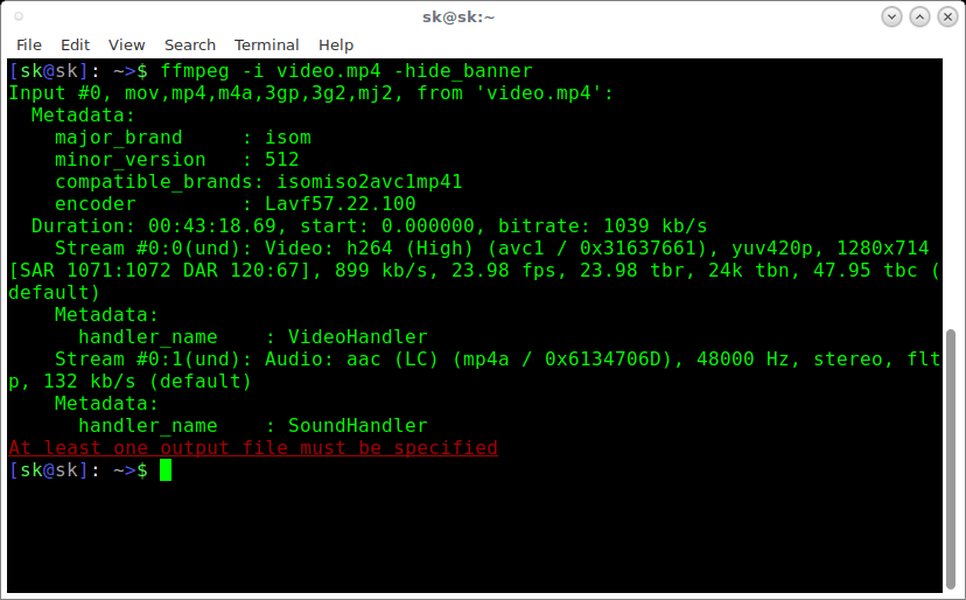
FFmpeg operating in a command-line environment, ready to process multimedia files.
Step 1: Inspecting Your MKV File for Track Durations
Before you can synchronize your tracks, you need to know their current lengths. You can use FFmpeg itself or ffprobe (a tool bundled with FFmpeg) for this purpose.
Using FFmpeg to Check Durations
Run the following command, replacing input.mkv with your file's name:
ffmpeg -i input.mkvLook for the "Duration" information listed under each stream (e.g., Stream #0:0 for video, Stream #0:1 for audio). This will tell you which stream is longer.
Using ffprobe for Precise Duration
To get the duration of a specific stream (e.g., the first video stream) in seconds, you can use:
ffprobe -v error -select_streams v:0 -show_entries format=duration -of default=noprint_wrappers=1:nokey=1 input.mkvAnd for the first audio stream:
ffprobe -v error -select_streams a:0 -show_entries format=duration -of default=noprint_wrappers=1:nokey=1 input.mkvThis information is crucial for deciding which method to use and for setting precise durations if needed.
Methods to Equalize Track Lengths
Once you know the durations, you can choose from several FFmpeg strategies. The primary approaches involve either trimming the longer track or padding the shorter one.
Method 1: Trimming the Longer Track to Match the Shorter Track
This is often the simplest and most common solution, especially if you want to avoid adding artificial content (like silence or black frames).
Using the -shortest Option
The -shortest flag tells FFmpeg to finish encoding when the shortest input stream ends. This is useful if you want the output file's duration to be dictated by the naturally shorter stream.
ffmpeg -i input.mkv -c copy -shortest output.mkv-c copy: This is crucial. It stream-copies the audio and video data without re-encoding, preserving quality and significantly speeding up the process.-shortest: Stops writing to the output file when the shortest input stream (audio or video) ends.
Caveat: Be aware that if your MKV file contains other streams, like subtitles, that are even shorter than the audio or video, -shortest might use that very short stream's duration. To be more specific, you can map only the audio and video streams:
ffmpeg -i input.mkv -map 0:v:0 -map 0:a:0 -c copy -shortest output.mkv(Assuming video is stream 0:v:0 and audio is 0:a:0. Adjust if your stream indices are different).
A potentially more robust version, especially when merging, uses -fflags +shortest and -max_interleave_delta:
ffmpeg -i input.mkv -c copy -fflags +shortest -max_interleave_delta 0 output.mkv-fflags +shortest: Similar to-shortest, but often used in muxing contexts.-max_interleave_delta 0: Can help ensure packets are interleaved correctly, preventing gaps, especially when streams have slightly different start times or packet timings.
Trimming to a Specific Duration (e.g., Video Length)
If you know which stream's duration you want to adhere to (e.g., you want the final file to be exactly as long as the video track), you can use the -t option. First, get the duration of the target stream (e.g., video) using ffprobe as shown earlier. Let's say the video duration is VIDEO_DURATION_SECONDS.
# Example for Linux/macOS - Get video duration
VIDEO_DURATION=$(ffprobe -v error -select_streams v:0 -show_entries format=duration -of default=noprint_wrappers=1:nokey=1 input.mkv)

# Then use it in the ffmpeg command
ffmpeg -i input.mkv -map 0:v:0 -map 0:a:0 -c copy -t "$VIDEO_DURATION" output.mkv
-map 0:v:0 -map 0:a:0: Explicitly selects the first video and first audio stream from the input. Adjust if your file has multiple audio/video streams. You can use-map 0to map all streams.-t "$VIDEO_DURATION": Sets the output duration to the value ofVIDEO_DURATION. Any stream longer than this will be cut.
This method gives you precise control over the final duration, ensuring both audio and video tracks conform to it.
Method 2: Padding the Shorter Track to Match the Longer Track
Sometimes, you might want to preserve the entirety of the longer track and extend the shorter one. This involves adding content—silence for audio or static frames for video.
Padding Shorter Audio with Silence (apad Filter)
If your audio track is shorter than the video and you want to extend it with silence to match the video's length, you can use the apad audio filter. This will require re-encoding the audio stream.
# First, get the video duration (target duration)
VIDEO_DURATION=$(ffprobe -v error -select_streams v:0 -show_entries format=duration -of default=noprint_wrappers=1:nokey=1 input.mkv)

# Apply apad to extend audio
ffmpeg -i input.mkv \
       -filter_complex "[0:a:0]apad=whole_dur=$VIDEO_DURATION[aout]" \
       -map 0:v:0 -map "[aout]" \
       -c:v copy -c:a aac output.mkv
-filter_complex "[0:a:0]apad=whole_dur=$VIDEO_DURATION[aout]": This applies theapadfilter to the first audio stream (0:a:0).whole_dur=$VIDEO_DURATIONpads the audio to match the specified total duration. The output of this filter is labeled[aout].-map 0:v:0 -map "[aout]": Maps the original video stream and the processed audio stream ([aout]) to the output.-c:v copy: Copies the video stream without re-encoding.-c:a aac: Re-encodes the audio stream, typically to AAC (a common codec for MKV/MP4). You might choose a different audio codec or specify bitrate/quality options.
Padding Shorter Video with Last Frame (tpad Filter)
If your video track is shorter than the audio and you want to extend it (e.g., by holding the last frame) to match the audio's length, you can use the tpad video filter. This will require re-encoding the video stream.
# First, get the audio duration (target duration)
AUDIO_DURATION=$(ffprobe -v error -select_streams a:0 -show_entries format=duration -of default=noprint_wrappers=1:nokey=1 input.mkv)
# And the video duration to calculate padding
VIDEO_DURATION_CURRENT=$(ffprobe -v error -select_streams v:0 -show_entries format=duration -of default=noprint_wrappers=1:nokey=1 input.mkv)

# Calculate padding needed (example using bc for shell arithmetic)
# Note: 'bc' might not be available on all systems, or floating point arithmetic might need specific handling.
# For simplicity, assuming durations are integers or handled by shell correctly.
PADDING_SECONDS=$(echo "$AUDIO_DURATION - $VIDEO_DURATION_CURRENT" | bc)

# Apply tpad to extend video
ffmpeg -i input.mkv \
       -filter_complex "[0:v:0]tpad=stop_mode=clone:stop_duration=$PADDING_SECONDS[vout]" \
       -map "[vout]" -map 0:a:0 \
       -c:a copy -c:v libx264 output.mkv
-filter_complex "[0:v:0]tpad=stop_mode=clone:stop_duration=$PADDING_SECONDS[vout]": Applies thetpadfilter.stop_mode=cloneduplicates the last frame.stop_durationspecifies how long to pad. The output is[vout].-map "[vout]" -map 0:a:0: Maps the processed video and original audio.-c:a copy: Copies audio.-c:v libx264: Re-encodes video using H.264 (a common codec). Adjust encoder and options as needed.
Padding with black frames is also an option using the pad filter, but tpad with stop_mode=clone is often preferred for freezing the last visible content.
Visualizing Your FFmpeg Strategy
Choosing the right FFmpeg approach depends on your specific needs regarding quality, processing time, and the desired outcome. The mindmap below illustrates the decision-making process:
This mindmap helps visualize the paths you can take based on which stream is longer and whether you prefer trimming or padding.
Comparative Analysis of Synchronization Methods
Different FFmpeg methods for equalizing track lengths have trade-offs. The radar chart below provides a comparative overview based on several key factors. These are general assessments: "Preserves Quality" refers to avoiding re-encoding, "Speed" refers to processing time, "Complexity" refers to the command structure, and "Flexibility" refers to control over the output.
As shown, methods involving -c copy (trimming) generally rank higher in preserving quality and speed, as they avoid re-encoding. Padding methods, while offering flexibility to extend shorter tracks, necessitate re-encoding the padded stream, which impacts quality and processing time.
Key FFmpeg Options Summarized
Here's a table summarizing important FFmpeg options used in the commands above:
| Option/Filter | Purpose | Impact on Encoding |
|---|---|---|
-i input.mkv |
Specifies the input file. | N/A |
-c copy |
Copies streams without re-encoding. (e.g., -c:v copy for video, -c:a copy for audio). |
None (preserves quality, fast). |
-shortest |
Finishes encoding when the shortest input stream ends. | None directly, but determines output duration. |
-fflags +shortest |
Similar to -shortest, often used for muxing. |
None directly. |
-max_interleave_delta <value> |
Sets maximum buffering duration for interleaving. 0 can help with sync. |
None directly. |
-t <duration> |
Sets the recording or output duration (e.g., "00:05:30.0" or seconds like "330"). | None directly, but trims output. |
-map <stream_specifier> |
Selects specific streams for processing/output (e.g., -map 0:v:0 for first video stream of first input). |
None directly. |
apad (audio filter) |
Pads an audio stream with silence. | Requires audio re-encoding. |
tpad (video filter) |
Pads a video stream (e.g., by cloning last frame). | Requires video re-encoding. |
-filter_complex |
Used to define complex filtergraphs involving multiple inputs/outputs or filters. | Depends on the filters used. |
Video Tutorial: Trimming with FFmpeg
For a visual guide on how to trim videos using FFmpeg, which is one of the core techniques discussed for matching track lengths, the following video provides a helpful overview. While it focuses broadly on trimming, the principles of using -t or -ss (for start time) combined with -c copy are directly applicable to adjusting track lengths by cutting excess content.
This video, "TRIM VIDEOS with FFmpeg: All You Need To Know to Extract...", explains various ways to trim videos, which is a fundamental skill for achieving same-length audio and video tracks by removing the longer portion of a stream.
Advanced Considerations & Sync Adjustments
Beyond Duration: Fine-Tuning Synchronization
Sometimes, even if tracks are the same length, they might be out of sync (e.g., audio plays slightly before or after the corresponding video). While the methods above primarily address duration, FFmpeg also has tools for these sync issues:
-itsoffset <offset>: This input option delays an entire input file. If you apply it to a second instance of your input file mapped for just one stream, you can shift that stream. For example, to delay audio by 0.5 seconds:
Here,ffmpeg -i input.mkv -itsoffset 0.5 -i input.mkv -map 0:v:0 -map 1:a:0 -c copy output.mkvinput.mkvis listed twice. Video (0:v:0) is taken from the first (un-offset) input, and audio (1:a:0) is taken from the second input, which is offset by 0.5s.-async <samples_per_second>/asynctsfilter: The-asyncoption (now considered legacy for some uses) and theasynctsaudio filter can attempt to stretch or squeeze audio to match video timestamps. This can be useful if audio drift occurs over time, but it involves resampling and potentially altering audio pitch if not done carefully. Example:
This is a simpler approach but might be less precise than manual duration trimming for exact length matching.ffmpeg -i input.mkv -async 1 -c:v copy output.mkv
These options are generally for fixing sync offsets rather than just length discrepancies, but they are good to be aware of in the broader context of audio/video synchronization.
Best Practices
- Always work on a copy: FFmpeg commands overwrite output files if they exist. Always test on a backup of your original file.
- Verify output: After processing, play the output MKV file in a reliable media player (like VLC) to ensure the lengths match and playback is smooth. Check the beginning, middle, and especially the end of the file.
- Stream mapping: Be precise with
-mapoptions if your MKV has multiple audio tracks, subtitle tracks, or other data streams you wish to preserve or specifically exclude. - Understanding re-encoding: Using filters like
apadortpadnecessitates re-encoding the affected stream. This can take longer and might result in a slight quality loss depending on the chosen codec and bitrate. If-c copycan be used, it's generally preferred for speed and quality preservation.
Frequently Asked Questions (FAQ)
What if -shortest makes my file too short because of a subtitle track?
How do I accurately determine the duration of each track?
Will these methods reduce my video or audio quality?
Can I apply these commands to multiple files in a batch?
Recommended Further Exploration
- How to extract a specific segment from a video using FFmpeg without re-encoding?
- What are common causes for audio and video desynchronization in MKV files?
- Advanced FFmpeg techniques for managing multiple audio tracks in a video file.
- How to use FFmpeg to normalize audio levels across multiple video files?
References
 wjwoodrow.wordpress.com
Last updated May 18, 2025