
Unlocking Data Flexibility: A Deep Dive into FileMaker Virtual Lists
Mastering Dynamic Data Presentation and Reporting in FileMaker Pro
FileMaker's Virtual List technique is a powerful and versatile approach to presenting data, especially when traditional reporting methods fall short. It allows developers to gather data from various sources, combine them in flexible ways, and display them in a dynamic, report-like format without modifying the underlying database schema. This technique, pioneered by Bruce Robertson around 2009, has evolved to become a cornerstone for advanced FileMaker solutions, offering significant benefits in terms of flexibility and performance.
Key Insights into Virtual Lists
- Dynamic Data Aggregation: Virtual Lists excel at combining data from unrelated tables or complex queries (including
ExecuteSQLstatements) into a single, cohesive report or portal, overcoming limitations of native FileMaker relationships. - Enhanced Reporting Capabilities: This technique provides a general-purpose tool to generate highly customized and otherwise challenging reports, such as cross-tab reports, without requiring extensive schema modifications or the creation of numerous helper fields and utility relationships.
- Performance and Flexibility: By loading data into global variables and rendering it via unstored calculations, Virtual Lists can offer faster data displays, particularly for complex reports or when presenting information from different tables within the same portal. They provide a fluid way to handle reporting requirements that might be difficult or inefficient with standard FileMaker methods.
Understanding the Core Concept of a Virtual List
At its heart, a Virtual List in FileMaker isn't a physical table in the traditional sense, but rather a method for displaying data dynamically using global variables and a dedicated "utility" table. This utility table acts as a scaffold, providing the necessary records and fields to display the data that is temporarily stored in global variables. The data itself is not stored persistently in the virtual list table; instead, it is "virtually" presented. This concept provides immense flexibility, allowing you to:
- Combine entities from multiple tables into a single report or portal.
- Produce reports that would typically necessitate defining single-purpose utility fields, relationships, or tables using conventional FileMaker methods.
- Accommodate client mock-ups of any report, regardless of its "FileMaker-friendliness," by providing a general-purpose tool.
The Role of the Utility Table
The first step in setting up a Virtual List involves creating a dedicated utility table. This table doesn't store your actual business data. Instead, it serves as a framework to display the virtual data. It typically contains:
- Primary Key Field: A simple serial number field to provide a unique identifier for each "virtual" row. It's often pre-populated with a sufficient number of records (e.g., 200 or more) to accommodate the maximum anticipated rows in your reports.
- Calculation Fields: These fields are unstored calculations that pull data from global variables. Each calculation field corresponds to a column in your virtual report. This is where the magic happens, as these fields dynamically display the data loaded into global variables.
The beauty of this utility table is its reusability. A single "Generic Virtual List" table can be used for numerous different reports, each with its own layout and field formatting, significantly reducing the overhead of creating new tables and relationships for every unique reporting requirement.
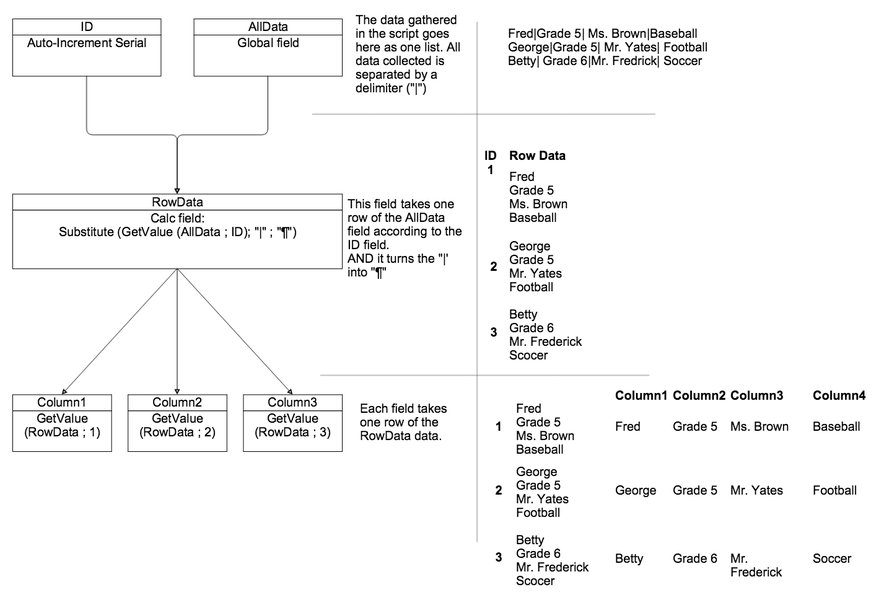
Example of a Virtual List Table in FileMaker.
Step-by-Step Tutorial: Setting Up a Basic Virtual List
Setting up a Virtual List involves three primary steps: defining the utility table, populating global variables with data, and designing the layout for presentation.
Step 1: Create the Virtual List Utility Table
Begin by creating a new table in your FileMaker solution, for instance, named "VirtualListUtility".
Define Fields:
ID(Number, Auto-Enter Serial): This will serve as your primary key for the utility table. Ensure it auto-enters a serial number and set its validation to "Always". Populate this table with a sufficient number of records (e.g., 500 or 1000) to act as placeholders for your virtual rows.Data_1(Text, Calculation, Unstored): This field will display the first piece of data for each virtual row. Its calculation will typically extract a specific line from a global variable. For example:GetValue ( $$VirtualListData ; ID )Data_2(Text, Calculation, Unstored): Similarly, for the second column of your virtual report.GetValue ( $$VirtualListHeader ; ID )- Add more
Data_Xfields as needed for each column you wish to display in your virtual list report. These calculation fields are unstored to ensure they refresh immediately when the global variables change.
The ID field in the utility table plays a crucial role. It allows you to use the GetValue function to retrieve specific lines from multiline global variables, effectively mapping each line of data to a "virtual" record.
Step 2: Populate Global Variables with Data
The "heavy lifting" for a virtual list is primarily done at the scripting level. This involves gathering the data you want to display and assembling it into one or more global variables. Global variables in FileMaker are session-specific and can hold large amounts of text, making them ideal for storing report data.
Scripting the Data Collection:
You'll typically create a script that performs the following actions:
- Clear Existing Data: If you are reusing the virtual list, clear any previously stored data in the global variables using
Set Variable [ $$VirtualListData ; "" ]. - Gather Data: This is where you collect the actual data for your report. You can use various FileMaker functions:
- Looping through records: Iterate through records in your source tables and build delimited lists of data.
ExecuteSQL: This is a common and powerful method for gathering data, especially from multiple tables or for complex aggregations. For instance, to get a list of customer names and their total orders:
TheSet Variable [ $$CustomersAndOrders ; Value: ExecuteSQL ( "SELECT \"CustomerName\" || '¶' || SUM(\"OrderTotal\") FROM \"Orders\" GROUP BY \"CustomerName\"" ; "" ; "¶" ) ]ExecuteSQLfunction can query both physical tables and even FileMaker's internal "virtual tables" for schema information.- List of values: Combine data from various fields or related records into a return-delimited list.
- Set Global Variables: Store the collected data in global variables, one variable per "column" or set of related information you wish to display. For example:
Set Variable [ $$VirtualListData ; $myCollectedDataList ]
These global variables will then be referenced by the calculation fields in your VirtualListUtility table.Set Variable [ $$VirtualListHeader ; "Customer Name¶Order Total" ]
The use of global variables allows for dynamic data loading, meaning the report content changes based on the script's execution without altering the database structure. This is particularly useful for complex, ad-hoc, or cross-tab reports that are challenging to build with native FileMaker relationships alone.
Step 3: Design the Layout and Display the Virtual List
Once your utility table is set up and your script is ready to populate the global variables, the final step is to create a layout based on your "VirtualListUtility" table.
Layout Design:
- Create a new layout: Base this layout on the "VirtualListUtility" table occurrence.
- Place fields: Drag and drop the
Data_1,Data_2(and any otherData_X) fields onto the layout. Arrange them to form your desired report structure. - Enter Browse Mode: When you enter browse mode on this layout after running your data-gathering script, the calculation fields will dynamically display the data from the global variables.
- Optional: Add a Portal: For more advanced uses, you can display the virtual list within a portal. This allows you to integrate virtual list data into existing layouts that might be based on other tables. The portal would be based on a self-join of your VirtualListUtility table occurrence, or simply display the records directly if the layout is based on the utility table.
The advantage here is that virtual list layouts are often simpler than traditional FileMaker reporting layouts, as they don't rely on complex relationships or summary fields to structure the data.
When to Use the Virtual List Technique
While standard FileMaker reporting techniques are sufficient for basic tasks, the Virtual List technique shines in specific scenarios:
- Combining Data from Multiple Unrelated Tables: When you need to display data from sources that don't have direct or easily established relationships in your FileMaker graph, a virtual list provides a clean way to aggregate them.
- Complex Reporting Requirements: For cross-tab reports, pivot-table-like displays, or highly custom layouts that are difficult to achieve with standard FileMaker reporting features.
- Performance Optimization: In cases where displaying large datasets or complex calculations natively would be slow, a virtual list can pre-process the data into variables and display it much faster. This was a key factor in speeding up early FileMaker calendars.
- Data Transformation: When you need to transform data (e.g., converting 300 fields into 300 records for printing, similar to an Excel pivot table), a virtual list can facilitate this restructuring.
- Dynamic User Interface Elements: Beyond reports, virtual lists can be used for dynamic navigation menus, pickers, or any UI element that benefits from presenting variable content.
It's important to note that global variables are scoped to the file, not the window. If you need to display multiple virtual lists simultaneously within the same file, you'll need a separate global variable and corresponding display calculation field for each virtual list.
Advantages and Considerations of Virtual Lists
The Virtual List technique offers a compelling set of advantages, but also requires careful consideration during implementation.
The Power of Virtual Lists
| Feature | Benefit | Explanation |
|---|---|---|
| Flexibility | Adaptable to diverse reporting needs. | Combines data from any source, including ExecuteSQL, into custom layouts without altering the database schema. |
| Performance | Often faster for complex displays. | Data is pre-processed and loaded into variables, then displayed via unstored calculations, reducing the load on relationships and finds. |
| Simplicity of Layouts | Streamlined design process. | Layouts are built on the simple utility table, not requiring complex relationships or summary fields on the layout itself. |
| Cross-Tab & Complex Reports | Enables otherwise difficult reports. | Ideal for displaying data in a matrix format or when traditional reporting methods are too restrictive. |
| Code Reusability | Template for multiple reports. | The same utility table and core scripting logic can be copied and reused across different solutions and for various reports. |
Considerations and Best Practices
- Global Variable Scope: Remember that global variables are file-scoped. If you need multiple, independent virtual lists visible simultaneously, each requires its own set of global variables and corresponding calculation fields.
- Record Count in Utility Table: Ensure your virtual list utility table has enough pre-populated records to accommodate the maximum number of rows your reports might ever display. Creating too few records will truncate your virtual list.
- Unstored Calculations: The calculation fields in the utility table must be unstored to ensure they dynamically update when the global variables change. While this provides flexibility, it's crucial for performance to ensure the global variables are efficiently populated.
- Scripting Complexity: While the layout can be simple, the scripting to gather and format data into global variables can become complex, especially for intricate reports or large datasets. Debugging can sometimes be challenging.
- Data Persistence: Virtual lists are for presentation, not storage. The data is transient, existing only in memory (global variables) during the session. If you need to interact with the original data (e.g., click a virtual list item to go to a record), you'll need additional scripting to interpret the virtual list data and navigate to the actual record.
- Migration: When deploying solutions with virtual lists via the Data Migration Tool, remember to create the necessary records in the target virtual list table in the client solution. This step is often overlooked.
Visualizing Virtual List Impact
To further illustrate the power and versatility of the Virtual List technique, let's look at a radar chart comparing its capabilities against traditional FileMaker reporting for various scenarios.
As the radar chart illustrates, the Virtual List technique significantly outperforms traditional FileMaker reporting in areas requiring advanced data manipulation and presentation, such as cross-tab reporting, multi-table data aggregation, and maintaining schema independence. While traditional reporting remains solid for simpler, direct relationship-based tasks, the Virtual List offers a robust solution for more complex and dynamic requirements.
Further Exploration: Advanced Virtual List Techniques
Beyond basic reporting, the Virtual List technique can be extended for various advanced functionalities:
- Editable Virtual Lists: While virtual lists are primarily for display, with additional scripting, you can enable users to edit data presented in a virtual list and then push those changes back to the source records. This involves capturing user input from the virtual list and using scripts to update the actual records in your database.
- Integrating with JavaScript/Web Viewers: For highly interactive or web-like reports, you can generate data for a virtual list using JavaScript within a FileMaker web viewer. This allows for even more sophisticated presentation and user interaction, though triggering FileMaker scripts from such a setup requires careful handling (e.g., using
fmp://URLs or FileMaker'sPerform JavaScript in Web Viewerscript step). - Virtual List as a Picker: A common application is creating a "picker" interface where users can select items from a dynamic list presented virtually, then have those selections processed by FileMaker scripts.
- Superfast Reporting with PSoS (Perform Script on Server): For very large datasets, the data gathering portion of the virtual list script can be run on the FileMaker server using PSoS. This offloads processing from the client, resulting in a faster user experience.
Video Tutorial: Virtual Lists in FileMaker
To provide a practical walkthrough, here's a highly relevant video that delves into creating virtual lists in FileMaker, including the creation of a dedicated utility table, which is a foundational concept we've discussed. This video from Jonathan Ray offers a visual guide to the setup process, reinforcing the theoretical knowledge with practical application. Understanding this video will significantly aid in implementing the steps outlined above.
The video covers the creation of the dedicated utility table, which is essential for housing the "virtual" records that display your dynamically generated data. It provides a visual complement to the step-by-step instructions, making the setup process clearer for those new to the technique.
Frequently Asked Questions (FAQ)
What is a Virtual List in FileMaker?
Why should I use a Virtual List instead of traditional FileMaker reports?
Are Virtual Lists persistent?
Can I edit data in a Virtual List?
What is the role of the utility table in a Virtual List?
Conclusion
The Virtual List technique stands as a testament to FileMaker's adaptability and power. By leveraging global variables and a simple utility table, developers can overcome many of the reporting and display limitations inherent in traditional database structures. This method empowers you to craft highly customized, dynamic, and performant solutions, making it an invaluable tool in any advanced FileMaker developer's toolkit. Mastering the Virtual List unlocks a new realm of possibilities for data presentation, enabling you to deliver sophisticated reports and user interfaces that would otherwise be challenging to implement.
Recommended Further Reading
- Explore more advanced FileMaker reporting techniques.
- Dive deeper into the powerful ExecuteSQL function in FileMaker.
- Learn how to optimize FileMaker solution performance using global variables.
- Discover methods for creating interactive user interface elements in FileMaker.
References
 filemakermisc.wordpress.com
Last updated May 21, 2025