
Unlocking System Secrets: Can You Find an Action's Hidden ID from its Name?
Navigating the technical landscape of system settings to map user-friendly names to internal identifiers.
Finding a specific internal identifier, often called an "action ID," based solely on the human-readable name you see in "System Settings" isn't a universal feature across all operating systems or software. The concept and accessibility of these IDs vary significantly depending on the specific environment you're working with, whether it's macOS, Windows, or a particular application platform.
Highlights: Key Insights into Action IDs
- Context is Crucial: There's no single method to find an action ID from its name. The process depends heavily on the operating system (macOS, Windows) or specific software platform (APIs, development tools, automation software).
- OS Settings Challenges: Both macOS System Settings and Windows Settings offer limited direct ways for users or even scripters to map a displayed setting name to a unique, stable internal action ID. Workarounds often involve developer tools, scripting, or examining configuration files.
- Platform-Specific Solutions: Many specialized platforms (like BigFix, Keyboard Maestro, Optimove API, Unity) provide programmatic ways to access action IDs via APIs, scripting interfaces, or configuration settings, especially in development or automation contexts.
Understanding "Action ID" vs. "Human-Readable Name"
Before diving into methods, let's clarify the terms:
- Human-Readable Action Name: This is the label or text you see in the user interface for a setting or command, designed for clarity and ease of use (e.g., "Turn Wi-Fi On/Off," "Adjust Display Brightness," "Enable Bluetooth").
- Action ID: This is an internal identifier, often a numerical value, GUID (Globally Unique Identifier), or a specific string (like a URL scheme or preference key), that the system uses programmatically to refer to that specific action or setting. These IDs are crucial for scripting, automation, API calls, and sometimes for auditing or logging purposes.
The challenge lies in bridging the gap between the user-friendly name and the system's internal identifier, especially within the standard settings interfaces of operating systems.
Finding Action IDs in macOS System Settings
Challenges and Limitations in macOS
Apple's macOS, particularly with the transition from System Preferences to System Settings (in macOS Ventura and later), presents challenges in directly retrieving action IDs:
- No Direct Mapping: macOS doesn't typically expose discrete "action IDs" for individual settings controls (like toggles or sliders) within the System Settings UI that can be easily looked up by their visible name.
- Scripting Changes: Traditional AppleScript commands that worked with System Preferences may not function correctly or have equivalents for the newer System Settings application, making automation more complex.
- Focus on Panes, Not Actions: While you can often target specific *panes* (like Network or Display settings), controlling individual actions *within* those panes programmatically often requires less direct methods.
Methods for Exploring macOS Settings Identifiers
Despite the limitations, several techniques can help you interact with or identify elements within macOS System Settings:
1. System Settings URL Schemes
macOS uses URL schemes to open specific preference panes. These identifiers act like IDs for the *panes* themselves.
How it works: Use the open command in Terminal or AppleScript with a specific scheme.
-- Example: Open the Date & Time settings pane
do shell script "open x-apple.systempreferences:com.apple.Date-Time-Settings.extension"

-- Example: Open the main Privacy & Security pane
do shell script "open x-apple.systempreferences:com.apple.settings.PrivacySecurity.extension"
Known Pane IDs (Examples):
com.apple.systempreferences.GeneralSettings(General)com.apple.preference.displays(Displays)com.apple.preference.keyboard(Keyboard)com.apple.preference.network(Network)
While useful for navigation, these IDs don't represent individual actions *within* the panes (like toggling a specific checkbox).
2. AppleScript and JavaScript for Automation (JXA)
Scripting can interact with System Settings, but often relies on GUI scripting.
GUI Scripting: Involves telling System Events to simulate user actions like clicking buttons or checkboxes based on their name or position. This requires granting accessibility permissions to the script or application running it.
-- Example (Conceptual - requires Accessibility access):
tell application "System Events"
    tell process "System Settings"
        -- Code to click a specific checkbox or button by its name/description
    end tell
end tell
This method can be brittle, as UI changes between macOS versions can break scripts.
3. Accessibility Inspector
Part of Apple's Xcode Developer Tools, the Accessibility Inspector allows you to examine UI elements on screen.
How it helps: It reveals properties like accessibility labels, identifiers, and roles for buttons, checkboxes, etc., in System Settings. These identifiers, while not strictly "action IDs," can sometimes be stable enough to use as targets in GUI scripting.
4. Terminal Commands (Defaults and PlistBuddy)
Many system settings are stored in property list (.plist) files. You can explore these using terminal commands.
defaults read [domain]: Reads preferences for a specific application or system component (e.g.,defaults read com.apple.finder)./usr/libexec/PlistBuddy: A more powerful tool for reading and modifying.plistfiles.
The keys within these files often correspond to settings but might not directly map to the "action" of changing them in a simple way.
5. Third-Party Automation Tools
Tools like Keyboard Maestro or Alfred often provide abstractions or specific actions to control system settings. Their communities sometimes share methods or workflows that might involve identifying or triggering specific settings, potentially revealing underlying mechanisms or identifiers they use.
macOS System Settings Navigation Video
Understanding how to navigate the System Settings interface is the first step. This video provides useful tips on accessing different sections quickly, which can be helpful context when trying to identify or script specific settings.
Quick ways to access different parts of macOS System Settings.
Finding Action IDs in Windows Settings
Limited Direct Mapping in Windows UI
Similar to macOS, the standard Windows Settings app (and the legacy Control Panel) doesn't typically expose a direct way for end-users to find a unique "action ID" for every setting based on its display name.
The focus is on user interaction through the graphical interface. While identifiers exist internally (like registry keys, GUIDs for certain components, or policy settings), mapping the friendly name directly to a specific, stable "action ID" for general scripting isn't a built-in feature.
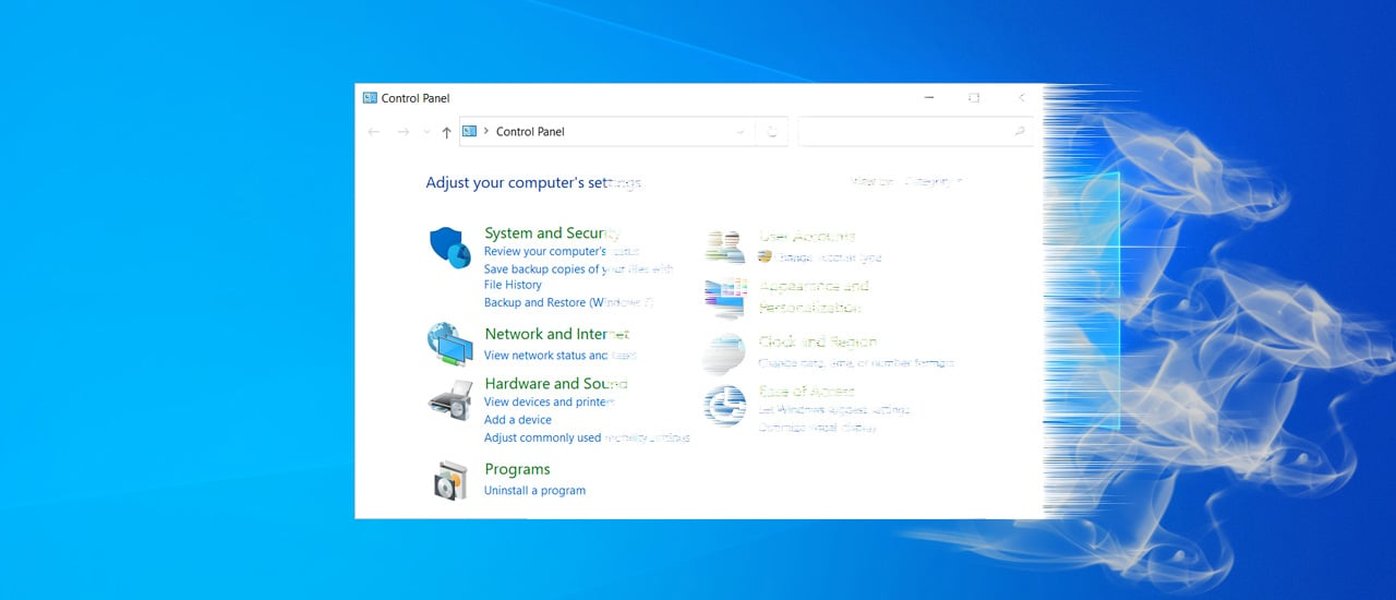
The traditional Windows Control Panel is gradually being replaced by the modern Settings app.
Developer and Administrative Tools
While the main UI lacks this feature, identifiers can sometimes be found or utilized through more technical means:
1. Win32 API and Task Scheduler
For developers, particularly when working with scheduled tasks or specific Win32 applications, the concept of an Action.Id exists. This property allows getting or setting an identifier for an action, primarily used within the context of the Task Scheduler service for scripting purposes.
2. PowerShell
PowerShell is a powerful tool for managing Windows settings. While it might not give you a single "action ID" per se, you can use cmdlets to get and set specific configurations. The parameters and properties used in PowerShell cmdlets (e.g., Get-NetAdapter, Set-ItemProperty for registry changes) act as the programmatic identifiers for those settings.
3. Event Viewer and Security Identifiers (SIDs)
Windows uses Event IDs to log system events and Security Identifiers (SIDs) to identify users, groups, and other security principals. While these are types of IDs related to system actions and configurations (especially security settings or logged events), they don't directly correspond to the action of changing a setting in the Settings app identified by its friendly name.
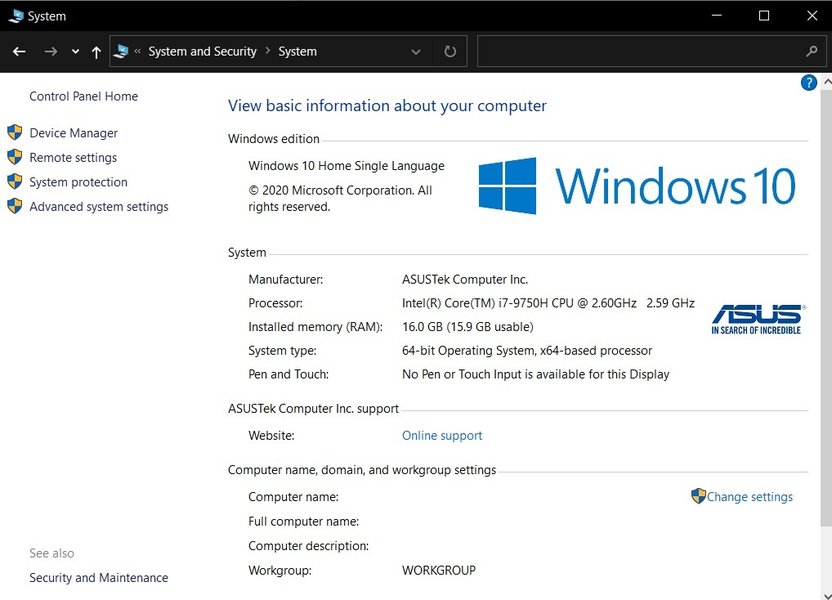
Specific system information pages within Windows settings environments.
Action IDs in Specific Software & Platforms
Beyond the general OS settings, many specific applications, APIs, and development environments have well-defined ways to map action names to IDs, as this is often essential for automation and integration.
API-Driven Systems
Platforms often expose APIs where actions can be identified or triggered using IDs.
- Optimove: Provides a specific API endpoint (
/actions/getactionid) to retrieve an action ID directly using the human-readable action name. - Pega: Uses action IDs within its DX API URLs (e.g.,
/assignments/{ID}/actions/{actionID}) to interact with specific case actions. - Genesys Cloud: Features actions like "Find User by Id," demonstrating the use of unique IDs to reference entities within automated workflows.
Scripting & Automation Environments
Tools designed for automation or system management often rely on identifiers.
- BigFix: Allows querying to return an action ID based on the action's name, essential for managing deployment and remediation tasks.
- Keyboard Maestro (macOS): Enables scripting (AppleScript, JavaScript) to get information about macro actions, including their names and associated IDs.
- Unity Input System: Actions defined in Input Action Assets have both names (for design-time clarity) and internal IDs/bindings accessible via C# script for runtime logic.
- Power Automate: Uses unique identifiers (often GUIDs) for lookups when creating or updating records in systems like Dynamics 365, linking actions to specific data entities.
- GitHub Actions: While not system settings, actions within workflows have identifiers used in the YAML definitions (e.g.,
actions/checkout@v3).
Methods Across Different Platforms
The following table summarizes the general availability and methods for finding action IDs based on human-readable names across various contexts:
| Platform / Context | Direct Name-to-ID Mapping? | Common Methods / Tools | Typical ID Format |
|---|---|---|---|
| macOS System Settings | No (Generally) | URL Schemes (Panes), GUI Scripting, Accessibility Inspector, defaults command |
URL Scheme Strings, Accessibility IDs, Plist Keys |
| Windows Settings / Control Panel | No (Generally) | PowerShell Cmdlets, Registry Keys, WMI, Group Policy Objects | Registry Keys, GUIDs, Policy Names |
| Specific APIs (e.g., Optimove, Pega) | Yes (Often) | API Endpoints (GET requests) | Numeric IDs, GUIDs, String Identifiers |
| Automation Tools (e.g., Keyboard Maestro, BigFix) | Yes (Often) | Built-in Scripting Functions, Query Languages | Internal IDs (Numeric/String) |
| Development Frameworks (e.g., Unity Input System, Win32 Task Scheduler) | Yes (Context-Specific) | API Properties/Methods, Configuration Files | GUIDs, Internal Object IDs, String Names (as IDs) |
Visualizing the Landscape: Action ID Retrieval Methods
This mindmap illustrates the different environments and the typical approaches used within each to bridge the gap between human-readable action names and their underlying system identifiers.
Comparing Action ID Accessibility Across Systems
The ease and method of accessing action IDs vary significantly. This radar chart provides a comparative overview based on different access methods across common system types. Higher scores indicate greater accessibility or more direct methods available.
This visualization highlights that while direct user interface access is generally low across the board, specialized platforms (APIs, Automation Tools) offer much better programmatic access (via APIs and scripting) compared to standard operating system settings.
Frequently Asked Questions (FAQ)
Why isn't there a simple way to get action IDs in macOS or Windows Settings?
Operating system settings interfaces are primarily designed for direct user interaction, prioritizing clarity and ease of use over programmatic access for individual UI elements. Exposing stable, unique IDs for every single toggle, button, or slider would add complexity to development and maintenance. Instead, programmatic control is often handled through broader mechanisms like configuration files (plists, registry), dedicated APIs (if available), scripting commands (PowerShell, AppleScript), or policy management systems (Group Policy, MDM profiles).
Can I use GUI scripting reliably to automate System Settings?
GUI scripting (simulating clicks and keystrokes) can work but is often considered a last resort. It can be unreliable because:
- Fragility: Scripts can easily break if the UI layout, element names, or element positions change between OS updates or even with minor interface tweaks.
- Performance: It's generally slower than direct API calls or command-line operations.
- Permissions: It requires granting accessibility permissions, which can be a security consideration.
Whenever possible, using official command-line tools, APIs, or configuration management methods is preferred for stability and reliability.
What are GUIDs and why are they used as identifiers?
GUID stands for Globally Unique Identifier (also known as UUID - Universally Unique Identifier). It's a 128-bit number, typically represented as a sequence of hexadecimal digits separated by hyphens (e.g., {123e4567-e89b-12d3-a456-426614174000}).
They are widely used in computing as identifiers because the algorithm used to generate them makes it extremely unlikely that the same identifier will ever be generated twice, even across different systems and times. This uniqueness makes them ideal for identifying objects, components, interfaces, or data entries (like in Power Automate lookups or Windows COM objects) without needing a central authority to manage IDs.
If I find an identifier using Accessibility Inspector, is it a stable "Action ID"?
Accessibility identifiers are primarily intended to assist users with disabilities via assistive technologies (like screen readers). While they *can* sometimes be stable across minor updates and serve as targets for GUI scripting, they are not guaranteed to be permanent "Action IDs." Developers might change these identifiers during UI redesigns or refactoring. Relying on them for critical automation can be risky. They are generally more stable than relying on the visible label (which might be localized or changed more frequently) but less stable than a dedicated programmatic ID (like an API endpoint or a documented configuration key).
Recommended Further Exploration
- How can I use AppleScript to automate tasks within the latest macOS System Settings?
- What are the best PowerShell commands for finding and modifying specific Windows settings via the registry?
- How can the Accessibility Inspector tool help identify stable UI elements for automation scripts on macOS?
- Where can I find API documentation for retrieving action IDs in popular automation platforms like Power Automate or Zapier?
References
Last updated April 29, 2025