
Unveiling the True Identity: Finding a Router's Real IP Behind a VPN
A Comprehensive Guide to Network Transparency and VPN Interaction
Key Insights into Router IP Discovery Behind a VPN
- Local vs. Public IP: Your router has a local IP (e.g., 192.168.X.X) for your home network and a public IP that the internet sees. When using a VPN, the public IP becomes that of the VPN server, masking your actual public IP.
- VPN's Role: A well-configured VPN on your router encrypts all traffic and routes it through VPN servers, effectively hiding your true public IP address from external entities.
- Difficulty in Tracing: Legally and technically, tracing the "real" public IP address behind a robust VPN without the VPN provider's cooperation is extremely difficult and often impossible due to encryption and routing through the VPN server.
Understanding how to identify the actual IP address of a Wi-Fi router when it's operating behind a Virtual Private Network (VPN) can be a nuanced task. This comprehensive guide will delve into the intricacies of IP addressing, the role of VPNs in network obfuscation, and the methods for determining a router's various IP addresses, particularly when a VPN is involved. We will explore the differences between local and public IP addresses, how VPNs alter your perceived online location, and the challenges associated with uncovering a "real" IP address when it's intentionally masked by a VPN.
Decoding IP Addresses: Local vs. Public
To fully grasp how a VPN affects your router's IP address, it's essential to distinguish between local and public IP addresses. Every device connected to a network, whether local or global, requires an IP address to communicate effectively. Think of IP addresses as digital street addresses for your devices.
The Local IP Address: Your Home Network's Internal Map
Your router assigns a local IP address to every device connected to your home network, including itself. These addresses are private and only function within your local network. They typically fall within specific ranges, such as 192.168.X.X, 10.X.X.X, or 172.16.X.X to 172.31.X.X. Your router’s local IP address is often referred to as its "default gateway" address within your local network. This is the address you use to access your router's administrative interface to change settings, update firmware, or configure advanced features like VPN clients. This local IP address is not visible to the wider internet.
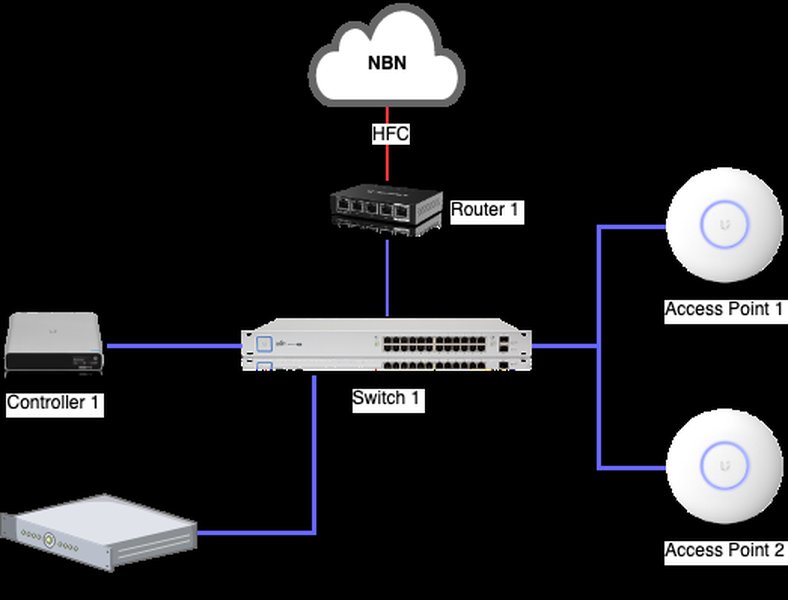
A typical home network setup, illustrating the flow of data from modem to router and connected devices.
The Public IP Address: Your Online Identity
Conversely, your public IP address (also known as an external IP address) is the address assigned to your router by your Internet Service Provider (ISP). This is the address that devices outside your local network see when you connect to the internet. All devices on your home network share this single public IP address when communicating with external servers. Websites and online services you visit will see this public IP, which also reveals your approximate geographical location and your ISP.
The VPN's Transformative Effect on IP Addresses
When you use a VPN, especially one configured directly on your router, it significantly alters how your public IP address is perceived by the outside world. Instead of your ISP's assigned public IP, websites and services will see the IP address of the VPN server you are connected to.
How a VPN Masks Your True Public IP
A VPN works by creating an encrypted "tunnel" between your device (or router) and a VPN server. All your internet traffic passes through this tunnel, becoming encrypted and rerouted through the VPN server. This process accomplishes several key things:
- IP Address Masking: Your original public IP address is hidden, and the VPN server's IP address becomes your apparent location to external websites and services. This makes it challenging for third parties to track your online activities back to your real location.
- Encryption: Your data is encrypted, protecting it from snoopers, ISPs, and other entities that might try to intercept your traffic.
- Location Spoofing: You can choose a VPN server in a different geographical location, making it appear as if you are browsing from that country, allowing you to bypass geo-restrictions.
This video provides a step-by-step tutorial on how to set up a VPN directly on your router, illustrating the process that enables IP masking for all connected devices.
Strategies for Finding Your Router's IP Addresses
While a VPN is designed to hide your public IP, you can still find your router's local IP address and verify the VPN's effectiveness in masking your public IP.
Locating Your Router's Local IP Address (Default Gateway)
Accessing your router's local IP is crucial for managing its settings, including VPN configurations. The process varies slightly depending on your operating system:
On Windows: Command Prompt
1. Open the Command Prompt by typing cmd in the Windows search bar and pressing Enter.
ipconfig2. In the command prompt window, type ipconfig and press Enter. Look for the "Default Gateway" entry; this is your router's local IP address.
On macOS: System Settings
1. Go to "System Settings" (or "System Preferences" on older macOS versions).
2. Click on "Network."
3. Select your active Wi-Fi connection from the left sidebar.
4. Click "Advanced" or "Details," then navigate to the "TCP/IP" tab. Your router's IP address will be listed next to "Router" or "Default Gateway."
On Android Devices: Wi-Fi Settings
1. Go to "Settings" and tap "Connections" or "Network & internet."
2. Tap on "Wi-Fi."
3. Find the wireless network you are connected to and tap on it. You may need to tap "View more" or "Advanced" to see the network details, including your router's IP address (often labeled "Gateway" or "Router").
On iOS Devices (iPhone/iPad): Wi-Fi Settings
1. Go to "Settings" and tap "Wi-Fi."
2. Tap the "i" icon next to your connected Wi-Fi network.
3. Your router's IP address will be listed under "Router."
Verifying Your Public IP Address (After VPN Connection)
To see the public IP address that external websites observe when your router is connected to a VPN, you can use online IP lookup services. These services display the IP address from which your request originates, which, if the VPN is active and working correctly, should be the VPN server's IP.
- Using Web-Based IP Checkers: Simply open your web browser and search for "what is my IP." Reputable services like NordVPN's IP checker or Whoer.net will display the public IP address, the location it's connecting from, and your service provider. If your VPN is active on the router, this displayed IP should be the VPN server's IP, not your actual home ISP's IP.
The Challenge of Finding the "Real" IP Behind a VPN
The core purpose of a VPN is to mask your true IP address and enhance your privacy. Consequently, deliberately trying to uncover the "real" IP address behind a well-implemented VPN is technically challenging and often legally questionable.
Technical Barriers to IP Discovery
A properly configured VPN encrypts all traffic and routes it through its servers. This makes it extremely difficult for external parties to trace the connection back to your original IP address. Experts in cybersecurity emphasize that if a VPN is well-designed and configured, directly figuring out the real IP is not possible without assistance from the VPN provider itself. Any claims of easily discovering the "real" IP often rely on misconfigurations (like DNS leaks) or sophisticated exploits, which are rare against robust VPN services.
Checking network settings is a crucial step in understanding IP configurations.
Legal and Ethical Considerations
Attempting to trace a real IP address behind a VPN without legitimate authorization can have significant legal and ethical implications, potentially violating privacy regulations and VPN provider agreements. Most VPN providers have strict no-log policies, meaning they do not store user activity data, which further complicates any attempt to trace back to an original IP address.
Common Router IP Addresses and Their Purposes
Understanding the typical IP address ranges can help in identifying your router's local IP. Most home routers use the 192.168.X.X subnet, with 192.168.1.1 or 192.168.0.1 being common default gateway addresses.
This radar chart visually compares the capabilities and implications of a router VPN, a device-specific VPN client, and no VPN usage across several key performance indicators. It highlights how a router-based VPN offers comprehensive privacy and encryption for all connected devices, while device-specific VPNs provide more flexibility for individual control. Not using a VPN leaves your online activities exposed, emphasizing the importance of VPN integration for security and anonymity.
Table of Common Router IP Addresses and Their Administrative Access
Accessing your router's administrative panel is a primary reason to find its local IP. Once you have this IP, you simply enter it into your web browser's address bar. You'll then be prompted for a username and password, which are typically default values or ones you've set previously.
| Common Router Brand | Typical Default Local IP Address | Default Username (Common) | Default Password (Common) |
|---|---|---|---|
| TP-Link | 192.168.0.1 or 192.168.1.1 | admin | admin or (blank) |
| Netgear | 192.168.1.1 or 192.168.0.1 | admin | password or (blank) |
| Linksys | 192.168.1.1 | admin | admin or (blank) |
| D-Link | 192.168.0.1 or 192.168.1.1 | admin | (blank) or admin |
| ASUS | 192.168.1.1 | admin | admin |
| Cisco | 192.168.1.1 or 192.168.10.1 | cisco | cisco |
| Ubiquiti | 1192.168.1.1 | ubnt | ubnt |
This table lists common default local IP addresses and login credentials for various router brands. Always change default credentials for security. If you've forgotten your login, you may need to consult your router's manual or perform a factory reset.
Configuring a VPN on Your Router
Setting up a VPN directly on your router provides whole-home VPN protection, meaning every device connected to that router benefits from the VPN without needing individual client installations. This is particularly useful for smart TVs, gaming consoles, and IoT devices that may not natively support VPN software.
Steps for Router VPN Configuration
1. Check Router Compatibility: Not all routers support VPN client functionality. Look for support for protocols like OpenVPN, WireGuard®, or L2TP/IPsec in your router's specifications or administration panel.
2. Access Router Admin Panel: Use your router's local IP address (found using the methods above) in a web browser to log in.
3. Locate VPN Settings: Navigate to the advanced settings section. The "VPN client" tab or similar will allow you to configure the VPN. The exact location varies by router brand and model.
4. Follow VPN Provider Guidelines: Your chosen VPN service will provide specific configuration files and instructions (e.g., OpenVPN configuration files, server addresses, credentials) to enter into your router's VPN client settings.
5. Verify Connection: After configuration, use an online "what is my IP" tool to confirm that your public IP address has changed to that of the VPN server. If it hasn't, double-check your settings or contact your VPN provider's support.
Running a VPN Router Behind Another Router (Double NAT)
In some scenarios, you might have an ISP-provided modem/router and wish to connect a second, VPN-enabled router behind it. This creates a "router-behind-router" or "double NAT" setup. While possible, it requires careful configuration to avoid network conflicts and ensure proper VPN functionality.
Key Considerations for Double NAT VPN Setup
- Different Subnets: Ensure your VPN router's LAN IP subnet is different from your primary (ISP) router's LAN IP subnet to prevent IP conflicts (e.g., if ISP router is 192.168.1.X, VPN router could be 192.168.2.X).
- Port Forwarding: You'll likely need to configure port forwarding on your ISP router to direct VPN traffic to the static IP address of your VPN router. Common VPN ports include 1194 for OpenVPN.
- Accessing the VPN Router: To manage the VPN router's GUI from devices connected to the primary router, you may need to adjust firewall rules on the VPN router to allow WAN-side access to its administration page.
- Static Routes: In some complex setups, adding static routes on your primary router might be necessary to direct traffic to specific subnets behind the VPN router.
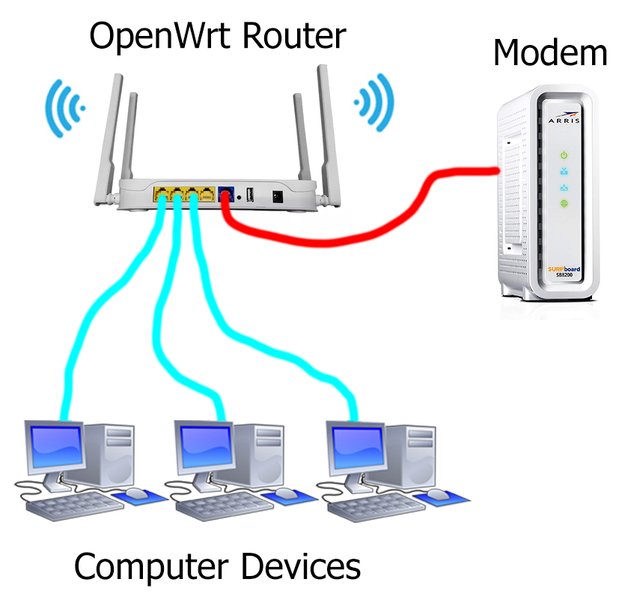
Proper cabling and connection are vital for any router setup, including VPN configurations.
Frequently Asked Questions (FAQ)
What is the difference between a private and public IP address?
Can a VPN truly hide my real IP address?
How do I know if my router supports a VPN client?
Will using a VPN on my router slow down my internet speed?
Conclusion
Finding the "real" IP address of a Wi-Fi router that's inheriting a VPN's IP is primarily about understanding the distinction between local and public IP addresses and recognizing the powerful masking capabilities of a VPN. While you can easily discover your router's local IP to access its settings, a well-implemented VPN effectively obscures your true public IP from external observation. The VPN server's IP becomes your online identity, providing a significant layer of privacy and security. Attempts to bypass this mask without the VPN provider's cooperation are generally technically challenging and often come with legal and ethical concerns. For enhanced privacy and unrestricted internet access for all devices, setting up a VPN directly on your router remains a highly effective solution.
Recommended Further Reading
- How to configure port forwarding on a router for VPN?
- Understanding DNS leaks and how to prevent them with a VPN?
- Best practices for securing your home network with a VPN router?
- Differences between OpenVPN, WireGuard, and L2TP/IPsec protocols for routers?