
Resolving the MySQL Repository GPG Error on Ubuntu Focal
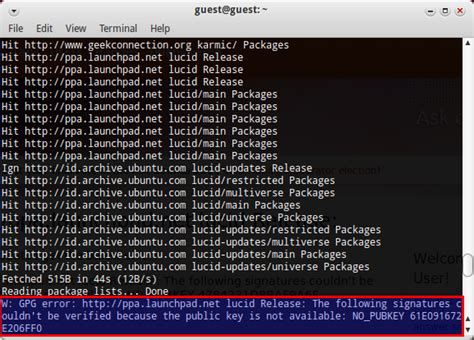
Encountering a GPG error while updating your MySQL repository on Ubuntu Focal can halt your ability to securely install or update MySQL packages. This error typically arises due to a missing public key required to verify the authenticity of the repository. Addressing this issue is crucial to maintain the security and integrity of your system's package management.
Understanding the GPG Error
GNU Privacy Guard (GPG) is a tool used for secure communication and data storage. In the context of Ubuntu's Advanced Package Tool (APT), GPG keys are employed to verify the authenticity of repositories and the packages they contain. The error message you’re encountering:
W: GPG error: http://repo.mysql.com/apt/ubuntu focal InRelease: The following signatures couldn't be verified because the public key is not available: NO_PUBKEY B7B3B788A8D3785C
indicates that the APT system cannot verify the MySQL repository because it lacks the necessary public key identified by B7B3B788A8D3785C. Without this key, APT cannot ensure that the packages are from a trusted source, leading to the repository being disabled for security reasons.
Step-by-Step Resolution
1. Identify the Missing GPG Key
The error message specifies the missing key ID:
B7B3B788A8D3785C
This key is essential for verifying packages from the MySQL repository. The goal is to retrieve and add this key to your system's trusted keyring.
2. Retrieve and Add the MySQL GPG Key
There are multiple methods to add the missing GPG key. Below are the most effective approaches:
a. Recommended Method: Using the Modern signed-by Approach
This method adheres to current best practices by storing GPG keys in a dedicated keyring directory and referencing them in the repository configuration.
-
Create a Keyrings Directory: Ensure the directory for storing keyrings exists.
sudo mkdir -p /etc/apt/keyrings -
Download and Add the GPG Key: Use
curlto fetch the MySQL GPG key and store it in the keyrings directory.curl -fsSL https://repo.mysql.com/RPM-GPG-KEY-mysql | sudo gpg --dearmor -o /etc/apt/keyrings/mysql.gpg -
Update the MySQL APT Repository Configuration: Modify the repository list to use the newly added key.
echo "deb [signed-by=/etc/apt/keyrings/mysql.gpg] http://repo.mysql.com/apt/ubuntu focal mysql-8.0" | sudo tee /etc/apt/sources.list.d/mysql.list
By following these steps, you ensure that APT uses the correct key for verifying packages from the MySQL repository.
b. Alternative Method: Using gpg Directly
If you prefer to import the key directly into APT's trusted keyring, follow these steps:
-
Download the MySQL Public Key:
wget https://repo.mysql.com/RPM-GPG-KEY-mysql -O mysql_pubkey.asc -
Import the Key:
sudo gpg --no-default-keyring --keyring /etc/apt/trusted.gpg.d/mysql.gpg --import mysql_pubkey.ascOR for older Ubuntu versions:
sudo apt-key add mysql_pubkey.asc -
Remove the Temporary Key File:
rm mysql_pubkey.asc
This approach adds the MySQL GPG key to your trusted keyring, enabling APT to authenticate packages from the repository.
3. Add the MySQL Repository to APT Sources
After adding the GPG key, ensure that the MySQL repository is correctly referenced in your APT sources. If you haven't already, you can add the repository using the following command:
sudo dpkg -i mysql-apt-config_0.8.26-1_all.deb
Note: Replace 0.8.26-1 with the latest version available from the official MySQL APT repository page.
4. Update Package Lists
After configuring the repository and adding the GPG key, update your package lists to apply the changes:
sudo apt update
If the GPG error is resolved, the update process should proceed without issues. You should no longer see messages indicating missing public keys.
5. Install or Update MySQL Packages
With the repository authenticated, you can now safely install or update MySQL packages:
sudo apt install mysql-server
This command will install the MySQL server package, pulling it securely from the authenticated repository.
Additional Troubleshooting Steps
1. Reconfigure the MySQL APT Repository
If the above steps do not resolve the GPG error, the issue might stem from an outdated or misconfigured repository configuration. Reconfiguring the repository can help:
-
Download the Latest Repository Package:
wget https://dev.mysql.com/get/mysql-apt-config_0.8.26-1_all.deb -
Install the Repository Package:
sudo dpkg -i mysql-apt-config_0.8.26-1_all.debFollow the on-screen prompts to select your desired MySQL version and distribution.
-
Update Package Lists Again:
sudo apt update
This process ensures that your system is using the latest repository configurations provided by MySQL.
2. Clean APT Cache and Lists
Sometimes, residual data can cause authentication issues. Cleaning the APT cache and lists can help:
    sudo rm -rf /var/lib/apt/lists/*

    sudo apt clean

    sudo apt update
This sequence removes existing package lists and clears the cache, forcing APT to retrieve fresh data.
3. Verify Repository Configuration
Ensure that the MySQL repository is correctly listed in your APT sources:
cat /etc/apt/sources.list.d/mysql.list
The output should resemble:
deb [signed-by=/etc/apt/keyrings/mysql.gpg] http://repo.mysql.com/apt/ubuntu focal mysql-8.0
If discrepancies are found, adjust the file accordingly to match the correct repository URL and keyring path.
Security Considerations
1. Verify GPG Key Fingerprints
Before importing any GPG key, it's good practice to verify its fingerprint to ensure authenticity. You can obtain the fingerprint from the official MySQL documentation or their trusted channels.
2. Use Secure Connections
Always use HTTPS when downloading GPG keys and repository packages to prevent man-in-the-middle attacks.
3. Avoid Untrusted Repositories
Only add repositories from trusted sources. Third-party repositories can pose security risks if not properly vetted.
Verifying the Resolution
After performing the above steps, it's essential to verify that the GPG error has been resolved:
-
Update the Package Lists:
sudo apt updateEnsure that the update process completes without GPG-related errors.
-
Install a MySQL Package:
sudo apt install mysql-serverThe installation should proceed smoothly, fetching packages from the authenticated MySQL repository.
If both steps execute without errors, the GPG key issue has been successfully resolved, and you can continue managing MySQL packages securely.
Conclusion
The GPG error encountered while updating the MySQL repository on Ubuntu Focal is a common issue related to missing public keys necessary for authenticating package sources. By following the comprehensive steps outlined above—ranging from importing the necessary GPG key using modern methods to troubleshooting repository configurations—you can effectively resolve this error. Ensuring that your system's repositories are correctly authenticated maintains the security and integrity of your package management processes.
For further details and advanced configurations, refer to the Official MySQL APT Repository Setup Guide and the Ubuntu GPG Key Troubleshooting documentation.
Last updated January 8, 2025