
Effortless Text Forwarding on Your Samsung Galaxy S22
A Comprehensive Guide to Seamless Communication and Message Management
Key Highlights for Text Forwarding on Samsung S22
- Multiple Forwarding Methods: Your Samsung Galaxy S22 offers several intuitive ways to forward text messages, including direct forwarding, sharing, and even automatic forwarding via third-party apps.
- App Versatility: Whether you use the default Samsung Messages app or Google Messages, the core process for forwarding a single text is largely similar, involving a long-press on the message and selecting the "Forward" option.
- Beyond Basic Texts: The S22 allows you to forward not just text, but also multimedia content like images and videos, and even entire conversations, enhancing your ability to share information efficiently.
The Samsung Galaxy S22, a flagship device in Samsung's renowned lineup, offers a robust messaging experience. Understanding how to effectively forward text messages is a fundamental skill for any user, enabling seamless sharing of important information, funny anecdotes, or critical details with others. This guide will walk you through the various methods and nuances of forwarding texts on your Samsung S22, ensuring you can manage your communications with ease and efficiency.
Navigating the Messaging Landscape: Samsung Messages vs. Google Messages
Before diving into the forwarding steps, it's crucial to understand that your Samsung Galaxy S22 might come with one of two primary messaging applications as default: Samsung Messages or Google Messages. While newer Samsung Galaxy devices, including the S22 series, often have Google Messages preloaded as the stock Android OS messaging app, the Samsung Messages app remains a powerful alternative with unique features.
Although their interfaces may differ visually, the fundamental process for forwarding a text message is remarkably similar across both applications. Both aim to facilitate easy and fast communication, with various features to enhance your texting experience. Recognizing which app you are using can sometimes be helpful, as minor differences in UI elements or additional options might exist. For instance, Samsung Messages might have a blue text bubble icon with three dots, while Google Messages typically has a blue text bubble with three lines. Despite these subtle distinctions, the core functionality remains consistent.
Identifying Your Default Messaging App
To confirm which app is currently set as your default messaging application:
- Go to Settings on your Samsung S22.
- Tap on Apps.
- Select Choose default apps.
- Tap on SMS app.
Here, you will see your current default messaging app. You can also switch between Samsung Messages and Google Messages from this menu if you prefer one over the other. Granting necessary permissions (SMS, Contacts, Media, Make Calls, etc.) is often required when switching messaging apps to ensure full functionality.
The Standard Method: Forwarding a Single Text Message
The most common and straightforward way to forward a text message on your Samsung S22, regardless of whether you're using Samsung Messages or Google Messages, involves a few simple steps. This method is ideal for forwarding individual messages, be it a plain text SMS or a multimedia message (MMS) containing photos or videos.
Step-by-Step Guide to Forwarding
Open the Messages App:
Launch the Messages app on your Samsung Galaxy S22. This is typically the blue text bubble icon on your home screen or in your app drawer.
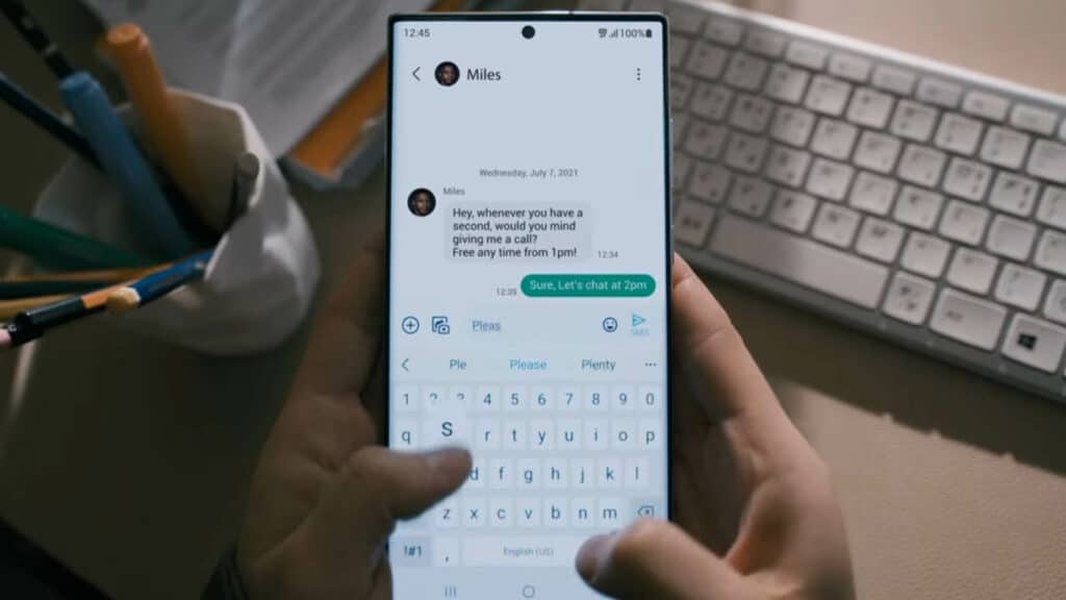
A Samsung Galaxy S22 displaying an open messaging conversation.
Navigate to the Conversation:
Go to the specific conversation thread that contains the message you wish to forward.
Long-Press the Message:
Locate the exact text message you want to resend. Press and hold down on this message. After a couple of seconds, the message will typically highlight, and a menu of options will appear.
Select "Forward" or "Share":
In the pop-up menu, you should see an option labeled "Forward." Tap on this. In some cases, especially if you wish to forward to an email address or another application, you might need to select "Share" first, which then presents more forwarding options.
Some users have reported instances where the "Forward" option seems missing, particularly on T-Mobile unlocked Galaxy S22 models. If this occurs, it might be an app-specific issue or a carrier-related limitation. Trying the "Share" option or ensuring your messaging app is updated can sometimes resolve this.
Choose Recipient(s):
After selecting "Forward," you will be prompted to choose a new recipient. You can either:
- Search for and select a contact from your Contacts tab.
- Enter a new phone number or email address directly into the recipient field.
You can add multiple recipients to send the message to a group. If you're forwarding to an email, ensure you enter the email address correctly.
Edit (Optional) and Send:
The message content will appear in a new message draft. You have the option to edit the message before sending it. Once you are satisfied, tap the "Send" button (usually an angled right arrow or paper airplane icon) to deliver the message.
Advanced Forwarding and Messaging Features
Beyond the basic forwarding of individual texts, the Samsung S22 offers several other powerful messaging capabilities that enhance your communication flexibility.
Automatic Text Message Forwarding
For situations requiring continuous forwarding of incoming texts, such as managing business communications or monitoring messages for a specific purpose, third-party applications can be invaluable. Apps like "SMS Forwarder" or "SMS Forward" are designed to automatically redirect incoming text messages to a designated phone number. These apps require installation on both the sending and receiving devices and adherence to developer instructions. Always exercise caution and verify the trustworthiness of any third-party app before granting it access to your messages due to privacy implications.
Forwarding to Email
While direct integration for forwarding texts as emails isn't always built-in, you can still achieve this by copying the text and pasting it into your email client. This method is particularly useful for archiving important conversations or sharing them in a more formal context.
- Long-press the desired text message to copy it.
- Open your preferred email app.
- Compose a new email.
- Long-press in the email text field and select "Paste."
- Add the recipient's email address and send.
Linking Messages Across Galaxy Devices
Samsung's "Call & text on other devices" feature allows you to make and receive calls and send messages directly from other compatible Galaxy devices like tablets. This feature synchronizes calls and messages through your Samsung account, offering a cohesive messaging experience across your ecosystem.
- Ensure both devices are signed into the same Samsung account.
- On both devices, go to Settings > Connected devices.
- Activate Call & text on other devices.
Understanding Your Messaging App's Strengths
Both Samsung Messages and Google Messages offer unique advantages. Your choice of app can influence your messaging experience, especially regarding customization and advanced features.
This video provides a visual guide on how to forward and share text messages on Android phones, illustrating the steps discussed in this guide.
Samsung Messages Features
- Customization: Offers options to customize chat room backgrounds and notification sounds for individual contacts.
- Organization: Allows for organizing messages into categories for quick access.
- Quick Responses: Ability to create predefined quick responses.
- Scheduled Messages: Lets you schedule messages to be sent at a later time.
- Mass Texts: Facilitates sending mass texts easily.
- Image Quality: Some users report better image quality when sending screenshots or photos via Samsung Messages compared to Google Messages, due to less compression.
Google Messages Features
- RCS (Rich Communication Services): Provides advanced messaging features like read receipts, typing indicators, higher-quality media sharing, and larger file size limits (up to 100MB) when communicating with other RCS-enabled Android devices. RCS is a significant upgrade over traditional SMS/MMS, bridging the gap with iMessage.
- Cross-Device Sync: Seamless integration and synchronization of conversations across various Galaxy devices, including smartwatches running Wear OS Powered by Samsung.
- Default on Newer Models: Often pre-installed as the default messaging app on newer Samsung Galaxy devices like the S22 series.
Here’s a comparative overview of the messaging apps available on your Samsung S22, highlighting key aspects:
| Feature/Aspect | Samsung Messages | Google Messages |
|---|---|---|
| Default App on S22 | Can be set as default | Often preloaded as default |
| Direct Forwarding | Yes | Yes |
| Share Option | Yes | Yes |
| RCS Support | Integrating, but Google Messages is primary for RCS | Full RCS functionality with other Android devices and iPhones |
| Chat Customization | Backgrounds, notification sounds | Limited aesthetic customization |
| Message Scheduling | Yes | Yes |
| Group Messaging | Yes (MMS-based) | Yes (RCS or MMS-based) |
| Image Quality (MMS) | Often higher quality for screenshots | Can have more compression for SMS/MMS |
| Cross-Device Sync | Via Samsung Account (Call & text on other devices) | Via Google Account & Messages settings |
Optimizing Your Messaging Experience
To ensure a smooth and efficient messaging experience on your Samsung S22, consider these additional tips:
Troubleshooting Common Forwarding Issues
- Missing "Forward" Option: If you don't see the "Forward" option, try the "Share" option, or ensure your messaging app is updated. Some carrier versions or app bugs might temporarily hide the direct "Forward" button. Restarting your device can often resolve minor glitches.
- App Performance: If text insertion feels unstable or the app is slow, try optimizing your device by closing background apps (Settings > Device care > Optimize now) and restarting your phone.
- Default App Settings: Confirm that your preferred messaging app is set as the default SMS app to ensure all features work correctly.
Privacy Considerations
When forwarding messages, especially those containing sensitive information or personal details, always be mindful of privacy. Ensure you are sending the message to the intended recipient and that the content is relevant for them to receive. For images, the Samsung Messages app allows you to automatically remove location data from shared images in settings, a useful privacy feature.
Feature Comparison: Samsung Messages vs. Google Messages
To further illustrate the capabilities of the two main messaging applications on your Samsung S22, here is a radar chart. This chart provides a visual comparison of various features, based on user feedback and general functionalities, helping you understand the strengths of each app from a practical perspective.
This radar chart illustrates that while Google Messages excels in RCS feature integration and cross-device synchronization, Samsung Messages often provides more robust customization options and can sometimes offer better image quality for shared screenshots. Ease of use is comparable, and native automatic forwarding is limited in both, often requiring third-party solutions.
Frequently Asked Questions (FAQ)
How do I forward a text message on my Samsung S22 if the "Forward" option is missing?
Can I automatically forward text messages on my Samsung S22?
What's the difference between Samsung Messages and Google Messages on my S22?
How do I forward a text message to an email address on my Samsung S22?
Can I forward multimedia messages (MMS) like photos and videos on my Samsung S22?
Conclusion
Mastering text message forwarding on your Samsung Galaxy S22 is an essential aspect of efficient communication. Whether you're using the built-in Samsung Messages app or the Google Messages app, the process is designed to be user-friendly and straightforward. By understanding the standard forwarding steps, exploring advanced options like automatic forwarding via third-party apps, and leveraging the cross-device capabilities, you can seamlessly share information and manage your conversations. Always remember to consider privacy and the relevance of the information when forwarding messages to ensure a secure and effective communication experience.
Recommended Further Exploration
- Discover how to optimize your Samsung S22 messaging app settings for a personalized experience.
- Explore a detailed comparison of Samsung Messages and Google Messages to choose the best app for your needs.
- Learn about common troubleshooting steps for messaging issues on your Samsung S22.
- Understand how to enable and utilize RCS messaging features on your Galaxy S22 for enhanced communication.
References
 tenorshare.com
Last updated May 21, 2025