
Seamlessly Migrate Your Windows 10 Programs: Free Solutions and Key Insights
Unlock the secrets to transferring your essential applications between PCs without the reinstall hassle.
Key Insights into Program Transfer
- Direct Copy Limitations: Simply copying program folders or files is generally ineffective for installed applications due to missing registry entries and dependencies.
- EaseUS Todo PCTrans Free: This is the most recommended free solution, allowing limited transfers of installed applications, data, and user accounts between Windows 10 PCs.
- Reinstallation is Often Best: For complex applications or those with strict licensing, reinstalling from original sources or accounts remains the most reliable method.
Transferring installed programs from one Windows 10 PC to another is a common challenge for users migrating to new hardware. Unlike simple file transfers, installed programs often scatter their components across various directories, including the crucial Windows Registry, making a straightforward copy-and-paste approach largely unfeasible. Fortunately, specialized tools exist to bridge this gap, with some offering free functionalities that can significantly ease the transition.
The Core Challenge of Program Migration
The complexity of moving installed software stems from how programs integrate with the operating system. When an application is installed, it doesn't just place executable files in a single folder. It typically:
- Creates entries in the Windows Registry, which store configuration settings, file associations, and component locations.
- Distributes dynamic-link libraries (DLLs) and other necessary files across system folders (e.g., System32, WinSxS).
- Sets up user-specific data in AppData folders.
- Establishes services or drivers that run in the background.
Attempting to manually copy a program's folder would miss these critical dependencies and registry configurations, leading to non-functional or unstable software on the new PC. This is why Microsoft itself generally recommends reinstalling applications from their original setup files or media on a new system rather than trying to transfer them directly.
Seamless transfer of data and programs between two personal computers.
EaseUS Todo PCTrans Free: Your Go-To Solution
Among the various third-party solutions available, EaseUS Todo PCTrans Free consistently stands out as the most widely recommended and effective free program for transferring installed applications on Windows 10. This tool is designed to automate the complex process of moving programs, user accounts, and data between PCs, bypassing the limitations of manual copying.
What EaseUS Todo PCTrans Free Offers
The free version of EaseUS Todo PCTrans provides valuable functionality for personal users with specific, limited transfer needs:
- Limited Program Transfers: It allows you to transfer a certain number of applications (typically up to 5) without needing reinstallation. This is particularly useful for essential, smaller programs.
- Data Transfer Capacity: Beyond applications, it can also migrate a limited amount of user data (often up to 2GB) and user account settings.
- Network or Image Transfer: The software supports transferring directly over a local area network (LAN) or Wi-Fi, or by creating an image file of the source PC's applications and data that can then be restored on the new machine.
- Broad Compatibility: It's compatible with various Windows operating systems, including Windows 11, 10, 8.1, 8, and 7.
- Supports Major Software: While there are exceptions, it generally works with common software like Microsoft Office components, Adobe applications, antivirus software, and even some games.
How to Use EaseUS Todo PCTrans Free
The process of using EaseUS Todo PCTrans is straightforward and user-friendly:
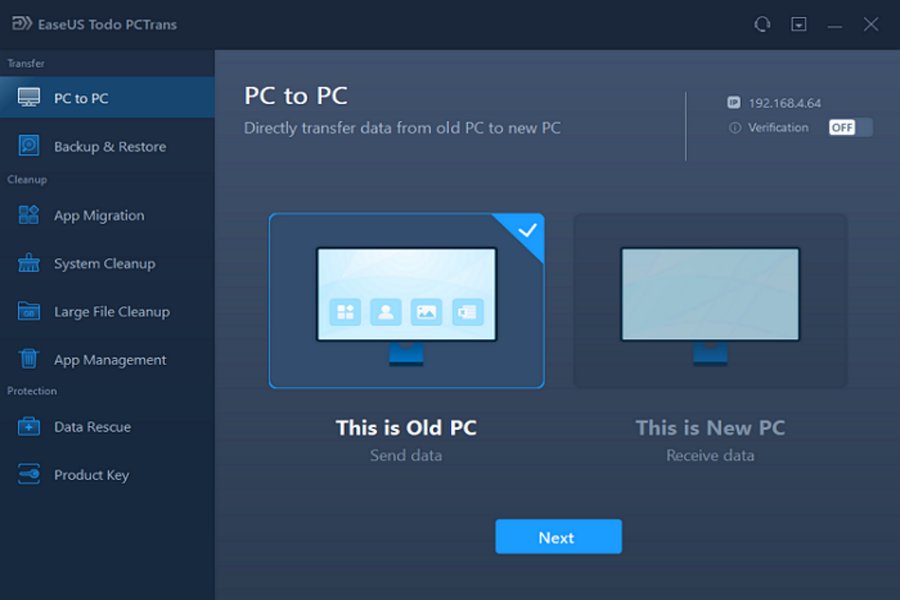
- Installation: Download and install EaseUS Todo PCTrans on both your old (source) and new (target) Windows 10 PCs.
- Connection: Ensure both PCs are connected to the same network (LAN/Wi-Fi). On the software interface, select the "PC to PC" transfer mode.
- Selection: The software will scan the source PC for installed programs. You can then select the specific applications, user accounts, and files you wish to transfer.
- Initiate Transfer: Confirm your selections and begin the transfer. The software handles the complex task of moving the necessary program files, registry entries, and settings.
- Verification: Once the transfer is complete, check the transferred programs on your new PC to ensure they launch and function correctly. Some programs might require re-login or minor adjustments.
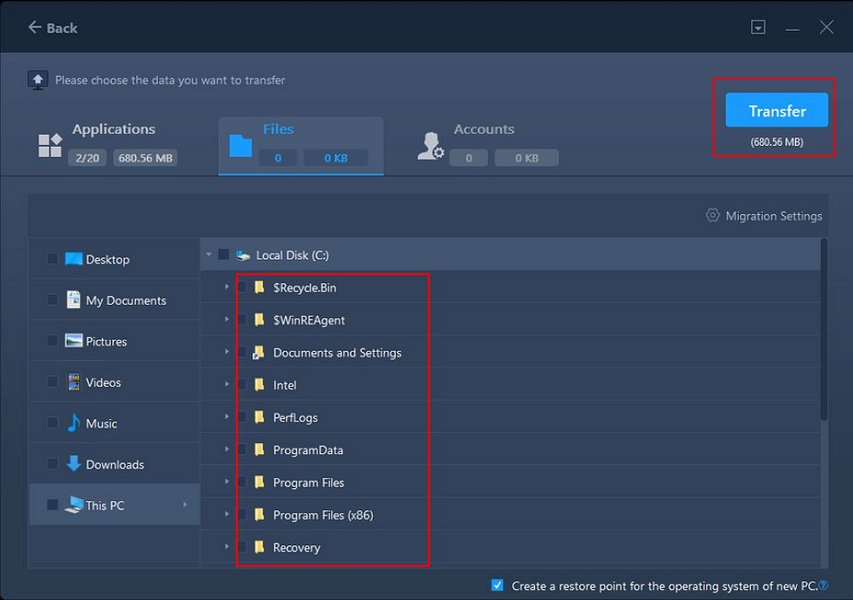
The EaseUS Todo PCTrans interface, showing options for selecting files during a network transfer.
Understanding Limitations and Alternatives
While EaseUS Todo PCTrans Free offers a robust solution for many scenarios, it's crucial to understand its limitations and consider alternative approaches for different needs.
Why Manual Copying Fails for Most Programs
As mentioned, simply copying program folders is usually ineffective. This is because most installed programs require specific entries in the Windows Registry to function correctly. The Registry acts as a central database for configuration settings, hardware information, and software preferences. Without these entries, a copied program often cannot find its necessary components or integrate with the operating system.
The image below illustrates the core challenge:
When Reinstallation is the Best Path
For many applications, especially complex, resource-intensive software or those with strict licensing mechanisms, reinstalling remains the most reliable method. This includes:
- Login-Based Software: Programs like Microsoft Office 365, Adobe Creative Cloud, or popular games (via platforms like Steam or Epic Games Store) often require you to log into your account on the new PC to re-download and activate them.
- Hardware-Specific Software: Drivers, utility software for peripherals, or specialized programs tied to specific hardware components might not transfer well.
- Large Applications: While transfer tools can move large programs, sometimes a clean reinstallation ensures optimal performance and avoids any potential corruption.
The Fate of Windows Easy Transfer
It's important to note that Microsoft's own "Windows Easy Transfer," which was a built-in tool for older Windows versions (up to Windows 8.1), was discontinued for Windows 10 and 11. This means you cannot rely on a native Microsoft tool for direct program transfers.
Other Free Transfer Methods (for Data, not Programs)
While not for installed programs, there are many free methods for transferring user files and folders:
- External Storage: USB flash drives or external hard drives remain a simple way to copy documents, photos, videos, and other personal files.
- Network Sharing: If both PCs are on the same local network, you can set up shared folders to transfer files.
- Cloud Services: Services like OneDrive, Google Drive, or Dropbox offer convenient ways to synchronize and transfer files across devices, though this is dependent on your internet speed and storage limits.
Assessing Transfer Tool Capabilities
To provide a clearer perspective on the various approaches to program transfer, here's a radar chart analyzing different methods based on their effectiveness, ease of use, cost, and scope of transfer.
This radar chart illustrates the trade-offs between different methods. EaseUS Todo PCTrans (Free) offers a good balance of effectiveness, ease of use, and cost for program transfers, scoring well in areas where manual methods fail. Reinstallation, while requiring more manual effort and potentially re-purchasing some software, generally provides the highest reliability and compatibility. Manual copying of installed programs, as expected, performs poorly in effectiveness and reliability due to the underlying complexities.
Practical Considerations and Best Practices
Before attempting any program transfer, consider these crucial points:
Software Licensing and Activation
Transferring a program does not bypass its licensing requirements. Ensure you comply with the software's terms of service. For many paid programs, you may need to deactivate the license on the old PC before activating it on the new one, or log into your account to manage installations.
Backup Your Data
Always perform a full backup of your important files and the system on your old PC before initiating any major transfer process. While tools like EaseUS Todo PCTrans are reliable, unexpected issues can occur, and a backup ensures data safety.
Portable Applications
Some lightweight applications are designed to be "portable," meaning they do not require installation or registry entries. These can often be simply copied from one PC to another using a USB drive or external hard drive and will run directly. Identify such applications as they are the easiest to migrate.
Video Guide: Transferring Apps and Data
For a visual guide on transferring apps and data from one PC to another, this video provides a helpful overview. It discusses the process and often highlights the use of third-party tools like EaseUS Todo PCTrans, demonstrating the steps involved in migrating your digital life to a new computer.
A practical demonstration on transferring applications and data between PCs, often highlighting specialized software.
Comparative Overview of Transfer Methods
The following table summarizes the different methods for moving software and data, highlighting their applicability to installed programs:
| Method | Description | Applicability for Installed Programs | Pros | Cons |
|---|---|---|---|---|
| EaseUS Todo PCTrans (Free) | Specialized software for transferring applications, data, and user accounts over a network or via image. | Yes (limited to 5 programs, 2GB data in free version). | Automated, user-friendly, handles registry entries, no reinstallation needed for transferred apps. | Free version has limitations, not all programs transfer perfectly, requires installation on both PCs. |
| Manual Copy-Paste | Directly copying program folders from source to destination using external drives or network shares. | Only for truly portable applications (no installation/registry dependencies). | Free, simple for portable apps. | Fails for most installed programs due to missing registry entries and system files, time-consuming for many files. |
| Reinstallation | Downloading and installing programs from original sources or media on the new PC. | Recommended for most complex installed programs. | Most reliable, ensures full compatibility, fresh installation. | Time-consuming, requires installation media/licenses, may need re-customization. |
| Cloud Services (e.g., OneDrive) | Uploading files to cloud storage and downloading them on the new PC. | No (only for user data files, not installed applications). | Convenient, accessible from anywhere, good for small files. | Dependent on internet speed, storage limits, not for programs. |
| External Hard Drive (for data) | Copying user files and folders to an external drive, then to the new PC. | No (only for user data files, not installed applications). | Simple, reliable for large data volumes. | Requires physical drive, manual selection of files. |
Frequently Asked Questions (FAQ)
Can I just copy my program files to a new PC?
Does Microsoft provide a free tool to transfer programs?
What is EaseUS Todo PCTrans Free's main limitation?
Are there any programs that can be copied manually?
Conclusion
While the idea of a simple, free "copy-paste" solution for all installed Windows 10 programs is largely a myth due to the underlying complexities of software installation, specialized tools like EaseUS Todo PCTrans Free come remarkably close to fulfilling this need for a limited number of applications. For comprehensive migration, a combination of using such tools for what they can handle and judiciously reinstalling software (especially major applications like Microsoft Office or Adobe products) from their original sources or accounts offers the most reliable path. Always prioritize data backup and be mindful of software licensing to ensure a smooth transition to your new PC.
Recommended Further Exploration
- How to backup and restore Windows 10 before PC migration?
- Understanding software licensing when transferring PCs.
- Best practices for setting up a new Windows 10 PC.
- Portable applications for Windows 10 and their benefits.