
Why Does Google Assistant on Android TV Automatically Open When It's Off in Settings?
Understanding the Unexpected Activations and How to Control Them
Key Takeaways
- Residual Settings and Voice Triggers: Misconfigured settings and unintended voice activation can cause Google Assistant to activate even when disabled.
- Hardware and Software Interactions: Issues with remote control buttons, HDMI-CEC integration, and software glitches contribute to unexpected Assistant activations.
- Comprehensive Troubleshooting Needed: Addressing the issue requires a combination of settings adjustments, hardware controls, and potential system resets.
Common Reasons Why Google Assistant Activates Unexpectedly
1. Residual and Misconfigured Settings
Even after disabling Google Assistant in the settings, residual configurations or incomplete disablement can lead to unintended activations. This can occur if certain sub-settings related to Google Assistant remain enabled or if the Assistant is tied to multiple services within the Android TV ecosystem.
2. Voice Activation Triggers
Google Assistant relies on voice commands such as "Hey Google" or "OK Google" to activate. Environmental sounds, background conversations, or even the TV's own audio during commercials can inadvertently trigger the Assistant. Additionally, poor microphone calibration can result in false positives, causing the Assistant to activate without explicit user intent.
3. Dedicated Remote Control Buttons
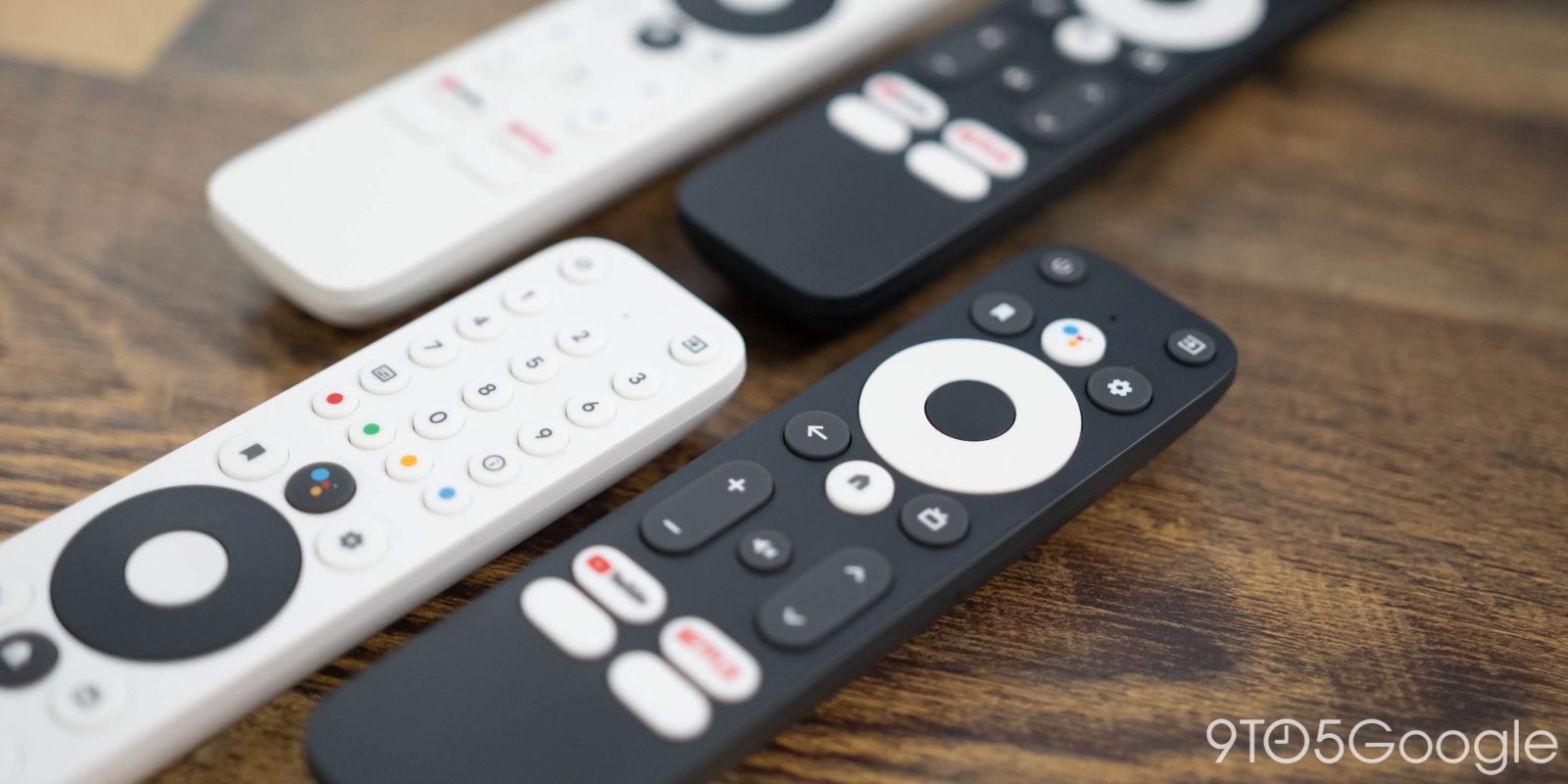
Many Android TV remotes come equipped with a dedicated Google Assistant button. If this button is stuck, faulty, or inadvertently pressed, it can trigger the Assistant regardless of the settings. This hardware interaction poses a significant challenge in managing unintended activations.
4. Firmware and Software Glitches
Software bugs or outdated firmware can disrupt the normal functioning of Google Assistant. Updates to the Android TV operating system or the Google Assistant app itself may inadvertently re-enable features or introduce bugs that cause the Assistant to activate unexpectedly.
5. HDMI-CEC Integration
Consumer Electronics Control (CEC) allows devices connected via HDMI to communicate and control each other. However, improper configuration or communication from connected devices can send unintended commands to the TV, triggering the Google Assistant even when it is disabled in the settings.
6. Sleep Mode and Power Settings
Instead of fully powering off, some TVs enter a low-power "sleep" mode. In this state, certain services like Google Assistant may remain partially active, leading to unexpected activations. Additionally, network settings that keep the TV connected can continue to allow background processes to access the Assistant.
7. Accessibility Settings Interference
Accessibility features such as Screen Reader or TalkBack can sometimes interfere with Google Assistant functionality. These features may inadvertently trigger voice controls or interact with the Assistant, leading to unexpected activations even when the Assistant is supposed to be disabled.
Solutions to Prevent Google Assistant from Activating Automatically
1. Comprehensive Settings Review
Ensure that all Google Assistant-related settings are thoroughly disabled. This includes navigating to Settings > Privacy > Google Assistant and turning off all associated options. Additionally, check for any dedicated sections for Google Assistant within the settings menu and disable them.
2. Disable Voice Activation Features
To prevent unintended voice triggers, disable the "Hey Google" or "OK Google" detection. This can typically be done via Settings > Google Assistant > Voice Match. Additionally, if available, turn off the built-in microphone on both the TV and the remote to eliminate voice-based activations.
3. Manage Remote Control Buttons
If the remote control has a dedicated Google Assistant button, consider remapping its function to prevent it from triggering the Assistant. This can often be done through the TV's settings or by using third-party applications like "Button Mapper." Alternatively, physically disabling the button or using a remote without this feature can also solve the issue.
4. Update Firmware and Software
Ensure that the TV's firmware and all related applications are up to date. Manufacturers frequently release updates that fix known bugs and improve system stability. Navigate to Settings > System > About > System Update to check for and install any available updates.
5. Disable HDMI-CEC Settings
Since HDMI-CEC can cause connected devices to send unintended commands, disable this feature if it's not needed. This can be done by going to Settings > System > CEC and turning off the relevant options. This will prevent other devices from influencing the TV's behavior regarding Google Assistant.
6. Clear Cache and Data for Google Apps
Clearing the cache and data for the Google app can resolve issues caused by corrupted data or residual permissions. Navigate to Settings > Apps > Google > Storage > Clear Cache/Clear Data to perform this action. This helps in resetting the app's functionality, potentially stopping unintended activations.
7. Factory Reset as a Last Resort
If all other solutions fail, performing a factory reset can help in resolving persistent issues. This will erase all custom settings and installed apps, returning the TV to its original state. Navigate to Settings > Device Preferences > Reset and follow the on-screen instructions. After resetting, opt for a "Basic TV" setup instead of "Google TV" mode to minimize Google Assistant integrations.
8. Use a Smart Plug to Ensure Total Power Off
To ensure that the TV is completely powered off and that no background services remain active, use a smart plug. This allows you to cut off all power to the device when not in use, preventing any possibility of Google Assistant remaining active in sleep mode.
9. Review and Adjust Accessibility Settings
Disable any accessibility features that might interfere with Google Assistant. Navigate to Settings > Accessibility and turn off features like Screen Reader or TalkBack. This can help in preventing these features from inadvertently triggering the Assistant.
10. Recalibrate Microphone Settings
Proper calibration of the TV's microphone can reduce the chances of accidental voice activations. Ensure that the microphone sensitivity is appropriately set and that it minimizes the likelihood of picking up unintended sounds that could trigger Google Assistant.
Detailed Solutions with Step-by-Step Instructions
A. Disabling Google Assistant Completely
To ensure that Google Assistant is fully disabled, follow these steps:
- Navigate to Settings > Privacy > Google Assistant.
- Turn off all options related to Google Assistant.
- If available, disable "Hey Google" detection under the Voice Match settings.
- Check for any dedicated Google Assistant sections in the settings menu and ensure they are also disabled.
B. Turning Off the Microphone
Most TVs with Google Assistant capabilities have a physical microphone switch on the TV or remote. To disable it:
- Locate the microphone switch on your TV or remote.
- Slide the switch to the "Off" position to disable the microphone completely.
C. Remapping or Disabling the Assistant Button
If your remote has a dedicated Assistant button, you can remap it as follows:
- Go to Settings > Remote Control Settings on your TV.
- Choose the option to customize button functions.
- Select the Assistant button and set it to "Do Nothing" or map it to another function.
- If your TV does not support remapping, consider using a third-party app like "Button Mapper" to achieve this.
D. Updating Firmware and Software
Keeping your TV's firmware and software up to date can resolve many issues:
- Navigate to Settings > System > About > System Update.
- Check for available updates and install them.
- Restart your TV after the update to ensure changes take effect.
E. Disabling HDMI-CEC
To prevent connected devices from sending commands that trigger Google Assistant:
- Go to Settings > System > CEC.
- Turn off HDMI-CEC or disable specific features that allow device communication.
- Ensure that all connected devices are also configured to minimize unintended commands.
F. Clearing Cache and Data for Google Apps
To reset the Google app and remove any corrupt data:
- Navigate to Settings > Apps > Google.
- Select Storage.
- Click on Clear Cache and Clear Data.
- Restart your TV to apply the changes.
G. Performing a Factory Reset
As a last resort, a factory reset can help eliminate persistent issues:
- Navigate to Settings > Device Preferences > Reset.
- Select the option to perform a factory reset.
- Follow the on-screen instructions to complete the reset.
- During setup, choose "Basic TV" mode instead of "Google TV" to reduce Google Assistant integrations.
H. Utilizing a Smart Plug for Total Power Off
To ensure that your TV is completely powered off and no background services remain active:
- Connect your Android TV to a smart plug.
- Use the smart plug's app or interface to turn off the power completely when the TV is not in use.
- This prevents any background processes, including Google Assistant, from remaining active in sleep mode.
I. Reviewing and Adjusting Accessibility Settings
To prevent accessibility features from interfering with Google Assistant:
- Navigate to Settings > Accessibility.
- Turn off features like Screen Reader or TalkBack.
- Ensure that no accessibility settings are inadvertently enabling Google Assistant functionalities.
J. Recalibrating Microphone Sensitivity
Properly calibrate the microphone to reduce false activations:
- Go to Settings > Audio > Microphone Settings.
- Adjust the microphone sensitivity to a level that minimizes unintended voice pickups.
- Test the settings by speaking near the TV to ensure that the microphone does not pick up ambient sounds unnecessarily.
Preventative Measures and Best Practices
1. Regularly Update Your Device
Keeping your Android TV's software up to date ensures that you have the latest security patches and bug fixes. Regular updates can help prevent software glitches that may cause unexpected behavior in features like Google Assistant.
2. Monitor Remote Control Usage
Be mindful of the buttons on your remote control. Avoid pressing the Google Assistant button accidentally and ensure that it is not stuck or malfunctioning, which can lead to unintended activations.
3. Manage Connected Devices
Ensure that all devices connected via HDMI to your TV are properly configured and not sending unintended commands. Disabling unnecessary CEC features on connected devices can help prevent conflicts.
4. Utilize Physical Switches
Use physical switches to control the microphone and power settings on your TV. This provides an extra layer of control, ensuring that features like Google Assistant cannot activate without manual intervention.
5. Customize Voice Detection Sensitivity
Adjust the sensitivity of voice detection to ensure that the TV does not pick up ambient sounds that could trigger Google Assistant. This helps in reducing false activations caused by background noise.
6. Limit Google Services Integration
During the initial setup, opt for a "Basic TV" mode instead of "Google TV" to limit the integration of Google services. This reduces the dependencies and potential triggers for Google Assistant.
7. Secure Your Network
Ensure that your network is secure to prevent unauthorized access or commands that could influence the behavior of Google Assistant. Use strong passwords and regularly update your network security settings.
Conclusion
Google Assistant's unexpected activations on Android TV, even when disabled in settings, can be attributed to a combination of residual settings, voice activation triggers, hardware interactions, software glitches, and HDMI-CEC integrations. To effectively prevent these unintended activations, a comprehensive approach is required. This includes thoroughly disabling all Google Assistant settings, managing remote control functionalities, ensuring that firmware and software are up to date, and addressing hardware interactions such as HDMI-CEC and microphone sensitivities. In cases where these solutions do not suffice, performing a factory reset or using smart plugs to ensure complete power-off can provide further control. By implementing these strategies, users can achieve a more controlled and predictable experience with their Android TVs, minimizing the chances of Google Assistant activating without explicit intent.
References
Last updated January 24, 2025