
Unlock Google Docs Potential: Mastering OLE Object Linking & Embedding
Discover how to seamlessly integrate and manage OLE objects within Google Docs for enhanced document functionality and collaboration.
Key Highlights of OLE Support in Google Docs
- Limited Native OLE Support: Google Docs has limited direct OLE support, primarily functioning through linked objects like charts, tables, and slides.
- Linking Capabilities: You can link various Google Workspace elements (Sheets, Slides, etc.) to your Google Docs, ensuring updates in the original files reflect in the document.
- Workarounds for Broader OLE Functionality: While direct embedding isn't fully supported, exploring add-ons and linking techniques can help integrate external content effectively.
Understanding OLE and Its Relevance to Google Docs
OLE (Object Linking and Embedding) is a technology that allows you to create documents containing objects from different applications. In essence, it lets you embed or link content created in one program (like Excel) into a document created in another (like Word). While Google Docs doesn't fully support OLE in the traditional sense, it offers similar functionalities through linking and embedding specific types of objects.
How Google Docs Handles Object Linking
Google Docs primarily handles OLE-like functionality through linked objects. This means you can insert charts, tables, or slides from Google Sheets or Google Slides into your Google Doc. The key advantage here is that these objects remain connected to their original source files. When the source data is updated, those changes can be reflected in your Google Doc, ensuring your document always contains the latest information.
Linking Charts, Tables, and Slides
To link a chart, table, or slides to Google Docs:
- Open your document in Google Docs.
- Insert the desired object from Google Sheets or Google Slides.
- When prompted, choose to link the object.
Any changes made to the original chart, table, or slide in Google Sheets or Slides can be updated in your Google Doc. To update linked objects:
- In Google Docs, go to Tools > Linked objects.
- Click Update all to update all linked objects, or click Update next to specific objects.
This ensures that your document reflects the most current data and visualizations.
Limitations of Traditional OLE Support in Google Docs
Unlike Microsoft Word, Google Docs does not natively support the full spectrum of OLE objects from various applications. This means you can't directly embed objects like those from specialized software without potential compatibility issues or the need for workarounds.
Workarounds and Alternatives
While direct OLE embedding might be limited, there are alternative approaches to integrate external content:
- Linking to External Documents: Instead of embedding, you can link to external documents or resources. This can be achieved by inserting hyperlinks within your Google Doc.
- Using Add-ons: Explore Google Docs add-ons that might offer enhanced embedding capabilities or support for specific file types.
- Converting Files: Convert files from other formats (e.g., Microsoft Office) to Google Docs, Sheets, or Slides to ensure compatibility. Note that complex OLE objects might not translate perfectly during conversion.
Practical Applications of Linking in Google Docs
Creating Dynamic Reports
Linking charts and tables from Google Sheets to Google Docs is particularly useful for creating dynamic reports. If you're tracking sales data in a Google Sheet, you can create a visually appealing chart and link it to a report in Google Docs. As the sales data gets updated, you can refresh the linked chart in your report with a few clicks.
Collaborative Presentations
Similarly, linking slides from Google Slides to a Google Doc can streamline collaborative presentations. Multiple people can work on different sections of a presentation, and you can compile those sections into a single document, ensuring everyone has access to the latest version.
Enhancing Student Work
Students can also benefit from these features by linking evidence to support their arguments. They can add links to specific spots within a document, demonstrating their reading comprehension by referencing key events or quotes.
Step-by-Step Guide to Linking Objects in Google Docs
Linking a Google Sheet to a Google Doc
Here’s how to embed a spreadsheet from Google Sheets into Google Docs:
- Open Google Sheets: Navigate to your Google Sheet containing the data you want to link.
- Select Data: Select the specific cells or chart you wish to embed in your Google Doc.
- Copy: Copy the selected data or chart (Ctrl+C or Cmd+C).
- Open Google Docs: Open the Google Doc where you want to insert the linked spreadsheet.
- Paste: Paste the copied data into your Google Doc (Ctrl+V or Cmd+V).
- Link Option: When pasting, you will be prompted to either "Link to spreadsheet" or "Paste unlinked". Choose "Link to spreadsheet".
- Adjust: Adjust the position and size of the embedded spreadsheet as needed within your document.
Updating Linked Objects
To update a linked object, follow these steps:
- Open Google Docs: Open the Google Doc containing the linked objects.
- Navigate to Tools: Click on the "Tools" menu at the top.
- Select Linked Objects: Choose "Linked objects" from the dropdown menu.
- Update: In the "Linked objects" sidebar, you'll see a list of all linked objects in your document. Click the "Update" button next to each object you want to refresh, or click "Update all" to update everything at once.
Enhancing Google Docs with Visual Elements
Illustrating Google Docs Functionality
Visual aids can significantly enhance understanding and engagement with Google Docs features. Below are some images illustrating key aspects of working with Google Docs.
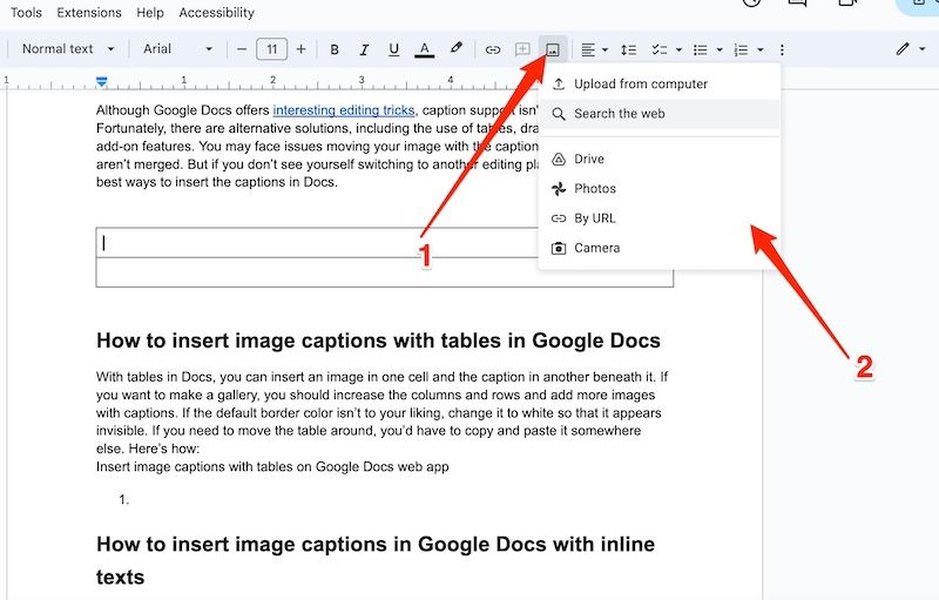
Inserting an image into Google Docs.
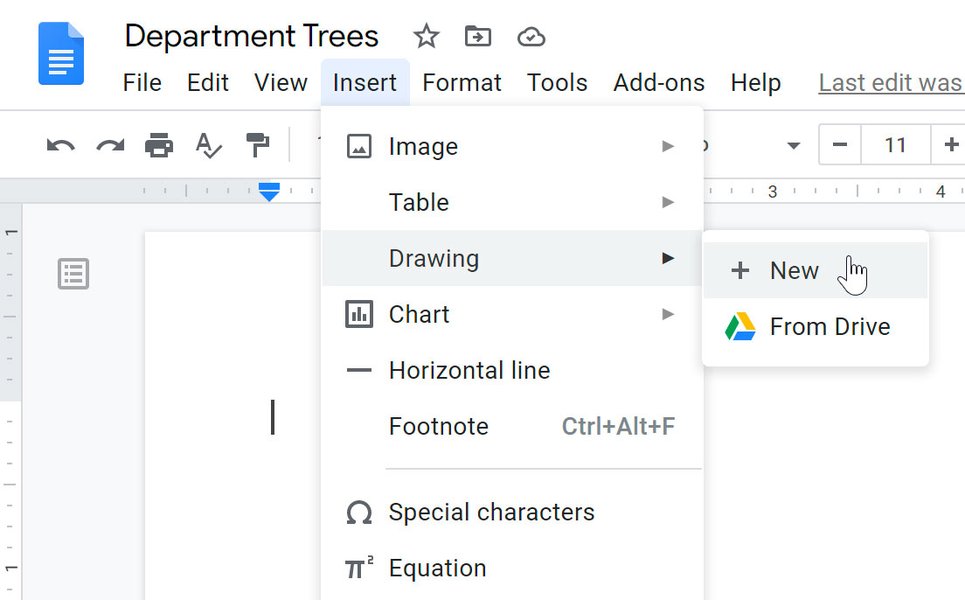
Creating drawings and shapes directly within Google Docs.
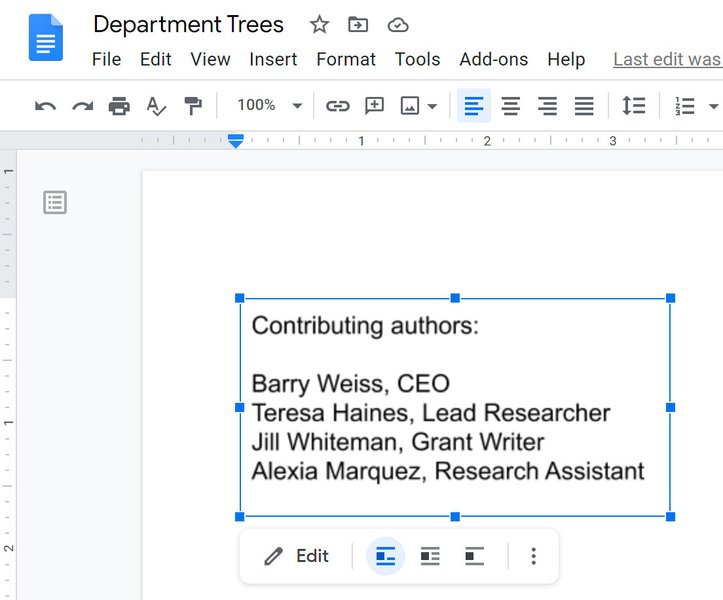
Utilizing text boxes to highlight and organize content.
These images illustrate the versatility of Google Docs in handling visual elements, making it a powerful tool for various documentation needs. The ability to insert and manipulate images, create drawings, and use text boxes allows for a more engaging and informative document.
Linking Data Between Google Sheets and Google Docs
Linking data between Google Sheets and Google Docs can significantly streamline your workflow, especially when dealing with reports, presentations, or any document that requires up-to-date information from a spreadsheet. This ensures that any changes made in your Google Sheet are reflected in your Google Doc, saving you time and reducing the risk of errors.
Step-by-step Guide to Linking
Here's how to link data between Google Sheets and Google Docs:
- Open Google Sheets: Start by opening the Google Sheet that contains the data you want to link.
- Select Data: Select the specific cells or chart you wish to embed in your Google Doc.
- Copy: Copy the selected data or chart (Ctrl+C or Cmd+C).
- Open Google Docs: Open the Google Doc where you want to insert the linked spreadsheet.
- Paste: Paste the copied data into your Google Doc (Ctrl+V or Cmd+V).
- Link Option: When pasting, you will be prompted to either "Link to spreadsheet" or "Paste unlinked". Choose "Link to spreadsheet".
- Adjust: Adjust the position and size of the embedded spreadsheet as needed within your document.
Benefits of Linking Data
Linking data offers several key advantages:
- Real-Time Updates: Any changes made to the original Google Sheet are reflected in the Google Doc, ensuring your document is always up-to-date.
- Time-Saving: Avoid manually updating data in multiple locations.
- Reduced Errors: Minimizes the risk of inconsistencies between your spreadsheet and document.
Use Cases for Linking Data
-
Reports: Create dynamic reports that automatically update with the latest data.
-
Presentations: Embed charts and tables in presentations to keep your audience informed with real-time information.
-
Dashboards: Build interactive dashboards that pull data from multiple Google Sheets.
Illustrative Table: OLE Support in Google Docs vs. Microsoft Word
The following table compares OLE support in Google Docs and Microsoft Word, highlighting key differences and capabilities.
| Feature | Google Docs | Microsoft Word |
|---|---|---|
| Native OLE Support | Limited; Primarily through linked objects (charts, tables, slides from Google Workspace) | Extensive; Supports a wide range of OLE objects from various applications |
| Linking Capabilities | Strong; Seamless linking with Google Sheets and Slides | Good; Supports linking with Microsoft Excel, PowerPoint, and other applications |
| Embedding Capabilities | Limited direct embedding; Relies on linking and workarounds | Extensive direct embedding; Supports embedding objects from various applications |
| Update Mechanism | Manual update via "Linked objects" tool | Automatic or manual updates depending on object settings |
| Compatibility | Best with Google Workspace files; May require conversion for other formats | Good with Microsoft Office formats; May require specific software for other formats |
This table underscores that while Google Docs offers robust linking capabilities within the Google Workspace ecosystem, Microsoft Word provides broader support for embedding objects from a wider array of applications.
Enhancing Your Google Docs with Embedded Spreadsheets
Embedding a Spreadsheet from Google Sheets into Google Docs.
This video demonstrates how to add a live, linked spreadsheet table to your Google Doc from Google Sheets. The relevance lies in its ability to keep your document updated with the latest changes made in your spreadsheet. By embedding the spreadsheet, any modifications you make in Google Sheets will automatically reflect in your Google Doc, ensuring that your document always presents the most current and accurate data. This feature is particularly useful for reports, presentations, and collaborative projects where real-time data updates are essential.
Frequently Asked Questions (FAQ)
References
Last updated April 10, 2025