
Is Your Google Meet Call Choppy? The Hidden Culprit Might Be Packet Loss!
Discover the critical packet loss thresholds for a seamless Google Meet experience and how to maintain optimal call quality.
Key Insights on Google Meet Packet Loss
- The Golden Standard: For the best Google Meet experience, packet loss should ideally be as close to 0% as possible.
- Generally Acceptable: A packet loss rate consistently below 1% is typically considered acceptable and unlikely to cause noticeable issues.
- Warning Sign: Once packet loss starts to exceed 1-2%, you might begin to experience minor disruptions, and quality significantly degrades if it surpasses 3%.
Understanding Packet Loss in the Context of Google Meet
What Exactly is Packet Loss?
Imagine sending a letter broken into many small postcards. Packet loss occurs when some of these "postcards" (data packets) get lost or delayed significantly during their journey across the internet from the sender to the receiver. For real-time applications like Google Meet, which transmit audio and video data continuously, these lost packets mean missing pieces of information. This can result in a disjointed and frustrating communication experience.
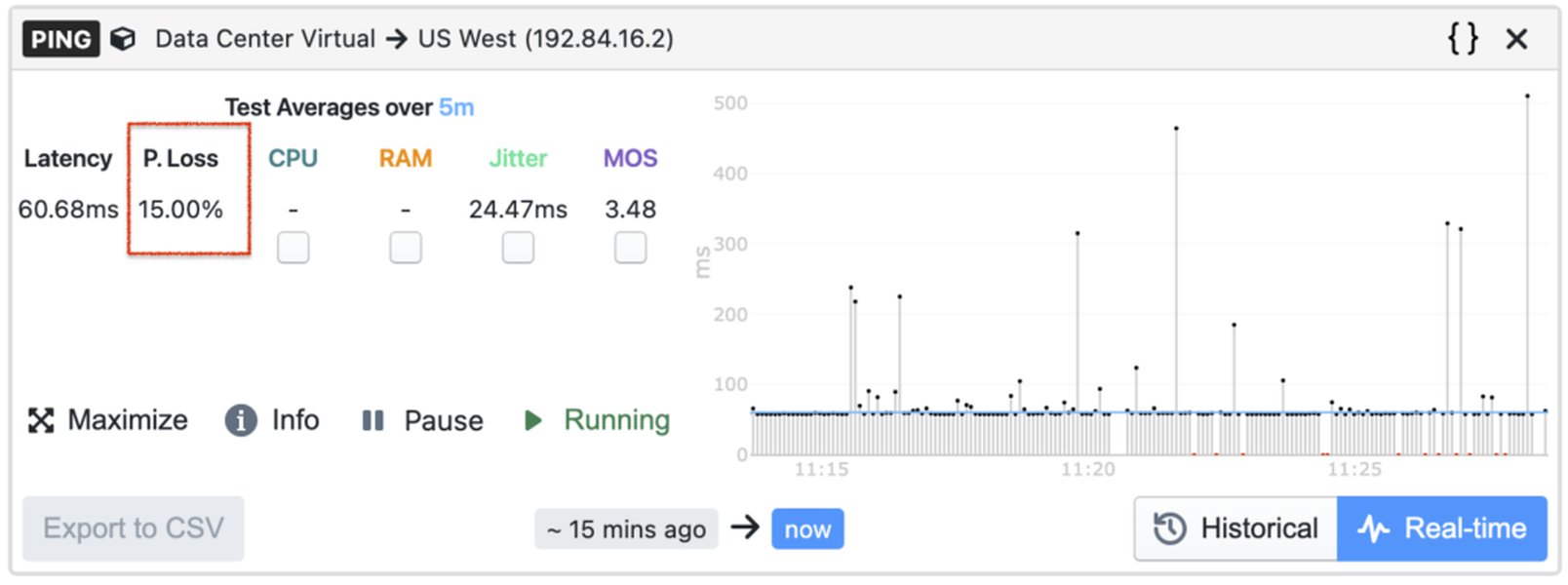
Visual representation of data packets traveling across a network, with some packets being dropped (lost).
Why is Low Packet Loss Crucial for Google Meet?
Google Meet relies on a steady and complete stream of data to deliver clear audio and smooth video. When packets are lost:
- Audio can become choppy or robotic: Missing audio packets lead to gaps or distortions in what you hear.
- Video can freeze, pixelate, or lag: Lost video packets mean incomplete frames, resulting in poor visual quality.
- Screen sharing can be unreliable: Shared content might not update correctly or appear garbled.
- Calls can drop entirely: Severe packet loss can make the connection unsustainable.
Unlike downloading a file, where lost packets can often be retransmitted without a noticeable impact on the final result (though it might take longer), real-time communication doesn't have the luxury of significant delays for retransmissions. Therefore, minimizing initial packet loss is paramount for a quality Google Meet session.
Decoding Packet Loss Thresholds for Google Meet
While the ideal packet loss is zero, the internet is not always perfect. Here's a breakdown of what different levels of packet loss generally mean for your Google Meet experience:
The Ideal Scenario: Striving for Near 0%
Optimal Performance Zone
When packet loss is consistently at or very near 0%, you can expect Google Meet to perform optimally. Audio will be crystal clear, video will be smooth and high-definition (depending on your camera and settings), and interactions will feel natural and immediate. This is the target for professional and critical communications.
The Acceptable Range: Staying Below 1%
Good Performance Zone
Most networking experts and Google's own indications suggest that a packet loss rate of less than 1% is generally acceptable for Google Meet. At this level, any impact on call quality is usually imperceptible to users. The platform has mechanisms to handle very minor losses, ensuring a stable experience.
The Caution Zone: Between 1% and 3%
Potential Degradation Zone
As packet loss creeps into the 1% to 3% range, you might start to notice subtle degradations in quality. This could manifest as occasional audio glitches, a brief moment of video pixelation, or a slight lag. While the call might still be usable, the experience is no longer optimal. Google Meet is known to be more sensitive than some other platforms, and degradation can begin even at 1% loss.
The Red Flag: Exceeding 3%
Problematic Performance Zone
Once packet loss consistently exceeds 3%, significant and obvious problems are likely to occur. This is generally considered a poor level of network performance for real-time video conferencing. Users will experience noticeable audio dropouts, frozen or heavily distorted video, and potentially dropped calls. Troubleshooting becomes essential at this stage.
Impact of Packet Loss Levels on Google Meet Quality
The following table summarizes the typical impact of different packet loss percentages on Google Meet sessions:
| Packet Loss Percentage | Impact on Google Meet Quality | User Experience |
|---|---|---|
| 0% - <0.5% | Ideal, optimal performance. | Crystal clear audio and video, seamless interaction. |
| 0.5% - <1% | Very good, generally no noticeable issues. | Smooth experience, minor occasional imperfections possible but rare. |
| 1% - 2% | Minor degradation possible, slight audio/video choppiness or lag may occur. | Generally usable, but some annoyances may start to appear. |
| 2% - 3% | Noticeable degradation likely; audio may stutter, video may freeze intermittently. | Frustration may begin; call quality is noticeably impacted. |
| >3% - 5% | Significant degradation; frequent audio dropouts, very choppy or frozen video. | Difficult to maintain a productive conversation; call may become unstable. |
| >5% | Severe degradation; call likely unusable, frequent disconnections. | Extremely frustrating; communication breakdown. |
Google Meet's Network Demands: A Comparative Look
Google Meet, like other high-quality video conferencing services, has specific network requirements for optimal performance. It is often considered more sensitive to network imperfections, such as packet loss and jitter, compared to some other applications or even some competing video platforms. This sensitivity stems from its aim to deliver low-latency, high-definition audio and video.
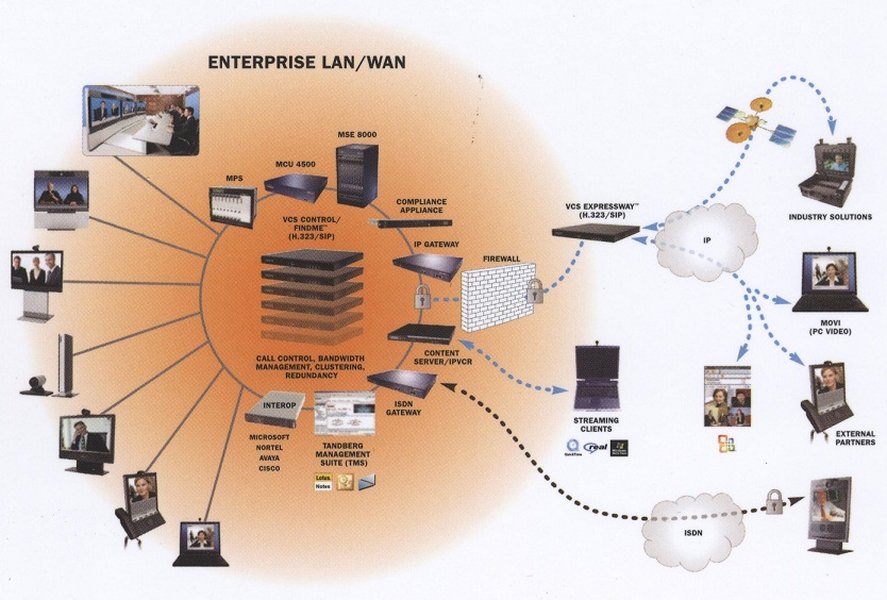
A stable network is key for effective video conferencing like Google Meet.
Network Performance Factor Comparison
The radar chart below illustrates a comparative view of network performance factor sensitivity for Google Meet versus what might be considered 'Typical' or 'Basic' video call needs. The values are illustrative, highlighting relative sensitivities. For sensitivity metrics (like Packet Loss Sensitivity), a higher value indicates greater sensitivity (i.e., a lower tolerance for issues).
As the chart suggests, Google Meet generally has higher sensitivity to packet loss and jitter, demands lower latency, and requires a consistently stable connection with adequate bandwidth to deliver its full quality experience. This is why maintaining packet loss below 1% is crucial.
Unpacking the Culprits: Common Causes and Solutions for Packet Loss
Understanding why packet loss occurs is the first step to mitigating it. The following mindmap outlines common causes and potential solutions or areas to investigate if you're experiencing high packet loss during your Google Meet calls.
This mindmap illustrates that packet loss can stem from various points, from your local device and network setup to broader internet infrastructure challenges. A systematic approach to identifying the bottleneck is often necessary.
Troubleshooting Google Meet Network Issues
If you suspect high packet loss or other network problems are affecting your Google Meet calls, there are tools and techniques to help diagnose and address them. Google itself provides some troubleshooting capabilities within Meet. Understanding how to use these, or general network diagnostic tools, can be very beneficial.
The following video provides an overview of a Google Meet tool that can help in troubleshooting network and performance issues, which is relevant to identifying problems like packet loss:
This video explains a Google Meet tool for troubleshooting network and performance issues, which can be helpful in diagnosing problems related to packet loss.
Key steps often involve checking your connection stability, pinging reliable servers (like Google's DNS at 8.8.8.8), and observing patterns in when the packet loss occurs. Using a wired connection instead of Wi-Fi is a common first step to rule out local wireless issues.
FAQ: Your Google Meet Packet Loss Questions Answered
What is packet loss in simple terms?
Packet loss is when small units of data (packets) being sent over the internet fail to reach their destination. For Google Meet, this means parts of the audio or video data don't arrive, leading to quality issues.
Why is low packet loss so important for Google Meet?
Google Meet is a real-time application. Unlike downloading a file where lost packets can be resent without much notice, in a live video call, lost packets mean immediate, noticeable gaps or distortions in audio and video. Low packet loss ensures a smooth, uninterrupted conversation.
How can I check my packet loss for Google Meet?
You can use built-in operating system tools like `ping` (in Command Prompt on Windows or Terminal on macOS/Linux) to test packet loss to a reliable server (e.g., `ping 8.8.8.8 -t` on Windows or `ping 8.8.8.8` on macOS/Linux). Google Meet also has troubleshooting information within the call settings that can provide insights into network quality. Specialized network monitoring tools can offer more detailed analysis.
What are common signs of high packet loss during a Google Meet call?
Common signs include: robotic or choppy audio, audio cutting in and out, video freezing or becoming pixelated, delays in seeing or hearing others, screen sharing appearing garbled or slow to update, and in severe cases, the call dropping entirely.
Is Google Meet more sensitive to packet loss than other video platforms?
Google Meet is often considered to be quite sensitive to network conditions, including packet loss. While all video conferencing tools are affected by packet loss, Google Meet may show signs of degradation at lower loss percentages (e.g., starting around 1%) compared to some other platforms that might tolerate slightly higher loss before severe issues arise.
Recommended Further Exploration
- How can I reduce packet loss on my home network to improve video call quality?
- What is network jitter and how does it interact with packet loss to affect Google Meet performance?
- What are the best practices for optimizing my Wi-Fi network specifically for Google Meet sessions?
- Which tools are most effective for diagnosing persistent Google Meet connection problems beyond basic checks?
References
Last updated May 16, 2025