
Comprehensive Guide to Running DeepSeek-V3 on a Single NVIDIA GeForce RTX 4090
Introduction
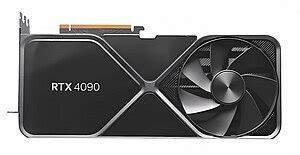
DeepSeek-V3 is a cutting-edge model that leverages advanced machine learning techniques for various applications. Running DeepSeek-V3 on a single NVIDIA GeForce RTX 4090 requires meticulous setup and optimization to ensure optimal performance. This guide provides a detailed, step-by-step approach to configuring your system, installing necessary software, and executing DeepSeek-V3 efficiently on your RTX 4090.
System Requirements
Hardware Specifications
- GPU: NVIDIA GeForce RTX 4090 with 24GB VRAM
- CPU: Modern multi-core processor (e.g., Intel i9 or AMD Ryzen 9)
- RAM: Minimum 32GB, preferably 64GB for smoother operations
- Storage: SSD with at least 100GB free space, NVMe recommended for faster data access
Software Specifications
- Operating System: Ubuntu 20.04 LTS or later, Windows 10/11
- Python: Version 3.8 or later
- CUDA Toolkit: Latest version compatible with RTX 4090
- cuDNN: Compatible with the installed CUDA version
- NVIDIA Drivers: Latest drivers from the official NVIDIA website
Prerequisites
1. Install NVIDIA CUDA Toolkit and cuDNN
Ensure that the CUDA Toolkit and cuDNN are installed and compatible with your GPU and the DeepSeek-V3 requirements.
Download CUDA Toolkit from NVIDIA's official CUDA downloads page.
2. Install Python
Download and install Python 3.8 or later from the official Python website.
3. Install PyTorch with CUDA Support
PyTorch is essential for running DeepSeek-V3. Install it with CUDA support by executing the following command:
pip install torch torchvision torchaudio --index-url https://download.pytorch.org/whl/cu118Ensure that the CUDA version in the command matches the version installed on your system.
Setting Up the Environment
1. Create a Virtual Environment
Using a virtual environment helps manage dependencies effectively. Execute the following commands to create and activate a virtual environment:
python -m venv deepseek-env
source deepseek-env/bin/activate  # On Windows: deepseek-env\Scripts\activate
2. Install Required Libraries
Install essential libraries such as TensorFlow or PyTorch based on DeepSeek-V3's requirements:
pip install tensorflow  # or
pip install torch torchvision torchaudio
3. Install Additional Dependencies
Clone the DeepSeek-V3 repository and install additional dependencies:
git clone https://github.com/deepseek-ai/DeepSeek-V3.git
cd DeepSeek-V3
pip install -r requirements.txt
Configuration and Optimization
1. Environment Variables
Configure environment variables to optimize GPU memory allocation:
export PYTORCH_CUDA_ALLOC_CONF="expandable_segments:True"2. Mixed Precision Training
Enable mixed precision to reduce VRAM usage and increase computational speed:
# For TensorFlow
import tensorflow as tf
tf.keras.mixed_precision.set_global_policy('mixed_float16')

# For PyTorch
from torch.cuda.amp import autocast
3. Batch Size Configuration
Adjust the batch size to balance between GPU utilization and memory constraints:
- Start with a moderate batch size (e.g., 16)
- Monitor GPU memory usage and adjust accordingly
4. Gradient Accumulation
If VRAM limitations persist, implement gradient accumulation to simulate larger batch sizes without increasing memory usage:
# Example in PyTorch
optimizer.zero_grad()
for i, batch in enumerate(data_loader):
    with autocast():
        outputs = model(batch)
        loss = loss_fn(outputs, targets)
    scaler.scale(loss).backward()
    if (i + 1) % accumulation_steps == 0:
        scaler.step(optimizer)
        scaler.update()
        optimizer.zero_grad()
Running DeepSeek-V3
1. Using Torchrun
Execute DeepSeek-V3 using the torchrun command tailored for a single GPU setup:
torchrun --nnodes=1 --nproc_per_node=1 generate.py \
    --ckpt-path /path/to/DeepSeek-V3-Demo \
    --config configs/config_671B.json \
    --interactive \
    --temperature 0.7 \
    --max-new-tokens 200
Adjust the --ckpt-path to point to your DeepSeek-V3 checkpoint directory.
2. Inference with vLLM
If you prefer using vLLM for inference, follow these instructions:
vllm serve deepseek-ai/DeepSeek-V3 \
    --config configs/config_671B.json \
    --input-file $FILE
This setup utilizes pipeline parallelism to manage model execution efficiently.
3. Model Loading Example
Load the DeepSeek-V3 model using Hugging Face Transformers:
from transformers import AutoModelForCausalLM, AutoTokenizer

model_name = "deepseek-ai/deepseek-v3"
model = AutoModelForCausalLM.from_pretrained(
    model_name,
    device_map="auto",
    torch_dtype="auto"
)
tokenizer = AutoTokenizer.from_pretrained(model_name)
Post-Training Enhancements
Knowledge Distillation
Enhance DeepSeek-V3's performance by distilling reasoning capabilities from a long-Chain-of-Thought (CoT) model:
-
Implement the distillation process as outlined in DeepSeek-R1 series documentation
-
Ensure that the distilled model maintains high reasoning accuracy
Monitoring and Troubleshooting
1. GPU Usage Monitoring
Use nvidia-smi to monitor GPU utilization, memory usage, and temperature:
watch -n 1 nvidia-smi2. Error Logging
Carefully examine logs for any errors or warnings during execution. Ensure all dependencies are correctly installed and versions are compatible.
Optimization Techniques
1. Model Parallelism
Although running on a single GPU, explore model parallelism techniques if you scale up in the future to distribute the model across multiple GPUs.
2. Model Quantization
Consider quantizing the model to reduce its size and improve inference speed without significantly compromising accuracy:
# Example in PyTorch
model = torch.quantization.quantize_dynamic(
    model, {torch.nn.Linear}, dtype=torch.qint8
)
3. Leveraging DeepSpeed
Integrate DeepSpeed for efficient training and inference, enabling better memory management and faster computations:
pip install deepspeed
deepspeed initialize_model.py --config deepspeed_config.json
Recommended Resources
Conclusion
Running DeepSeek-V3 on a single NVIDIA GeForce RTX 4090 is a feasible endeavor with the right setup and optimization techniques. By following this comprehensive guide, you can efficiently configure your system, install necessary software, and execute DeepSeek-V3 to harness its full potential. Always refer to the official documentation for the latest updates and best practices to ensure smooth and effective model performance.
Last updated January 6, 2025