
Unlock Peak Team Efficiency: Your Step-by-Step Guide to Automated Workflows
Streamline tasks, reduce errors, and boost productivity with this comprehensive guide to workflow automation setup.
Automating workflows can transform how your team operates, freeing up valuable time from repetitive tasks and allowing focus on more strategic initiatives. By systematically identifying, designing, and implementing automated processes, you can significantly enhance efficiency, minimize human error, and improve overall productivity. This guide provides a detailed, step-by-step approach to setting up automated workflows, complete with tool recommendations, best practices, and practical examples.
Key Highlights for Workflow Automation Success
- Identify & Prioritize: Start by pinpointing repetitive, time-consuming tasks within your current processes and define clear objectives for automation to focus your efforts.
- Map & Design: Visualize your desired automated workflow, detailing triggers, actions, and conditions using a logical sequence before selecting tools.
- Select, Implement & Test: Choose user-friendly, scalable tools that integrate with your existing systems, implement iteratively, and test thoroughly before full deployment.
Step-by-Step Guide to Setting Up Your Automated Workflow
Follow these structured steps to effectively implement workflow automation within your team.
1. Define Clear Objectives & Audit Existing Processes
Before diving into automation, clearly articulate what you aim to achieve. Setting specific, measurable goals will guide your design and help evaluate success. Simultaneously, conduct a thorough audit of your current workflows to identify the bottlenecks and repetitive tasks ripe for automation.
Understanding Your Needs
Analyze your team's daily operations. Which tasks consume the most time? Where do errors frequently occur? Understanding the types of workflows you currently use (sequential, state machine, rules-driven) is crucial. Are you looking to reduce processing time, minimize errors, improve compliance, or enhance customer satisfaction? Answering these questions clarifies your objectives.
Tools & Software for Planning
- Process Mapping Tools: Tools like Miro, Lucidchart, or even simple flowcharts in presentation software can help visualize current processes.
- Project Management Software: Platforms like Asana, Trello, or ClickUp can help document existing task sequences and pain points.
Best Practices
- Be Specific: Instead of "improve efficiency," aim for "reduce data entry time by 30%."
- Involve Your Team: Gather input from team members who perform the tasks daily; they often have the best insights into inefficiencies.
- Start Small: Don't try to automate everything at once. Pick one or two high-impact, relatively simple processes first.
Examples
- Data Entry: Objective: Reduce errors in transferring customer information from web forms to the CRM by 90%.
- Email Notifications: Objective: Ensure 100% timely notification to clients upon project milestone completion.
- Task Assignments: Objective: Decrease the time taken to assign new support tickets to agents by 50%.
2. Map Out Your Ideal Automated Workflow
Once you've identified the process and objectives, design the future automated state. Create a visual representation (flowchart or diagram) of how the automated workflow should function. Define the specific triggers, sequence of actions, and any conditions that dictate the flow.
Designing the Flow
Think in terms of "if/then" logic. What event initiates the workflow (trigger)? What specific tasks need to happen automatically (actions)? Are there conditions that change the path (e.g., if an amount is over $1000, require manager approval)? Map out every step, including potential exceptions or alternative paths.
Tools & Software for Design
- Workflow Diagram Tools: Use dedicated tools like Visio, Lucidchart, or features within automation platforms (e.g., Zapier's editor, HubSpot's workflow builder).
- Collaboration Platforms: Share diagrams and get feedback using tools like Slack or Microsoft Teams.
Best Practices
- Keep it Visual: Diagrams make complex processes easier to understand and refine.
- Define Inputs/Outputs: Clearly specify what data or information is needed for each step and what the output should be.
- Consider Human Touchpoints: Not everything needs full automation. Identify steps requiring human judgment or approval.
Examples
- Data Entry: Trigger: New form submission on website. Action 1: Extract data (Name, Email, Company). Action 2: Create/Update contact in CRM. Action 3: Add contact to 'New Leads' list.
- Email Notifications: Trigger: Task status changed to 'Completed' in project management tool. Condition: If task is client-facing. Action: Send pre-defined completion email to the client.
- Task Assignments: Trigger: New email arrives in 'support@company.com' inbox. Condition: If email subject contains "Urgent". Action 1 (Urgent): Assign task to Tier 2 support agent. Action 2 (Not Urgent): Assign task to Tier 1 support agent pool.
Visualizing the Automation Process
Understanding the interconnected steps in creating an automated workflow is crucial. This mindmap outlines the key phases involved, from initial assessment to ongoing optimization, providing a clear overview of the journey.
3. Select the Right Workflow Automation Tools
Choosing the appropriate software is critical for success. The market offers a wide range of tools, from simple app connectors to sophisticated Business Process Management (BPM) suites and AI-powered platforms. Evaluate options based on your specific needs, technical skills, budget, and required integrations.
Evaluating Software Options
Consider factors like ease of use (no-code/low-code vs. developer-focused), the number and type of apps you need to connect, the complexity of workflows you need to build, scalability, security features, and pricing models. AI-powered tools can offer advanced capabilities like intelligent data extraction or predictive analytics.
This chart provides a subjective comparison of popular workflow automation tools across key evaluation criteria. Scores (out of 10) reflect general capabilities and market perception; actual suitability depends on specific needs.
Popular Tools & Software
- App Connectors (No-code/Low-code): Zapier, Make (formerly Integromat), Automate.io - Excellent for connecting different web applications.
- Project Management Platforms: ClickUp, Asana, Smartsheet, Trello - Offer built-in automation rules for tasks and project workflows.
- CRM & Marketing Automation: HubSpot, Zoho Creator, Salesforce - Provide robust workflow automation focused on sales, marketing, and customer service processes.
- AI-Powered Tools: Nanonets (for data extraction), Lindy.ai, Useful AI tools - Leverage artificial intelligence for more complex or adaptive automation.
- BPM Software: Nintex, ProcessMaker - More comprehensive platforms for complex, organization-wide process automation.
Best Practices
- Prioritize Integration: Ensure the tool connects seamlessly with the software your team already uses (e.g., email, CRM, project management).
- Consider Scalability: Choose a tool that can grow with your team and handle increasing complexity or volume.
- Test Drive: Utilize free trials or demos to see if the interface and capabilities fit your team's needs before committing.
Examples
- Data Entry: Use Nanonets for automated data extraction from invoices into accounting software. Use Zapier to connect a Typeform submission to a Google Sheet and then to a Mailchimp list.
- Email Notifications: Use HubSpot workflows to send automated welcome emails to new subscribers or follow-up emails based on website activity.
- Task Assignments: Use ClickUp Automations to assign tasks to team members based on custom fields (e.g., assigning design tasks to the 'Graphics Team').
Building Your First Automated Workflow: A Practical Demo
Watching how an automated workflow is built can clarify the process. This video provides a walkthrough of creating a scenario from scratch using a popular automation platform, demonstrating how to connect triggers and actions.
This tutorial showcases the fundamental steps involved in using a visual builder to define a trigger (like receiving an email) and subsequent actions (like creating a task or sending a notification), mirroring the configuration process described in the next step.
4. Configure and Build the Workflow
Translate your designed workflow map into the chosen automation software. This involves setting up the specific triggers, actions, conditions, and integrations within the tool's interface. Most modern tools offer visual builders, minimizing the need for code.
Setting Up the Logic
Configure the starting trigger (e.g., "When a new row is added to Google Sheet"). Then, add the sequence of actions (e.g., "Create a Trello card," "Send a Slack notification"). Implement conditional logic ("Only proceed if 'Priority' column is 'High'") using the tool's features. Connect the necessary applications by authorizing access (often via API keys or OAuth).
Tools & Software for Building
Utilize the workflow builder interface within your selected platform (Zapier, Make, HubSpot, ClickUp, etc.). These often feature drag-and-drop or step-by-step configuration wizards.
Best Practices
- Use Clear Naming Conventions: Name your workflows and steps logically so they are easy to understand and maintain.
- Incorporate Error Handling: Plan for potential failures. What happens if an app is down or data is missing? Many tools allow you to set up alerts or alternative paths for errors.
- Build Modularly: Break down complex workflows into smaller, manageable parts if possible.
- Document as You Go: Add notes or descriptions within the tool explaining the purpose of each step or complex logic.
Examples
- Data Entry: In Zapier, Trigger: "New Wufoo Form Entry". Action 1: "Formatter by Zapier" to clean data. Action 2: "Create Salesforce Lead". Action 3: "Add Lead to HubSpot List".
- Email Notifications: In HubSpot, Trigger: "Contact Property 'Trial End Date' is 3 days from now". Action: "Send Email" using a pre-written 'Trial Ending Soon' template.
- Task Assignments: In Asana Rules, Trigger: "Task added to 'Incoming Requests' Project". Condition: "Custom Field 'Department' is 'Marketing'". Action: "Assign Task to 'Marketing Lead'".
5. Test, Implement, and Train
Thorough testing is crucial before deploying your automated workflow to the entire team. Test various scenarios, including edge cases and potential errors. Once confident, implement the workflow, potentially starting with a pilot group, and ensure your team is trained on how it works and any new processes involved.
Ensuring Reliability
Run test data through the workflow. Does it trigger correctly? Do actions execute as expected? What happens with invalid data? Test the boundaries and conditions. After testing, roll out the workflow. A phased rollout (starting with a few users or a specific segment) allows you to catch unforeseen issues before impacting everyone. Provide clear documentation and training sessions.
Tools & Software for Testing/Training
- Automation Platform Testing Features: Many tools (e.g., Zapier, Make) have built-in testing modes or logs to check run history.
- Screen Recording Tools: Loom or ScreenPal for creating training videos.
- Documentation Tools: Confluence, Notion, or simple shared documents for user guides.
Best Practices
- Test End-to-End: Ensure the entire process works, from trigger to final action, including integrations.
- Get User Feedback: Involve end-users in testing; they might spot issues related to usability or real-world scenarios.
- Communicate Clearly: Inform the team about the new workflow, its benefits, and how their roles might change. Provide adequate training resources.
- Have a Rollback Plan: Know how to disable the automation or revert to the manual process if major issues arise during rollout.
Examples
- Data Entry: Submit several test forms with valid, invalid, and edge-case data. Verify data appears correctly in the CRM/spreadsheet.
- Email Notifications: Trigger the workflow using test tasks/events. Check if emails are sent promptly, to the correct recipients, and look as expected.
- Task Assignments: Create test support tickets or project tasks. Verify they are assigned according to the rules and that assignees are notified.
6. Monitor, Maintain, and Optimize
Automation is not a "set it and forget it" solution. Regularly monitor the performance of your automated workflows. Track key metrics, gather feedback, and look for opportunities to refine and improve the process over time. Maintenance is key to ensuring long-term reliability and efficiency.
Continuous Improvement
Use the analytics and logs provided by your automation tool to track success rates, execution times, and error occurrences. Are there bottlenecks? Are the rules still relevant? As business needs or integrated applications change, your workflows may need updating. Schedule periodic reviews (e.g., quarterly) to assess performance and identify areas for optimization.
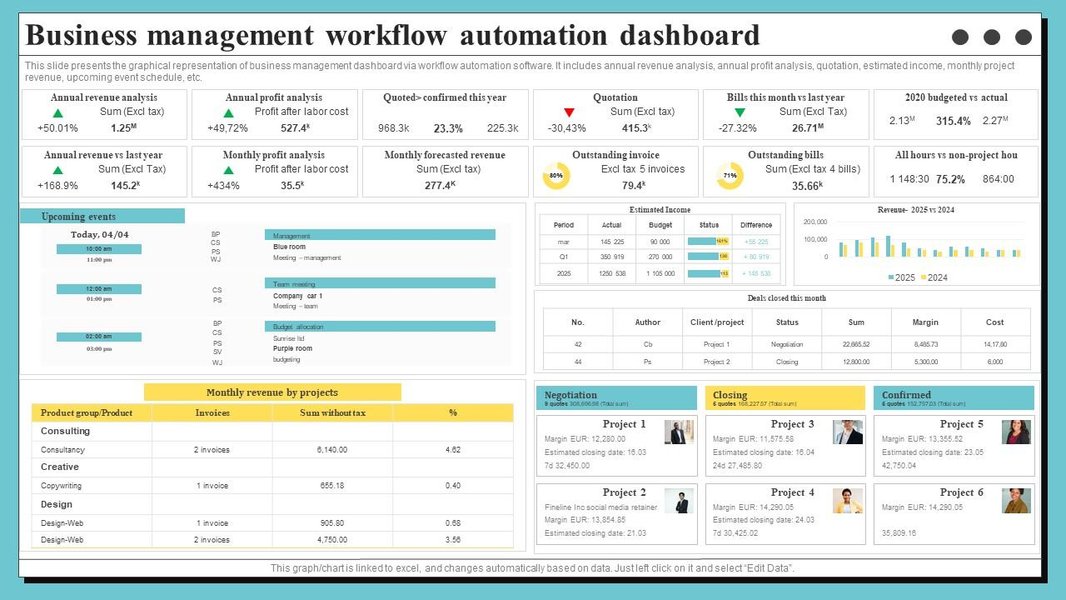
Dashboards like this help visualize the performance and efficiency gains from automated workflows, enabling data-driven optimization.
Tools & Software for Monitoring
- Automation Platform Dashboards/Logs: Most tools provide analytics on workflow runs, successes, and errors.
- Business Intelligence (BI) Tools: For more advanced analysis, data from workflows might be fed into BI tools like Tableau or Power BI.
- Feedback Tools: Surveys or regular team check-ins to gather qualitative feedback.
Best Practices
- Define Key Metrics: Track metrics aligned with your initial objectives (e.g., time saved, error rate reduction, tasks processed).
- Establish Audit Trails: Ensure your automation provides visibility into what actions were taken, when, and by whom (or what system).
- Stay Updated: Keep informed about updates to your automation tools and integrated apps, as these can impact your workflows.
- Be Proactive: Address errors or inefficiencies promptly before they cause significant disruption.
Examples
- Data Entry: Monitor error logs. If a specific type of entry frequently fails, adjust the data cleaning step or the source form.
- Email Notifications: Track email open/click rates (if applicable). If engagement is low, revise email copy or sending times.
- Task Assignments: Review task distribution reports. If one team member is consistently overloaded, adjust assignment rules or capacity settings.
Common Automatable Workflows Summarized
Many routine business processes can benefit from automation. This table summarizes common examples, the typical benefits, and suitable tool types.
| Workflow Example | Description | Key Benefits | Suitable Tool Types |
|---|---|---|---|
| Data Entry & Syncing | Automatically transferring data between applications (e.g., form submissions to CRM, CRM updates to spreadsheets). | Reduces manual errors, saves significant time, ensures data consistency. | App Connectors (Zapier, Make), CRM Automation (HubSpot), AI Data Extraction (Nanonets). |
| Email Notifications & Marketing | Sending automated emails based on triggers (e.g., welcome emails, order confirmations, deadline reminders, lead nurturing sequences). | Ensures timely communication, improves customer/team engagement, standardizes messaging. | Marketing Automation (HubSpot, Mailchimp), CRM Automation, App Connectors. |
| Task & Project Management | Automating task creation, assignment, status updates, deadline reminders, and notifications within project workflows. | Streamlines project execution, improves accountability, reduces manual overhead for project managers. | Project Management Software (ClickUp, Asana, Smartsheet), App Connectors. |
| Approval Processes | Routing documents or requests (e.g., invoices, vacation requests, content drafts) to the right people for approval based on predefined rules. | Speeds up approvals, ensures compliance, provides visibility into approval status. | BPM Software (Nintex), Document Management Systems (DocuWare), Project Management Software, Some App Connectors. |
| Lead Management & Follow-up | Automating lead scoring, assigning leads to sales reps, scheduling follow-up tasks, and sending nurturing emails. | Increases lead conversion rates, ensures timely follow-up, improves sales efficiency. | CRM Automation (Salesforce, HubSpot, Zoho), Marketing Automation Platforms. |
| Reporting | Automatically generating and distributing regular reports by pulling data from various sources. | Saves time on report compilation, provides timely insights, ensures consistent reporting formats. | BI Tools (Tableau, Power BI integrations), Spreadsheet Automation, Some Project Management/CRM tools. |
Frequently Asked Questions (FAQ)
What is the difference between workflow automation and robotic process automation (RPA)?
Workflow automation typically focuses on orchestrating processes involving multiple integrated software systems (APIs) and human tasks. It's often used for processes like approvals, notifications, and data syncing between apps. RPA, on the other hand, primarily uses software "bots" to mimic human interactions with user interfaces (clicking, typing, opening apps) to automate tasks, especially with legacy systems that lack APIs.
How much technical skill is needed to set up automated workflows?
It varies greatly depending on the tools and complexity. Many modern "no-code" or "low-code" platforms like Zapier, Make, ClickUp Automations, and HubSpot Workflows allow non-technical users to build powerful automations using visual interfaces. More complex scenarios or custom integrations might require some technical knowledge or developer assistance.
Can automation replace human jobs?
Workflow automation primarily aims to augment human capabilities by handling repetitive, rule-based tasks. This frees up employees to focus on more complex, creative, strategic, and human-centric activities like problem-solving, customer interaction, and innovation. While automation changes the nature of work, it often leads to upskilling and creating new roles focused on managing and optimizing automated systems.
How do I measure the ROI of workflow automation?
Measure ROI by quantifying the benefits against the costs. Benefits include time saved (calculate hours saved * employee cost), reduction in errors (calculate cost of errors avoided), increased output/throughput, improved compliance (fines avoided), and faster processing times. Costs include software subscriptions, implementation time, training, and ongoing maintenance. Compare the quantifiable benefits to the total cost over a specific period.
References
- How to Create Workflow Automation - BeSlick.com
- The Ultimate Guide To Building A Fully Automated Remote Workflow - eLearning Industry
- Workflow Automation: A Beginner's Guide - DocuWare
- Workflow automation: Definition, tutorial, and tools - Zapier
- What is Workflow Automation? A Complete Guide - Zoho
- How Automated Workflows Work: A Simple Setup Guide - HubSpot
- 10 Best Workflow Automation Software For 2025 - The Digital Project Manager
- 7 Best AI Workflow Automation Tools in 2025 - Useful AI
Recommended Reading
Last updated April 15, 2025