
Unlock Your Mac Mini's Hidden GPU Power for Headless Chromium!
Discover how to bypass display detection and unleash hardware acceleration on Ubuntu, even without a monitor plugged in.
Running graphically demanding applications like Chromium in headless mode (without a connected display) on systems like your Mac Mini Late 2014 running Ubuntu often leads to a frustrating bottleneck: the Graphics Processing Unit (GPU) isn't utilized, causing tasks to run sluggishly. This happens because the system, particularly Mac hardware, often disables GPU acceleration when it doesn't detect a monitor's signal (EDID). Fortunately, you can indeed "trick" your system into activating the GPU.
Essential Takeaways: Boosting Headless Performance
- Hardware Trick: The most reliable method involves using an HDMI dummy plug (or headless display emulator) to simulate a connected monitor, forcing the GPU to activate.
- Software Configuration: Specific command-line flags are often necessary when launching headless Chromium to ensure it utilizes the available GPU acceleration.
- Driver Verification: Ensuring your Ubuntu system has the correct and up-to-date graphics drivers (Mesa for your Intel Iris graphics) is crucial for enabling features like Vulkan or OpenGL acceleration.
Why Does the GPU Sleep Without a Monitor?
Understanding EDID and Hardware Behavior
Your Mac Mini, like many computers, checks for a monitor by reading its Extended Display Identification Data (EDID) through the display port (HDMI in this case). EDID tells the system the monitor's capabilities (resolution, refresh rate, etc.). When no EDID is detected because no monitor is plugged in, the system assumes no graphical output is needed. Consequently, it may:
- Put the GPU into a low-power state.
- Disable hardware acceleration features entirely.
- Default to software rendering (using the CPU), which is significantly slower for graphics tasks.
This behavior is particularly common on Mac hardware, even when running Linux distributions like Ubuntu. Headless Chromium, relying on the GPU for rendering web pages, executing WebGL, or decoding video, suffers greatly from this lack of hardware acceleration.
The Go-To Solution: The HDMI Dummy Plug
Simulating a Display for Full GPU Power
The most widely recommended and effective solution is using a physical HDMI dummy plug. This small, inexpensive device plugs into your Mac Mini's HDMI port and actively emulates a connected display by providing valid EDID information to the system.
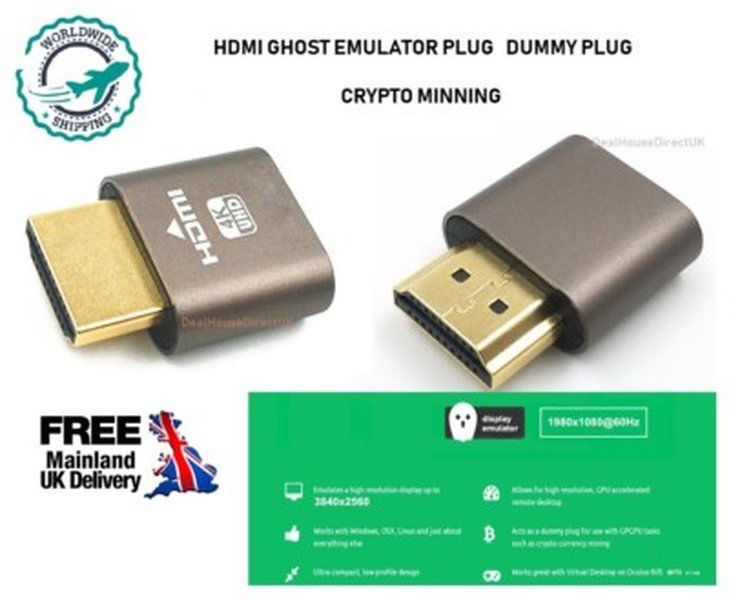
An example of an HDMI Dummy Plug / Headless Display Emulator.
How it Works:
By mimicking a real monitor, the dummy plug convinces Ubuntu and the underlying hardware (your Intel Iris GPU) that a display is present and requires graphical output. This triggers the system to:
- Activate the GPU fully.
- Enable hardware acceleration features (OpenGL, Vulkan, etc.).
- Allow applications like Chromium to leverage the GPU for rendering, even in headless mode.
Implementation Steps:
- Purchase an HDMI Dummy Plug: Look for one that supports resolutions suitable for your needs (e.g., 1080p or even 4K). Reputable brands are often more reliable.
- Connect the Plug: Insert the dummy plug into the HDMI port on your Mac Mini.
- Reboot (Recommended): Restart your Ubuntu system to ensure the "virtual" display is detected correctly during boot.
- Verify Detection (Optional): You can check if Ubuntu sees the emulated display using the command line. Open a terminal and run:
You should see output indicating a connected display (often labeled HDMI-1 or similar) with available resolutions.xrandr
Once the dummy plug is active, your system should behave as if a monitor is connected, paving the way for GPU acceleration in headless Chromium.
Configuring Headless Chromium for GPU Usage
Essential Command-Line Flags
Even with the GPU activated by the dummy plug, you might need to explicitly tell Chromium to use hardware acceleration when running headless. This is done via command-line flags when launching the browser.
Key Flags to Consider:
Here are some flags commonly used to enable GPU features in headless Chromium on Linux:
--enable-gpu: Explicitly attempts to enable GPU acceleration (though sometimes default).--use-gl=desktopor--use-gl=egl: Specifies the OpenGL backend to use. 'desktop' often works well, while 'egl' might be needed in some contexts.--enable-features=Vulkan,UseSkiaRenderer: Enables the Vulkan graphics API and the Skia rendering engine, which can offer performance benefits. Requires Vulkan support on your system.--use-vulkan=native: Directs Chromium to use the native Vulkan driver.--ignore-gpu-blocklist: Forces Chromium to use the GPU even if it's on an internal blocklist (use with caution, but often necessary in headless setups).--enable-gpu-rasterization: Enables GPU-accelerated rasterization.--disable-software-rasterizer: Disables the fallback software rasterizer.--no-sandbox: Sometimes required for headless operation, especially in server or containerized environments. Be aware of the security implications.--disable-gpu-sandbox: Disables the GPU process sandbox, which can sometimes interfere with hardware acceleration in specific setups.
Example Launch Command:
A comprehensive command combining several relevant flags might look like this:
# Example launching headless Chromium with Vulkan and other GPU flags
chromium-browser --headless \
--enable-features=Vulkan,UseSkiaRenderer \
--use-vulkan=native \
--ignore-gpu-blocklist \
--enable-gpu-rasterization \
--disable-software-rasterizer \
--no-sandbox \
--disable-gpu-sandbox \
--remote-debugging-port=9222 \
https://example.com
Note: The --remote-debugging-port=9222 flag allows you to connect another Chrome instance (go to chrome://inspect) to inspect the headless browser, including checking chrome://gpu.
You may need to experiment with different combinations of these flags to find what works best for your specific setup (Ubuntu version, driver version, Chromium version).
Integration with Automation Tools (Puppeteer/Playwright)
If you're using automation libraries like Puppeteer or Playwright, pass these flags via the launch options:
// Example for Puppeteer
const puppeteer = require('puppeteer');

(async () => {
  const browser = await puppeteer.launch({
    headless: true, // or 'new'
    args: [
      '--enable-features=Vulkan,UseSkiaRenderer',
      '--use-vulkan=native',
      '--ignore-gpu-blocklist',
      '--no-sandbox',
      '--disable-gpu-sandbox'
      // Add other necessary flags
    ]
  });
  // ... your automation code ...
  await browser.close();
})();
Summary of Useful Chromium GPU Flags
This table summarizes some key flags and their purpose for enabling GPU acceleration in headless mode:
| Flag | Purpose | Notes |
|---|---|---|
--enable-features=Vulkan |
Enables the Vulkan graphics API. | Requires system Vulkan support. Often combined with UseSkiaRenderer. |
--use-vulkan=native |
Specifies using the native Vulkan implementation. | Used with --enable-features=Vulkan. |
--use-gl=desktop |
Use the desktop OpenGL implementation. | Commonly effective for enabling GPU acceleration. |
--use-gl=egl |
Use the EGL rendering interface. | Alternative OpenGL backend, sometimes needed. |
--ignore-gpu-blocklist |
Overrides Chromium's internal GPU blocklist. | Often essential for headless/unsupported configurations. |
--enable-gpu-rasterization |
Uses the GPU for rasterizing web content. | Can improve rendering performance. |
--disable-software-rasterizer |
Prevents fallback to CPU-based rasterization. | Ensures GPU is attempted first. |
--no-sandbox |
Disables the Chromium sandbox. | Often needed for headless/server environments, but reduces security. |
--disable-gpu-sandbox |
Disables the separate GPU process sandbox. | May resolve issues where the sandbox prevents GPU access. |
System & Driver Configuration on Ubuntu
Ensuring Your Intel Iris Graphics are Ready
For Chromium to utilize GPU acceleration effectively, your underlying Ubuntu system needs the correct graphics drivers and libraries installed and functioning.
Update Mesa Drivers:
Your Mac Mini Late 2014 uses Intel Iris graphics. On Ubuntu, these are typically supported by the open-source Mesa drivers. Ensure they are up-to-date:
sudo apt update
sudo apt upgrade
# Install mesa-utils for diagnostic tools
sudo apt install mesa-utils
Check Graphics Information:
Verify that Ubuntu recognizes your Intel Iris graphics:
glxinfo | grep "OpenGL renderer"
# Expected output should mention Intel Iris Graphics
Check Vulkan Support (If Using Vulkan Flags):
If you plan to use Vulkan flags (--enable-features=Vulkan), check if your system supports it and has the necessary libraries:
# Install Vulkan tools and loader library if not present
sudo apt install vulkan-tools libvulkan1

# Check Vulkan support
vulkaninfo
If vulkaninfo reports errors or doesn't find a compatible device, Vulkan acceleration might not be available or require further troubleshooting with your Mesa drivers.
Alternative: Software-Based Virtual Display (Xvfb)
Simulating a Display Entirely in Software
An alternative approach, entirely software-based, is to use Xvfb (X Virtual Framebuffer). Xvfb creates a virtual display server that runs in memory, tricking applications into thinking a display is present without needing any physical hardware (like a dummy plug).
How it Works:
- Install Xvfb:
sudo apt update && sudo apt install xvfb - Start Xvfb on a specific display number (e.g., :99) with a desired resolution and color depth:
(TheXvfb :99 -screen 0 1920x1080x24 &&runs it in the background). - Set the DISPLAY environment variable to point applications to the virtual display:
export DISPLAY=:99 - Launch Chromium. It should now detect the display environment provided by Xvfb. You might still need GPU-related flags.
Limitations:
While Xvfb provides a display environment, enabling actual GPU hardware acceleration within it can be significantly more complex and less reliable than using an HDMI dummy plug. Xvfb primarily facilitates running GUI applications headlessly; direct hardware access for rendering might still be limited or require advanced configuration (like linking with specific GL libraries or using tools like VirtualGL). For tasks heavily reliant on GPU performance, the HDMI dummy plug is generally the preferred and more straightforward solution.
Comparing Headless GPU Solutions
Effectiveness, Reliability, and Complexity
Choosing the right approach depends on your priorities. The HDMI dummy plug offers the most direct path to hardware acceleration, while Xvfb provides a software-only alternative with potential caveats for GPU performance. Relying solely on Chromium flags without addressing the missing display detection is unlikely to work.
This radar chart compares the main approaches based on perceived effectiveness for GPU acceleration, reliability, and ease of setup:
As illustrated, the HDMI dummy plug combined with appropriate flags generally offers the best balance of GPU acceleration effectiveness, reliability, and consistent performance for this specific headless scenario, despite the small hardware cost.
Visualizing the Solution Path
Mindmap of the Problem and Fixes
This mindmap outlines the core issue and the various strategies discussed to achieve GPU acceleration for headless Chromium on your Mac Mini running Ubuntu.
(Mac Mini + Ubuntu)"] id1["Cause:
No Monitor Detected (No EDID)"] id1a["GPU Enters Low Power State"] id1b["Hardware Acceleration Disabled"] id1c["Fallback to Slow Software Rendering"] id2["Solutions"] id2a["Hardware: HDMI Dummy Plug"] id2a1["Simulates Monitor Presence (EDID)"] id2a2["Forces GPU Activation"] id2a3["Recommended Approach"] id2a4["Requires Purchase"] id2b["Software: Chromium Flags"] id2b1["
--ignore-gpu-blocklist"]
id2b2["--use-gl=desktop/egl"]
id2b3["--enable-features=Vulkan,..."]
id2b4["--no-sandbox / --disable-gpu-sandbox"]
id2b5["Essential with Dummy Plug"]
id2c["Software: System/Driver Config"]
id2c1["Update Mesa Drivers (Intel Iris)"]
id2c2["Verify OpenGL (glxinfo)"]
id2c3["Verify Vulkan (vulkaninfo)"]
id2d["Software Alternative: Xvfb"]
id2d1["Creates Virtual Display Server"]
id2d2["Avoids Hardware Purchase"]
id2d3["GPU Acceleration Complex/Unreliable"]
id3["Verification"]
id3a["Check chrome://gpu (via Remote Debugging)"]
id3b["Check xrandr (for Dummy Plug Detection)"]
id3c["Monitor Performance"]
The mindmap highlights that the dummy plug is the most direct fix for the hardware detection issue, which then needs to be complemented by appropriate Chromium flags and correct system drivers for optimal results.
Enabling Hardware Acceleration in Chromium on Ubuntu
Visual Guide
While specific videos for headless Mac Minis might be scarce, general principles for enabling hardware acceleration in Chromium on Ubuntu are relevant. This video discusses enabling/disabling hardware acceleration, which touches upon the settings and concepts involved, although it assumes a standard desktop environment.
This video explains enabling/disabling hardware acceleration in Chromium on Ubuntu (Desktop Context).
Remember, in your headless scenario, you'll achieve this primarily through the HDMI dummy plug and command-line flags, rather than GUI settings shown in the video. However, understanding the concept of hardware acceleration within the browser is useful.
Frequently Asked Questions (FAQ)
Q: Is the HDMI dummy plug really necessary? Can't I just use software flags? +
For Mac hardware like the Mac Mini running headless, the HDMI dummy plug is highly recommended and often necessary. The core issue is the hardware disabling GPU features when no display EDID is detected. Software flags alone usually cannot overcome this hardware-level behavior. The dummy plug addresses the root cause by tricking the hardware, allowing the software flags to then effectively instruct Chromium to use the now-available GPU acceleration.
Q: Which Chromium flags are the most important? +
The optimal flags can vary, but --ignore-gpu-blocklist is frequently crucial for headless setups. Combining it with either OpenGL flags (--use-gl=desktop) or Vulkan flags (--enable-features=Vulkan, --use-vulkan=native) depending on your system's support, is a good starting point. Experimentation is key, and checking chrome://gpu after launching with different flags is the best way to confirm what works.
Q: Will using a dummy plug significantly increase power consumption? +
The dummy plug itself consumes negligible power. However, by enabling the GPU to run at higher performance levels, the overall system power consumption will likely increase compared to when the GPU was idle or disabled in the headless state without the plug. The increase depends on how intensively Chromium utilizes the GPU.
Q: Does Xvfb provide the same level of GPU acceleration? +
Generally, no. Xvfb creates a virtual framebuffer in system memory. While it allows GUI applications to run headlessly, achieving true *hardware* GPU acceleration through it is often complex and may require additional tools like VirtualGL or specific driver configurations. It might not provide the same direct access to the GPU's power as the dummy plug method, which enables the hardware directly.
Recommended Further Exploration
- How can I verify GPU acceleration is working in headless Chromium on Ubuntu using chrome://gpu?
- What are the best-rated HDMI dummy plugs specifically for running a Mac Mini headless?
- What are the performance differences between using Vulkan versus OpenGL flags in headless Chromium?
- How can I troubleshoot Intel Iris graphics driver issues on Ubuntu?
References
Last updated May 4, 2025