
Hidden System Files Removal
Explore safe methods to free up space by removing unwanted system files
Key Highlights
- Essential Precautions: Always back up your system and create restore points before removing any files.
- Safe File Deletions: Focus on non-critical files like temporary files, cache, system logs, language packs, and outdated backups.
- Utilize Built-In Tools: Leverage Windows Disk Cleanup, Storage Sense, and built-in settings to automate cleanups.
Understanding Hidden System Files
Hidden system files, although they often consume valuable disk space, serve a purpose in ensuring that your operating system operates smoothly. These files can include system logs, cache files, language packs, and various backup components such as system restore points. While some of these files can be safely removed to reclaim disk space, several are critical for system stability, and caution must be exercised in their deletion.
The process involves using system utilities and manual deletion depending on the file type and its purpose. In this guide, we will review categories where file removal is generally recommended, elucidate their functionalities, and detail the steps to safely delete them without causing any system instability.
Categories of Hidden System Files
1. Temporary Files and Cache
Temporary Files
Temporary files are created by both Windows and applications to store interim data that may help in quick restarting or recovering from crashes. These files, however, tend to accumulate over time, leading to significant unused disk space.
Common locations for temporary files in Windows include:
- C:\Windows\Temp
- %temp% (User-specific temporary files, accessible via the Run dialogue)
Windows provides the Disk Cleanup tool to safely remove these files. Additionally, Storage Sense is an automated feature in Windows 10 & 11 that periodically cleans temporary files and items in the recycle bin.
Cache Files
Cache files are similar to temporary files and are created by applications and the system to speed up processes by keeping frequently accessed data. They can quickly add up, particularly if not managed regularly.
Most cache files can be safely deleted as the system or application will generate them on demand. To remove cache files:
- Open the Disk Cleanup tool, select “Temporary files,” and choose the cache files for deletion.
- Use the application-specific settings to clear caches if available.
2. Language Packs and Keyboard Layouts
Language Packs
Language packs are installed to support multiple languages on your system. If you primarily use one language, additional language packs are usually unnecessary. Removing these packs can offer a modest improvement in available disk space.
To remove language packs in Windows:
- Navigate to Settings > Time & Language > Language.
- Select the languages you do not use, and choose the option to remove them.
Keyboard Layouts
Similar to language packs, keyboard layouts for unused languages can be uninstalled. This is a minor cleanup step but can be useful for a minimal gain in disk space.
To remove alternate keyboard layouts:
- Go to Settings > Time & Language > Language.
- Review the keyboard settings associated with each language and remove those that are redundant.
3. System Restore Points and Old Backups
System Restore Points
System restore points allow you to revert your computer’s state to a previous configuration, which can be beneficial if a new installation or update causes issues. Over time, the accumulation of these restore points can take up significant disk space.
To manage and remove old restore points:
- Right-click on “This PC” and select “Properties.”
- Go to “System Protection” and click on “Configure” to view the storage allocated for restore points.
- You have the option to delete all restore points except the most recent one or adjust disk usage to limit future space allocation.
Although deleting restore points might speed up disk space recovery, note that it also removes the fallback option for system recovery.
Old Backup Files
Backup files, including previous Windows installations post-upgrade or system image backups, are often forgotten and reside on the primary disk. Once you confirm that your new installation is stable, old backup files can be safely removed.
Deleting these files can be accomplished via:
- Using the Disk Cleanup tool and selecting “Clean up system files” for old Windows installation files.
- Accessing the backup utility settings to remove outdated backups.
4. Hibernation File (hiberfil.sys)
The hibernation file is used by Windows to store the current system state when you put your computer into hibernation mode. If you never use this feature, you can disable hibernation and, consequently, remove the associated file.
To disable hibernation:
- Open the Command Prompt as an administrator.
- Type the command:
powercfg -h offand press Enter.
This command permanently disables the hibernation feature, removing the hiberfil.sys file and freeing up space equivalent to the size of your installed RAM.
5. Unused Drivers and Software Components
Over time, drivers and software components that are no longer in use can pile up, causing clutter in your system directories. This is especially true if your system has undergone various hardware or software changes.
To clean up unused drivers and software components:
- Go to Device Manager and check for hardware that is no longer connected to your system. Remove outdated driver packages where applicable.
- In the “Programs & Features” area of the Control Panel, review the installed applications and uninstall programs that are redundant or no longer needed.
- For Windows users wanting to tidy up optional Windows features, navigate to Settings > Apps > Optional features to remove any seldom-used functionalities.
Utilizing Built-In Cleaning Tools
Disk Cleanup Utility
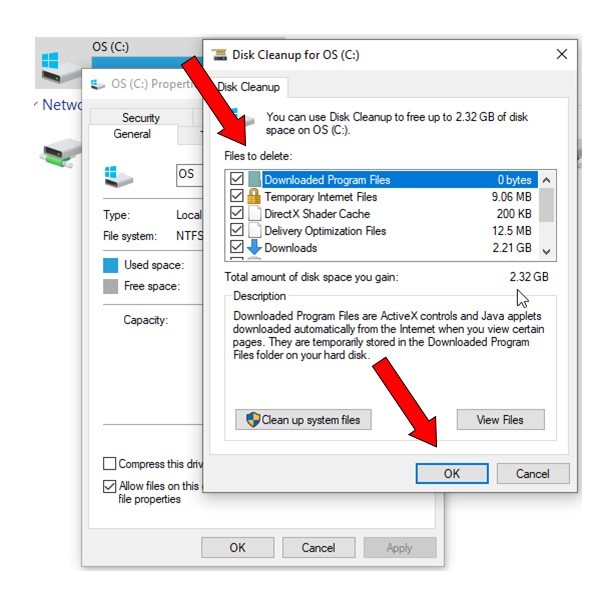
The Disk Cleanup utility is one of the most user-friendly tools available on Windows for removing unnecessary files safely. It automatically scans the system to identify files that are no longer required and allows users to select them for deletion.
Steps to use Disk Cleanup:
- Open File Explorer and right-click on the C: drive.
- Select “Properties” and then click on “Disk Cleanup.”
- Click on “Clean up system files” to include system-related items in your deletion choices; this will allow you to remove old Windows update files, system logs, and previous Windows installations.
- Review the list of file categories and check those that you want to remove.
- Confirm and wait as the tool completes the clean-up process.
Storage Sense
Storage Sense, introduced in the later versions of Windows, is an automated tool designed to manage disk space efficiently by periodically deleting items that you no longer need. It cleans up temporary files, removes files in the recycle bin, and even clears out old downloads.
To enable Storage Sense:
- Go to Settings > System > Storage.
- Turn on Storage Sense and configure it to run automatically, deciding on a schedule that suits your usage patterns.
Detailed Comparison of File Categories
The following table summarizes the file categories described above, their typical storage location, and recommended cleanup methods. This comprehensive view should help in identifying which files are safe for removal and how to proceed.
| File Category | Typical Location | Recommended Cleanup Method |
|---|---|---|
| Temporary Files | C:\Windows\Temp, %temp% | Disk Cleanup, Storage Sense |
| Cache Files | Application-specific cache directories | Disk Cleanup, Application Settings |
| Language Packs | Windows Language settings | Remove via Settings > Time & Language |
| Keyboard Layouts | System language and region settings | Remove redundant layouts via Settings |
| System Restore Points | System Volume Information | Manage via System Protection settings |
| Old Backup Files | Windows installation directories, backup folders | Disk Cleanup and manual review |
| Hibernation File | C:\hiberfil.sys | Disable hibernation via command line (powercfg -h off) |
| Unused Drivers & Software | Device Manager, Programs & Features | Manual removal via system settings |
| System Logs | C:\Windows\Logs or /var/log | Delete manually if logs are not used for troubleshooting |
Safety Precautions and Final Remarks
While it is tempting to free up space by aggressively deleting hidden files, it is critical to understand that not all such files are expendable. Essential system files or those required for recovery, performance, and security should remain untouched. The following precautions can help ensure that you do not inadvertently destabilize your system:
- Back Up Important Data: Always have a current backup of your important files. A system restore point or a disk image backup can serve as a safety net if something goes wrong.
- Use Built-In Tools: Utilize system tools like Disk Cleanup and Storage Sense, which are designed to identify redundant files safely.
- Research Specific Files: Before deleting a file or directory, ensure you understand its purpose and confirm that it is safe to remove. For example, while removing temporary files is generally safe, uninstalling system logs without understanding their significance could complicate troubleshooting.
- Proceed Gradually: Remove only one category of files at a time and monitor your system’s behavior. This methodical approach helps isolate potential issues if they arise.
- Consult Documentation: Rely on official documentation or reputable sources like Microsoft support pages for guidance on file removal.
It is also beneficial to use third‐party tools designed for system maintenance if you prefer a more streamlined approach. These tools can scan for duplicate files, orphaned files, and other space‐consuming artefacts, providing recommendations for safe removal.
In summary, while removing hidden system files such as temporary files, cache, unused language packs, system logs, and old backups can help reclaim valuable space, careful assessment and cautious removal are imperative. Always ensure the file is non-critical before deletion and be prepared with recovery options.
References
- Delete Windows Files & Folders - MakeUseOf
- Delete Unnecessary Files - SysToolsGroup
- Disk Cleanup in Windows - Microsoft Support
-
Are these Hidden Files Safe to Delete? - Microsoft Community
- How to Clean Up System Volume Information Folder - WOSHUB
Recommended Related Queries
Last updated March 22, 2025