
Serving Flask Static Images via CDN on Google App Engine
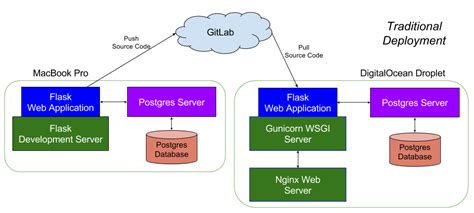
Integrating a Content Delivery Network (CDN) with your Flask application on Google App Engine (GAE) can significantly enhance the performance, scalability, and reliability of serving static images. By leveraging a CDN, you ensure that your static assets are delivered swiftly to users worldwide, reducing latency and offloading traffic from your primary server. This comprehensive guide outlines the steps to easily serve all your Flask static pictures through a CDN while using Google App Engine.
1. Selecting a CDN Provider
The first step in integrating a CDN with your Flask application is selecting an appropriate CDN provider. Several options are available, each with its unique features, benefits, and pricing structures. Below are the most commonly used CDN providers compatible with Google App Engine:
1.1 Google Cloud CDN
Google Cloud CDN seamlessly integrates with other Google Cloud services, making it an excellent choice if you're already utilizing the Google Cloud ecosystem. It leverages Google's highly reliable and globally distributed edge points, ensuring low latency and high transfer speeds for your static content.
- Pros:
- Tight integration with Google Cloud services like Cloud Storage and Compute Engine.
- Automatic caching and content delivery optimization.
- Scalable and reliable infrastructure backed by Google.
- Cons:
- Can be more complex to set up compared to other CDNs.
- Pricing may be higher for specific use cases.
1.2 KeyCDN
KeyCDN is a popular third-party CDN provider known for its ease of use, competitive pricing, and robust feature set. It offers a straightforward setup process and comprehensive documentation, making it suitable for developers looking for a hassle-free CDN integration.
- Pros:
- Simple and quick setup process.
- Pay-as-you-go pricing model.
- Comprehensive support and documentation.
- Cons:
- Limited advanced features compared to some other CDNs.
- May require additional configuration for optimal performance.
1.3 Cloudflare
Cloudflare is another widely used CDN that offers a range of additional services, including security features like DDoS protection and Web Application Firewall (WAF). Its extensive global network ensures reliable and fast content delivery.
- Pros:
- Extensive global network with numerous data centers.
- Advanced security features included in the basic plan.
- Flexible configuration options.
- Cons:
- Can be more complex to configure for specific use cases.
- Some advanced features are only available in higher-tier plans.
2. Setting Up Your CDN
Once you've selected a CDN provider, the next step is setting up the CDN to serve your Flask application's static images. This process typically involves uploading your static assets to the CDN and configuring your Flask application to reference these assets via the CDN.
2.1 Using Google Cloud Storage with Google Cloud CDN
Integrating Google Cloud Storage (GCS) with Google Cloud CDN is a seamless way to leverage Google's infrastructure for serving static content. Follow these steps to set up:
- Create a Google Cloud Storage Bucket:
- Navigate to the [Google Cloud Console](https://console.cloud.google.com/).
- Select Storage from the left-hand menu.
- Click on Create Bucket and follow the prompts to set up your bucket, ensuring it's in the same region as your App Engine application for optimal performance.
- Upload Your Static Images:
- Within your newly created bucket, click on Upload Files and select all the static images you wish to serve.
- Ensure that the images are organized in a logical folder structure for easy access.
- Set Permissions for Public Access:
- By default, objects in a GCS bucket are private. To make your images publicly accessible, you need to set appropriate permissions.
- Navigate to the Permissions tab of your bucket.
- Click on Add, enter
allUsersas the member, and assign the role of Storage Object Viewer.
- Enable Google Cloud CDN:
- Go to the [Cloud CDN documentation](https://cloud.google.com/cdn/docs/overview) for detailed steps.
- Configure a backend service for your bucket and enable Cloud CDN in the settings.
- Set up appropriate cache invalidation rules to ensure that updates to your images are reflected promptly.
2.2 Using KeyCDN
KeyCDN offers a straightforward process to set up a CDN with your Flask application:
- Create a Pull Zone:
- Log in to your [KeyCDN dashboard](https://app.keycdn.com/).
- Navigate to Zones and click on Add Zone.
- Select Pull as the zone type.
- Specify your origin URL, typically your App Engine application's static file serving URL.
- Complete the creation process to obtain your CDN endpoint (e.g.,
yourzone.kxcdn.com).
- Configure Flask to Use KeyCDN:
- Install the
Flask-CDNextension using pip:
pip install Flask-CDN - Install the
- Update your Flask application's configuration to include the CDN domain:
- Modify your templates to reference static files via the CDN:
- Ensure that the
url_forfunction is correctly integrated with the CDN configuration. - Deploy and Test:
- Deploy your updated Flask application to Google App Engine.
- Access your site and verify that static images are being served through KeyCDN by inspecting the network requests in your browser's developer tools.
from flask import Flask
from flask_cdn import CDN

app = Flask(__name__)
app.config['CDN_DOMAIN'] = 'yourzone.kxcdn.com'
CDN(app)
<img src="{{ url_for('static', filename='images/your_image.jpg') }}" alt="Description">
2.3 Using Cloudflare
Cloudflare provides a robust CDN solution with additional security features. Here's how to set it up with your Flask application:
- Sign Up for Cloudflare:
- Create an account on [Cloudflare](https://www.cloudflare.com/).
- Add your domain to Cloudflare and follow the prompts to update your DNS settings, pointing your domain to Cloudflare's nameservers.
- Configure CDN Settings:
- Within the Cloudflare dashboard, navigate to the Speed section and enable Auto Minify and Rocket Loader for optimal performance.
- Ensure that caching is appropriately configured to serve static content efficiently.
- Set Up Static Image Hosting:
- Upload your static images to a dedicated folder within your Flask application's static directory.
- Update your Flask templates to reference these images using the CDN-enabled URLs. For example:
<img src="https://yourdomain.com/static/images/your_image.jpg" alt="Description"> - Deploy and Verify:
- Deploy your Flask application to Google App Engine.
- Confirm that images are being served via Cloudflare by checking the response headers or using browser developer tools.
3. Integrating CDN with Flask on Google App Engine
After setting up your CDN and uploading your static images, the next step is to integrate the CDN with your Flask application. This involves configuring Flask to serve static files through the CDN instead of directly from the App Engine server.
3.1 Updating Flask Configuration
To ensure that Flask serves static files via the CDN, you need to update the application's configuration and templates:
- Set the CDN Domain in Flask Configuration:
- In your Flask application's main file (e.g.,
app.py), configure the CDN domain:
app.config['CDN_DOMAIN'] = 'your-cdn-domain.com' - In your Flask application's main file (e.g.,
- Modify Template References:
- In your HTML templates, update the
url_forfunction to incorporate the CDN domain. For example:
<!-- Before --> <img src="{{ url_for('static', filename='images/your_image.jpg') }}" alt="Description"> <!-- After --> <img src="https://{{ config['CDN_DOMAIN'] }}/images/your_image.jpg" alt="Description"> - In your HTML templates, update the
- Using Flask Extensions (Optional):
- Extensions like
Flask-CDNcan automate the process of integrating CDN URLs into your static file references. - After configuring
Flask-CDNas shown earlier, you can continue usingurl_forwithout manual modifications.
- Extensions like
3.2 Example Configuration Snippet
Here's an example of how your Flask application's configuration might look after integrating with a CDN:
from flask import Flask
from flask_cdn import CDN

app = Flask(__name__)
app.config['CDN_DOMAIN'] = 'cdn.yourdomain.com'
CDN(app)

@app.route('/')
def index():
    return render_template('index.html')

if __name__ == '__main__':
    app.run()
In your HTML templates:
<!DOCTYPE html>
<html lang="en">
<head>
    <meta charset="UTF-8">
    <title>Flask App with CDN</title>
</head>
<body>
    <h1>Welcome to My Flask App</h1>
    <img src="{{ url_for('static', filename='images/logo.png') }}" alt="Logo">
</body>
</html>
Ensure that the CDN_DOMAIN is correctly set to your CDN provider's endpoint, and your static images are accessible via the CDN.
4. Configuring Cache Settings
Proper caching is crucial for maximizing the benefits of a CDN. By setting appropriate cache headers, you ensure that your images are cached effectively across the CDN's edge servers, reducing load times and server strain.
4.1 Setting Cache-Control Headers
Cache-Control headers dictate how, where, and for how long your content is cached. Here's how to set them in Flask:
from flask import Flask, send_from_directory, make_response

app = Flask(__name__)

@app.route('/static/images/<path:filename>')
def custom_static(filename):
    response = make_response(send_from_directory('static/images', filename))
    response.headers['Cache-Control'] = 'public, max-age=31536000'
    return response
In this example, the max-age=31536000 directive sets the cache duration to one year. Adjust this value based on how frequently your images change. For mutable content, consider using a shorter cache duration or implementing cache invalidation strategies.
4.2 Leveraging CDN Cache Settings
Most CDN providers allow you to configure cache settings within their dashboards. For instance, in Google Cloud CDN:
- Navigate to the Cloud CDN section in the Google Cloud Console.
- Select your backend service associated with your storage bucket.
- Adjust the caching policies, such as setting the TTL (Time to Live) or enabling cache invalidation rules.
Refer to your CDN provider's documentation for detailed instructions on configuring cache settings.
5. Optional: Using a Custom Domain
Serving static images from a custom domain can enhance your application's branding and may offer SEO benefits. Here's how to set up a custom domain with your CDN:
5.1 Configuring DNS Settings
To serve content from a custom domain, you need to create a CNAME record in your DNS settings that points to your CDN provider's endpoint:
- Access your domain registrar's DNS management console.
- Add a new CNAME record with the following details:
- Name: The subdomain you wish to use (e.g.,
cdn.yourdomain.com). - Value: Your CDN provider's endpoint (e.g.,
yourzone.kxcdn.comfor KeyCDN).
- Name: The subdomain you wish to use (e.g.,
5.2 Updating Flask Configuration
After setting up the DNS record, update your Flask application's configuration to use the custom CDN domain:
app.config['CDN_DOMAIN'] = 'cdn.yourdomain.com'
Ensure that your CDN provider is configured to recognize and serve content from your custom domain. This may involve additional steps within the CDN provider's dashboard, such as verifying domain ownership or configuring SSL certificates.
5.3 Enabling HTTPS
For security and SEO benefits, it's recommended to serve your static content over HTTPS. Most CDN providers offer SSL support:
- Enable SSL in your CDN provider's dashboard. For Cloudflare, SSL is enabled by default; for KeyCDN, you may need to purchase or upload an SSL certificate.
- Update your Flask application's configuration to use HTTPS URLs for static assets.
6. Deployment and Testing
After configuring your CDN and updating your Flask application, deploy the changes to Google App Engine and verify that static images are being served correctly via the CDN.
6.1 Deploying to Google App Engine
Use the Google Cloud SDK to deploy your application:
gcloud app deployEnsure that your app.yaml file is correctly configured to handle static file requests. Here's an example configuration:
runtime: python39
entrypoint: gunicorn -b :$PORT main:app

handlers:
  - url: /static
    static_dir: static
    secure: always
  - url: /.*
    script: auto
    secure: always
6.2 Verifying CDN Integration
After deployment, perform the following checks to ensure that static images are served via the CDN:
- Inspect Network Requests:
- Open your website in a browser.
- Use developer tools (usually accessed by pressing
F12) to inspect network requests. - Verify that image URLs are loaded from the CDN domain (e.g.,
cdn.yourdomain.com/images/your_image.jpg).
- Check Cache Headers:
- Ensure that the
Cache-Controlheaders are correctly set, as per your configuration. - This can be done by inspecting the response headers in the network tab of your browser's developer tools.
- Ensure that the
- Test Across Different Locations:
- Access your website from different geographical locations or use VPN services to ensure that content is being served from the closest CDN edge server.
7. Best Practices and Tips
To maximize the effectiveness of your CDN integration and ensure optimal performance, consider the following best practices:
7.1 Optimize Image Sizes
Large images can significantly slow down your website. Use image optimization techniques to reduce file sizes without compromising quality:
- Use formats like WebP or JPEG XR which offer better compression rates.
- Implement responsive images using the
<picture>element or thesrcsetattribute. - Compress images using tools like ImageOptim or TinyPNG.
7.2 Implement Cache Invalidation
When updating static images, it's essential to invalidate cached versions to ensure that users receive the latest content:
- Use versioning in your file names (e.g.,
logo.v2.png). - Leverage your CDN's cache invalidation features to purge outdated content.
7.3 Automate Deployment
Automating the deployment process ensures that updates are consistent and reduces the likelihood of human error:
- Use Continuous Integration/Continuous Deployment (CI/CD) tools like [Buddy](https://buddy.works/) to automate the deployment of your Flask application and static assets.
- Integrate scripts that upload new images to your CDN whenever changes are pushed to your code repository.
7.4 Monitor Performance and Usage
Regularly monitor your CDN's performance and usage metrics to ensure optimal operation:
- Use your CDN provider's analytics tools to track bandwidth usage, cache hit ratios, and request rates.
- Set up alerts for unusual spikes in traffic or errors.
- Optimize caching strategies based on observed usage patterns.
7.5 Secure Your CDN Resources
Ensure that your static assets are securely served:
- Enable HTTPS to encrypt data between the CDN and your users.
- Restrict access to your CDN resources if necessary, using signed URLs or token-based authentication.
- Regularly update and monitor permissions to prevent unauthorized access.
Conclusion
Serving static images through a CDN when using Flask on Google App Engine is a strategic move that can enhance your application's performance, scalability, and user experience. By selecting the right CDN provider, properly configuring your Flask application, and adhering to best practices, you can ensure that your static assets are delivered efficiently and reliably to users around the globe.
Remember to:
-
Choose a CDN provider that aligns with your performance needs and budget.
-
Set up and configure your CDN correctly to serve static assets.
-
Optimize your images and implement effective caching strategies.
-
Regularly monitor and maintain your CDN integration to ensure ongoing performance and security.
For further reading and detailed instructions, refer to the official documentation of the CDN providers:
By implementing a CDN with your Flask application on Google App Engine, you position your web application for enhanced performance and scalability, ensuring a seamless experience for your users.
Last updated January 4, 2025