
Unlock the Secret to Triangle Area: Build Your Own Calculator with Just 3 Sides!
Discover how to harness HTML, CSS, and JavaScript to create a powerful tool using the ancient Heron's formula.
Calculating the area of a triangle is a fundamental task in geometry. While the classic "base times height divided by two" formula is common, what happens when you only know the lengths of the three sides? Enter Heron's formula – a brilliant method that allows you to find the area using just these three lengths. This guide will provide you, as an HTML programmer, with the complete code and explanation to build your own interactive triangle area calculator web page.
Key Highlights
- Heron's Formula: Understand how this powerful formula calculates a triangle's area using only the lengths of its three sides (a, b, c).
- HTML Structure: Get the complete HTML code for setting up input fields for the three side lengths and a display area for the calculated result.
- JavaScript Integration: Learn how JavaScript captures user input, performs validation (checking for positive numbers and the triangle inequality theorem), calculates the area using Heron's formula, and displays the output dynamically.
Understanding Heron's Formula
The Math Behind the Magic
Heron's formula, named after Hero of Alexandria, is a remarkable mathematical tool for finding the area of any triangle when only the lengths of its three sides are known. It avoids the need to calculate angles or heights.
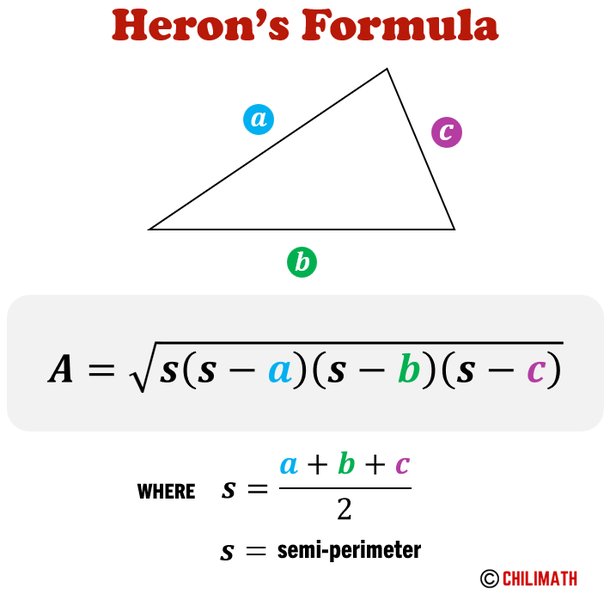
Illustration of Heron's Formula using semi-perimeter 's'.
The formula involves two main steps:
-
Calculate the Semi-Perimeter (s)
The semi-perimeter is half the triangle's perimeter. If the sides are denoted by \(a\), \(b\), and \(c\), the semi-perimeter \(s\) is calculated as:
\[ s = \frac{a + b + c}{2} \] -
Calculate the Area
Using the semi-perimeter \(s\) and the side lengths \(a\), \(b\), and \(c\), the area (\(A\)) of the triangle is given by:
\[ A = \sqrt{s(s - a)(s - b)(s - c)} \]
A crucial prerequisite for using Heron's formula is that the given side lengths must be able to form a valid triangle. This is governed by the Triangle Inequality Theorem, which states that the sum of the lengths of any two sides of a triangle must be greater than the length of the third side (\(a + b > c\), \(a + c > b\), and \(b + c > a\)). Our calculator code includes checks for this condition.
Building the Calculator: HTML, CSS, and JavaScript Code
The Complete Code Structure
Below is the complete HTML code, including embedded CSS for styling and JavaScript for the calculation logic. You can save this code as an .html file (e.g., triangle_calculator.html) and open it in any modern web browser.
<!DOCTYPE html>
<html lang="en">
<head>
    <meta charset="UTF-8">
    <meta name="viewport" content="width=device-width, initial-scale=1.0">
    <title>Triangle Area Calculator (Heron's Formula)</title>
    <style>
        /* Basic styling for the calculator */
        body {
            font-family: -apple-system, BlinkMacSystemFont, "Segoe UI", Roboto, Helvetica, Arial, sans-serif, "Apple Color Emoji", "Segoe UI Emoji", "Segoe UI Symbol";
            background-color: #f8f9fa;
            margin: 0;
            padding: 0;
            display: flex;
            justify-content: center;
            align-items: center;
            min-height: 100vh;
        }
        .calculator-container {
            background-color: #ffffff;
            padding: 30px 40px;
            border-radius: 12px;
            box-shadow: 0 4px 15px rgba(0, 0, 0, 0.1);
            text-align: center;
            max-width: 450px;
            width: 90%;
        }
        h1 {
            color: #343a40; /* Darker heading color */
            margin-bottom: 15px;
            font-size: 1.8em;
        }
        p.instructions {
             color: #6c757d; /* Subdued text color */
             margin-bottom: 25px;
             font-size: 0.95em;
        }
        label {
            display: block;
            margin-bottom: 8px;
            font-weight: bold;
            text-align: left;
            color: #495057; /* Label color */
            font-size: 0.9em;
        }
        input[type="number"] {
            width: calc(100% - 24px); /* Account for padding */
            padding: 12px;
            margin-bottom: 18px;
            border: 1px solid #ced4da; /* Subtle border */
            border-radius: 6px;
            box-sizing: border-box;
            font-size: 1em;
        }
        /* Style for number input spin buttons (optional) */
        input[type=number]::-webkit-inner-spin-button,
        input[type=number]::-webkit-outer-spin-button {
          -webkit-appearance: none;
          margin: 0;
        }
        input[type=number] {
          -moz-appearance: textfield; /* Firefox */
        }
        button {
            background-color: #007bff; /* Primary button color */
            color: white;
            padding: 14px 25px;
            border: none;
            border-radius: 6px;
            cursor: pointer;
            font-size: 1.1em;
            transition: background-color 0.3s ease, transform 0.1s ease;
            width: 100%;
            margin-top: 10px;
        }
        button:hover {
            background-color: #0056b3; /* Darker shade on hover */
        }
        button:active {
             transform: scale(0.98); /* Slight shrink on click */
        }
        #result, #errorMsg {
            margin-top: 25px;
            font-size: 1.1em;
            font-weight: bold;
            min-height: 20px; /* Reserve space */
        }
        #result {
             color: #28a745; /* Success color (green) */
        }
        #errorMsg {
             color: #dc3545; /* Error color (red) */
        }
    </style>
</head>
<body>
    <div class="calculator-container">
        <h1>Triangle Area Calculator</h1>
        <p class="instructions">Enter the lengths of the three sides below to calculate the triangle's area using Heron's Formula.</p>

        <!-- Input form starts here -->
        <form id="triangleForm" onsubmit="event.preventDefault(); calculateArea();">
            <label for="sideA">Side A:</label>
            <input type="number" id="sideA" name="sideA" min="0" step="any" placeholder="Enter length of side A" required>

            <label for="sideB">Side B:</label>
            <input type="number" id="sideB" name="sideB" min="0" step="any" placeholder="Enter length of side B" required>

            <label for="sideC">Side C:</label>
            <input type="number" id="sideC" name="sideC" min="0" step="any" placeholder="Enter length of side C" required>

            <button type="submit">Calculate Area</button>
        </form>
        <!-- Input form ends here -->

        <!-- Display area for results or errors -->
        <div id="result"></div>
        <div id="errorMsg"></div>
    </div>

    <script>
        function calculateArea() {
            // Get the output elements
            const resultDiv = document.getElementById('result');
            const errorDiv = document.getElementById('errorMsg');

            // Clear previous results and errors
            resultDiv.textContent = '';
            errorDiv.textContent = '';

            // Get the input values for the sides and convert them to numbers
            const sideA = parseFloat(document.getElementById('sideA').value);
            const sideB = parseFloat(document.getElementById('sideB').value);
            const sideC = parseFloat(document.getElementById('sideC').value);

            // --- Input Validation ---
            // 1. Check if inputs are valid numbers
            if (isNaN(sideA) || isNaN(sideB) || isNaN(sideC)) {
                errorDiv.textContent = "Invalid input. Please enter numbers for all sides.";
                return; // Stop execution
            }

            // 2. Check if inputs are positive
            if (sideA <= 0 || sideB <= 0 || sideC <= 0) {
                errorDiv.textContent = "Side lengths must be positive numbers.";
                return; // Stop execution
            }

            // 3. Check the Triangle Inequality Theorem
            if (sideA + sideB <= sideC || sideA + sideC <= sideB || sideB + sideC <= sideA) {
                errorDiv.textContent = "These side lengths do not form a valid triangle.";
                return; // Stop execution
            }

            // --- Calculation using Heron's Formula ---
            // Calculate the semi-perimeter (s)
            const s = (sideA + sideB + sideC) / 2;

            // Calculate the area (A)
            // Use Math.sqrt() for the square root
            const area = Math.sqrt(s * (s - sideA) * (s - sideB) * (s - sideC));

            // --- Display the Result ---
            // Format the area to a reasonable number of decimal places (e.g., 3)
            resultDiv.textContent = "The area of the triangle is: " + area.toFixed(3) + " square units.";
        }
    </script>
</body>
</html>
Code Breakdown and Explanation
Dissecting the Components
HTML Structure (
<head>and<body>)The
<head>section includes metadata (character set, viewport) and the<title>. It also contains the<style>block for CSS rules. The<body>holds the visible content: a containerdiv, headings, instructional text, the<form>element with labels and number inputs (type="number") for sides A, B, and C, the submit button, and twodivelements (id="result"andid="errorMsg") to display the output or any error messages.CSS Styling (
<style>)The CSS rules provide a clean, centered layout and style the elements for better user experience. This includes setting fonts, background colors, padding, borders, button appearance, and specific colors for success and error messages.
JavaScript Logic (
<script>)The core logic resides within the
calculateArea()function:- Event Handling: The function is triggered when the form is submitted (either by clicking the button or pressing Enter).
event.preventDefault()stops the default form submission behavior which would reload the page. - Input Retrieval:
document.getElementById('...')gets the input elements, and.valueretrieves the entered text.parseFloat()converts these text values into numbers suitable for calculation. - Validation: Crucial checks are performed:
isNaN()verifies if the inputs are actual numbers.- Checks ensure all side lengths are positive (
> 0). - The Triangle Inequality Theorem (
a + b > c, etc.) confirms if the sides can form a valid triangle. If any validation fails, an error message is shown in theerrorMsgdiv, and the function stops.
- Calculation: If validation passes, the semi-perimeter
sis calculated, followed by the area usingMath.sqrt()and Heron's formula. - Output Display: The calculated
areais formatted to three decimal places usingtoFixed(3)and displayed in theresultdiv.
- Event Handling: The function is triggered when the form is submitted (either by clicking the button or pressing Enter).
Visualizing the Calculator Development Process
A Mind Map Overview
This mind map illustrates the key stages and components involved in creating the Triangle Area Calculator using HTML, CSS, and JavaScript with Heron's formula.
The mind map shows the interplay between HTML for structure, CSS for presentation, and JavaScript for interactivity, validation, and the core calculation logic based on Heron's formula.
Importance of Calculator Components
A Comparative Overview
Building a reliable web calculator involves several key aspects. This radar chart visualizes the relative importance assigned to different components when developing our Triangle Area Calculator. While all are necessary, some demand more attention for robustness and usability.
As shown, Formula Accuracy is paramount. Closely following are robust Input Validation and clear Error Handling to prevent unexpected behavior and guide the user. Good User Experience and a clear UI Design make the tool pleasant and easy to use. While important for maintainability and complex apps, Code Readability and raw Performance are slightly less critical for this specific, simple calculator compared to the core functional aspects.
Comparing Area Calculation Methods
Heron's Formula vs. Base-Height Method
While Heron's formula uses the three side lengths, the more commonly taught method involves the base and height. This table compares the two approaches.
| Feature | Heron's Formula | Base-Height Formula (\(A = \frac{1}{2} \times \text{base} \times \text{height}\)) |
|---|---|---|
| Required Inputs | Lengths of the three sides (a, b, c) | Length of one side (base) and the corresponding perpendicular height |
| Applicability | Works for any triangle (scalene, isosceles, equilateral) given the sides. | Works for any triangle, but requires knowing or calculating the height relative to the chosen base. |
| Ease of Input | Requires measuring or knowing all three side lengths. | Requires measuring or knowing one side and the height, which might not be directly measurable (especially for oblique triangles). |
| Calculation Complexity | Involves calculating the semi-perimeter and a square root. Can involve decimals. | Simpler multiplication and division, but finding the height can be complex (e.g., using trigonometry or Pythagorean theorem if not given). |
| Use Case Example | Land surveying where side lengths are easily measured; theoretical problems where height is unknown. | Right-angled triangles (where two sides serve as base and height); situations where height is easily determined or given. |
Heron's formula provides a universal method when only side lengths are available, making it ideal for the calculator we built.
Watch a Guide: Building a Triangle Area Calculator
Step-by-Step Video Tutorial
For a visual guide on creating a similar triangle area calculator using HTML and JavaScript, check out this helpful tutorial. While it might use slightly different styling or structure, the core principles of capturing input and applying JavaScript logic are demonstrated effectively.
Video: Write an HTML/JS Triangle Area Program with Atom (Demonstrates building a basic triangle area calculator).
This video provides practical insights into setting up the editor, writing the HTML form elements, and implementing the JavaScript function to perform the calculation, similar to the code provided in this guide.
Frequently Asked Questions (FAQ)
Quick Answers to Common Questions
What is Heron's formula used for?
Heron's formula is primarily used to calculate the area of a triangle when you only know the lengths of its three sides. It's particularly useful when the height of the triangle is not known or is difficult to calculate, which is often the case for non-right-angled (oblique) triangles.
Why is input validation necessary in the JavaScript code?
Input validation is crucial for several reasons:
- Prevent Errors: It ensures that the inputs are actual numbers (`isNaN` check) and positive (`> 0`), preventing mathematical errors (like square roots of negative numbers) or nonsensical results.
- Ensure Validity: The Triangle Inequality Theorem check (`a + b > c`, etc.) confirms that the given side lengths can physically form a triangle. Without this, Heron's formula might produce incorrect or non-real results (e.g., `NaN` if the term under the square root becomes negative).
- User Experience: Providing clear error messages guides the user on how to correct their input, making the calculator more user-friendly and robust.
Can I use different units (like inches or cm) with this calculator?
Yes, you can use any unit of length (e.g., centimeters, meters, inches, feet) as long as you are consistent. Enter all three side lengths using the same unit. The calculated area will then be in the square of that unit (e.g., square centimeters if you entered sides in cm, square inches if you entered sides in inches).
What does `toFixed(3)` do in the JavaScript code?
The `.toFixed(3)` method is used on the calculated `area` (which is a number). It formats the number into a string, rounding it to a specified number of decimal places. In this case, `toFixed(3)` rounds the area to 3 decimal places. This helps present the result in a cleaner, more readable format, avoiding excessively long decimal expansions that can sometimes occur with square roots.
Recommended Further Exploration
Dive Deeper into Related Topics
- Explore how to calculate triangle area using the base and height method within a JavaScript environment.
- Learn how to expand your skills by implementing area calculators for other geometric shapes like circles, squares, and rectangles using HTML and JavaScript.
- Discover advanced CSS techniques to enhance the visual appeal and user experience of your web forms and calculators.
- Investigate best practices for robust error handling in JavaScript to make your web applications more reliable.
References
Sources Used for This Guide
Last updated May 5, 2025