
Troubleshooting Your iMac Sleep Issues with DAW Plugins
Detailed steps and insights to resolve unexpected wake-ups
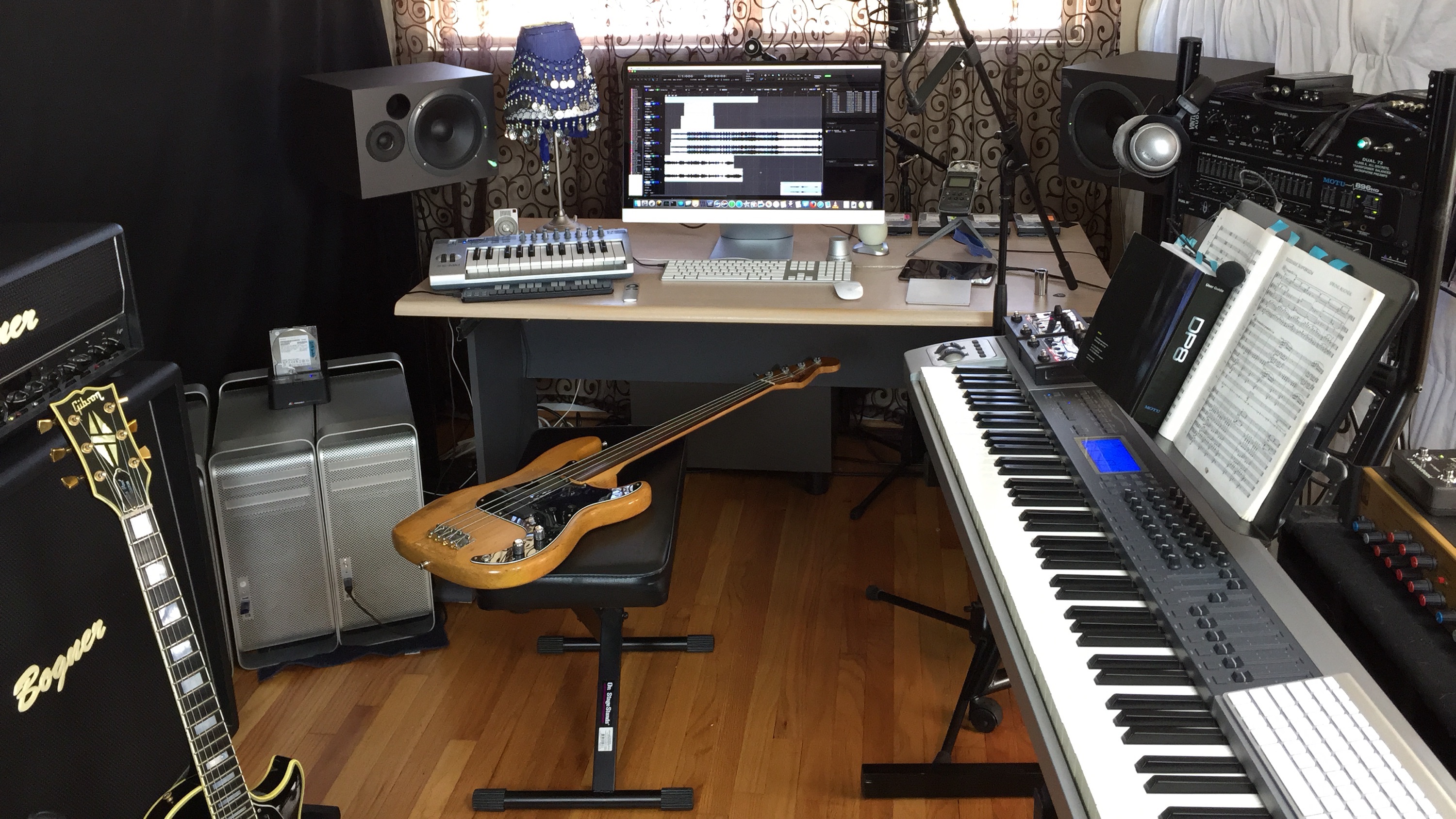
Highlights
- Identify the Culprit: Use Activity Monitor and DAW settings to pinpoint sleep-preventing plugins.
- Adjust System and Device Settings: Tweak Energy Saver, network, Bluetooth, and USB configurations.
- Reset and Update: Reset your SMC/NVRAM and update macOS to ensure compatibility and bug fixes.
Understanding the Issue
Many users experience the unexpected wake-up of their iMacs after placing them into standby mode. This behavior can be particularly frustrating when you suspect that a plugin associated with your digital audio workstation (DAW) is responsible. Modern DAWs are powerful tools designed for audio production but may run processes or plugins in the background that consume significant resources. Some of these plugins, whether related to real-time audio processing or monitoring, might inadvertently prevent your iMac from staying in sleep mode.
When the iMac repeatedly wakes from standby, it may be due to several factors. These include background processes running inside your DAW, audio interfaces connected to your system, USB or Bluetooth devices, network settings, or even system misconfigurations. In many cases, a DAW plugin may maintain processes in memory that signal to the macOS that the machine is still actively in use, thereby blocking the transition to true sleep mode.
Diagnosing the Problem
Step 1: Verify DAW Plugin Activity
The first step is to determine whether a DAW plugin is indeed the cause of the wake-up issue. Launch your Digital Audio Workstation and carefully inspect which plugins are running. Many DAWs provide options to disable or bypass specific plugins within the preferences or settings menu. Look for plugins that are known to perform background processing or that use considerable CPU resources.
Open the Activity Monitor (located in the Utilities folder within your Applications folder) and search for processes that indicate high CPU usage or run continuously. These processes may have an indicator such as "Preventing Sleep," which signals that the operating system has been instructed to remain awake. If you notice that the DAW or certain plugins maintain these flags, it is a strong indication that they are contributing to the cheat-awake behavior.
Step 2: Testing Plugin Disabling
Once you have identified potential culprits in your DAW, try disabling or unloading them one by one. Begin by closing the DAW entirely to see if the wake-up behavior stops. If the problem ceases, then gradually enable the DAW and reactivate the plugins one at a time. Doing so can help you isolate the exact plugin causing the issue.
It is also advisable to temporarily move plugin files from standard directories, such as /Library/Audio/Plug-Ins/Components and ~/Library/Audio/Plug-Ins/Components, to alternative locations. This strategy effectively unloads the plugins from your system at startup and can help determine if they are responsible for keeping your iMac awake.
Step 3: Utilizing Activity Monitor
The macOS Activity Monitor plays a crucial role in diagnosing background processes that might be causing your iMac to wake unexpectedly. To use Activity Monitor effectively:
Using the "Preventing Sleep" Flag
When you open Activity Monitor, look towards columns that might indicate whether a process is preventing sleep. This information is usually found under a "Preventing Sleep" column or similar system-specific markers. By correlating these details with currently active plugins in your DAW, you can more easily determine the offending software.
Also, many audio-related applications or plugins run additional background processes that even though they are necessary for audio processing, they might inadvertently keep hardware resources fully dedicated, preventing sleep mode.
Step 4: Diagnosing Non-Plugin Causes
Though the focus is on DAW plugins, it is important to rule out other causes of wake-up issues. Several factors may contribute to similar behavior:
- Energy Saver settings that allow network wake-ups.
- Bluetooth or USB devices either connected or actively interacting with the iMac.
- Audio interfaces or MIDI devices that remain powered and active.
In addition, shared services such as file sharing or remote management may trigger wake events if they are active. Confirming that these elements are not interfering can be a critical part of your troubleshooting process.
Tweaking Your System Settings
System Preferences and Energy Settings
Your macOS includes several settings under System Preferences (or System Settings) that are designed to manage power usage and sleep behavior:
Disable Wake for Network Access
One of the most influential settings is "Wake for network access" (sometimes labeled as "Wake for Wi-Fi access"). When this option is enabled, network activity can prompt your iMac to exit sleep mode. For users not reliant on this feature, it is recommended to disable it:
- Navigate to the Apple Menu and select System Preferences.
- Click on Energy Saver (or Battery on some systems).
- Uncheck "Wake for network access."
Disabling this option restricts your iMac from reacting to background network processes that could keep it awake.
Adjusting USB and Bluetooth Device Behavior
Peripheral devices, including USB devices and Bluetooth accessories, may inadvertently cause your system to wake up. Disconnect any non-essential peripherals when you plan to leave your system in sleep mode. In particular:
- USB Devices: Unplug devices that are not required during sleep. This includes external drives, audio controllers, or MIDI controllers that might send spurious signals.
- Bluetooth Devices: Disable Bluetooth or turn off paired devices temporarily to determine if they are involved in triggering the wake-up process.
Adjusting these settings ensures that your iMac does not mistakenly interpret peripheral activity as a command to wake.
Managing Audio and MIDI Hardware
Audio and MIDI hardware, such as external audio interfaces, have drivers that may not always respond ideally to low-power states. In situations where these devices are connected, their interactions with macOS might keep the system awake:
Disconnect or Power Off Devices
A straightforward approach is to disconnect or power off these devices prior to sleeping your iMac. By doing so, you eliminate the possibility that the hardware is sending wake signals. If you require these devices for your sessions, consider powering them off manually or using a power strip to ensure they aren’t active when entering sleep mode.
Alternative Audio Inputs
When practical, switch to using the built-in audio devices on your iMac rather than external interfaces. This change reduces the occurrence of third-party drivers interfering with sleep behavior.
Advanced Troubleshooting Steps
Resetting System Management Components
If adjusting settings and isolating software does not resolve the issue, a more advanced step involves resetting your iMac’s System Management Controller (SMC) and Nonvolatile Random-Access Memory (NVRAM). These components manage many low-level functions, including sleep and wake behavior.
Resetting the SMC
Depending on your iMac model, the process to reset the SMC may differ. For most modern iMacs:
- Shut down your iMac completely.
- Unplug the power cord and wait for about 15 seconds.
- Plug the power cord back in and wait another 5 seconds before pressing the power button to start your iMac.
For older models or those with a different configuration, consult the Apple support documentation to perform the appropriate reset. This process clears out potential errors related to power management.
Resetting NVRAM
To reset NVRAM:
- Shut down your iMac.
- Turn it on and immediately hold the Command (⌘) + Option (⌥) + P + R keys.
- Keep holding the keys for about 20 seconds until you hear the startup sound for a second time or see the Apple logo appear and reappear.
Resetting NVRAM helps to clear stored data regarding system settings that might be causing persistent wake behaviors.
Software and Firmware Updates
Keeping your macOS and all relevant software up to date remains a cornerstone of troubleshooting unexpected wake issues. Updates can address bugs, optimize performance, and improve compatibility between the operating system and third-party applications like your DAW.
To update your system:
- Open the Apple Menu and select System Preferences or System Settings.
- Select Software Update.
- If an update is available, follow the on-screen prompts to install it.
It is equally important to ensure that your DAW and its related plugins are updated to their latest versions. Developers frequently release patches addressing sleep and power management issues, and updating these can resolve conflicts with macOS.
Using Dedicated Utilities
Certain third-party utilities can help manage your iMac’s sleep behavior, providing you with more control over its operating state. Applications such as those that prevent sleep during specific tasks allow you to override default system behaviors.
If you find it necessary to maintain a state where your Mac does not sleep—for instance, during long audio rendering sessions—apps such as these enable you to tailor your system’s behavior precisely to your needs. However, use these utilities with caution, as they may inadvertently conflict with system settings if not properly configured.
Integrating a Systematic Troubleshooting Process
Creating a Troubleshooting Table
To offer a clear perspective on the steps discussed, the table below summarizes the troubleshooting process:
| Step | Description | Recommended Action |
|---|---|---|
| Identify Active Processes | Use Activity Monitor to identify DAW-related processes and plugins that keep your system active. | Check for "Preventing Sleep" flags and CPU usage. |
| Disable/Unload Plugins | Temporarily disable suspected plugins within your DAW or remove plugin files. | Isolate and test one plugin at a time. |
| Adjust Energy Settings | Review macOS Energy Saver settings, ensuring options like "Wake for network access" are disabled. | Disable unneeded wake-related options. |
| Peripheral Management | Disconnect Bluetooth, USB, and audio interface devices that might interfere with sleep mode. | Test sleep mode with minimal peripherals connected. |
| Reset SMC/NVRAM | Reset system components that manage power and sleep behavior. | Follow Apple’s instructions to perform resets. |
| Update Software | Ensure macOS, DAW software, and plugins are current. | Perform regular system and application updates. |
In-Depth Analysis of Specific DAW Plugin Behaviors
Understanding Plugin-Induced Wake-Up Triggers
Digital Audio Workstation plugins are designed to perform complex processing tasks in real time. Some of these processes run on separate threads or daemons designed to update on a continuous basis. This behavior can conflict with macOS power-saving features. When a plugin is actively processing, it may send signals that register as active usage, thereby keeping the iMac awake.
Commonly, plugins that analyze real-time audio input, apply effects continuously, or monitor external hardware inputs (for MIDI or audio) may cause this issue. Certain plugins require constant communication with connected devices or even the Internet (for license verification or cloud services), which can contribute to wake behaviors if these background processes do not terminate when the system is idle.
Moreover, when using high-performance processing or plugins with legacy compatibility issues, the interaction between these plugins and the operating system may become more pronounced. The advanced computational routines used for audio effects translate into persistent CPU usage and may flag the system’s sleep blockers.
Alternative Approaches to DAW Plugin Management
Beyond merely disabling problematic plugins, consider exploring alternative workflows:
- Utilize Plugin Bypassing: Instead of completely removing plugins, use the bypass feature present in many DAWs. This feature disables audio processing without unloading the plugin entirely, which may help in determining whether continuous processing is the core issue.
- Request Developer Support: If a plugin is essential to your production workflow yet causes sleep issues, reaching out to the developer can lead to patches or configuration recommendations that mitigate the problem.
- Alternative Plugins: Some plugins may perform similar functions without the high CPU or continuous background process load. Evaluating and testing alternative plugins might keep your system power-friendly while maintaining your desired sound quality.
Exploring these alternatives not only helps in ensuring that your iMac remains in standby mode when desired but also empowers you to maintain an efficient workspace without losing advanced audio functionality.
Additional Considerations
Impact of Network and Sharing Services
While the focus remains on DAW plugins as potential sleep inhibitors, network activity should not be neglected. Features like "Wake on Demand" or "Wake for network access" may cause your iMac to wake if any network requests are detected. If your computer is connected to a network with active sharing services (such as file-sharing, remote desktop, etc.), these services may inadvertently trigger a wake event.
Disabling these features until your session is complete can help isolate whether network activity is playing a role. Check all sharing settings in System Preferences, especially those related to AirDrop, file sharing, and remote access. By limiting external network requests, you ensure that no unintended signals cause wake-ups.
External Audio Interfaces and Their Influence
External audio interfaces, which are often used together with DAWs, come with their own drivers and management software. When connected, these devices may need to communicate with the iMac continuously to synchronize timing or process audio signals. This constant interaction can sometimes interfere with sleep mode activation.
To confirm whether an audio interface is contributing to the issue, disconnect it temporarily and test the sleep behavior. Alternatively, check its specific driver settings or use the built-in audio option in your DAW to see if the issue persists. Many modern interfaces come with firmware updates that address power management issues, so ensure your device firmware is current.
Best Practices for Optimal Sleep Management
Routine System Checks and Maintenance
Consistent maintenance of your iMac is key to maintaining an efficient sleep schedule. Regular checks should include:
- Updating macOS and all installed software, including DAW applications and plugins.
- Reviewing Activity Monitor to monitor any processes that are using significant system resources or that display "Preventing Sleep".
- Optimizing Energy Saver settings to ensure that no unnecessary background processes keep your iMac active during standby.
It is also advisable to perform routine resets of SMC and NVRAM if you notice recurring wake issues that cannot be attributed to any one software or hardware component.
Optimizing DAW Workflow for Power Efficiency
As audio production setups become more complex, balancing performance and power efficiency becomes critical. Here are some strategies you can implement:
- Create DAW Templates: Configure your DAW templates to disable non-essential plugins and background processes during periods when you do not need high-performance processing. This can reduce the load on your system and prevent unwanted wake-ups.
- Manage Plugin Load Order: Be mindful of the order in which plugins load; ensure that those known to sustain background activity are not unnecessarily active throughout the entire session.
- Implement Plugin Measure Tests: Regularly test and measure the CPU impact of individual plugins. This allows you to understand which plugins might be candidates for bypassing or removal when intending to use sleep mode.
- Schedule Downtime: Consider scheduling specific downtime for your DAW where background activities are minimized. During these periods, either close the DAW or switch to less intensive configurations.
By integrating these strategies, you can maintain a balance between high-end audio processing and ensuring that your iMac respects your power management preferences.
Final Checks and Developer Assistance
When to Seek Developer Support
If all troubleshooting steps have been exhausted and your iMac still fails to stay asleep as desired, it may be time to seek assistance from developers. This applies both to the developers of your DAW and to the third-party plugin authors. They may have published updates or patches that resolve known issues related to sleep management.
Additionally, contacting Apple Support might provide insights, especially if the issue intersects with how macOS handles plugin and peripheral interactions. In many cases, firmware updates or detailed system logs might be needed to diagnose an underlying conflict that standard troubleshooting does not resolve.
Documenting and Logging the Issue
Keeping a record of when and how your iMac wakes unexpectedly can be beneficial when seeking external support. Document:
- The specific plugins or DAW sessions active when the issue occurs.
- Details about connected peripherals and network settings.
- Any error logs or system messages available from the Console application (found in Applications > Utilities).
Such detailed logs can help technicians replicate the problem and provide a more tailored solution.
Conclusion
In summary, if your iMac is waking up unexpectedly in standby mode and you suspect a DAW plugin is the source, there are several systematic steps you can take to isolate and solve the problem. Begin by using Activity Monitor to check for processes flagged as "Preventing Sleep" and isolate DAW plugins by disabling them one at a time. Adjust your system's energy settings by disabling features such as "Wake for network access" and unplug unnecessary USB, Bluetooth, or external audio devices. For a thorough approach, reset critical system components like the SMC and NVRAM, which control power behavior, and make sure your macOS and all related software are up to date.
Advanced steps involve documenting issue-specific triggers and configuring DAW workflows to minimize background processing. Furthermore, consider contacting developers or Apple Support if the issue persists, as firmware or driver updates may resolve unexpected conflicts. Regular maintenance, coupled with a careful analysis of plugin behavior and hardware settings, will generally ensure your iMac remains in standby mode as intended.
References
- Cubase 12 Prevents My Mac from Sleeping - Steinberg Forums
- Resolving Audio Interface Issues on Mac - Sweetwater
- Spotify Prevents Mac from Going to Sleep - Spotify Community
- Mac Waking from Sleep Mode – How to Fix - Gottabemobile
- Why Does My Mac Keep Waking Up? - Eclectic Light
- Troubleshooting Sleep Issues - Apple Discussions
- If Your Mac Sleeps or Wakes Unexpectedly - Apple Support
- DAW Wake Issues Discussion - Blackmagic Design Forum
Recommended
Last updated February 21, 2025