
Automating InDesign Server with ExtendScript Target Directives
A comprehensive guide to configuring and targeting InDesign Server using ExtendScript for automated document workflows.
Key Highlights
- ExtendScript is the primary scripting language for automating InDesign Server, enabling customized workflows.
- The
#targetdirective is crucial for specifying the correct InDesign version or server instance for script execution. - Configuration involves setting up the InDesign Server instance, defining target directives, and utilizing ExtendScript Toolkit for debugging and execution.
Understanding InDesign Server and ExtendScript
Adobe InDesign Server is a robust platform designed for document automation, operating as a service that leverages its ExtendScript engine. ExtendScript, Adobe's version of JavaScript, is the primary language used to script and automate tasks within InDesign Server, allowing users to customize the application to fit specific workflow needs.
ExtendScript enables the automation of a wide range of tasks, such as batch processing, text formatting, and file exporting, significantly improving efficiency and productivity. By using ExtendScript, developers can create solutions for database publishing and online editing that integrate seamlessly with InDesign Server.
Key capabilities of ExtendScript include:
- Automating repetitive tasks to save time and reduce errors.
- Customizing InDesign applications to meet specific requirements.
- Creating server-side solutions for document generation and manipulation.
The ExtendScript Toolkit (ESTK) serves as the primary development environment for creating and debugging ExtendScript code. It allows developers to write, test, and refine their scripts before deploying them to InDesign Server.
Configuring InDesign Server
Setting Up the InDesign Server Instance
To begin, ensure that InDesign Server is properly installed. Launch the server via the command line, which will start the server with the SOAP plugin listening on port 8080. All log messages and output are written directly to the command window.
To launch the InDesign Server, use the following command in the Windows command line:
C:\Program Files\Adobe\Adobe InDesign Server 2020\InDesignServer
After launching the server, a message indicating that the server is running will appear in the command window. This confirms that the InDesign Server instance is active and ready to receive script execution requests.
You can customize the configuration of your InDesign Server instance as needed. This involves modifying settings related to memory allocation, port assignments, and other operational parameters to optimize performance based on your specific requirements.
Targeting InDesign Server with ExtendScript
The #target directive is a crucial element in ExtendScript, specifying which application the script should run against. This is particularly important when working with InDesign Server, as it ensures that the script is executed in the correct environment.
The basic syntax for the #target directive is:
#target "InDesign"
However, when dealing with specific versions or configurations of InDesign Server, you may need to use a more precise target. For example, to target a 64-bit version of InDesign, you might use:
#target "indesign-9.064"
For macOS, which primarily uses 64-bit InDesign, the directive might look like this:
#target "indesign-9.0"
If you encounter issues with the #target directive not working as expected, consider the following:
- Ensure that the specified version of InDesign Server is actually running.
- Verify that the ExtendScript Toolkit is correctly connected to the InDesign Server instance.
- If targeting a specific version, ensure that the version number is accurate.
In some cases, the #target directive may be omitted, particularly if you are running the script from within InDesign itself. However, when running scripts from the command line or an external application, the #target directive is essential.
Executing ExtendScript from the Command Line
To execute an ExtendScript script from the command line, you can use the sampleclient application provided with InDesign Server. This application sends a SOAP command to the InDesign Server, instructing it to execute the specified script.
The general syntax for executing a script from the command line is:
"C:\Program Files\Adobe\Adobe InDesign CC Server 2018\sampleclient" -host localhost:12345 ./your-script.jsx
In this command:
C:\Program Files\Adobe\Adobe InDesign CC Server 2018\sampleclientis the path to thesampleclientexecutable.-host localhost:12345specifies the host and port on which the InDesign Server is running../your-script.jsxis the path to the ExtendScript script you want to execute.
To determine the correct port for your InDesign Server instance, you can use a combination of Windows commands such as tasklist, netstat, and find.
Troubleshooting Target Directives
When the #target directive does not work as expected, the ExtendScript Toolkit might prompt you to launch an older version of InDesign, such as CS6, even if a newer version is already running.
Here are some troubleshooting steps to resolve this issue:
- Verify InDesign Server Version: Ensure the version specified in the
#targetdirective matches the version of InDesign Server installed. - Check ExtendScript Toolkit Connection: Confirm that the ExtendScript Toolkit is properly connected to the InDesign Server instance. This can usually be done by selecting the appropriate target from the dropdown menu in the Toolkit.
- Remove Conflicting Directives: Remove any conflicting
#targetdirectives that might be causing the Toolkit to default to an older version. - Restart InDesign Server: Restarting the InDesign Server can sometimes resolve issues with the
#targetdirective not being recognized.
If these steps do not resolve the issue, consult the Adobe InDesign Server documentation or community forums for further assistance.
Enhancing Workflows with ExtendScript
ExtendScript is more than just a scripting language; it's a tool for creating streamlined, automated workflows within InDesign Server. Whether it's generating multiple versions of a document or automating complex formatting tasks, ExtendScript provides the flexibility and power to customize InDesign Server to your specific needs.
Here are some practical applications of ExtendScript in InDesign Server:
- Data Merging: Automate the process of merging data from external sources into InDesign documents, creating personalized publications.
- Batch Processing: Process multiple documents simultaneously, applying consistent formatting and styles across an entire library.
- XML/JSON Integration: Import and export XML or JSON data to create rendition-agnostic document models, ensuring consistency across various output formats.
- Color Management: Implement custom color management policies to ensure accurate and consistent color reproduction in all documents.
By leveraging ExtendScript, you can transform InDesign Server into a powerful automation engine, capable of handling complex tasks with speed and precision.
Tools and Resources
ExtendScript Toolkit (ESTK)
The ExtendScript Toolkit (ESTK) is the primary tool for writing, debugging, and testing ExtendScript code. It provides a comprehensive environment for developing scripts that automate tasks in Adobe applications, including InDesign Server.
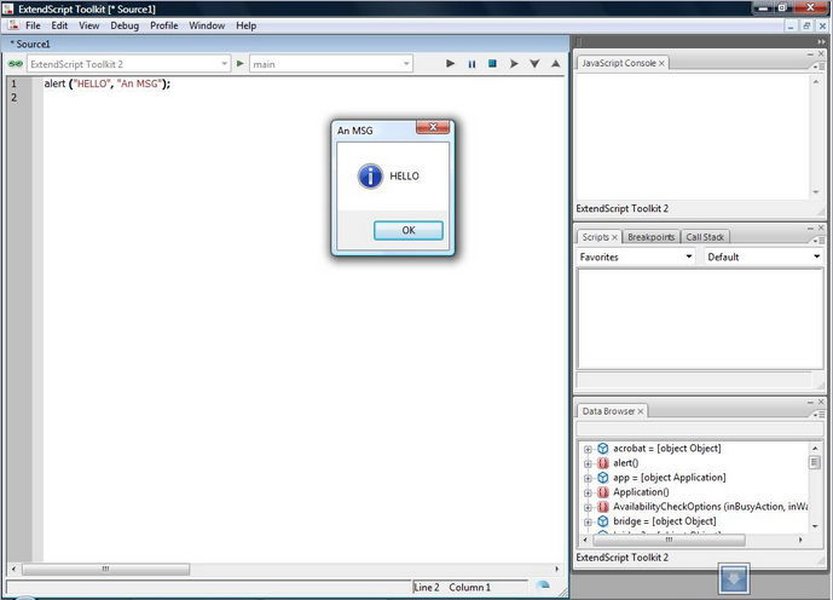
ExtendScript Toolkit (ESTK) Interface
Key features of the ExtendScript Toolkit include:
- Code Editor: A syntax-aware code editor that supports ExtendScript.
- Debugger: A powerful debugger for stepping through code, setting breakpoints, and inspecting variables.
- Object Model Viewer: A tool for exploring the InDesign object model, providing insights into available classes, methods, and properties.
Adobe InDesign Scripting Guide
Adobe provides extensive documentation on InDesign scripting, including the ExtendScript API reference. This documentation is an invaluable resource for developers looking to automate tasks in InDesign Server.
Community Forums and Online Resources
Numerous online forums and communities are dedicated to InDesign scripting. These resources provide a wealth of information, including code samples, tutorials, and troubleshooting tips.
Ensuring Compatibility and Best Practices
When working with ExtendScript and InDesign Server, it's crucial to ensure compatibility between the script, the server version, and the operating system. Here are some best practices to follow:
-
Use the
#targetDirective: Always specify the target application and version in your script to ensure it runs in the correct environment. -
Test Thoroughly: Test your scripts on both InDesign Desktop and InDesign Server to ensure they function as expected in both environments.
-
Handle Errors Gracefully: Implement error handling in your scripts to prevent unexpected crashes and provide informative error messages.
-
Optimize Performance: Write efficient code to minimize the execution time of your scripts, especially when processing large documents or performing complex tasks.
-
Document Your Code: Add comments to your code to explain its functionality, making it easier to maintain and update in the future.
By following these best practices, you can ensure that your ExtendScript solutions are robust, reliable, and easy to maintain.
FAQ
What is ExtendScript?
ExtendScript is Adobe's scripting language, based on JavaScript, used to automate tasks and customize Adobe applications like InDesign, Photoshop, and Illustrator.
How do I specify a target InDesign version in ExtendScript?
Use the #target directive at the beginning of your script to specify the target InDesign version. For example: #target "InDesign-16.0".
Can I run ExtendScript on both Windows and macOS?
Yes, ExtendScript is platform-independent and can be used on both Windows and macOS.
What is the ExtendScript Toolkit (ESTK)?
The ExtendScript Toolkit is a development environment for writing, debugging, and testing ExtendScript code.
How do I execute an ExtendScript script from the command line?
You can use the sampleclient application provided with InDesign Server to execute scripts from the command line. Specify the path to the script and the InDesign Server's host and port.
Summary
Effectively specifying the InDesign Server configuration in an ExtendScript target directive is crucial for automating document workflows. By understanding the role of ExtendScript, properly configuring the InDesign Server instance, and utilizing the ExtendScript Toolkit for development and debugging, you can ensure seamless and efficient automation. Remember to follow best practices for compatibility and error handling to create robust and reliable solutions.
| Concept | Description | Relevance to InDesign Server |
|---|---|---|
| ExtendScript | Adobe's version of JavaScript used for scripting and automation. | Primary language for automating tasks in InDesign Server. |
| #target Directive | Specifies the target application and version for the script. | Ensures the script runs in the correct InDesign Server environment. |
| ExtendScript Toolkit (ESTK) | Development environment for writing, debugging, and testing ExtendScript code. | Essential tool for creating and refining scripts for InDesign Server. |
| Command-Line Execution | Executing ExtendScript scripts from the command line. | Allows for automated execution of scripts without direct interaction with InDesign Server. |
| Compatibility | Ensuring compatibility between the script, server version, and operating system. | Prevents errors and ensures scripts function as expected. |
References
 aemdiary.wordpress.com
 sketchytech.blogspot.com
 applescriptlibrary.wordpress.com
Last updated April 16, 2025