
Master Kokoro-82M: The Ultimate Windows 11 Installation Guide for This Powerful TTS Model
A step-by-step approach to get this lightweight yet powerful 82-million-parameter text-to-speech model running locally on your Windows 11 system
Key Takeaways
- Kokoro-82M is a compact yet powerful open-weight text-to-speech model with only 82 million parameters that delivers quality comparable to much larger models
- Installation requires Python, eSpeak-NG, and proper environment setup that works efficiently on Windows 11 systems
- Multiple installation options are available including direct pip installation, GitHub repositories, or pre-configured packages for different user needs
Understanding Kokoro-82M
Kokoro-82M is an impressive open-weight text-to-speech (TTS) model designed to run efficiently on local hardware. Despite its relatively small size of just 82 million parameters, it delivers voice quality comparable to much larger models. The model is licensed under Apache 2.0, ensuring broad usability for both personal and commercial applications, and supports both American and British English accents.
What makes Kokoro-82M particularly attractive for Windows 11 users is its ability to run smoothly on CPU hardware, making high-quality text-to-speech accessible without requiring expensive GPU setups. This guide will walk you through the complete installation process to get Kokoro-82M running on your Windows 11 system.
System Requirements
Before beginning the installation, ensure your Windows 11 system meets these basic requirements:
- Windows 11 operating system (Windows 10 should also work)
- Python 3.6 or higher installed
- At least 4GB of RAM (8GB recommended)
- Approximately 500MB of free disk space
- Basic knowledge of using command prompt
Step-by-Step Installation Process
Method 1: Simple Installation Using Kokoro-TTS-windows Repository
This is the simplest method for beginners who want a quick setup without dealing with complex configurations.
Step 1: Download the Repository
- Visit https://github.com/mirbehnam/Kokoro-TTS-windows
- Click on the green "Code" button and select "Download ZIP"
- Extract the ZIP file to a location of your choice on your computer
Step 2: Run the Installation
- Navigate to the extracted folder
- Double-click on the
run_kokoro.batfile - The script will set up the necessary environment and start the Kokoro interface
This method handles most of the setup automatically and is the quickest way to get started with Kokoro-82M on Windows 11.
Method 2: Manual Installation with Python
For users who prefer more control over the installation process or need to integrate Kokoro with other applications.
Step 1: Install Python
- Download Python from the official Python website
- Run the installer and make sure to check "Add Python to PATH" during installation
- Complete the Python installation
Step 2: Install eSpeak-NG
- Visit the eSpeak-NG releases page on GitHub
- Download the latest MSI installer (e.g.,
espeak-ng-20191129-b702b03-x64.msi) - Run the installer and follow the default installation steps
- Ensure eSpeak-NG is installed in the default directory
Step 3: Set Up a Virtual Environment
- Open Command Prompt
- Create a directory for your Kokoro installation:
cd\ mkdir kokoro cd kokoro - Create a virtual environment:
python -m venv env1 - Activate the virtual environment:
env1\Scripts\activate.bat
Step 4: Install Kokoro
- With the virtual environment activated, install Kokoro using pip:
ORpip install kokoropip install kokoro-onnx - Install any additional requirements:
pip install torch torchvision
Step 5: Test Your Installation
- Create a test script (e.g.,
test_kokoro.py) with the following content:from kokoro import Pipeline pipeline = Pipeline("en-us") # or "en-gb" for British English audio = pipeline("Hello world, this is a test of the Kokoro text-to-speech system.") pipeline.save_audio(audio, "test_output.wav") - Run the script:
python test_kokoro.py - Verify that a
test_output.wavfile was created and contains audible speech
Advanced Installation Options
Method 3: Using Docker
For users who prefer containerized applications or need to deploy Kokoro in a more isolated environment.
Prerequisites
- Install Docker Desktop for Windows
- Ensure virtualization is enabled in your BIOS
Installation Steps
- Clone the Kokoro repository:
git clone https://github.com/hexgrad/kokoro.git cd kokoro - Build and run the Docker container:
docker-compose up --build - Access the FastAPI interface at
http://localhost:8000/docs
Method 4: Web UI Installation
For users who prefer a graphical interface for interacting with Kokoro.
Installation Steps
- Clone the Kokoro WebUI repository:
git clone https://github.com/NeuralFalconYT/Kokoro-82M-WebUI.git cd Kokoro-82M-WebUI - Install the dependencies:
pip install -r requirements.txt - Run the WebUI:
python app.py - Access the interface in your browser at the URL provided in the terminal
Performance Analysis
Understanding how Kokoro-82M performs on different configurations can help you optimize your setup for the best results.
The radar chart above compares different installation methods across key performance metrics. All methods provide the same speech quality since they use the same underlying model, but they differ in other aspects such as setup complexity and customization options.
Troubleshooting Common Issues
Missing eSpeak-NG Error
If you encounter an error related to missing eSpeak-NG:
- Ensure eSpeak-NG is properly installed
- Verify that eSpeak-NG is in your system PATH
- Try reinstalling eSpeak-NG using the MSI installer
Python Dependency Errors
If you experience dependency-related errors:
- Make sure you're using a compatible Python version (3.6 or higher)
- Try installing dependencies individually:
pip install torch numpy scipy transformers - Check for any conflicts with existing packages in your environment
Low Audio Quality
If the generated audio has poor quality:
- Experiment with different text inputs
- Check that your audio output device is properly configured
- Try adjusting the sampling rate in your code
Installation Workflow
The following mindmap illustrates the different paths and components involved in installing Kokoro-82M on Windows 11:
Video Tutorial
For a visual step-by-step guide to installing Kokoro-82M on Windows 11, this video tutorial provides detailed instructions:
This tutorial walks through the complete installation process, highlighting why Kokoro TTS is a fantastic alternative to paid tools, and provides practical tips for getting started with the model after installation.
Image Resources
Kokoro FastAPI Interface
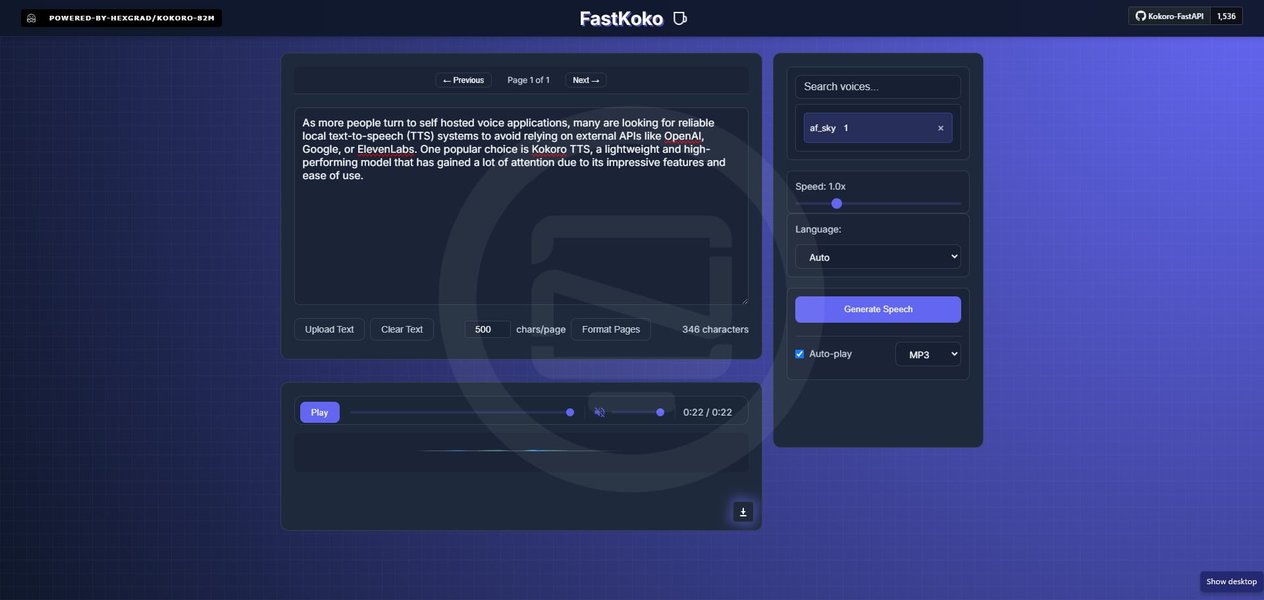
The Kokoro FastAPI interface provides a user-friendly web-based method to interact with the Kokoro-82M model after installation. This interface allows you to input text, adjust settings, and generate speech directly from your browser.
WebUI Audio Settings
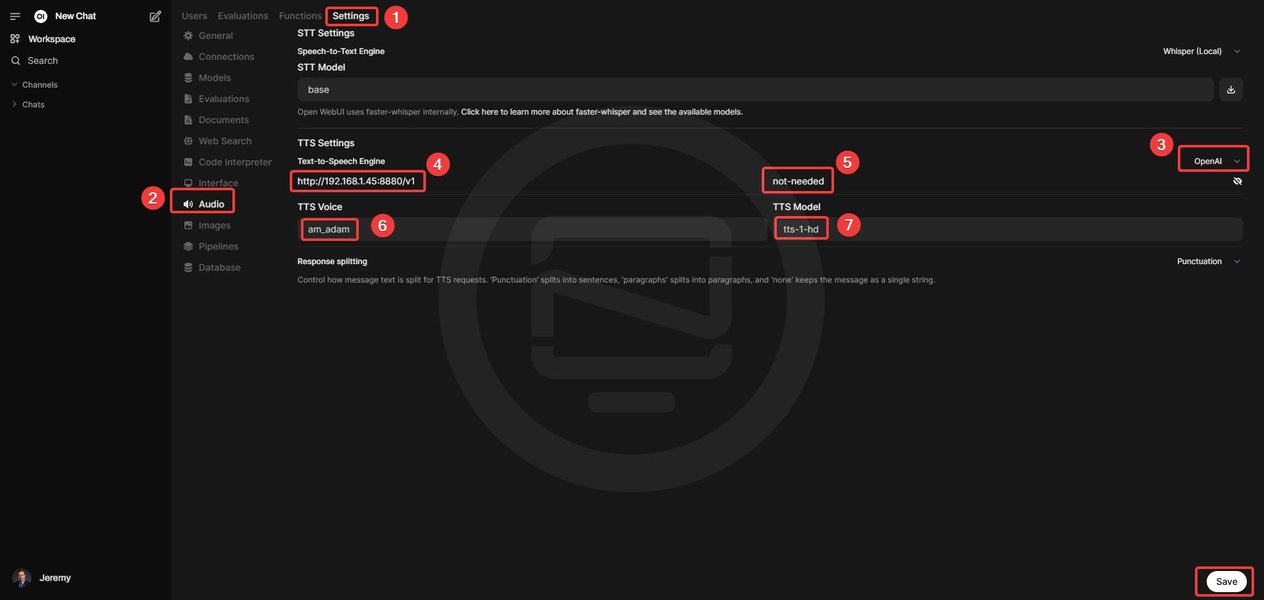
The WebUI implementation of Kokoro-82M provides advanced audio settings that allow you to fine-tune the output of the TTS model to suit your specific needs. These settings include voice selection, speech rate, and various audio processing parameters.
Comparison with Other TTS Solutions
| Feature | Kokoro-82M | ElevenLabs | Microsoft Azure TTS | Google Cloud TTS |
|---|---|---|---|---|
| Model Size | 82 million parameters | Undisclosed (large) | Undisclosed (large) | Undisclosed (large) |
| Runs Locally | Yes | No (cloud-based) | No (cloud-based) | No (cloud-based) |
| License | Apache 2.0 (open) | Proprietary | Proprietary | Proprietary |
| Cost | Free | Subscription-based | Pay-per-use | Pay-per-use |
| Voice Customization | Limited | Extensive | Moderate | Moderate |
| Offline Usage | Yes | No | No | No |
| Hardware Requirements | Low (runs on CPU) | N/A (cloud) | N/A (cloud) | N/A (cloud) |
As shown in the comparison table, Kokoro-82M offers unique advantages in terms of local deployment, cost, and hardware requirements compared to commercial cloud-based alternatives. While it may not match all the features of premium services, it provides an impressive balance of quality and accessibility for Windows 11 users.
Frequently Asked Questions
References
- Kokoro-TTS-windows Repository - GitHub
- Kokoro Official Repository - GitHub
- Kokoro-82M Model Card - Hugging Face
- Kokoro-82M WebUI - GitHub
- Kokoro-82M Installation Guide - AleksandarHaber
- Kokoro FastAPI Installation Guide - Noted.lol
- Kokoro-82M: A Cutting-Edge TTS Model - Medium
Recommended Queries
Last updated April 3, 2025