
Launching Phoenix OS Alongside Windows
A Comprehensive Guide to Dual Booting Phoenix OS on Your PC
Phoenix OS is an Android-based operating system designed to bring the Android experience to your desktop or laptop. It offers a familiar desktop interface with features like a taskbar, multi-window support, and file management, allowing you to run your favorite Android apps and games on a larger screen. One of the most common ways to use Phoenix OS is by dual booting it with your existing Windows installation. This allows you to choose between Windows and Phoenix OS each time you start your computer, providing flexibility and access to both environments.
Key Highlights of Dual Booting Phoenix OS
- Seamless Integration: Dual booting allows you to have both Windows and Phoenix OS installed on the same machine, giving you the choice of which operating system to use at startup.
- Optimized Android Experience: Phoenix OS is designed to provide a desktop-like Android experience, including multi-window support, keyboard and mouse compatibility, and a file manager.
- Broad Compatibility: Phoenix OS is compatible with a wide range of x86-based hardware, including older and newer PCs, making it accessible to many users.
Understanding Phoenix OS and Dual Booting
Phoenix OS is built upon the Android-x86 project, which aims to port the Android operating system to run on traditional PC hardware. This allows users to enjoy the vast ecosystem of Android applications and games on their computers, often with enhanced performance compared to emulators. Dual booting is a configuration where two operating systems are installed on the same computer, and a boot manager allows the user to select which operating system to load when the computer starts.
Dual booting Phoenix OS with Windows is a popular choice as it provides the best of both worlds: the familiarity and productivity of Windows and the extensive app library and gaming capabilities of Android.
Why Dual Boot Phoenix OS?
There are several compelling reasons to dual boot Phoenix OS on your Windows PC:
- Access to Android Apps and Games: Play your favorite mobile games and use Android-only applications directly on your computer with keyboard and mouse support.
- Productivity on a Larger Screen: Utilize Android productivity apps on a desktop interface, potentially improving workflow for certain tasks.
- Experimentation: Explore a different operating system without completely replacing your current Windows installation.
- Revitalize Older Hardware: Phoenix OS is known for being relatively lightweight and can perform well on older PCs that may struggle with newer versions of Windows.
Installation Methods for Dual Booting
There are generally two primary methods for installing Phoenix OS for dual booting with Windows: using the executable installer or using the ISO disk image.
Method 1: Using the Executable Installer (.exe)
The executable installer is often considered the easiest method for dual booting Phoenix OS with Windows. It simplifies the process by handling the necessary configurations for integrating with the Windows boot manager.
Steps for Using the Executable Installer:
- Download the Phoenix OS Executable: Obtain the .exe installer file from a trusted source like SourceForge.
- Run the Installer as Administrator: Right-click the downloaded executable and select "Run as administrator" to ensure it has the necessary permissions.
- Select Installation Options: In the installer wizard, choose the "Install" option.
- Choose Installation Disk and Size: Select the hard disk partition where you want to install Phoenix OS. It is recommended to allocate a sufficient amount of space, typically 32GB or more for a better experience.
- Wait for Installation to Complete: The installer will copy the necessary files and configure the boot loader. This process may take several minutes.
- Reboot Your Computer: After the installation is finished, restart your PC.
- Select Phoenix OS at Boot: When your computer starts, you should see a boot menu allowing you to choose between Windows and Phoenix OS. Use your keyboard arrow keys to select Phoenix OS and press Enter.
This method usually configures the Windows Boot Manager to include Phoenix OS as a boot option automatically. If the boot menu doesn't appear, you might need to manually adjust your boot settings or use a third-party boot manager like EasyBCD.
Method 2: Using the ISO Disk Image
The ISO disk image method is more involved but provides more flexibility and control over the installation process. It's often used for fresh installations or when the executable installer doesn't work as expected.
Steps for Using the ISO Disk Image:
- Download the Phoenix OS ISO: Download the ISO file for Phoenix OS from a reliable source. Ensure you download the correct version for your system architecture (32-bit or 64-bit).
- Create a Bootable USB Drive: Use a tool like Rufus to create a bootable USB drive from the downloaded ISO image. Select your USB drive (minimum 8GB recommended) and the Phoenix OS ISO file in Rufus. Format the USB drive to FAT32.
- Configure BIOS/UEFI Settings: Restart your computer and enter the BIOS or UEFI settings. You may need to disable Secure Boot and enable Legacy boot (CSM) or configure UEFI to allow booting from the USB drive. The specific settings vary depending on your motherboard.
- Boot from the USB Drive: Restart your computer and boot from the bootable USB drive you created. You may need to press a specific key during startup (often F2, F10, F12, or Del) to access the boot menu and select the USB drive.
- Choose Installation Option: When the Phoenix OS boot menu appears, select the "Installation" option.
- Create or Select a Partition: You will need a dedicated partition on your hard drive for Phoenix OS. You can create a new partition or select an existing one (ensure you back up any data on the selected partition as it will be formatted). Formatting the partition to FAT32 is often recommended for Grub installation.
- Install Phoenix OS: Follow the on-screen prompts to install Phoenix OS on the selected partition.
- Install Grub Boot Loader: During the installation, you will likely be asked if you want to install the Grub boot loader. Select Yes to install Grub, which will manage the dual boot process. You may be asked to choose the partition for Grub installation.
- Reboot and Select OS: After the installation is complete, remove the USB drive and restart your computer. The Grub boot menu should appear, allowing you to choose between Phoenix OS and Windows.
Using the ISO method requires more technical knowledge, especially regarding BIOS/UEFI settings and partition management. However, it provides a cleaner installation and can be necessary for certain system configurations.
Important Considerations for Dual Booting
Before you proceed with dual booting Phoenix OS, keep the following points in mind:
- Backup Your Data: Always back up your important data before attempting any operating system installation or partition modifications to avoid data loss.
- System Requirements: Ensure your PC meets the minimum system requirements for Phoenix OS, which typically include an Intel x86 processor (preferably Atom processor less than 5 years old) and at least 2GB of free disk space.
- UEFI vs. BIOS: Newer computers use UEFI, while older ones use BIOS. Phoenix OS can sometimes have compatibility issues with UEFI, and you may need to adjust settings like Secure Boot or enable Legacy boot for successful installation.
- Disk Space: Allocate sufficient disk space for your Phoenix OS installation, especially if you plan to install many apps or games. A recommended size is 32GB or more for hard disk installations.
- Boot Manager: The executable installer usually sets up the Windows Boot Manager. The ISO method typically installs the Grub boot loader. Understand how each boot manager works and how to access them (usually by pressing a key during startup).
- Potential Compatibility Issues: While Phoenix OS aims for broad hardware compatibility, some drivers or features may not work perfectly on all systems.
Exploring Phoenix OS Capabilities
Once you have successfully dual booted and started Phoenix OS, you'll find an environment that blends the familiarity of a desktop OS with the functionality of Android.

The Phoenix OS Desktop Interface
Key Features of Phoenix OS:
- Desktop Interface: Phoenix OS features a taskbar, start menu, and desktop icons, making it intuitive for users familiar with Windows or other desktop operating systems.
- Multi-Window Support: Run multiple Android apps in resizable windows, allowing for multitasking.
- File Manager: A built-in file manager allows you to browse, copy, paste, and manage files on your system.
- Keyboard and Mouse Support: Navigate and interact with apps using your keyboard and mouse, enhancing productivity and gaming experience.
- Google Play Store: Access and download millions of Android apps and games from the Google Play Store (requires Google Play services installation, which may not be included by default in all versions).
- Gaming Engine: Phoenix OS includes optimizations and features aimed at improving the gaming experience on PC hardware.
Installation Scenarios and Tips
The installation process might vary slightly depending on your specific hardware and existing operating system setup. Here are some additional tips and scenarios:
Installing on a Specific Partition:
If you want to install Phoenix OS on a specific drive or partition other than the one Windows is on, ensure that partition is formatted correctly and you select it during the installation process. Using a dedicated partition is generally recommended over installing it within the Windows partition for better separation and stability.
Dealing with Boot Issues:
If you encounter issues with the boot menu or starting Phoenix OS, check your BIOS/UEFI settings. Ensure the correct boot order is set and that Legacy boot or CSM is enabled if necessary. Reinstalling the boot loader (Grub) or using a tool like EasyBCD to modify the Windows Boot Manager might also resolve boot problems.
This video provides a visual guide on how to install Phoenix OS for dual booting on a Windows 10 PC using an easy method, which often involves the executable installer. It can be a helpful resource for users who prefer visual instructions and are new to the dual boot process.
Disk Space Allocation:
While Phoenix OS can run with minimal space, allocating more space for the data partition (where apps and user data are stored) will significantly improve performance and allow you to install more applications. A recommended minimum is 32GB for hard drive installations.
Comparison of Installation Methods
Here's a table summarizing the key differences between the executable installer and ISO image installation methods:
| Feature | Executable Installer (.exe) | ISO Disk Image |
|---|---|---|
| Ease of Use | Generally easier, more automated | More technical, requires manual steps |
| Boot Manager | Typically integrates with Windows Boot Manager | Installs Grub boot loader |
| Flexibility | Less control over partition and boot options | More control over installation location and boot loader |
| Requirement | Requires running within Windows | Requires creating a bootable USB and booting from it |
| Recommended For | Beginners, quick setup | Experienced users, clean installations, troubleshooting boot issues |
Performance Considerations
The performance of Phoenix OS will depend on your hardware. While it can run on older machines, a more powerful CPU, sufficient RAM (4GB or more is recommended), and an SSD will significantly enhance the user experience, especially when running demanding applications or games.
Factors Influencing Phoenix OS Performance:
- CPU: An Intel x86 processor, preferably newer generations, provides better processing power for running Android apps.
- RAM: More RAM allows for smoother multitasking and better performance with memory-intensive applications.
- Storage: Installing Phoenix OS on an SSD will result in faster boot times and application loading compared to a traditional hard drive.
- Graphics Card: A dedicated graphics card can improve performance in games and graphically intensive applications.
- Data Partition Size: A larger data partition can impact performance, especially if it's nearing full capacity.
Understanding the Phoenix OS Environment
Phoenix OS offers a unique blend of the Android mobile experience with desktop features. It's designed to be productive and user-friendly on larger screens.
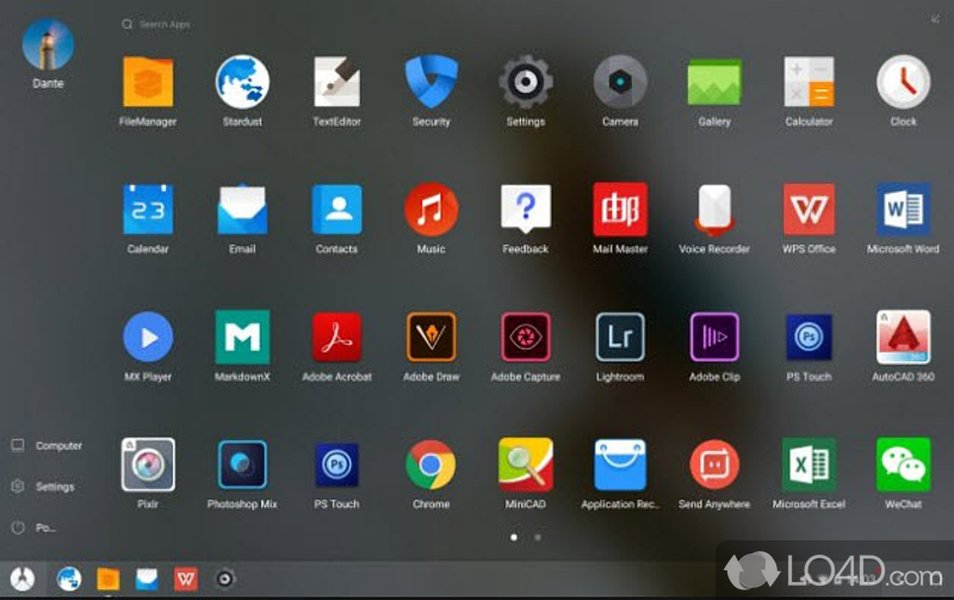
Running Multiple Apps in Phoenix OS
Key Aspects of the Phoenix OS User Experience:
- App Compatibility: While most Android apps work, some may have compatibility issues or be optimized for touch input rather than mouse and keyboard.
- Updates: Keeping Phoenix OS updated is important for bug fixes, performance improvements, and new features. Check for updates through the system settings.
- Customization: Like Android, Phoenix OS offers customization options, including changing wallpapers, themes, and launcher settings.
- Gaming: Phoenix OS is popular among mobile gamers who want to play on a larger screen with better controls. However, some competitive games may detect it as an emulator and potentially ban users.
Analyzing Phoenix OS Capabilities
To further illustrate the various aspects of Phoenix OS, let's consider a radar chart based on typical user experiences and reported capabilities.
This radar chart provides a visual representation of how Phoenix OS generally performs across various aspects compared to an ideal Android on PC experience. While it scores high in hardware compatibility and gaming performance, there can be variations in app compatibility and stability depending on the specific hardware and Phoenix OS version.
Troubleshooting Common Issues
Users may encounter some issues when dual booting Phoenix OS. Here are a few common problems and potential solutions:
Boot Menu Not Appearing:
If the boot menu doesn't show up after installation, restart your computer and repeatedly press the key to enter your BIOS/UEFI settings or boot menu (commonly F2, F10, F12, or Del). Check the boot order and ensure the correct boot device (the hard drive where Phoenix OS is installed) is prioritized or that your system is configured to show the boot menu. You may also need to disable Secure Boot or enable Legacy boot.
Phoenix OS Not Booting or Crashing:
If Phoenix OS fails to boot or crashes after starting, it could be due to hardware incompatibility, incorrect installation, or issues with graphics drivers. Ensure your hardware meets the system requirements. If you installed using the ISO method, try reinstalling and ensure you follow all steps correctly, especially regarding partition selection and Grub installation. Sometimes, adding boot parameters like nomodeset to the Grub configuration can help with graphics issues.
Performance Problems:
If Phoenix OS is slow or laggy, consider allocating more RAM to it (if using a virtual machine) or ensuring your physical hardware meets the recommended specifications. Installing on an SSD can significantly improve performance. Close unnecessary background applications to free up resources.
FAQ
What is Phoenix OS?
Can I dual boot Phoenix OS with Windows 11?
Do I need a USB drive to install Phoenix OS?
Will installing Phoenix OS affect my Windows license?
Can I install Phoenix OS on a virtual machine?
Recommended Further Reading
- How to troubleshoot common Phoenix OS installation issues?
- Tips for optimizing performance in Phoenix OS.
- Guide to using and installing Android applications in Phoenix OS.
- Comparing Phoenix OS with other Android-x86 based operating systems.
References
Last updated May 20, 2025