
Unlock Your Soundtrack: Seamlessly Installing Spotify on Fedora 42!
Discover the best methods to integrate Spotify into your Fedora 42 experience, from Flatpak to Snap and beyond.
Welcome to your comprehensive guide for adding Spotify to Fedora 42. While Fedora itself doesn't package Spotify in its official repositories, several robust methods allow you to enjoy your favorite music and podcasts on this popular Linux distribution. This guide will walk you through the most effective ways to get Spotify up and running.
Regarding the terms "Cosmic Atomic" in your query, these do not appear to be official codenames for Fedora 42 or related to the Spotify installation process. It's possible they refer to content available on Spotify, such as podcasts like "The Cosmic Guide" or discussions around books like "Atomic Habits." Our focus here will be solely on installing the Spotify application.
Highlights: Key Takeaways
- Multiple Installation Paths: Spotify can be installed on Fedora 42 using various methods, primarily through Flatpak, Snap, or the RPM Fusion repository.
- Sandboxed Solutions Preferred: Flatpak and Snap are generally recommended for their ease of use, automatic updates, and sandboxed environments, which enhance security and stability.
- System Preparation: Before starting, it's always a good practice to ensure your Fedora system is up-to-date. You can do this by opening a terminal and running:
sudo dnf update -y
Method 1: Harnessing Flatpak for a Modern Spotify Experience
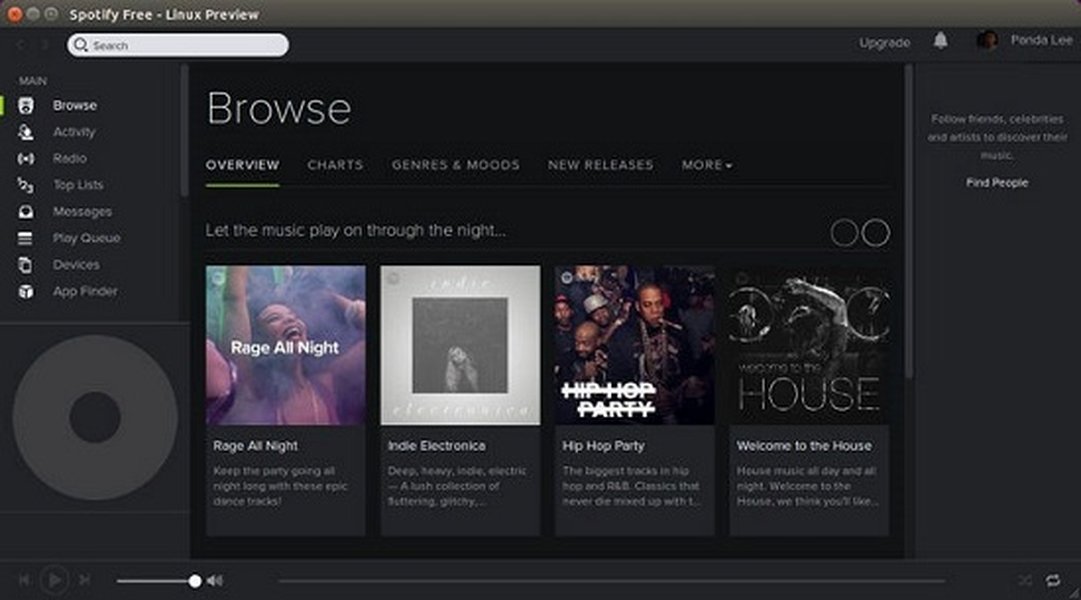
The Spotify client offers a rich music streaming experience on Linux.
Flatpak is a modern package management system that allows applications to run in isolated environments. It's well-supported on Fedora and is often a preferred method for installing third-party applications like Spotify.
Why Choose Flatpak?
Flatpak offers several advantages:
- Sandboxing: Applications run in isolation, enhancing security and preventing conflicts with system libraries.
- Universal Packages: Flatpaks are designed to run across different Linux distributions.
- User-Friendly Updates: Flatpak manages updates for installed applications, often automatically.
- Flathub Repository: Spotify is readily available on Flathub, the main Flatpak application repository.
Step-by-Step Installation
-
Ensure Flatpak is Installed: Fedora usually comes with Flatpak. If not, or to ensure it's current, run:
sudo dnf install flatpak -
Add the Flathub Repository: If you haven't already added Flathub, use this command:
flatpak remote-add --if-not-exists flathub https://flathub.org/repo/flathub.flatpakrepo -
Install Spotify: Now, install the Spotify client from Flathub:
flatpak install flathub com.spotify.ClientYou may be asked to confirm the installation and required runtimes.
-
Run Spotify: Launch Spotify from your application menu or via the terminal:
flatpak run com.spotify.Client
Key Considerations for Flatpak
Flatpak applications can sometimes be larger in size due to bundled dependencies, but this ensures they work consistently. This method is highly recommended for its balance of ease, security, and up-to-date application versions.
Method 2: Utilizing Snap for Broad Compatibility

Spotify is officially available as a Snap package, ensuring good support.
Snap is another universal package system, developed by Canonical (the company behind Ubuntu). Spotify officially provides its Linux client via the Snap Store, making this a reliable installation method.
The Snap Advantage
- Official Channel: The Spotify Snap is maintained by Spotify engineers (though often in their spare time).
- Self-Contained: Snaps bundle dependencies, reducing system conflicts.
- Automatic Updates: Snap packages update automatically in the background.
- Cross-Distribution: Snaps work on Fedora and many other Linux distributions.
Step-by-Step Installation
-
Install
snapd: The Snap daemon (snapd) is required. Install it if it's not already on your system:sudo dnf install snapd -
Enable the
snapdSocket: This allows communication with the Snap system.sudo systemctl enable --now snapd.socket -
Create a Symbolic Link (for classic snap support): Some systems may require this link for full compatibility:
sudo ln -s /var/lib/snapd/snap /snap -
Restart Your System or Re-login: This ensures that Snap paths are correctly recognized. A reboot is often simplest.
-
Install Spotify: Use the Snap command to install Spotify:
sudo snap install spotify -
Run Spotify: Spotify should appear in your applications menu, or you can run it from the terminal:
snap run spotify(Often, simply typing
spotifywill also work after the Snap paths are set up.)
Points to Note with Snap
Snap applications can sometimes have slightly longer startup times or be larger in size. However, the official support and ease of installation make it a strong contender.
Method 3: Integrating with RPM Fusion
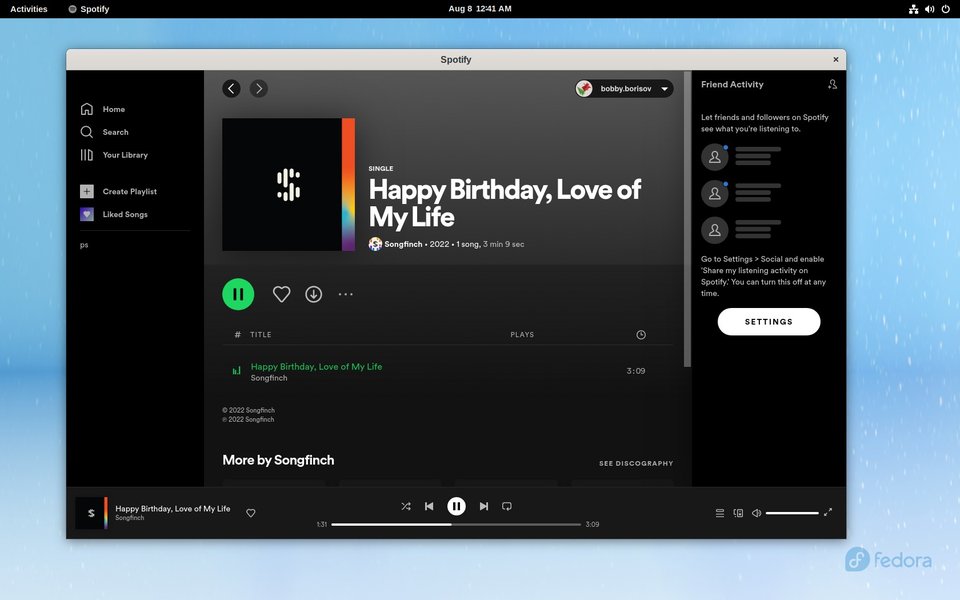
Spotify can also be installed on Fedora using third-party repositories like RPM Fusion.
RPM Fusion is a set of third-party repositories providing software that Fedora doesn't ship by default, often due to licensing or patent reasons. While Spotify isn't directly in RPM Fusion as a pre-built package, a helper package can facilitate its installation.
Exploring RPM Fusion
This method is suitable for users who are comfortable adding third-party repositories and prefer packages that might integrate more traditionally with the system.
Step-by-Step Installation
-
Enable RPM Fusion Repositories: If you haven't already, add the free and nonfree RPM Fusion repositories:
sudo dnf install https://download1.rpmfusion.org/free/fedora/rpmfusion-free-release-$(rpm -E %fedora).noarch.rpm
sudo dnf install https://download1.rpmfusion.org/nonfree/fedora/rpmfusion-nonfree-release-$(rpm -E %fedora).noarch.rpm
You may be prompted to import GPG keys; accept them.
-
Install
lpf-spotify-client: This package from RPM Fusion helps download and configure Spotify.sudo dnf install lpf-spotify-client -
Add User to
pkg-buildGroup (Important): Thelpfframework may require your user to be part of thepkg-buildgroup to build/install packages.sudo usermod -aG pkg-build $USERAfter running this command, you must log out and log back in for the group change to take effect.
-
Run the
lpfSetup: After logging back in, you might need to run a setup command or launchlpf-spotify-clientfrom your application menu. It will guide you through downloading Spotify and accepting its license. -
Launch Spotify: Once set up, Spotify should be available in your applications menu.
Important Considerations for RPM Fusion
This method involves the lpf (Linux Package Factory) framework, which downloads the official Spotify package (usually a .deb file) and repackages it for Fedora. You'll need to explicitly accept Spotify's license agreement during this process. While it can offer good integration, it relies on third-party scripts and repositories.
Bonus Method: Spotify TUI for a Minimalist Approach
For users who prefer a lightweight, terminal-based experience, spotify-tui is an excellent option. It's a client written in Rust that controls Spotify playback through your terminal.
What is Spotify TUI?
spotify-tui doesn't stream audio itself; it acts as a remote control for the official Spotify client (which can be running headless or on another device) or for spotifyd, a daemon that plays Spotify music.
Installation (via COPR repository)
-
Enable the COPR Repository:
sudo dnf copr enable atim/spotify-tui -
Install
spotify-tui:sudo dnf install spotify-tui
This method is more advanced and requires setting up Spotify API credentials. It's best suited for power users who enjoy terminal applications.
Comparing Spotify Installation Methods on Fedora 42
To help you decide which installation method best suits your needs, the radar chart below provides a visual comparison based on several key factors. Higher scores generally indicate a more favorable attribute (e.g., higher "Ease of Install" is better). "Lightweightness" refers to resource usage, where a higher score means it's generally lighter on system resources.
This chart illustrates that Flatpak and Snap generally offer better sandboxing and update management, while RPM Fusion might offer deeper system integration but with more manual setup and potentially lower sandboxing effectiveness.
Installation Methods at a Glance
Here's a table summarizing the pros and cons of each primary installation method for Spotify on Fedora 42:
| Method | Pros | Cons | Typical User |
|---|---|---|---|
| Flatpak (via Flathub) | Official Spotify client, strong sandboxing, automatic updates, good integration with desktop environments like GNOME, widely supported on Fedora. | Can result in larger application sizes due to bundled runtimes/dependencies. | Users seeking a modern, secure, and easy-to-manage solution. Often the recommended default. |
| Snap (via Snap Store) | Official Spotify client channel, easy installation, automatic updates, self-contained packages. | Can be slightly heavier on resources, Snap ecosystem has its own management tools, initial startup might be slower for some Snaps. | Users who prefer Snap packages or want the Spotify-endorsed Linux distribution method. |
| RPM Fusion (lpf-spotify-client) | Can offer deeper system integration for some users, leverages familiar DNF package manager for initial setup. | Not officially supported by Spotify, relies on third-party repositories and the lpf framework, requires manual steps like adding user to a group and license acceptance, sandboxing is less inherent. |
Users comfortable with third-party repositories and potentially more manual configuration for a traditionally integrated package. |
| Spotify TUI (Terminal UI) | Extremely lightweight, terminal-based control, ideal for minimalist setups or remote control. | Requires an existing Spotify Premium account and API setup, doesn't play music directly (controls another client/daemon), less user-friendly for beginners. | Advanced users, terminal enthusiasts, those with specific low-resource or remote control needs. |
Visualizing Your Spotify Installation Journey on Fedora 42
The mindmap below outlines the different paths you can take to install Spotify on your Fedora 42 system, along with key characteristics of each method. This can help you quickly grasp the options and choose the one that best fits your preferences.
- Sandboxed
- Flathub (Official Client)
- Auto-updates
- Good DE Integration"] id1_2["Key Commands:
-
sudo dnf install flatpak-
flatpak remote-add --if-not-exists flathub ...-
flatpak install flathub com.spotify.Client"]
id2["Snap"]
id2_1["Pros:- Spotify's Official Linux Channel
- Self-contained
- Auto-updates"] id2_2["Key Commands:
-
sudo dnf install snapd-
sudo systemctl enable --now snapd.socket-
sudo snap install spotify"]
id3["RPM Fusion (lpf-spotify-client)"]
id3_1["Pros:- Potential for Tighter System Integration"] id3_2["Cons:
- Third-party Repository
-
lpf framework setup- Manual group add & re-login"] id3_3["Key Commands:
-
sudo dnf install ...rpmfusion-free...-
sudo dnf install ...rpmfusion-nonfree...-
sudo dnf install lpf-spotify-client-
sudo usermod -aG pkg-build $USER"]
id4["Spotify TUI (Advanced)"]
id4_1["Pros:- Lightweight
- Terminal-based"] id4_2["Cons:
- Requires API setup
- Controls other client/daemon"] id4_3["Key Commands:
-
sudo dnf copr enable atim/spotify-tui-
sudo dnf install spotify-tui"]
This visualization highlights that Flatpak and Snap offer more streamlined and sandboxed approaches, while RPM Fusion involves more traditional package management with third-party sources. Spotify TUI stands apart as a specialized, terminal-based option.
Visual Guide: Installing Spotify on Linux
While the specifics can vary slightly between Linux distributions, many core concepts of installing Spotify using methods like Snap or Flatpak are similar. The following video provides a general overview of installing Spotify on Linux systems, which can be helpful context even if it doesn't focus exclusively on Fedora 42.
This video demonstrates Spotify installation on various Linux distributions, including Fedora.
This particular video covers installation on multiple distributions, including Fedora, and touches upon methods like Snap. Watching it can give you a visual feel for the command-line interactions and the look of the Spotify client once installed. Remember that commands specific to Fedora (like using dnf for installing snapd or flatpak) should be prioritized from the text guide above.
Frequently Asked Questions (FAQ)
Is Spotify officially supported on Fedora 42?
Spotify does not provide an official Fedora package (RPM) directly. However, they do officially support Linux through the Snap package. Additionally, the Flatpak version available on Flathub is a well-maintained and widely used method. So, while not "native" to Fedora's own repositories, there are strong, reliable ways to install and use it.
What are "Cosmic Atomic" in relation to Fedora and Spotify?
The terms "Cosmic Atomic" do not correspond to any official Fedora 42 version, codename, or specific Spotify installation variant. They most likely refer to content available on the Spotify platform itself, such as podcasts titled "The Cosmic Guide" or discussions related to the book "Atomic Habits" by James Clear. These are unrelated to the technical process of installing the Spotify application.
Which installation method is best for me?
The best method depends on your preferences:
- Flatpak: Generally recommended for most users due to its strong sandboxing, ease of use, and good integration with Fedora.
- Snap: A solid choice, especially if you prefer Snap packages or want the method officially provided by Spotify for Linux.
- RPM Fusion (`lpf-spotify-client`): Suitable for users who are familiar with RPM Fusion and prefer a more traditional (though helper-scripted) package installation, potentially offering closer system integration.
- Spotify TUI: For advanced users who love terminal applications and want a lightweight controller.
For most users, Flatpak or Snap will offer the best balance of features and ease of maintenance.
How do I uninstall Spotify?
Use the command corresponding to the installation method you chose:
- Flatpak:
flatpak uninstall com.spotify.Client - Snap:
sudo snap remove spotify - RPM Fusion (`lpf-spotify-client`):
sudo dnf remove lpf-spotify-client spotify-client(The exact package name might vary slightly, check withdnf list installed | grep spotify) - Spotify TUI (COPR):
sudo dnf remove spotify-tui
What if Spotify doesn't launch after installation?
Here are a few troubleshooting steps:
- Restart your computer: Sometimes, a simple reboot resolves path issues or service initializations, especially after installing `snapd`.
- Check for updates: Ensure your system and package manager (Flatpak, Snap) are up to date:
sudo dnf update -y,flatpak update,sudo snap refresh. - Run from terminal: Launching Spotify from the terminal (e.g.,
flatpak run com.spotify.Clientorsnap run spotify) might show error messages that can help diagnose the problem. - Reinstall: Try uninstalling and then reinstalling Spotify using the chosen method.
- Check dependencies (RPM Fusion): If you used the RPM Fusion method, ensure all dependencies were met and that your user is correctly added to the `pkg-build` group (and you've re-logged in).
- Graphics drivers: Ensure your graphics drivers are correctly installed and configured, as UI applications can sometimes have issues with this.
Explore Further
If you'd like to delve deeper into related topics, consider these queries:
- How to improve Spotify audio quality on Linux?
- Troubleshooting common Spotify issues on Fedora.
- What are the best Spotify alternatives for Linux?
- Customizing Spotify appearance on Linux with tools like Spicetify.
References
The information in this guide was synthesized from several sources, including:
Last updated May 7, 2025