
Seamlessly Integrate Tailscale into Your NixOS Setup: Your Configuration Guide
Unlock secure networking on NixOS with Tailscale's declarative configuration.
Integrating Tailscale into NixOS leverages the power of declarative configuration, allowing you to define your desired network setup directly within your system's configuration files. This guide focuses specifically on the lines you need to add or modify, typically within /etc/nixos/configuration.nix or related modules, to get Tailscale up and running smoothly.
Highlights: Getting Started with Tailscale on NixOS
- Core Activation: The fundamental step is enabling the Tailscale service within your NixOS configuration using
services.tailscale.enable = true;. - Network Essentials: Configure firewall rules to allow Tailscale's UDP traffic (port 41641 by default) and consider trusting the
tailscale0network interface for seamless operation. - Apply & Connect: After modifying your configuration, apply the changes with
sudo nixos-rebuild switchand then connect your machine to your Tailnet usingsudo tailscale up(or an auth key).
Core Installation: Enabling the Tailscale Service
The Foundation of Your Tailscale Setup
The most crucial step is telling NixOS to manage the Tailscale service. This ensures the necessary packages are installed and the tailscaled daemon is configured to run.
Activation Line
Add the following line to your configuration.nix file:
# In your configuration.nix or a relevant module file
services.tailscale.enable = true;
This single line instructs NixOS to include Tailscale in your system build and manage its lifecycle as a systemd service.
Example snippet within a NixOS configuration file enabling Tailscale.
Making the Tailscale CLI Accessible
User-Friendly Command-Line Access
While enabling the service sets up the daemon, you might also want the tailscale command-line tool readily available for all users on the system. This allows users to check status, connect, disconnect, and manage Tailscale features directly from the terminal.
Adding to System Packages
Include tailscale in your system-wide packages:
# In your configuration.nix
environment.systemPackages = with pkgs; [
  # other packages...
  tailscale
];
This ensures the tailscale binary is present in the system's PATH.
Essential Network Configuration
Allowing Tailscale Through Your Firewall
Tailscale primarily communicates using UDP. To ensure connectivity, especially if you're using NixOS's built-in firewall, you need to explicitly allow traffic on Tailscale's port.
Firewall Rule for UDP Traffic
By default, Tailscale uses UDP port 41641. Add this port to your firewall's allowed UDP ports:
# In your configuration.nix
networking.firewall.enable = true; # Ensure firewall is enabled
networking.firewall.allowedUDPPorts = [ 41641 ]; # Or add 41641 to your existing list
Trusting the Tailscale Network Interface
For smoother operation, especially when using features like subnet routing or accessing services hosted on the NixOS machine via Tailscale, it's often recommended to mark the Tailscale virtual network interface (tailscale0) as trusted.
Trusted Interface Configuration
Add tailscale0 to the list of trusted interfaces:
# In your configuration.nix
networking.trustedInterfaces = [ "tailscale0" ]; # Or add "tailscale0" to your existing list
This can help avoid potential issues with packet filtering or routing rules that might otherwise interfere with Tailscale traffic.
Applying Configuration and Connecting
Activating Your Changes
Once you've added the desired configuration lines to your NixOS files, you need to rebuild your system for the changes to take effect.
Rebuild Command
Run the following command in your terminal:
sudo nixos-rebuild switchThis command evaluates your configuration, builds the new system generation, and activates it.
Authenticating Your Device
After the rebuild completes and the Tailscale service starts, you need to authenticate the machine to your Tailscale network (Tailnet). This is typically a one-time process per machine unless you use automation like auth keys.
Authentication Command
Run the following command:
sudo tailscale upThis command will output a URL. Visit this URL in a web browser, log in to your Tailscale account, and authorize the new NixOS machine. Once authorized, the machine will connect to your Tailnet.
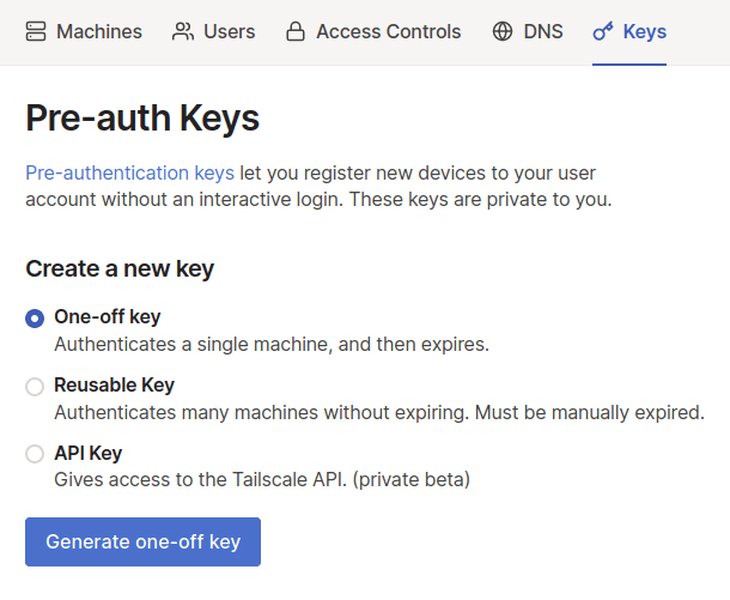
Example of generating an auth key in the Tailscale admin console for automated setup.
Advanced Configuration Options (Optional)
Tailoring Tailscale to Your Needs
Beyond the basics, NixOS offers options to fine-tune your Tailscale setup.
Custom UDP Port
If the default port 41641 conflicts with another service, you can specify a different one:
# In your configuration.nix
services.tailscale.port = 12345; # Replace 12345 with your desired port
Important: If you change the port here, remember to update your firewall rule accordingly:
# Update the firewall rule if you changed the port
networking.firewall.allowedUDPPorts = [ config.services.tailscale.port ];
Enabling Routing Features (Subnet Router / Exit Node)
If you want this NixOS machine to act as a subnet router (advertising local networks) or an exit node (routing all internet traffic through it), enable routing features:
# In your configuration.nix
# Use "server" to advertise routes (subnet router/exit node)
# Use "client" to accept routes advertised by others (useful in specific scenarios)
# Use "both" (or true) for both capabilities
services.tailscale.useRoutingFeatures = "server";
Note: After enabling this, you'll still need to run sudo tailscale up --advertise-routes=... or sudo tailscale up --advertise-exit-node and enable the routes in the Tailscale admin console.
Automatic Authentication with Auth Keys
For servers or automated deployments, you can provide a Tailscale authentication key directly in the configuration. This allows the machine to join your Tailnet automatically after a rebuild without manual intervention via tailscale up.
First, generate an auth key in your Tailscale admin console (Settings -> Keys). Make it reusable if needed, and consider adding tags.
# In your configuration.nix
# Preferably load the key from a secret management tool like sops-nix or agenix
# Example using a simple file path (less secure):
# services.tailscale.authKeyFile = "/path/to/your/tailscale-authkey";

# Or directly (least secure, avoid in version control):
services.tailscale.authKey = "tskey-auth-kEXAMPLE...";
Using a secret management tool is highly recommended to avoid committing sensitive keys directly into your configuration files.
Userspace Networking Mode (Containers/Restricted Environments)
If running Tailscale inside a container or in an environment where creating the tailscale0 TUN device is problematic, you can use userspace networking mode:
# In your configuration.nix
services.tailscale.interfaceName = "userspace-networking";
This avoids the need for elevated privileges related to network device creation but may have performance implications.
Configuration Options Overview
Summary Table
This table summarizes the key NixOS configuration options for Tailscale discussed above:
| Option | Description | Nix Code Example | Necessity |
|---|---|---|---|
| Enable Service | Activates the Tailscale daemon. | services.tailscale.enable = true; |
Required |
| CLI Access | Makes the tailscale command available system-wide. |
environment.systemPackages = [ pkgs.tailscale ]; |
Recommended |
| Firewall Port (UDP) | Allows Tailscale traffic through the NixOS firewall. | networking.firewall.allowedUDPPorts = [ 41641 ]; |
Recommended (if firewall enabled) |
| Trusted Interface | Marks the Tailscale network interface as trusted. | networking.trustedInterfaces = [ "tailscale0" ]; |
Recommended (for routing/services) |
| Custom Port | Changes the default UDP port (41641). | services.tailscale.port = 12345; |
Optional (for conflicts) |
| Routing Features | Enables subnet router or exit node capabilities. | services.tailscale.useRoutingFeatures = "server"; |
Optional (advanced use) |
| Auth Key | Enables automatic authentication on startup. | services.tailscale.authKey = "tskey-..."; or authKeyFile |
Optional (automation/servers) |
| Userspace Networking | Runs Tailscale without creating a TUN device. | services.tailscale.interfaceName = "userspace-networking"; |
Optional (containers/specific environments) |
Visualizing Tailscale Configuration Aspects
Comparing Configuration Setups
The following chart provides a conceptual comparison of different Tailscale configuration levels on NixOS, evaluating aspects like ease of initial setup, potential security impact (higher means more permissive or automated), network flexibility gained, potential for automation, and access to advanced features.
This visualization helps illustrate the trade-offs involved when enabling different Tailscale features through your NixOS configuration.
Tailscale Configuration Mindmap
Understanding the Configuration Structure
This mindmap provides a visual overview of the different components involved in configuring Tailscale on NixOS, from the core service enablement to optional features and post-configuration steps.
services.tailscale.enable = true;"] id1b["Make CLI Accessible
environment.systemPackages = [ pkgs.tailscale ];"] id2["Network Configuration"] id2a["Firewall Rules
networking.firewall.allowedUDPPorts = [ 41641 ];"] id2b["Trusted Interface
networking.trustedInterfaces = [ \"tailscale0\" ];"] id3["Applying & Connecting"] id3a["Rebuild System
sudo nixos-rebuild switch"] id3b["Authenticate Device
sudo tailscale up"] id4["Advanced Options (Optional)"] id4a["Custom Port
services.tailscale.port = 12345;"] id4b["Routing Features
services.tailscale.useRoutingFeatures = \"server\";"] id4c["Auth Key (Automation)
services.tailscale.authKey = \"tskey-...\";
(Use secrets management!)"] id4d["Userspace Networking
services.tailscale.interfaceName = \"userspace-networking\";"] id5["Troubleshooting"] id5a["DNS Issues"] id5b["IPv6 Problems"] id5c["Firewall Blocks"]
Getting Started with Tailscale
General Introduction Video
While not specific to NixOS, this video provides a quick and helpful overview of what Tailscale is and how to get started with its basic concepts. Understanding the core functionality can be beneficial before diving deep into NixOS-specific configurations.
The video covers the fundamental idea of creating a secure, private network overlay that connects your devices wherever they are, simplifying access without complex firewall configurations or VPN server setups.
Frequently Asked Questions (FAQ)
Common Queries About Tailscale on NixOS
What is the absolute minimum configuration needed?
The absolute minimum is just one line in your configuration.nix:
services.tailscale.enable = true;After rebuilding (sudo nixos-rebuild switch) and running sudo tailscale up, your machine should connect to your Tailnet. However, adding firewall rules and trusting the interface is highly recommended for reliable operation.
Do I always need to open firewall port 41641?
If you have the NixOS firewall enabled (networking.firewall.enable = true;), then yes, you should allow UDP port 41641 (or your custom port if configured). Tailscale primarily uses UDP for direct peer-to-peer connections. While it can fall back to using DERP relays over TCP/443 if direct UDP connections fail, allowing the primary UDP port generally results in lower latency and better performance.
How does the `authKey` option work?
The services.tailscale.authKey or services.tailscale.authKeyFile option allows the Tailscale service to automatically authenticate and join your Tailnet when it starts, typically after a system boot or rebuild. You generate an authentication key (one-time or reusable) in the Tailscale admin console and provide it to the NixOS configuration. This bypasses the need to manually run sudo tailscale up and authenticate via a web browser, making it ideal for servers and automated deployments. Remember to handle the key securely, preferably using NixOS secret management tools like sops-nix or agenix.
What does `services.tailscale.useRoutingFeatures` do?
This option prepares the NixOS system to handle IP forwarding and potentially modifies firewall rules needed for acting as a Tailscale subnet router or exit node. Setting it to "server" or true (equivalent to "both") configures sysctl parameters like net.ipv4.ip_forward=1 and net.ipv6.conf.all.forwarding=1. You still need to explicitly advertise the routes or exit node status using `tailscale up --advertise-routes=...` or `tailscale up --advertise-exit-node` and approve them in the Tailscale admin console.
Recommended Next Steps
- Learn how to configure this NixOS machine as a Tailscale subnet router.
- Explore methods for securely managing Tailscale authentication keys in NixOS using sops-nix.
- Find solutions for common Tailscale connection problems encountered on NixOS.
- Discover the steps to set up a Tailscale exit node using your NixOS machine.
References
Last updated May 2, 2025