
Empowering Granular Control: Intune Roles for Custom Attribute Read Access
Unlocking Advanced Device Management and Reporting with Tailored Permissions
- Tailored Access with Custom Roles: While built-in roles offer broad permissions, creating custom roles in Intune is essential for granting specific, read-only access to custom device attributes without exposing sensitive management capabilities.
- Leveraging Custom Attributes: Custom attributes in Intune allow organizations to collect extended device information (e.g., asset tags, specific software versions, last reboot times) beyond the default inventory, especially for macOS devices via shell scripts.
- Integration with Reporting and Automation: The ability to read custom attributes is crucial for enhanced reporting, compliance policy enforcement, and dynamic group membership automation, facilitating more intelligent device management workflows.
Understanding Role-Based Access Control (RBAC) in Intune
Role-Based Access Control (RBAC) in Microsoft Intune is a fundamental security mechanism that allows administrators to define who has access to an organization's resources and what actions they can perform. By assigning roles to users, you can precisely control their permissions within the Intune environment, ensuring that individuals only have the necessary access to perform their job functions. This granular control is vital for maintaining security, reducing the risk of unauthorized changes, and streamlining administrative tasks.
Intune offers a set of built-in roles that cover common administrative functions, such as "Help Desk Operator," "Endpoint Security Manager," or "Intune Role Administrator." However, these built-in roles often provide broad permissions, which may not always align with specific organizational needs. For scenarios requiring more refined control, Intune provides the flexibility to create custom roles.
When creating a custom role, you can select a precise combination of permissions, tailoring the role to a specific job function. For instance, an IT department group responsible solely for application management might be granted permissions only for managing applications, policies, and configuration profiles, without access to device wiping or other sensitive operations. This approach helps in adhering to the principle of least privilege, a core security best practice.
The Importance of Custom Roles for Granular Permissions
Custom roles in Intune provide an indispensable layer of control, moving beyond the broad strokes of built-in roles. While built-in roles are useful for common scenarios, they often grant more permissions than a specific administrative task requires. For example, a help desk operator might need to view device information, including custom attributes, but not have the ability to wipe devices or modify critical policies.
This is where custom roles become paramount. By defining a custom role, you can precisely specify what a user can see and do. This includes controlling access to read custom attributes, assign policies, or manage specific device types. This level of granularity is crucial in large or complex environments where different teams or individuals have distinct responsibilities. It prevents accidental misconfigurations and enhances security by limiting potential damage from compromised accounts.
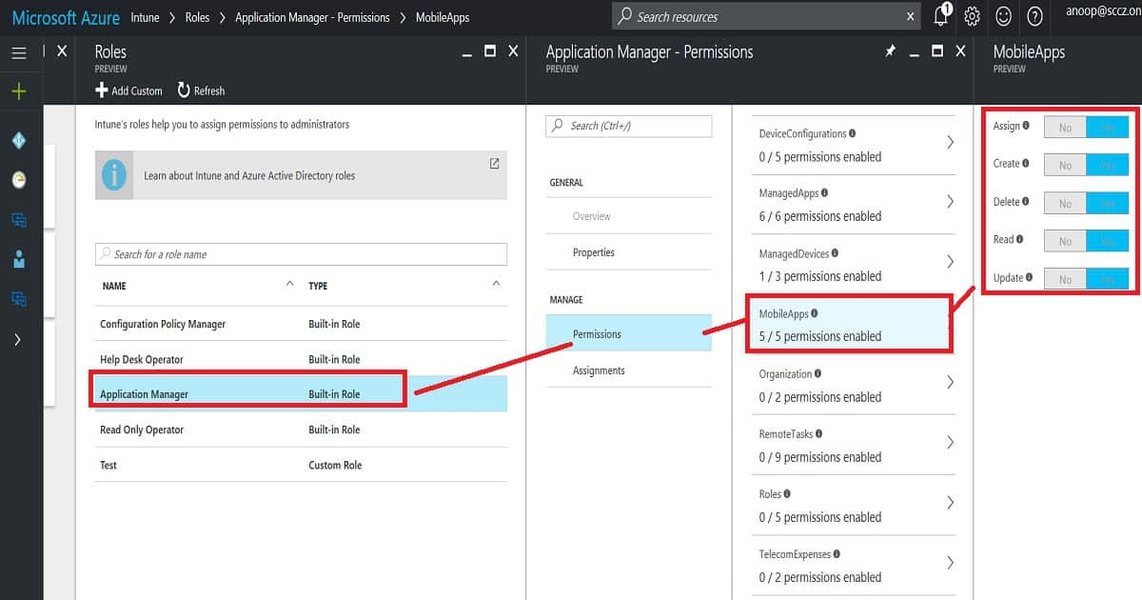
An illustration of Intune Application Policy Manager RBAC controls, highlighting the various permissions.
Demystifying Custom Attributes in Intune
Intune's ability to collect a rich inventory of device information is robust, encompassing details like serial numbers, available memory, and operating system versions. However, organizations often have unique data points they need to track for their managed devices, which are not covered by Intune's default inventory. This is where custom attributes come into play. Custom attributes allow administrators to extend Intune's data collection capabilities by defining and collecting additional, specific information from managed devices.
For macOS devices, custom attributes are particularly powerful. They enable administrators to collect information by executing shell scripts on the devices. These scripts can be designed to retrieve almost any piece of information that can be obtained via a command-line interface on a macOS device, such as the last reboot time, a list of local administrators, or even specific registry keys (though the latter is more common for Windows environments). Once collected, this data is saved as a custom attribute within Intune, making it available for viewing, reporting, and policy enforcement.
The flexibility offered by custom attributes is a game-changer for comprehensive device management. It bridges the gap between standard inventory reporting and the specific, often unique, data requirements of an organization. This feature transforms Intune into an even more adaptable tool for IT professionals managing diverse device fleets.
The Role of Shell Scripts in Collecting Custom Attributes for macOS
For macOS devices, the magic behind custom attributes lies in shell scripts. Intune can deploy and execute shell scripts on managed macOS devices, and the output of these scripts can then be captured and stored as custom attributes. This functionality is incredibly versatile, allowing IT admins to gather highly specific data that isn't part of Intune's native inventory. For example, you can write a shell script to:
- Identify Local Administrator Accounts: Determine which users have local administrator privileges on a macOS device.
- Track Last Reboot Time: Monitor when a device was last restarted, which can be useful for compliance or troubleshooting.
- Collect Software Inventory Details: Gather information about specific applications or configurations that Intune might not otherwise track.
- Retrieve Asset Tags: Link a physical asset tag number directly to the device record in Intune.
These scripts run periodically (by default, every 8 hours), ensuring that the custom attribute data remains up-to-date in the Intune portal. The data collected can then be used for various purposes, including creating more detailed reports, enforcing compliance policies, and even driving dynamic group memberships in Microsoft Entra ID (formerly Azure AD).
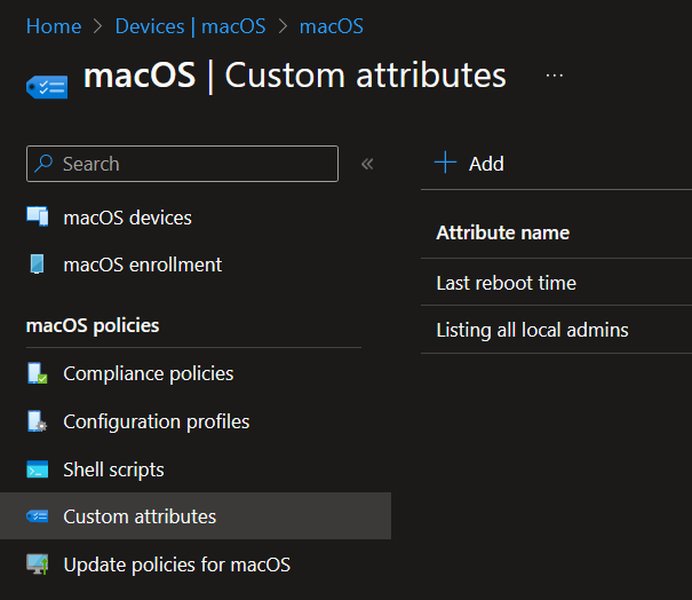
The interface for adding a new custom attribute script in Intune for macOS devices.
Crafting an Intune Role for Reading Custom Attributes
To create a custom Intune role that allows users to read custom attributes, you'll need to navigate the Microsoft Intune admin center and assign the appropriate permissions. The key is to identify the specific permissions related to device configurations and scripts, ensuring that only read-level access is granted to prevent unauthorized modifications.
Step-by-Step Guide to Creating the Custom Role
Here's a detailed breakdown of the process:
- Access the Microsoft Intune Admin Center: Sign in to the Microsoft Intune admin center.
- Navigate to Roles: Go to Tenant administration > Roles > All roles.
- Create a New Role: Click on Create.
- Define Basics: On the Basics page, provide a meaningful Name (e.g., "Custom Attribute Reader") and a clear Description (e.g., "Allows users to read custom device attributes for reporting and auditing purposes"). Click Next.
- Configure Permissions: This is the most crucial step. On the Permissions page, you need to select the permissions that grant read access to custom attributes. Look for permissions related to device configurations and shell scripts. The specific permissions you'll need include:
- Device configurations:
- Read (under "Shell scripts")
- Managed Devices:
- Read (This allows viewing general device information, which includes custom attributes.)
Ensure that you only select "Read" for these categories to maintain a least-privilege approach. Avoid granting "Create," "Update," or "Delete" permissions unless absolutely necessary for the role's function.
- Device configurations:
- Assign Scope Tags (Optional but Recommended): On the Scope (Tags) page, you can assign scope tags to this role. Scope tags help limit the visibility of objects that an admin can manage. For instance, if you have devices tagged by department, you can restrict this role to only see custom attributes for devices with a specific department tag. Click Next.
- Review and Create: On the Review + create page, review all the settings you've configured. If everything looks correct, click Create.
Once the custom role is created, you can assign it to the appropriate user groups in Microsoft Entra ID. Users within these groups will then have the ability to view the custom attributes collected by Intune for managed devices, without having broader administrative rights.
Assigning the Custom Role to User Groups
After creating your custom role, the next step is to assign it to the relevant user groups in Microsoft Entra ID. This is done through the Intune admin center:
- From Tenant administration > Roles > All roles, select your newly created custom role (e.g., "Custom Attribute Reader").
- Under Assignments, click Assignments > Assign.
- Provide an Assignment name (e.g., "Custom Attribute Readers - All Devices").
- For Admin groups, select the Microsoft Entra ID security group whose members should have this read access.
- For Scope (Groups), define which groups of users or devices this role applies to. For reading custom attributes across all devices, you might select "All Devices."
- For Scope (Tags), refine the scope based on the scope tags configured earlier.
- Review and create the assignment.
This process ensures that only authorized personnel can view the custom data you've collected, maintaining security and control over sensitive information.
The radar chart above visualizes the difference in permissions between a typical built-in "Help Desk Operator" role and a custom-designed "Custom Attribute Reader" role. As you can see, the custom role is heavily weighted towards "Device Inventory Read" and "Custom Attributes Read," demonstrating a high level of access in those areas (a score of 9 and 10 out of 10, respectively). In contrast, it has minimal to no access to "Application Management," "Policy & Profile Management," "Remote Device Actions," or "User Management" (scores of 1 or 2). This sharply contrasts with the "Help Desk Operator" role, which has a more balanced distribution of permissions across various operational aspects, including moderate access to remote actions and user management, but less focused access on custom attribute visibility. This chart effectively illustrates how custom roles enable precise permission tailoring, adhering to the principle of least privilege.
Practical Applications and Benefits of Reading Custom Attributes
The ability to read custom attributes in Intune, facilitated by carefully constructed RBAC roles, offers significant practical advantages for organizations. This enhanced data visibility extends beyond basic inventory, empowering more intelligent management, compliance, and automation scenarios.
Enhanced Reporting and Auditing
Custom attributes provide a richer dataset for reporting. Imagine an organization that needs to track the specific department an iPad belongs to, or the last time a critical security script was run on a macOS device. By collecting this information as custom attributes, IT administrators can generate highly detailed and customized reports directly from the Intune portal. This enables better auditing, compliance checks, and a more granular understanding of the device fleet's status. For instance, you could quickly identify all devices in a specific department that haven't rebooted in a month, or those missing a critical software update version tracked via a custom attribute.
Integration with Compliance Policies
Custom attributes can be a powerful component of Intune compliance policies. While Intune has many built-in compliance settings, there are scenarios where compliance depends on unique, organization-specific data points. For example, if your organization requires all macOS devices to have a specific version of a proprietary application installed, and this version isn't discoverable by default Intune inventory, you could use a shell script to collect this version as a custom attribute. A compliance policy could then be configured to mark devices as non-compliant if this custom attribute does not reflect the required version. This allows for highly flexible and adaptive compliance enforcement that caters to unique business requirements.
Dynamic Group Membership and Automation
One of the most impactful uses of custom attributes is their potential to drive dynamic group memberships in Microsoft Entra ID. Although Intune macOS custom attributes cannot natively be used for dynamic groups directly, they can be leveraged with tools like PowerShell and Microsoft Graph API, often orchestrated via Power Automate. This means you can automatically add devices to specific Entra ID groups based on their custom attribute values. For example, if a custom attribute indicates a device's "Asset Number" or "Cost Center," you could automatically assign it to a group for that asset number or cost center, which can then be targeted with specific applications, policies, or even security baselines. This automation significantly reduces manual administrative overhead and ensures devices are always in the correct logical groups based on their attributes.
The following table summarizes key use cases for custom attributes:
| Use Case | Description | Benefit of Custom Attributes |
|---|---|---|
| Enhanced Reporting | Generate detailed reports on unique device properties beyond standard inventory. | Provides deeper insights for asset management, auditing, and strategic planning. |
| Compliance Policies | Define compliance rules based on organization-specific device data. | Ensures devices meet unique security or operational standards. |
| Asset Management Integration | Correlate Intune device records with external asset management systems. | Streamlines inventory tracking and reconciliation. |
| Dynamic Grouping (via Scripting) | Automatically add devices to Entra ID groups based on custom data. | Automates policy assignment and resource access, reducing manual effort. |
| Troubleshooting & Diagnostics | Collect specific diagnostic information from devices. | Aids in faster problem resolution and proactive issue identification. |
Deep Dive: Accessing Custom Attributes via Microsoft Graph API
While the Intune admin center provides a user-friendly interface for viewing custom attributes, for advanced scenarios like integration with other systems (e.g., Configuration Management Databases - CMDBs) or complex automation, accessing this data programmatically through the Microsoft Graph API is essential. The Graph API is a powerful gateway to Microsoft 365 services, including Intune, allowing for robust data retrieval and manipulation.
Custom attributes, especially those gathered from macOS devices via shell scripts, are accessible through the Microsoft Graph API. This capability is vital for organizations looking to synchronize Intune data with their existing IT infrastructure or build custom dashboards and reporting solutions.
Navigating the Graph API for Custom Attributes
To query custom attributes using the Graph API, you typically interact with the managedDevice resource type. Custom attributes appear as part of the device's properties. However, their exact structure and how they are exposed might vary slightly depending on the attribute's nature and the method of collection. For macOS custom attributes collected via shell scripts, you would usually look for properties associated with deviceCustomAttributeShellScript or similar extensions.
The general workflow for reading custom attributes via Graph API involves:
- Authentication: Obtain an access token by authenticating with Microsoft Entra ID. This typically involves registering an application in Entra ID and granting it the necessary Microsoft Graph permissions (e.g.,
Device.Read.Allor more specific Intune permissions). - Constructing the Query: Use the Graph Explorer or your preferred development environment to construct a GET request to the relevant endpoint. For devices, this often starts with
https://graph.microsoft.com/v1.0/deviceManagement/managedDevices. - Filtering and Expanding: You might need to filter by device ID or expand properties to include the custom attributes. For example, to retrieve details about a specific device and its custom attributes, your query might look like:
GET https://graph.microsoft.com/v1.0/deviceManagement/managedDevices/{device-id}?$expand=deviceCustomAttributesNote that the specific property names for custom attributes might follow an
extension_prefix or a specific naming convention related to how they were defined in Intune. - Parsing the Response: Process the JSON response to extract the custom attribute values.
Example of Graph API Call for macOS Custom Attributes
For macOS custom attributes, you'd be looking for data associated with the deviceCustomAttributeShellScript resource type, which represents a custom attribute script for macOS. The Graph API beta endpoint often provides more granular access to these specific attributes:
\(\text{GET } \text{https://graph.microsoft.com/beta/deviceManagement/deviceCustomAttributeShellScripts}\)
This would retrieve information about the scripts themselves. To get the *values* collected by these scripts for specific devices, you would typically query the managedDevice endpoint and ensure the relevant custom attribute data is included in the response, possibly via an $expand query parameter or by specifically looking for properties with the extension_ prefix if they are implemented as Entra ID extension attributes.
It's worth noting that the Graph API documentation is continuously evolving, and it's always best to consult the latest Microsoft Graph documentation for the most up-to-date syntax and available properties. The ability to programmatically access these attributes opens up a world of possibilities for advanced IT automation and integration within a modern device management ecosystem.
This video provides an excellent starting point for understanding how to query attributes across Intune devices, user objects, and Entra ID objects using the Microsoft Graph API, which is crucial for accessing custom attributes.
Frequently Asked Questions (FAQ)
What is Intune RBAC?
Why use custom roles instead of built-in roles in Intune?
What are custom attributes in Intune?
How often do custom attributes update in Intune?
Can custom attributes for macOS devices be used in dynamic Entra ID groups?
Conclusion
Managing a modern device fleet effectively requires not only robust tools but also the flexibility to adapt them to unique organizational needs. Microsoft Intune's Role-Based Access Control (RBAC) combined with its custom attribute capabilities provides precisely this power. By carefully crafting custom roles, organizations can ensure that personnel have precisely the right level of access—whether it's read-only permissions for custom device attributes or more extensive management rights—without over-privileging accounts. This granular control is crucial for security, compliance, and operational efficiency.
The ability to define and collect custom attributes, especially for macOS devices via shell scripts, extends Intune's native inventory capabilities, allowing businesses to track unique data points vital for their operations. This data, once collected, becomes a valuable asset for enhanced reporting, sophisticated compliance policies, and driving intelligent automation workflows. By leveraging the Microsoft Graph API, this rich dataset can also be integrated with other enterprise systems, truly making Intune a central pillar of modern device management and IT governance.
Recommended Further Queries
- How do Intune scope tags enhance RBAC for delegated administration?
- How can PowerShell and Graph API automate custom attribute collection and use?
- Exploring advanced Intune compliance policies using custom attributes for unique requirements.
- What are the best practices for comprehensive macOS device management in Intune?