
Unlock AI Power on Your Desktop: Build a KDE Plasma 6 Gemini Chat Widget
A step-by-step guide to integrating Google's Gemini AI directly into your Plasma 6 environment for seamless chatting.
Integrating powerful AI tools directly into your desktop environment can significantly enhance productivity and provide quick access to information. This guide will walk you through the process of creating a custom KDE Plasma 6 widget (also known as a Plasmoid) that connects to the Google Gemini API, effectively giving you an AI chat assistant right on your desktop or panel.
Key Insights for Building Your Gemini Widget
- QML and Plasma Frameworks are Key: Plasma 6 widgets are primarily built using QML for the user interface and JavaScript for logic, leveraging KDE Plasma Framework 6 components.
- Gemini API Integration Requires Care: You'll need a Google Gemini API key and will interact with the API via HTTP requests, paying close attention to authentication and secure key management.
- Structure and Metadata Matter: A specific project structure and a
metadata.jsonfile are required to define your widget's properties and ensure Plasma recognizes it.
Preparing Your Development Playground
Before diving into coding, you need to set up your development environment and obtain the necessary credentials.
Essential Tools and Software
KDE Plasma 6 Development Environment
Ensure you have KDE Plasma 6 running. You'll also need the development packages for Qt6, KDE Frameworks 6, and Plasma Framework 6. The specific package names might vary depending on your Linux distribution (e.g., plasma-framework-devel, qt6-base-dev, kf6-kio-dev, kirigami-devel).
Google Gemini API Access
You need access to the Google Gemini API:
- Visit Google AI Studio or the Google Cloud Console.
- Enable the necessary APIs (like Vertex AI or the Generative Language API).
- Generate an API Key. Keep this key secure, as it grants access to the API under your account. Never embed API keys directly in publicly shared code. Consider secure storage methods like KDE Wallet or environment variables for production widgets.
Basic Development Skills
A fundamental understanding of QML (for UI), JavaScript (for logic and API calls), and using the command line will be necessary.
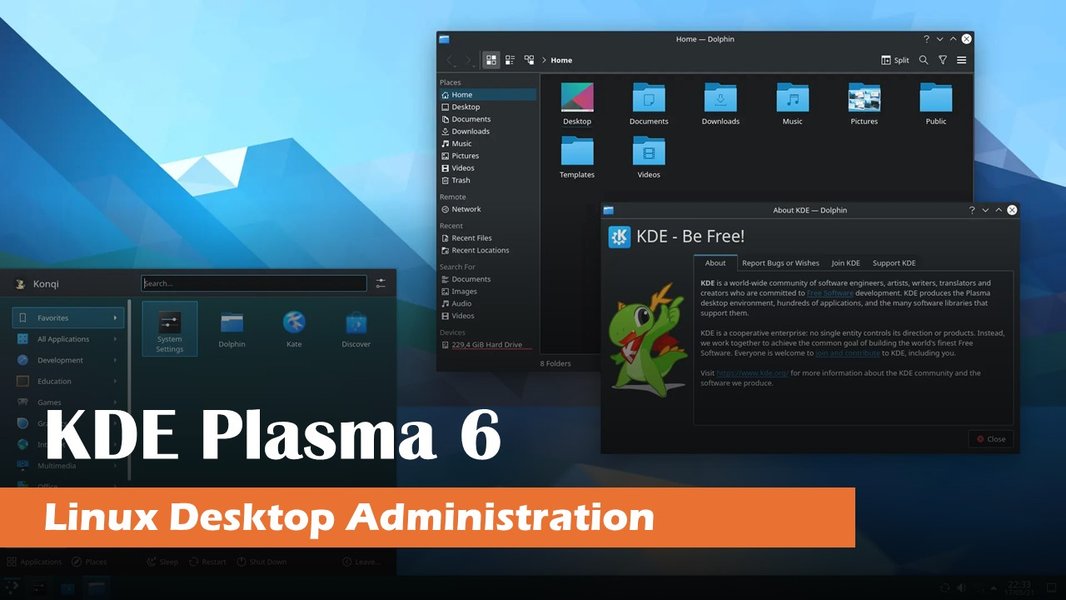
The KDE Plasma 6 desktop provides the environment for your widget.
Structuring Your Plasma Widget Project
A well-organized project structure is crucial for Plasma widget development.
Standard Folder Layout
Create a main folder for your widget (e.g., gemini-chat-plasmoid). Inside this, create a package directory. The contents of the package directory are what will be installed.
gemini-chat-plasmoid/
└── package/
    ├── metadata.json
    └── contents/
        └── ui/
            └── main.qml  # Main UI and logic file
        # Optional: Add separate JS files, icons, etc. here
The metadata.json File
Plasma 6 uses metadata.json to define the widget's properties. Create this file inside the package directory.
{
    "KPlugin": {
        "Id": "org.yourusername.geminichat", // Unique identifier
        "Name": "Gemini Chat AI",
        "Description": "A Plasma 6 widget for chatting with Google Gemini.",
        "Version": "0.1",
        "Authors": [
            {
                "Name": "Your Name",
                "Email": "your.email@example.com"
            }
        ],
        "Website": "https://yourwebsite.example.com", // Optional
        "Category": "Utilities",
        "License": "GPLv3", // Or your chosen license
        "Dependencies": [ // Specify dependencies if needed
            "plasma-framework >= 6.0"
        ]
    },
    "X-Plasma-API": "declarativeScript", // Use QML/JS
    "X-Plasma-MainScript": "ui/main.qml", // Path to the main QML file
    "X-KDE-PluginInfo-EnabledByDefault": true,
    "X-KDE-ServiceTypes": [
        "Plasma/Applet" // Identifies it as a Plasmoid/Applet
    ],
    "X-KDE-PluginInfo-Icon": "preferences-desktop-display" // Example icon
}
Make sure the Id is unique to avoid conflicts with other widgets.
Crafting the User Interface with QML
The visual part of your widget is built using QML. We'll create a simple interface with an input field, a display area for the chat, and a send button.
File: package/contents/ui/main.qml
This QML file defines the layout and interactive elements.
import QtQuick 6.2 // Or the Qt version corresponding to your Plasma 6 setup import QtQuick.Controls 6.2 import QtQuick.Layouts 6.2 import org.kde.plasma.plasmoid 6.0 as Plasmoid import org.kde.plasma.core 6.0 as PlasmaCore import org.kde.plasma.components 3.0 as PlasmaComponents Plasmoid.PlasmoidItem { id: root // Recommended size for the expanded widget Plasmoid.preferredRepresentationSize: Qt.size(400, 500) // Use standard Plasma background and theming Plasmoid.backgroundHints: Plasmoid.Plasmoid.DefaultBackground | Plasmoid.Plasmoid.ConfigurableBackground property string apiKey: "YOUR_GEMINI_API_KEY" // IMPORTANT: Replace this or load securely! property string conversationHistory: "AI: Hello! How can I help you today?\n" // Main layout for the expanded widget view ColumnLayout { anchors.fill: parent anchors.margins: 10 // Use PlasmaCore.Units.smallSpacing or similar for theme consistency spacing: 10 // Area to display the chat conversation PlasmaComponents.TextArea { id: chatOutput Layout.fillWidth: true Layout.fillHeight: true text: root.conversationHistory readOnly: true wrapMode: Text.Wrap // Wrap long lines color: PlasmaCore.Theme.textColor // Use theme colors background: Item { // Transparent background to use Plasmoid theme implicitHeight: chatOutput.implicitHeight implicitWidth: chatOutput.implicitWidth } font.pointSize: PlasmaCore.Theme.defaultFont.pointSize } // Layout for input field and send button RowLayout { Layout.fillWidth: true spacing: 5 PlasmaComponents.TextField { id: userInput Layout.fillWidth: true placeholderText: i18n("Type your message...") // Use i18n for translatable strings font.pointSize: PlasmaCore.Theme.defaultFont.pointSize color: PlasmaCore.Theme.textColor // Trigger send on Enter key press onAccepted: sendMessage() } PlasmaComponents.Button { id: sendButton text: i18n("Send") icon.name: "document-send" // Use a standard icon enabled: userInput.text.trim() !== "" // Enable button only when there is text onClicked: sendMessage() } } } // JavaScript function to handle sending the message and calling the API function sendMessage() { const userMessage = userInput.text.trim(); if (userMessage === "") return; // Don't send empty messages // Append user message to display root.conversationHistory += "You: " + userMessage + "\n"; chatOutput.text = root.conversationHistory; // Update display // Scroll to bottom (optional, might need Flickable) // chatOutput.flickableItem.contentY = chatOutput.flickableItem.contentHeight - chatOutput.height; const messageToSend = userInput.text; // Store before clearing userInput.text = ""; // Clear the input field // Call the function to interact with Gemini API callGeminiAPI(messageToSend); } // JavaScript function for Gemini API call function callGeminiAPI(prompt) { if (root.apiKey === "YOUR_GEMINI_API_KEY" || root.apiKey === "") { console.error("API Key not set!"); root.conversationHistory += "AI: Error - API Key not configured.\n"; chatOutput.text = root.conversationHistory; return; } var xhr = new XMLHttpRequest(); // Adjust the URL based on the specific Gemini model and endpoint you are using // Example for gemini-1.5-pro (check Google AI documentation for current endpoints) var apiUrl = <code>https://generativelanguage.googleapis.com/v1beta/models/gemini-1.5-flash-latest:generateContent?key=${root.apiKey}; xhr.open("POST", apiUrl); xhr.setRequestHeader("Content-Type", "application/json"); // Structure the request body according to Gemini API specs // This example assumes a simple text prompt const requestBody = JSON.stringify({ "contents": [{ "parts": [{ "text": prompt }] }] // Add safetySettings, generationConfig etc. as needed }); // Show a temporary "typing" indicator root.conversationHistory += "AI: ...\n"; chatOutput.text = root.conversationHistory; xhr.onreadystatechange = function() { if (xhr.readyState === XMLHttpRequest.DONE) { // Remove the "typing" indicator root.conversationHistory = root.conversationHistory.substring(0, root.conversationHistory.lastIndexOf("AI: ...\n")); if (xhr.status === 200) { try { const response = JSON.parse(xhr.responseText); // Extract the response text - path might vary based on API version/model const aiResponse = response.candidates[0].content.parts[0].text; root.conversationHistory += "AI: " + aiResponse.trim() + "\n"; } catch (e) { console.error("Error parsing Gemini response:", e); console.error("Raw response:", xhr.responseText); root.conversationHistory += "AI: Error - Could not parse response.\n"; } } else { console.error("Gemini API Error:", xhr.status, xhr.responseText); root.conversationHistory +=AI: Error - API request failed (Status: ${xhr.status}).\n; } chatOutput.text = root.conversationHistory; // Update display with final response or error // Optional: Scroll to bottom again } }; xhr.onerror = function() { console.error("Network error during API call."); // Remove the "typing" indicator root.conversationHistory = root.conversationHistory.substring(0, root.conversationHistory.lastIndexOf("AI: ...\n")); root.conversationHistory += "AI: Error - Network issue prevented request.\n"; chatOutput.text = root.conversationHistory; }; xhr.send(requestBody); } }
Important: The JavaScript code above uses XMLHttpRequest to make a POST request to the Gemini API. You must replace "YOUR_GEMINI_API_KEY" with your actual key (preferably loaded securely). The API endpoint URL and the structure of the request/response JSON might change based on the specific Gemini model and version you use. Always consult the official Google Gemini API documentation.

Example interface for a desktop AI assistant (PyGPT). Your widget will have a similar concept.
Comparing API Integration Methods
While using JavaScript's XMLHttpRequest directly within QML is feasible for simpler cases, more complex or security-conscious widgets might benefit from other approaches.
| Method | Pros | Cons | Best For |
|---|---|---|---|
| Direct JavaScript (XMLHttpRequest/Fetch) | - Simpler setup (no extra build steps) - Contained within QML/JS files |
- API key exposure risk if not handled carefully - Can block UI thread if not asynchronous - Limited access to system features (like secure storage) |
- Prototypes - Simple widgets where key security is managed externally or user-provided |
| C++ Backend with QML Frontend | - Better performance for complex logic - Enhanced security (can use system libraries, KDE Wallet) - Access to full Qt/KDE C++ APIs - Separates UI from logic |
- More complex setup (requires C++ knowledge, build system) - Larger installation size - Steeper learning curve |
- Production widgets - Widgets requiring high performance or advanced features - Widgets needing secure credential storage |
| External Helper Script/Service | - Language agnostic (can write helper in Python, etc.) - Isolates API interaction and keys |
- Requires inter-process communication (IPC) - Adds deployment complexity (managing the helper) |
- Leveraging existing scripts - Complex authentication flows (OAuth2) |
For this guide, we're using the direct JavaScript approach for simplicity, but be aware of the security implications regarding the API key.
Development Aspects Radar Chart
Creating a Plasmoid involves balancing several factors. This chart visualizes the relative importance or complexity of different aspects when building a Gemini chat widget using the direct JavaScript method described.
This chart highlights that API integration and particularly API key security are significant considerations. While QML/JS might seem straightforward, robust error handling and ensuring Plasma 6 compatibility also require attention. Using a C++ backend increases complexity in areas like performance optimization and compatibility checks but can simplify secure key handling.
Visualizing the Development Process
This mind map outlines the key stages and components involved in creating your KDE Plasma 6 Gemini Chat Widget:
(Plasma 6 SDK, Qt6, KF6)"] id1b["Get Gemini API Key
(Google AI Studio/Cloud)"] id1c["Understand QML & JavaScript Basics"] id2["2. Project Structure"] id2a["Create Main Folder"] id2b["Create
package Subfolder"]
id2c["Define metadata.json(ID, Name, Main Script)"] id2d["Create
contents/ui/main.qml"]
id3["3. UI Development (QML)"]
id3a["Import Modules(QtQuick, Plasma)"] id3b["Use
PlasmoidItem Root"]
id3c["Design Layout(ColumnLayout, RowLayout)"] id3d["Add UI Elements
(TextField, TextArea, Button)"] id3e["Use PlasmaComponents & Theme"] id4["4. API Integration (JavaScript)"] id4a["Implement API Call Function
(e.g.,
callGeminiAPI)"]
id4b["Use XMLHttpRequest or fetch"]
id4c["Handle API Key (Securely!)"]
id4d["Format Request Body (JSON)"]
id4e["Parse Response (JSON)"]
id4f["Implement Error Handling(Network, API Status)"] id5["5. Logic & Features"] id5a["Handle User Input (
sendMessage)"]
id5b["Update Chat Display (conversationHistory)"]
id5c["Manage State (e.g., loading indicator)"]
id5d["(Optional) Add Settings(API Key input, model choice)"] id6["6. Testing & Deployment"] id6a["Test with
plasmawindowed"]
id6b["Debug Issues (Console Logs)"]
id6c["Install Locally(
~/.local/share/plasma/plasmoids/)"]
id6d["Package for Distribution (Zip package folder)"]
Following these stages systematically will help you build a functional widget.
Editing and Refining Your Widget
Once you have the basic structure, you might want to customize or debug it further. Understanding how to edit existing widgets is a valuable skill. This video provides a tutorial on editing Plasma 6 widgets, which can be helpful as you refine your Gemini chat plasmoid.
The tutorial covers modifying existing QML code and understanding the structure, which directly applies to tweaking the UI, logic, or API calls in the widget you are building based on this guide.
Testing and Installation
Testing Your Widget
You can test your widget without installing it system-wide using the plasmawindowed tool. Open a terminal in your main project directory (e.g., gemini-chat-plasmoid) and run:
plasmawindowed org.yourusername.geminichat
(Replace org.yourusername.geminichat with the Id you defined in metadata.json). This will open your widget in a standalone window, allowing you to interact with it and see console output for debugging.
Installing the Widget
For regular use, install the widget for your user:
- Copy the entire
packagedirectory into the Plasma 6 plasmoids directory:
(Ensure the destination directory name matches your widget'scp -r package ~/.local/share/plasma/plasmoids/org.yourusername.geminichatId). - Restart Plasmashell for the changes to be fully recognized (sometimes needed): Press
Alt+F2, typekillall plasmashell && kstart plasmashell, and press Enter. Alternatively, logging out and back in works. - Add the widget: Right-click on your desktop or panel, select "Add Widgets...", search for "Gemini Chat AI" (or the
Namein yourmetadata.json), and drag it to your desired location.
Frequently Asked Questions (FAQ)
▶ How do I securely store my Gemini API key?
Embedding keys directly in QML/JS is insecure. Better options include:
- KDE Wallet: Use KDE's secure credential storage system. This typically requires C++ integration or a helper script.
- Configuration File: Store the key in a user-specific config file (
~/.config/) with restricted permissions. Your widget can read this file. - User Input: Create a settings page for your widget where the user pastes their own API key. This shifts the storage responsibility to the user.
- Environment Variable: Less common for widgets, but the key could be loaded from an environment variable set by the user.
For distribution, allowing the user to enter their key in a configuration dialog is often the most practical approach.
▶ My widget isn't showing up after installation. What's wrong?
Common reasons include:
- Incorrect Installation Path: Ensure the `package` contents are in `~/.local/share/plasma/plasmoids/your.widget.id/` and the directory name exactly matches the `Id` in `metadata.json`.
- Errors in `metadata.json`: Double-check the JSON syntax and ensure all required fields (`Id`, `Name`, `X-Plasma-API`, `X-Plasma-MainScript`, `X-KDE-ServiceTypes`) are present and correct.
- Errors in QML Code: Syntax errors in `main.qml` can prevent the widget from loading. Test with `plasmawindowed` and check the terminal output for errors.
- Plasma Cache: Sometimes Plasma needs a restart (`killall plasmashell && kstart plasmashell` or logout/login) to recognize new widgets.
- Missing Dependencies: If your widget depends on specific libraries, ensure they are installed.
▶ Can I use other Gemini models besides the one in the example?
Yes. You can use different Gemini models by changing the API endpoint URL in the `callGeminiAPI` function. Consult the Google Gemini API documentation for the correct URLs and any potential differences in the required request body structure for various models (e.g., `gemini-1.5-pro-latest`, `gemini-1.0-pro`, etc.). You might want to add a setting to your widget to let users choose their preferred model.
▶ How can I make the API calls asynchronous to avoid freezing the UI?
The `XMLHttpRequest` object used in the example is inherently asynchronous when used correctly. The key is handling the response within the `onreadystatechange` or `onload` callbacks, which are triggered when the network operation completes. The main UI thread is not blocked while waiting for the API response. Ensure you update the UI (like adding the "AI: ..." indicator and the final response) within these callback functions, not immediately after calling `xhr.send()`.
Recommended Further Exploration
Dive deeper into related topics with these queries:
- How can I integrate KDE Wallet for secure API key storage in my Plasma widget?
- What are some advanced QML techniques for creating more sophisticated Plasma 6 widget interfaces?
- What are the best practices for handling network errors and API errors gracefully in a Plasma widget?
- How do I create a settings dialog for my Plasma widget to allow user configuration (like entering an API key)?
References
Last updated May 4, 2025