
Lamp Control Panel in .tsx for Android
A comprehensive guide to create a TypeScript React component connecting to a Java backend
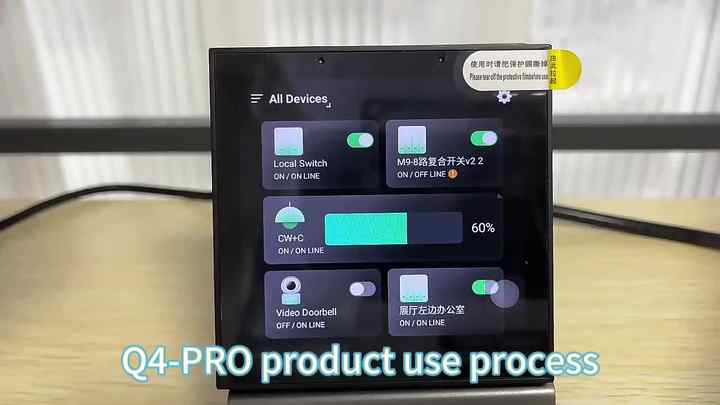
Key Highlights
- API Communication: Utilize RESTful endpoints for seamless integration between your TypeScript React front end and Java backend.
- State and UI Management: Leverage React hooks for state management and UI updates to control lamp functionalities such as power, brightness, and color.
- Platform Integration: Combine the .tsx component with React Native for Android applications, ensuring smooth user experience and easy integration.
Detailed Implementation Guide
Overview
This guide explains how to develop a .tsx file that functions as a lamp control panel for Android devices. This control panel communicates with a backend API written in Java to retrieve and update lamp statuses. You will utilize RESTful API calls to exchange JSON responses with the backend. The example provided integrates key lamp control features like power toggling, brightness adjustment, and color selection.
Development Environment Setup
Frontend Setup
Start by setting up a new React project with TypeScript using create-react-app or by initiating a React Native project with TypeScript support. For a web-based interface that can be run on Android or integrated into a native Android app, you may use the following command:
  # Create a React app with TypeScript template
  npx create-react-app lamp-control-panel --template typescript
  cd lamp-control-panel
If you prefer to work directly with React Native for a mobile-specific experience, use:
npx react-native init LampControlPanel --template react-native-template-typescript
Backend Setup
Your Java backend should expose RESTful endpoints to handle lamp state queries and commands. Essential endpoints include:
| HTTP Method | Endpoint | Description |
|---|---|---|
| GET | /api/lamp/state | Retrieves current lamp state |
| POST | /api/lamp/toggle | Toggles the lamp's power state |
| POST | /api/lamp/update | Updates lamp properties such as brightness and color |
Ensure that your backend is correctly configured to accept connections and respond with appropriate JSON formats. Use frameworks like Spring Boot for quick RESTful API development in Java.
.tsx Component Implementation
Code Structure Overview
The following code snippet illustrates a complete .tsx component that acts as the lamp control panel. It demonstrates initializing state, fetching lamp data from a Java backend, and allowing the user to toggle the lamp state. Later, you can expand this foundation to include brightness sliders and color pickers using additional React libraries.
// Import necessary modules and hooks from React and additional libraries
import React, { useState, useEffect } from 'react';
import axios from 'axios';

// Interface defining the shape of the lamp state
interface LampState {
  isOn: boolean;
  brightness?: number;
  color?: string;
}

const API_BASE_URL = 'http://your-java-backend.com/api/lamp';

const LampControlPanel: React.FC = () => {
  // Initialize lamp state
  const [lampState, setLampState] = useState<LampState>({ isOn: false, brightness: 50, color: '#FFFFFF' });

  // Fetch lamp state from Java backend
  const fetchLampState = async () => {
    try {
      const response = await axios.get<LampState>(`${API_BASE_URL}/state`);
      setLampState(response.data);
    } catch (error) {
      console.error('Error fetching lamp state:', error);
    }
  };

  // Function to toggle the lamp's power state
  const toggleLampState = async () => {
    try {
      const response = await axios.post<LampState>(`${API_BASE_URL}/toggle`);
      setLampState(response.data);
    } catch (error) {
      console.error('Error toggling lamp state:', error);
    }
  };

  // Use useEffect to load lamp state on component mount
  useEffect(() => {
    fetchLampState();
  }, []);

  return (
    <div style={{ padding: '20px', display: 'flex', flexDirection: 'column', alignItems: 'center' }}>
      <h2 style={{ color: '#cc9900' }}>Lamp Control Panel</h2>
      <div style={{ marginBottom: '20px', textAlign: 'center' }}>
        <p>Current State: {lampState.isOn ? 'On' : 'Off'}</p>
        <p>Brightness: {lampState.brightness}%</p>
        <p>Color: {lampState.color}</p>
      </div>
      <button onClick={toggleLampState} style={{ padding: '10px 20px', fontSize: '16px' }}>
        {lampState.isOn ? 'Turn Off' : 'Turn On'}
      </button>
      {/* Additional controls for brightness and color can be added below */}
    </div>
  );
};

export default LampControlPanel;
Code Explanation
State Management
The component uses the useState hook to initialize and update the lamp's state, encapsulated in the LampState interface. This ensures type safety for properties like isOn, brightness, and color.
Fetching Lamp State
Upon component mounting, the useEffect hook triggers the fetchLampState function, which sends an HTTP GET request to the backend API. This function sets the response data as the component state using the setLampState function.
Toggling Lamp State
The toggleLampState function sends a POST request to the /toggle endpoint. On success, the new lamp state returned by the backend updates the local component state, ensuring that the UI reflects the current lamp settings.
UI Components
The UI is constructed using standard HTML elements styled inline. A simple button is provided to toggle the lamp's state. Future enhancements could include adding sliders for brightness control and color selectors using libraries such as react-native-color-picker or similar components compatible with React Native.
Extending the Control Panel for Android
Integrating with React Native
For Android applications, you may want to integrate this control panel into a React Native component. The key differences involve utilizing mobile-friendly components from react-native rather than traditional HTML elements. Here is a comparison table of typical replacements:
| Web (React) | Mobile (React Native) | Description |
|---|---|---|
| <div> | <View> | Container or wrapper element |
| <p> | <Text> | Display text content |
| <button> | <TouchableOpacity> | Button with onPress functionality |
| CSS Styles | StyleSheet.create() | Applying and managing styles |
Converting to React Native Component
The transition to React Native involves substituting the HTML and CSS with their mobile equivalents. Consider the following modifications:
- Replace
<div>with<View>. - Change text tags to
<Text>instead of<p>or<h2>. - Utilize React Native’s
TouchableOpacityorSwitchfor interactive elements. - Apply styles using
StyleSheet.create()rather than inline CSS.
Implementing a React Native Version
Below is a simplified version of how the component might look in a React Native environment:
import React, { useState, useEffect } from 'react';
import { SafeAreaView, StyleSheet, Text, View, TouchableOpacity, Switch } from 'react-native';
import axios from 'axios';

interface LampState {
  isOn: boolean;
  brightness: number;
  color: string;
}

const API_BASE_URL = 'http://your-java-backend.com/api/lamp';

const NativeLampControlPanel: React.FC = () => {
  const [lampState, setLampState] = useState<LampState>({ isOn: false, brightness: 50, color: '#FFFFFF' });

  const fetchLampState = async () => {
    try {
      const response = await axios.get<LampState>(`${API_BASE_URL}/state`);
      setLampState(response.data);
    } catch (error) {
      console.error('Error fetching lamp state:', error);
    }
  };

  const toggleLampState = async () => {
    try {
      const response = await axios.post<LampState>(`${API_BASE_URL}/toggle`);
      setLampState(response.data);
    } catch (error) {
      console.error('Error toggling lamp state:', error);
    }
  };

  useEffect(() => {
    fetchLampState();
  }, []);

  return (
    <SafeAreaView style={styles.container}>
      <Text style={styles.title}>Lamp Control Panel</Text>
      <View style={styles.infoContainer}>
        <Text>Current State: {lampState.isOn ? 'On' : 'Off'}</Text>
        <Text>Brightness: {lampState.brightness}%</Text>
        <Text>Color: {lampState.color}</Text>
      </View>
      <Switch
        value={lampState.isOn}
        onValueChange={toggleLampState}
      />
      <TouchableOpacity style={styles.button} onPress={toggleLampState}>
        <Text style={styles.buttonText}>
          {lampState.isOn ? 'Turn Off' : 'Turn On'}
        </Text>
      </TouchableOpacity>
    </SafeAreaView>
  );
};

const styles = StyleSheet.create({
  container: {
    flex: 1,
    justifyContent: 'center',
    alignItems: 'center',
    padding: 20,
  },
  title: {
    fontSize: 24,
    marginBottom: 20,
  },
  infoContainer: {
    marginBottom: 20,
    alignItems: 'center',
  },
  button: {
    backgroundColor: '#007bff',
    padding: 10,
    borderRadius: 5,
    marginTop: 20,
  },
  buttonText: {
    color: '#FFFFFF',
    fontSize: 18,
  },
});

export default NativeLampControlPanel;
Additional Considerations
Error Handling and Feedback
Effective error handling is critical. Ensure that every API call includes try/catch error management. Display user-friendly error messages on the interface when the backend is unreachable or returns errors.
UI Enhancements
For a more interactive and visually appealing control panel, consider integrating UI frameworks for both web and mobile:
- Material UI or Ant Design for web applications.
- NativeBase or React Native Paper for mobile applications.
rc-slider for web or corresponding React Native slider components) and advanced color pickers.
Security and API Access
Implement API security measures such as token-based authentication. This helps ensure that only authorized clients can interact with your backend endpoints. Additionally, regulating CORS policies is crucial when your backend and frontend are hosted on different domains.
References
- Building RESTful APIs - Spring
- React Documentation - React
- React Native Getting Started - React Native
- Axios Documentation - Axios
- Using Fetch API - MDN
- React Native Elements - UI Framework
- Material UI - UI Library
- NativeBase - React Native UI
- Token-based Authentication - Azure AD
- CORS Explained - MDN
Recommended Next Searches

Last updated March 3, 2025