
Unlock LinkedIn's Potential: From Data Goldmines to Automated Insights
A comprehensive guide to extracting LinkedIn data, crafting analytical dashboards, and setting up smart alerts for new certifications and posts.
Leveraging LinkedIn data effectively can provide significant advantages, whether for personal branding, professional networking, market analysis, or competitive research. This guide will walk you through the process of obtaining data from LinkedIn, transforming it into actionable insights via dashboards, and automating notifications for key events like new certifications or posts. As of May 18, 2025, these methods represent current best practices.
Key Highlights: Your Roadmap to LinkedIn Data Mastery
- Data Extraction Demystified: Learn to navigate LinkedIn's own data download features and explore powerful third-party tools for more extensive data collection, always prioritizing ethical considerations and LinkedIn's terms of service.
- Visualize Your Success: Discover how to transform raw LinkedIn data into compelling dashboards using versatile BI tools and specialized analytics platforms, focusing on metrics that truly matter for your objectives.
- Automate and Act: Uncover methods to set up automated triggers that alert you to new certifications (yours or others') or specific types of posts, enabling timely responses and strategic actions.
Navigating LinkedIn Data Access: Compliance and Methods
Before diving into data extraction, it's crucial to understand the landscape of LinkedIn data access. This involves respecting LinkedIn's policies and choosing methods appropriate for your needs.
LinkedIn's Official Channels and Policies
The LinkedIn API: A Developer's Gateway
LinkedIn provides Application Programming Interfaces (APIs) primarily for partners and specific approved use cases. Access for general data scraping or broad profile extraction is typically restricted. If you're developing an application that integrates with LinkedIn, exploring their Developer Portal is the first step to understand permissions and access levels. However, for individual or small-scale data analysis, this might not be the most direct route.
Adherence to Terms of Service and Privacy
Regardless of the method chosen, strict adherence to LinkedIn's User Agreement and Privacy Policy is paramount. Unauthorized scraping or misuse of data can lead to account restrictions or legal repercussions. Always prioritize ethical data handling and respect user privacy. Familiarize yourself with regulations like GDPR if you are handling data of individuals in relevant regions.
Extracting Your LinkedIn Data: Methods and Tools
Several methods exist for gathering data from LinkedIn, ranging from LinkedIn's built-in features to sophisticated third-party tools.
Utilizing LinkedIn's Native Data Export
Your Personal Data Archive
LinkedIn allows you to download an archive of your own data. This is a valuable first step, especially for personal analysis or backup. This archive typically includes:
- Profile information (including skills and certifications)
- Connections
- Posts you've made or shared
- Messages
- Activity history
You can request this data download via your LinkedIn account's "Settings & Privacy" section, under "Data Privacy." The data is usually provided in formats like CSV or JSON, which are suitable for import into analysis tools.
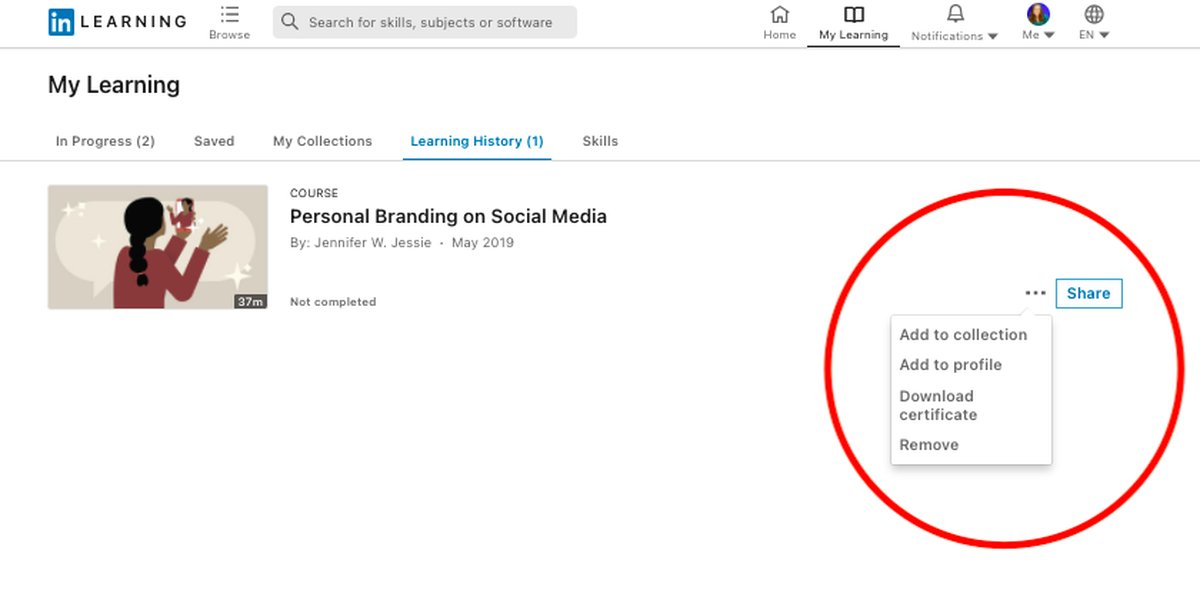
Visualizing certifications on a LinkedIn profile, a key data point for tracking.
Employing Third-Party Data Extraction Solutions
Advanced Scraping and Automation Tools
For extracting public data beyond your own account (e.g., competitor analysis, market research, lead generation), third-party tools are often used. These tools automate the process of collecting information from public LinkedIn profiles, company pages, and posts. Popular options include:
- PhantomBuster: Offers "phantoms" (automations) for scraping profiles, company data, posts, and more, often exporting to Google Sheets or CSV.
- Evaboot: Specializes in extracting data from LinkedIn Sales Navigator searches, useful for sales and marketing professionals.
- Proxycurl: Provides APIs for fetching rich, structured LinkedIn profile and company data.
- Make.com (formerly Integromat): While primarily an automation platform, it can integrate with web scraping modules or HTTP requests to extract data.
Important Note: When using such tools, be mindful of LinkedIn's terms, data privacy regulations (like GDPR), and the ethical implications of scraping. Use them responsibly and typically only for publicly available information.
Key Data Points to Target
Depending on your analytical goals, you might want to extract various types of data:
- Profile Data: Names, headlines, summaries, experience, education, skills, certifications, recommendations.
- Company Data: Company size, industry, location, employee list (publicly visible), job postings.
- Post Data: Content of posts, engagement metrics (likes, comments, shares, views), posting frequency.
- Engagement Data: Who engages with specific content, types of engagement.
Comparing Data Extraction Methods
Choosing the right data extraction method depends on your specific needs, technical skills, budget, and the scale of data required. The table below summarizes common approaches:
| Method | Data Accessible | Ease of Use | Typical Cost | Compliance Risk |
|---|---|---|---|---|
| LinkedIn Official Data Download | Own personal profile data, connections, activity, posts, certifications. | High | Free | Low (official feature) |
| LinkedIn API (Partner Program) | Varies by API product and approval; can include profile, company, and ads data. | Low (requires development skills & approval) | Varies (can be significant) | Low (if used as intended) |
| Third-Party Scraping Tools (e.g., PhantomBuster, Evaboot) | Publicly available profile data, company pages, posts, job listings. | Medium to High (tool-dependent) | Subscription-based (monthly fees) | Medium to High (risk of ToS violation if not used carefully) |
| Custom Scripts (e.g., Python with Selenium/BeautifulSoup) | Publicly available data; highly customizable. | Low (requires significant coding skills) | Development time + proxy/infrastructure costs. | Medium to High (depends on implementation and scale) |
Crafting Insightful Dashboards for Analysis
Once you've extracted your LinkedIn data, the next step is to visualize it in a way that provides clear insights. Dashboards are powerful tools for this, allowing you to track trends, measure performance, and make data-driven decisions.
Choosing Your Visualization Powerhouse
Several tools can help you create dynamic and interactive dashboards:
General Business Intelligence (BI) Tools
- Google Data Studio (Looker Studio): A free tool that integrates seamlessly with Google Sheets, BigQuery, and other data sources. Excellent for creating customizable, shareable dashboards.
- Microsoft Power BI: A robust BI tool that connects to a wide array of data sources. Offers powerful data modeling and visualization capabilities, integrating well with other Microsoft products.
- Tableau: Known for its sophisticated data visualization capabilities and ability to handle complex datasets. Suitable for in-depth analysis.
Specialized LinkedIn and Social Media Analytics Platforms
- Shield Analytics: Focuses specifically on LinkedIn analytics, providing clean and easy-to-understand dashboards for personal profile performance.
- AgencyAnalytics / DashThis: Geared towards marketing agencies and professionals, these tools offer integrations for LinkedIn (and other social platforms) to create client-facing reports and dashboards.
- Databox: Allows pulling data from various sources, including LinkedIn, into consolidated dashboards with pre-built templates and custom visualizations.
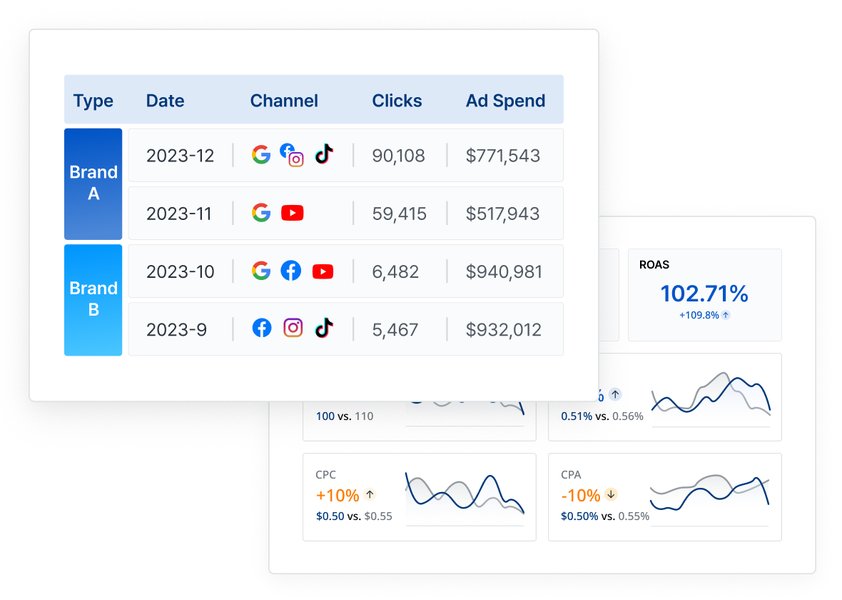
Example of a LinkedIn data dashboard for performance tracking.
Key Metrics for Meaningful Analysis
Your dashboard should focus on metrics relevant to your goals. Some common LinkedIn metrics include:
- Profile Performance: Profile views, search appearances, follower growth.
- Content Engagement: Likes, comments, shares, click-through rates (CTR), video views, impressions, reach for your posts.
- Certification Trends: Number of new certifications (yours or within a tracked group), types of certifications, frequency of updates.
- Network Analysis: Connection growth, industry breakdown of connections, engagement from key connections.
- Audience Demographics: Industry, job title, location of your post viewers or followers (often available via LinkedIn's native analytics or specialized tools).
Comparative Analysis of LinkedIn Data Tools
The radar chart below offers a visual comparison of different types of tools based on common criteria. "Dashboarding Tools" refer to platforms like Google Data Studio or Power BI, while "Automation Platforms" refer to services like Zapier or Make.com, and "Custom Scripting" refers to using Python for bespoke solutions. Scores are indicative and based on general capabilities, ranging from 1 (Low) to 5 (High).
This chart helps illustrate that the "best" tool depends on your specific balance of needs for ease of use, specific features, flexibility, budget, and real-time processing.
Automating Actions with Triggers for LinkedIn Events
Setting up triggers allows you to automate responses when specific events occur on LinkedIn, such as a new certification being added to a profile or a particular type of post being published. This can save time and enable quicker reactions.
Tools for Automation
Several types of tools can facilitate this automation:
- Workflow Automation Platforms (No-code/Low-code):
- Zapier: Connects thousands of apps. You can create "Zaps" that trigger actions in one app based on events in another. For LinkedIn, this might involve monitoring a Google Sheet (where scraped data is stored) for new rows (e.g., new certifications) and then sending an email or Slack notification.
- Make.com (formerly Integromat): Offers more complex scenario building with visual workflows. It can connect to various data sources, APIs, and apps to automate multi-step processes.
- Robotic Process Automation (RPA) Tools:
- UiPath / Automation Anywhere: These tools can automate tasks by mimicking human interactions with user interfaces or by interacting with APIs. They can be configured to periodically check LinkedIn (or data extracted from it) for changes and trigger workflows.
- Custom Scripting:
- Python: With libraries like Selenium (for browser automation if scraping directly) or `requests` (for APIs/webhooks), Python scripts can be scheduled to poll for new data and execute actions. This offers maximum flexibility but requires coding skills.
Setting Up Triggers: Practical Examples
Triggering on New Certifications
- Data Source: Regularly export/scrape LinkedIn profiles (your own or publicly accessible ones you track) into a structured format (e.g., Google Sheet, database). Ensure you have a timestamp for when data was last fetched or a way to identify new entries.
- Monitoring:
- Use Zapier/Make.com to watch the Google Sheet for new rows or specific changes in a "certifications" column.
- A custom Python script could periodically fetch data and compare it against a previously stored version to detect new certifications.
- Action: When a new certification is detected, trigger an action: send an email notification, update a dashboard, add a task to a project management tool, etc.
Triggering on New Posts
- Data Source: Use scraping tools or monitor RSS feeds (if available for specific LinkedIn content, though less common now) to capture new posts from targeted profiles or pages.
- Monitoring: Similar to certifications, use automation platforms or scripts to detect new posts that match certain criteria (e.g., keywords, author).
- Action: Send alerts, categorize posts, add them to a content curation list, or even trigger an initial sentiment analysis.
Enhancing LinkedIn Productivity with Automation
Automating LinkedIn tasks can significantly boost productivity. The following video demonstrates how tools like Make.com can be used for LinkedIn automation, providing practical insights into building such workflows. While it may cover broader automation, the principles apply to setting up triggers for data changes.
This video tutorial explores LinkedIn automation possibilities using tools like Make.com, relevant for creating custom triggers and workflows.
Visualizing the LinkedIn Data Workflow
To better understand the entire process from data acquisition to automated action, the following mindmap outlines the key stages and components involved. This holistic view can help in planning your LinkedIn data strategy.
(Personal Data, Certs, Posts)"] id1b["LinkedIn API
(Partner/Approved Apps)"] id1c["Third-Party Scrapers
(PhantomBuster, Evaboot, Proxycurl)
Public Profiles, Company Info, Posts"] id1d["Custom Scripts
(Python, Selenium)"] id2["Data Storage & Preparation"] id2a["Spreadsheets
(Google Sheets, Excel)"] id2b["Databases
(SQL, NoSQL)"] id2c["Cloud Storage"] id2d["Data Cleaning & Formatting"] id3["Dashboarding & Analysis"] id3a["BI Tools
(Google Data Studio, Power BI, Tableau)"] id3b["Specialized Platforms
(Shield Analytics, AgencyAnalytics)"] id3c["Key Metrics
(Engagement, Reach, Certifications Trend)"] id3d["Data Visualization Techniques"] id4["Automation & Triggers"] id4a["Workflow Platforms
(Zapier, Make.com)"] id4b["RPA Tools
(UiPath, Automation Anywhere)"] id4c["Custom Scripts (Python)"] id4d["Trigger Conditions
(New Certification, New Post, Keyword Match)"] id4e["Automated Actions
(Notifications, Dashboard Updates, Reports)"]
This mindmap illustrates the interconnected phases: starting with various methods to extract data, moving to how it's stored and prepared, then visualized for analysis, and finally, how automation can be set up for timely triggers and actions based on this data.
Frequently Asked Questions (FAQ)
Is scraping data from LinkedIn legal and ethical?
Scraping LinkedIn data exists in a gray area. LinkedIn's User Agreement explicitly prohibits unauthorized scraping. Accessing data beyond what's offered via official APIs or download options can put your account at risk. Ethically, it's crucial to only scrape publicly available information and respect user privacy (e.g., by not collecting sensitive personal data or misusing contact information). Always prioritize LinkedIn's terms and relevant data protection laws like GDPR. Using data for personal analysis of public trends is generally viewed differently than large-scale commercial exploitation without consent.
What's the easiest way for a beginner to start analyzing LinkedIn data?
For beginners, the simplest approach is to start with LinkedIn's own features:
- Download Your Data: Use LinkedIn's built-in feature to get an archive of your personal data (including posts and certifications) in CSV format.
- Use Google Data Studio (Looker Studio): Upload the CSV files to Google Sheets, then connect Google Sheets as a data source in Google Data Studio. It's free and relatively intuitive for creating basic dashboards to visualize your own activity and trends.
- Explore LinkedIn's Native Analytics: LinkedIn itself provides some analytics for your profile (who's viewed your profile) and posts (impressions, engagement).
This approach avoids complex tools or potential compliance issues associated with scraping.
Can I get real-time alerts for new certifications or posts?
True real-time alerts are challenging without official webhook support from LinkedIn for these specific events. However, you can achieve near real-time alerts:
- Polling: Most third-party tools and custom scripts work by "polling" – checking LinkedIn or your data source at regular intervals (e.g., every 5 minutes, hourly). The "real-time" nature depends on the polling frequency.
- Automation Platforms: Tools like Zapier or Make.com can check connected data sources (like a Google Sheet populated by a scraper) frequently and trigger actions almost immediately after a change is detected in that source.
For your own activity, LinkedIn's native notifications are often the most real-time option for things like post engagement.
Do I need coding skills to implement this?
Not necessarily. Many powerful solutions are available for non-coders:
- Data Extraction: LinkedIn's data download requires no coding. Many third-party scraping tools (e.g., PhantomBuster) have user-friendly interfaces.
- Dashboards: Tools like Google Data Studio, Power BI (basic use), Shield Analytics, and DashThis are designed for users without coding skills.
- Automation/Triggers: Platforms like Zapier and Make.com operate on a no-code/low-code basis, allowing you to build complex workflows through visual interfaces.
However, coding skills (especially Python) offer maximum flexibility for custom scraping, advanced data manipulation, and bespoke automation logic if pre-built tools don't meet your specific needs.
Recommended Further Exploration
To deepen your understanding and capabilities, consider exploring these related queries:
- Comprehensive comparison of LinkedIn data scraping tools for professionals in 2025.
- Step-by-step tutorial for connecting LinkedIn data to Google Data Studio for advanced analytics.
- What are the best practices for ethical web scraping of social media platforms like LinkedIn?
- How to use Make.com (Integromat) to automate LinkedIn post monitoring and engagement analysis.
References
The information presented is based on a synthesis of knowledge from various sources, including best practices in data analytics and automation. For further reading on specific tools and policies, consult their official documentation and the following resources:
Last updated May 18, 2025