
Comprehensive Guide to the Linux tree Command
Visualize Your Directory Structure Effortlessly
Key Takeaways
- Easy Visualization: The
treecommand provides a clear, hierarchical view of directory structures, simplifying navigation and management. - Highly Customizable: With numerous options, users can tailor the output to display hidden files, limit depth, filter patterns, and more.
- Export Capabilities: The ability to export directory structures in formats like HTML and JSON enhances its utility for documentation and development purposes.
Introduction
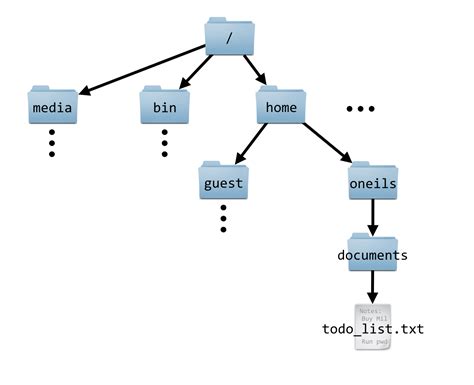
The tree command in Linux is an invaluable tool for users seeking to visualize the structure of their file systems in a hierarchical, tree-like format. Unlike the traditional ls command, which lists files and directories in a linear fashion, tree presents them in an organized structure, making it easier to comprehend the relationships and nesting of directories and files.
Installation
While the tree command is a powerful utility, it may not come pre-installed on all Linux distributions. Below are the installation steps for various popular distributions:
- Debian/Ubuntu:
sudo apt-get install tree - Red Hat/CentOS:
sudo yum install tree -y - Fedora:
sudo dnf install tree - Arch Linux:
sudo pacman -S tree
After installation, verify the installation by checking the version:
tree --versionBasic Usage and Syntax
The fundamental syntax of the tree command is straightforward:
tree [options] [directory]If no directory is specified, tree defaults to displaying the structure of the current working directory.
For example, to display the tree structure of the current directory:
treeCommon Options
The tree command offers a plethora of options to customize its output. Below are some of the most commonly used options:
-a: Includes hidden files and directories (those starting with a dot).-A: Uses ANSI line graphics for the tree structure, providing a more visually appealing output.-C: Adds color to the listing, distinguishing different file types.-d: Lists directories only, excluding files from the output.-L n: Limits the display tonlevels deep into the directory hierarchy.-f: Displays the full path prefix for each file.-s: Displays the size of each file in bytes.-h: Prints the size in a more human-readable format (e.g., K, M).-o filename: Directs the output to a specified file instead of the terminal.-I pattern: Ignores files and directories matching the specified pattern.-P pattern: Only includes files and directories matching the specified pattern.-H baseHREF: Generates HTML output with links based on the provided base URL.
Example Usages
1. Displaying the Directory Structure of the Current Directory
treeThis command will recursively list all files and directories starting from the current directory.
2. Displaying Hidden Files and Directories
tree -aThe -a option ensures that hidden files and directories (those beginning with a dot) are included in the output.
3. Limiting the Depth of the Directory Tree
tree -L 2The -L 2 option restricts the tree display to two levels deep, providing a more concise view of the directory structure.
4. Displaying Directories Only
tree -dUsing the -d option will list only the directories, excluding all files from the output.
5. Showing File Sizes
tree -sThe -s option displays the size of each file in bytes alongside the file name.
6. Exporting the Directory Structure to an HTML File
tree -H "http://example.com/" -o directory_structure.htmlThis command generates an HTML file named directory_structure.html with clickable links based on the provided base URL.
Advanced Features
The tree command isn't just limited to displaying directory structures in the terminal. It offers advanced features that enhance its utility:
- Exporting to Different Formats: By using the
-Hoption, users can export the directory structure to HTML, making it suitable for web-based documentation. Similarly, exporting to formats like JSON can be achieved through scripting and combiningtreewith other command-line utilities. - Pattern Matching: With the
-Pand-Ioptions, users can include or exclude specific files and directories based on patterns, allowing for a more tailored view of the filesystem. - Customizing Output: Options like
-Cfor colorized output and-Afor ANSI graphics provide a more readable and aesthetically pleasing display.
Use Cases and Benefits
The tree command is versatile and serves multiple purposes across different user groups:
- System Administrators: Quickly assess the structure of server directories, identify hidden files, and export directory views for documentation.
- Developers: Understand project structures, especially in large codebases, and generate documentation for code repositories.
- Users: Navigate complex personal directories with ease, visualizing where files and folders are nested.
- Educators: Use
treein teaching environments to demonstrate filesystem hierarchies to students.
Benefits of using the tree command include:
-
Enhanced Readability: The tree-like format makes it easier to understand the relationships between directories and files.
-
Efficiency: Provides a quick overview without the need to drill down into each directory manually.
-
Customization: Numerous options allow users to tailor the output to their specific needs.
-
Exportability: Facilitates the creation of documentation and reports by exporting directory structures.
Conclusion
The Linux tree command is a powerful utility that transforms how users interact with and visualize their filesystem. Its ability to present directory structures in a clear, hierarchical format, coupled with a wide range of customizable options, makes it an essential tool for system administrators, developers, and everyday users alike. Whether you're looking to gain a quick overview of your project directories, document your server's file structure, or simply navigate your personal files more effectively, the tree command offers a user-friendly solution that enhances productivity and understanding.
References
Last updated January 11, 2025