
Unlocking Automated LISTSERV Signoff Reports: A Deep Dive into URL Parameters
Discover how to potentially generate signoff reports for your list "babu" directly through the LISTSERV 16.0 web interface using URL parameters.
Generating specific reports, such as a list of signoffs (unsubscriptions) for a particular mailing list like "babu," directly via URL parameters in LISTSERV 16.0 can streamline list management. While LISTSERV's web interface is primarily designed for interactive use, understanding its URL structure can offer avenues for semi-automation or direct access to certain views. This guide explores the likely parameters and methods based on common LISTSERV functionalities and documentation insights.
Essential Insights: Key Takeaways
- Primary URL Parameters: The most crucial parameters for accessing list-specific data involve specifying the list name (e.g.,
L=babuorLIST=babu) and the type of report or template to display (e.g.,SHOWTPL=HELP-LOGfor activity logs). - Signoff Data Location: Signoff events are typically recorded within the general activity logs or history reports of a list. Accessing these logs is the first step to viewing unsubscribe information.
- Direct Filtering Nuances: While you can access activity logs, a dedicated URL parameter to *exclusively* show *only* signoffs (and nothing else) might not be universally documented or implemented. Filtering might occur within the displayed log page itself.
Understanding LISTSERV Web Interface URLs
The LISTSERV web interface typically operates using a Common Gateway Interface (CGI) script, often named wa.exe (on Windows servers) or wa (on Unix-based servers). URLs are constructed by appending parameters to this script's path. The general structure looks like this:
http[s]://[your-listserv-server-address]/scripts/wa.exe?...parameters...
Or for Unix-based systems:
http[s]://[your-listserv-server-address]/cgi-bin/wa?...parameters...
The [your-listserv-server-address] part will be specific to your institution or organization's LISTSERV installation.
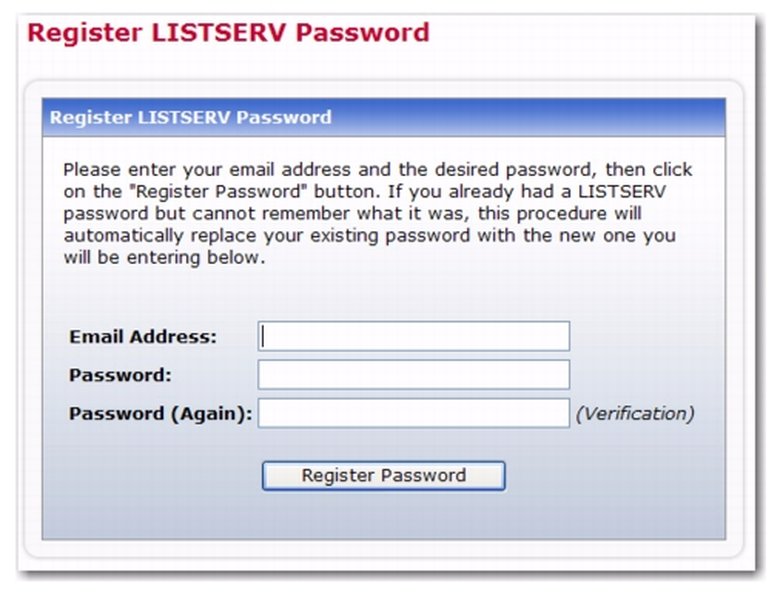
A typical LISTSERV web interface login page, the gateway to list management and reporting.
Core URL Parameters for Report Generation
To generate a report that includes signoffs for your list "babu", you'll likely need to combine several parameters. "Signoff" in LISTSERV terminology refers to a user voluntarily unsubscribing from a list.
1. Specifying the List: L or LIST
This is the most fundamental parameter. You need to tell LISTSERV which list you're interested in.
L=babuLIST=babu
Both are commonly used, though L is often seen in simpler contexts. For clarity and robustness, LIST=babu is a strong candidate.
2. Requesting the Report Template: SHOWTPL
The SHOWTPL parameter directs LISTSERV to display a specific page template. For activity logs, which would contain signoff information, a common value is:
SHOWTPL=HELP-LOG
This parameter typically brings up the list's activity log or history page. These logs record various events, including subscriptions, signoffs, postings, and administrative changes.
3. Filtering for Signoff Events: LOGTYPE (Potential Parameter)
Some LISTSERV interfaces or versions might support a parameter to pre-filter the log content. A potential candidate for this could be:
LOGTYPE=SIGNOFF
However, it's important to note that this parameter is less consistently documented across all LISTSERV help materials specifically for generating a pre-filtered signoff-only report directly via URL. Often, the SHOWTPL=HELP-LOG will display all log entries, and you might need to use on-page filters (if available) to narrow down to just signoffs.
4. Date Range Parameters (Potential)
If you need to specify a time window for the signoff report, parameters like the following might be supported, though their exact names can vary:
FROM=YYYY-MM-DDTO=YYYY-MM-DD
5. Report Format (Potential)
In some cases, you might be able to specify an output format, such as CSV, if you intend to download the data. A parameter like F=CSV has been noted in the context of LISTSERV commands, which sometimes translate to web interface parameters.
Constructing an Example URL
Combining these insights, a plausible URL to access the activity log for the list "babu," which would include signoff records, might look like this (assuming your server uses wa.exe):
https://[your-listserv-server-address]/scripts/wa.exe?L=babu&SHOWTPL=HELP-LOG
To attempt pre-filtering for signoffs, you could try:
https://[your-listserv-server-address]/scripts/wa.exe?L=babu&SHOWTPL=HELP-LOG&LOGTYPE=SIGNOFF
Important Considerations:
- Server-Specific Configuration: The exact behavior and available parameters can sometimes be influenced by the local LISTSERV site configuration.
- Authentication: Accessing list reports typically requires authentication as a list owner or an authorized administrator. You may need to be logged into the LISTSERV web interface in your browser session.
- Logging Enabled: The list "babu" must have activity logging enabled (often via the
Change-Log= Yeslist header keyword) for these reports to contain data.
Visualizing LISTSERV Reporting Parameters
The effectiveness and availability of URL parameters for generating specific LISTSERV reports can vary. The radar chart below provides a conceptual overview of factors influencing automated report generation via URLs for different types of LISTSERV data.
This chart conceptualizes that while general activity logs might be more straightforward to access via URL, achieving highly granular, pre-filtered reports like "signoffs only" might have less direct parameter support or clearer documentation, potentially requiring some interface interaction or facing more server-specific variations.
Navigating the Web Interface for Signoff Reports
If direct URL parameterization for a filtered signoff report proves elusive or incomplete, the standard LISTSERV 16.0 web interface provides robust tools for accessing this information manually. The general steps are as follows:
- Login: Access your LISTSERV web interface and log in with appropriate credentials (e.g., as the owner of the "babu" list or a site administrator).
- Select List Management: Navigate to the list management dashboard or section where you can select individual lists.
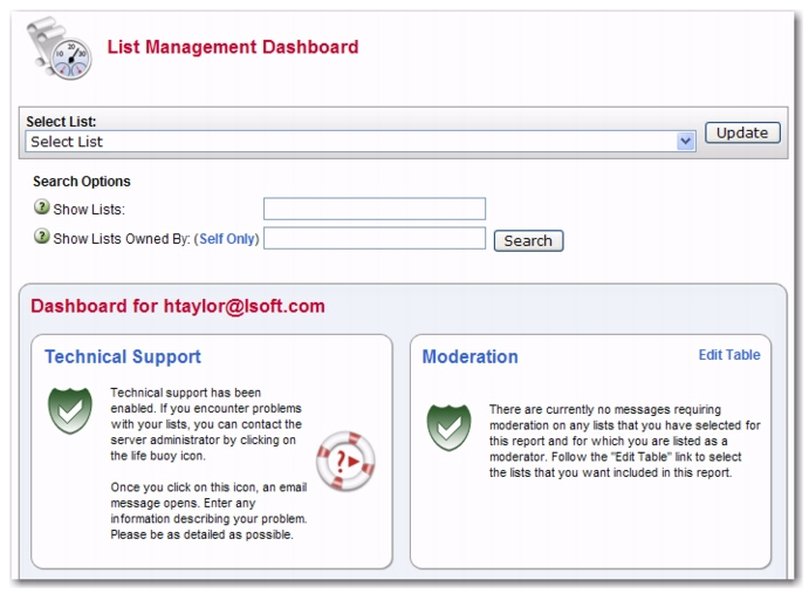
Example of a LISTSERV list management area where you would select your list.
- Choose the List: Select "babu" from your list of managed lists.
- Access Reports/Logs: Look for options such as "List Reports," "Activity Reports," "History," or "Logs." The exact terminology can vary slightly.
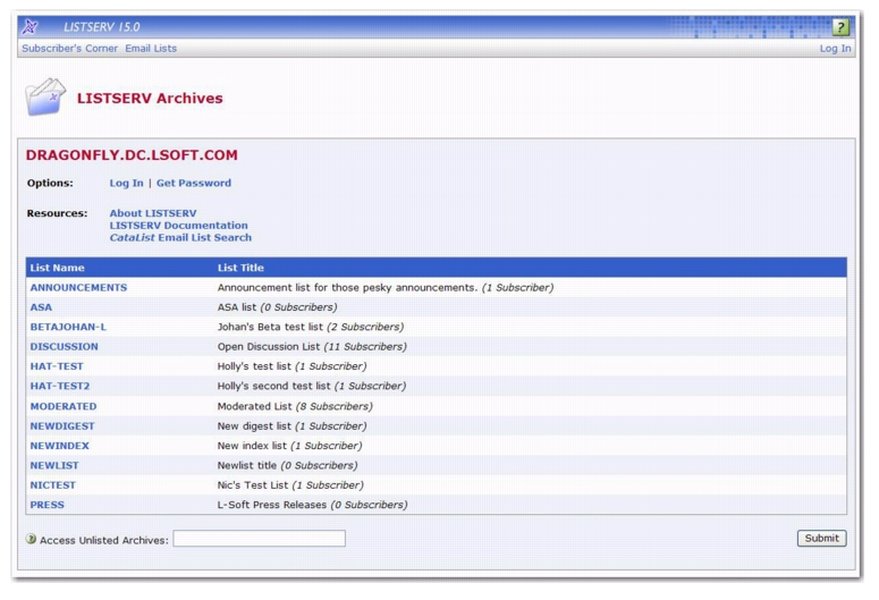
Illustrative view of report options within LISTSERV's web interface.
- View Activity/Changelog: The system will likely display a log of all activities. Signoff events (users unsubscribing themselves) are recorded here.
- Filter (if necessary): The interface may provide options to filter the log entries by event type (e.g., show only "SIGNOFF" or "UNSUBSCRIBE" events), date range, or user.
- Export (Optional): Many LISTSERV interfaces allow exporting the report data, often in formats like CSV or plain text, for offline analysis.
Understanding this manual process can also help in deducing potential URL parameters by observing browser network requests while interacting with the interface, though this is an advanced technique.
Conceptual Mindmap: Generating a LISTSERV Signoff Report
The following mindmap illustrates the key components and pathways involved in generating a signoff report for your list "babu" in LISTSERV 16.0, considering both URL parameterization and web interface navigation.
for 'babu' (LISTSERV 16.0)"] id1["URL Parameter Method"] id1_1["Base URL"] id1_1_1["e.g., .../scripts/wa.exe?"] id1_2["Core Parameters"] id1_2_1["List Specifier: L=babu OR LIST=babu"] id1_2_2["Report Template: SHOWTPL=HELP-LOG"] id1_3["Potential Filtering Parameters"] id1_3_1["Event Type: LOGTYPE=SIGNOFF (speculative)"] id1_3_2["Date Range: FROM=YYYY-MM-DD, TO=YYYY-MM-DD"] id1_4["Example URL Construction"] id2["Web Interface Method (Manual)"] id2_1["Login to LISTSERV"] id2_2["Select List 'babu'"] id2_3["Navigate to Reports/Logs"] id2_3_1["Activity Reports / History / Changelog"] id2_4["Apply Filters (if available)"] id2_4_1["Filter by 'Signoff' event"] id2_4_2["Filter by Date"] id2_5["View or Export Report"] id3["Key Considerations"] id3_1["Server-Specific Configuration"] id3_2["User Permissions (List Owner/Admin)"] id3_3["List Logging Enabled (
Change-Log= Yes)"]
id3_4["Documentation & Support for Parameters"]
This mindmap provides a structured overview of the approaches and critical elements to consider when attempting to retrieve signoff information from LISTSERV.
Summary of Potential URL Parameters
While definitive documentation for every granular URL-based report filter can be elusive, the following table summarizes known and plausible parameters for accessing signoff-related data for your list "babu" in LISTSERV 16.0.
| Parameter | Example Value | Purpose | Likelihood/Support Level |
|---|---|---|---|
L or LIST |
babu |
Specifies the target list name. | High (Core Parameter) |
SHOWTPL |
HELP-LOG |
Requests the activity log/history page template. | High (Standard for accessing logs) |
LOGTYPE |
SIGNOFF |
Attempts to filter log entries to show only signoffs. | Moderate (May not be universally supported or might require interface interaction post-load) |
FROM |
YYYY-MM-DD |
Specifies the start date for the report. | Moderate (Support varies; often set via interface) |
TO |
YYYY-MM-DD |
Specifies the end date for the report. | Moderate (Support varies; often set via interface) |
F |
CSV |
Requests the report in a specific format (e.g., CSV). | Low to Moderate (More common with command-line operations, but can sometimes translate to web parameters) |
It is always recommended to test these parameters on your specific LISTSERV installation, as behavior can vary. Start with the core parameters (L/LIST and SHOWTPL) and incrementally add others if needed.
Frequently Asked Questions (FAQ)
Can I generate a signoff report for any list using these URL parameters?
Yes, theoretically. You would replace "babu" in parameters like L=babu with the name of the target list. However, you must have the necessary permissions (typically list owner or administrator) to access reports for that list, and the list must have logging enabled.
What if the LOGTYPE=SIGNOFF parameter doesn't work?
If LOGTYPE=SIGNOFF (or similar direct filtering parameters) doesn't produce a pre-filtered report, it means your LISTSERV installation may not support this specific parameter for direct URL-based filtering of signoffs. In this case, using SHOWTPL=HELP-LOG will display the full activity log. You would then need to manually filter or search for signoff entries within the displayed page or export the full log and filter it externally.
Do I need to be logged in for these URLs to work?
Most likely, yes. Accessing list-specific reports and administrative functions in LISTSERV typically requires authentication. Ensure you are logged into the LISTSERV web interface in the same browser session before trying to access these URLs. If you are not logged in, you will likely be redirected to a login page or receive an error.
What does "signoff" mean in LISTSERV?
In LISTSERV terminology, "signoff" refers to the action of a subscriber voluntarily removing themselves (unsubscribing) from a mailing list. This is distinct from an administrator manually deleting a subscriber. Signoff reports track these user-initiated unsubscriptions.
Recommended Further Exploration
- How can I enable and configure LISTSERV list activity logging for detailed reports?
- What are some advanced techniques for exporting LISTSERV reports in various formats like CSV or XML?
- How do user permissions and roles in LISTSERV affect access to different types of list reports?
- Are there methods beyond URL parameters, such as scripting or API calls, for automating LISTSERV reporting tasks?
References
Last updated May 8, 2025