
DNS Cache Inspection on macOS
Learn how to view DNS cache statistics on a MacBook Pro
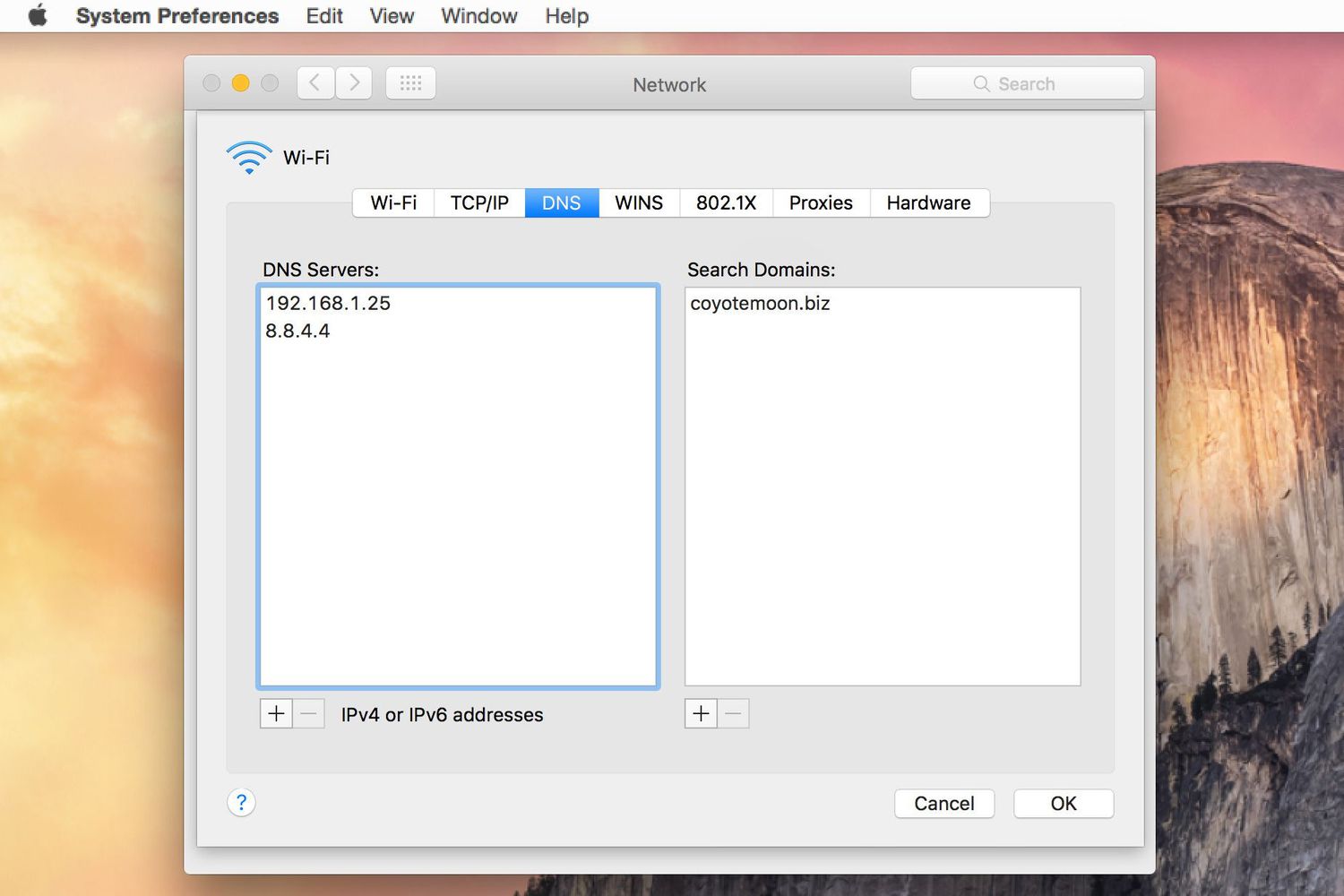
Key Highlights
- macOS Differences: Unlike Linux, macOS does not use systemd-resolved; it uses mDNSResponder and dscacheutil.
- Primary Commands: Use commands like
sudo dscacheutil -statistics,scutil --dns, andsudo log streamto observe DNS data. - Practical Alternatives: While there is no exact equivalent for
resolvectl cache statistics, several commands can provide insights into DNS caching and configuration.
Understanding the Context
In Linux environments, the resolvectl command is an integral part of the systemd-resolved service, responsible for DNS resolution and maintaining DNS cache statistics. The command resolvectl cache statistics specifically provides detailed insights into the DNS caching mechanism—revealing metrics such as cached entry counts and hit rates, which are invaluable for troubleshooting and performance tuning.
However, macOS, including MacBook Pro devices, does not utilize the systemd system and therefore the resolvectl command is unavailable. Instead, macOS leverages tools like mDNSResponder for DNS query handling and dscacheutil for managing and inspecting DNS caches. The differences in system design necessitate the use of alternative commands to achieve a similar level of insight into DNS operations.
Primary Tools and Their Uses on macOS
1. dscacheutil
The dscacheutil tool in macOS is used for interacting with the Directory Service cache, which includes DNS cache entries. Although it does not replicate all the windows provided by resolvectl, it offers statistics indicating the volume of cache entries.
Viewing DNS Cache Statistics
To view DNS cache statistics, open the Terminal application and run:
sudo dscacheutil -statisticsThis command returns a summary of the cache statistics, which includes counters for different types of cache data, such as hostnames resolved during the current session.
2. scutil
The scutil command provides access to the system configuration parameters related to network settings, including DNS details. By querying DNS configurations, you can gain insights that, while not exactly the same as viewing raw cache statistics, still offer valuable information on the configuration and state of DNS resolution.
Viewing Current DNS Configuration
To check the current DNS configuration:
scutil --dnsAlternatively, for more detailed state information, you can run:
scutil --show State:/DNSThese commands display the DNS resolver configuration, including lists of servers, search domains, and sometimes cached information maintained by the system.
3. log stream
Monitoring real-time DNS queries and resolutions can be performed using the log stream command. This is particularly useful for observing DNS resolution activity as it happens.
Real-Time DNS Monitoring
For real-time logging of DNS queries processed by mDNSResponder, execute:
sudo log config --mode "private_data:on"
log stream --predicate 'process == "mDNSResponder"' --info
This pair of commands first sets up logging in a mode that reveals more detailed data and then streams log entries specific to DNS resolution handled by mDNSResponder.
4. Additional Commands
Beyond the primary tools mentioned above, macOS offers other commands to further interact with DNS resolution:
Flushing the DNS Cache
At times, you might need to flush the DNS cache, especially after configuration changes or troubleshooting issues. This can be achieved with:
sudo dscacheutil -flushcache; sudo killall -HUP mDNSResponderThis ensures that outdated cache entries are cleared and the latest DNS records are fetched.
Dumping Cached DNS Records
To inspect the current cache contents, you can use:
dscacheutil -cachedump
Although this command does not mimic the comprehensive statistics provided by resolvectl, it does list the entries stored in the cache, which can be useful for diagnostic purposes.
Comparative Analysis: macOS vs. Linux DNS Tools
Understanding the differences between Linux and macOS DNS tools is key to adapting troubleshooting techniques across platforms. The following table summarizes the available commands in each environment:
| Feature/Function | Linux (systemd-resolved) | macOS |
|---|---|---|
| DNS Cache Statistics | resolvectl cache statistics |
sudo dscacheutil -statistics |
| DNS Configuration & Query | resolvectl query |
scutil --dns or scutil --show State:/DNS |
| Real-time DNS Logs | Integrated in resolvectl |
sudo log stream --predicate 'process == "mDNSResponder"' --info |
| Flushing DNS Cache | N/A | sudo dscacheutil -flushcache; sudo killall -HUP mDNSResponder |
| DNS Query Tools | N/A | dig for querying and statistics |
This comparison illustrates that while macOS does not have a direct equivalent command to resolvectl cache statistics, the combination of dscacheutil, scutil, and log stream provides a set of tools that enable comprehensive DNS management and diagnostics.
Step-by-Step Instructions to Inspect DNS Cache on macOS
Step 1: Open Terminal
The Terminal application on macOS is the primary interface for executing commands. You can locate it through Applications > Utilities, or simply search for "Terminal" using Spotlight.
Step 2: View Cache Statistics
Run the following command to obtain an overview of cached DNS entries:
sudo dscacheutil -statisticsThis will output statistics that include metrics such as number of cache entries and other relevant counters.
Step 3: Inspect Detailed DNS Configuration
In addition to cache statistics, inspect the current DNS configuration using:
scutil --dnsor for an extended view of the current DNS state, you may use:
scutil --show State:/DNSThese commands provide detailed information about DNS servers in use, search domains, and other system-specific settings.
Step 4: Monitor Real-Time DNS Activity
To view live DNS queries and responses as they are processed on your MacBook Pro, configure and run the logging stream commands:
sudo log config --mode "private_data:on"
log stream --predicate 'process == "mDNSResponder"' --info
This setup ensures you see real-time log entries related to DNS processing, which can be extremely useful when troubleshooting issues or confirming DNS resolutions as they occur.
Step 5: Optional - Flush the DNS Cache
If you suspect that older DNS records are causing issues, you can flush the cache to force the system to refresh its DNS information. Execute the following command:
sudo dscacheutil -flushcache; sudo killall -HUP mDNSResponderThis command clears out the current DNS cache and resets the mDNSResponder, thereby ensuring that any subsequent DNS query is resolved afresh.
Additional Considerations and Tools
Using Dig for DNS Query Statistics
While the above commands provide insights into cache statistics and configuration, the dig command is yet another powerful tool available on macOS. You can use dig to query DNS servers and view detailed statistics about the query process, such as response times and TTL (time-to-live) values. Running a command like:
dig +nocmd +stats example.comwill output DNS resolution statistics, offering additional details that might be useful when diagnosing network related issues.
Customizing Log Output
In scenarios where a more tailored view of DNS activity is needed, the macOS log command can be customized by using additional predicates to filter log entries. For example, to focus on errors or specific resolutions occurring in the system, modify the predicate used in the log stream command.
Integration With Network Tools
Network administrators often integrate these DNS diagnostic tools as part of broader troubleshooting routines. Combining the outputs from dscacheutil, scutil, and dig can provide a comprehensive understanding of both the static configurations of your network as well as the dynamic behaviors during DNS queries.
Ensuring you have a systematic approach to DNS troubleshooting on macOS can significantly reduce resolution times for network issues. By routinely checking configurations and monitoring real-time logs, potential problems can be identified before they escalate into larger network outages.
Summary Table: Commands Overview
| Action | Command | Description |
|---|---|---|
| View DNS Cache Statistics | sudo dscacheutil -statistics |
Provides summary counter of the DNS cache entries. |
| View Detailed DNS Configuration | scutil --dns or scutil --show State:/DNS |
Displays current DNS settings including servers and search domains. |
| Real-Time DNS Monitoring | sudo log stream --predicate 'process == "mDNSResponder"' --info |
Streams live DNS logs from mDNSResponder. |
| Flush DNS Cache | sudo dscacheutil -flushcache; sudo killall -HUP mDNSResponder |
Clears the DNS cache and resets mDNSResponder. |
| Query DNS with Dig | dig +nocmd +stats example.com |
Displays detailed DNS resolution statistics for a specific domain. |
Extended Discussion
While on Linux the resolvectl command provides an integrated interface to inspect and manage DNS caching, macOS proponents must use a collection of distinct commands to attain a similar level of diagnostic insight. It is important to note that the caching mechanisms and underlying architecture differ significantly between these two operating systems. In Linux, systemd-resolved centralizes DNS-related information, which streamlines diagnostic operations. In contrast, the macOS networking stack relegates DNS resolution to mDNSResponder, with additional caching logic interwoven with Directory Services, accessed via dscacheutil.
Furthermore, the real-time logging capabilities provided by macOS through the log stream command are particularly valuable. They not only monitor DNS resolutions as they occur but can also be paired with other logging filters to diagnose unexpected behaviors or performance bottlenecks. This versatility highlights the importance of familiarizing oneself with multiple tools, as relying solely on a singular command, like resolvectl in Linux, may not be optimal in a heterogeneous environment.
For network administrators and advanced users, integrating these commands into scripts can enhance routine diagnostics. By automating periodic checks using scutil or even parsing dscacheutil output, it becomes feasible to maintain an up-to-date understanding of DNS performance across multiple MacBook Pro devices or within larger corporate environments.
References
-
How to view DNS cache in OSX - Super User
- DNS Cache Discussion - Apple Discussions
- Flush DNS Cache on Mac - SiteGround
- How to Flush DNS on Mac - freeCodeCamp
- Clear Your DNS Cache on a Mac - AppleInsider
Recommended Related Queries
Last updated March 22, 2025