
Optimizing Your Mac Studio's Network Performance: A Comprehensive Guide
Unlocking the Full Potential of Wired and Wireless Connectivity on Your Mac Studio
Key Insights into Mac Studio Networking
- Robust Connectivity Options: The Mac Studio features a high-speed 10 Gigabit Ethernet port and advanced Wi-Fi capabilities, designed to support demanding network tasks like large file transfers, cloud access, and high-quality video streaming.
- Common Troubleshooting Areas: Users frequently encounter issues with Ethernet speeds, often stemming from incompatible network hardware (switches, routers), faulty cables, or incorrect macOS network settings. Wi-Fi performance can also be impacted by signal interference or software configurations.
- Prioritizing Network Services: macOS allows users to set the service order for network connections (e.g., Ethernet over Wi-Fi), which is crucial for ensuring the Mac Studio utilizes the most stable and fastest connection available.
The Mac Studio, with its powerful M-series chips, is engineered for professionals requiring robust performance across all facets, including networking. It comes equipped with an integrated 10 Gigabit Ethernet port and advanced Wi-Fi capabilities, positioning it as a powerhouse for tasks demanding high network bandwidth. However, users can sometimes encounter connectivity challenges that prevent them from fully leveraging these features. This guide delves into the Mac Studio's networking architecture, common issues, and comprehensive solutions to ensure optimal wired and wireless performance.
Understanding Mac Studio's Network Hardware
The Integrated 10 Gigabit Ethernet Port
A standout feature of the Mac Studio is its built-in 10 Gigabit Ethernet (10GbE) port. This port utilizes Nbase-T Ethernet technology, supporting multiple data rates up to 10 Gbit/s over standard twisted-pair copper cables up to 100 meters in length. This is significantly faster than traditional Gigabit Ethernet (1 Gbit/s), making it ideal for professionals who frequently transfer large files, access network-attached storage (NAS), or work with high-resolution video streams over a local network or the internet.
It's important to note a specific characteristic of the Mac Studio's 10GbE port: it does not support operation at speeds below 1 Gigabit per second (1000BASE-T). This means if you connect your Mac Studio to a network device (router, switch) that only supports 100 Mbps (Fast Ethernet) or lower, the connection may fail or negotiate at a suboptimal speed through an adapter, as the Mac Studio's port is designed for higher speeds. While the port is capable of 10GbE, it will auto-negotiate down to 1GbE if the connected hardware only supports that speed, but it will not go lower to 100Mbps.
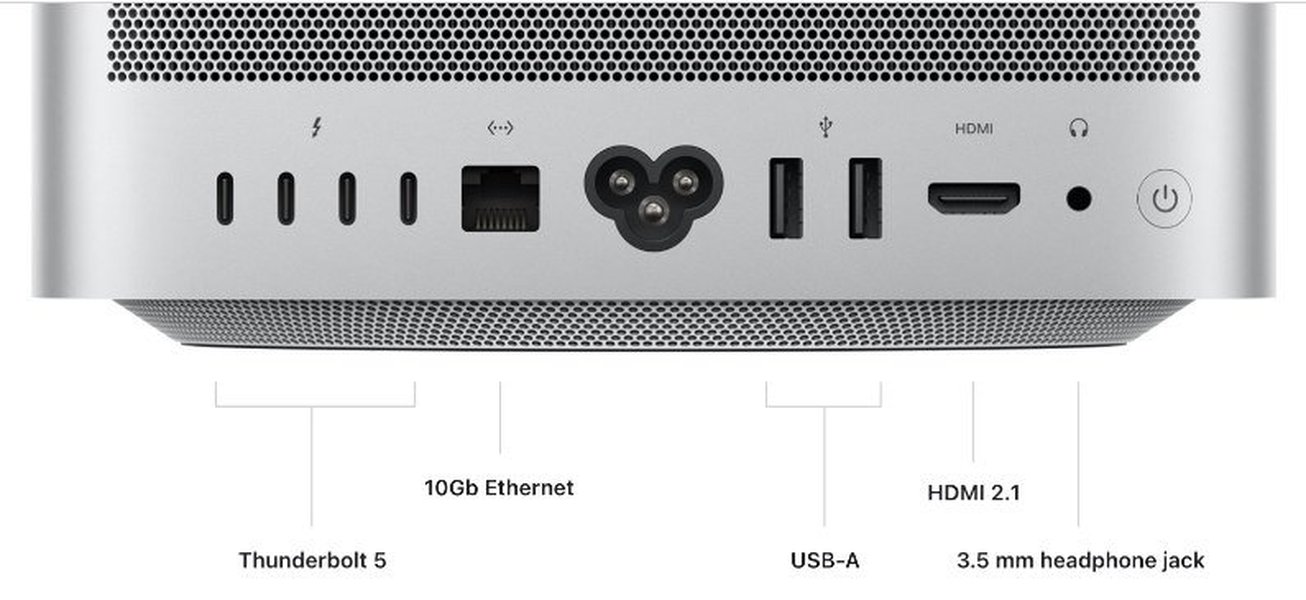
The rear view of a Mac Studio, highlighting its array of high-speed ports, including the 10 Gigabit Ethernet port.
Advanced Wi-Fi Capabilities
Beyond its robust wired connectivity, the Mac Studio also boasts advanced Wi-Fi capabilities, typically supporting the latest Wi-Fi standards (e.g., Wi-Fi 6E or later, depending on the model). This allows for fast wireless speeds and lower latency, crucial for tasks that benefit from wireless flexibility. However, Wi-Fi performance can be more susceptible to environmental factors, such as distance from the access point, interference from other devices, and obstacles like walls.
Common Networking Issues and Their Solutions
Despite its advanced hardware, Mac Studio users sometimes experience network performance issues. These can manifest as slow Ethernet speeds, intermittent Wi-Fi connectivity, or complete disconnections. Understanding the root causes is the first step toward resolution.
Troubleshooting Ethernet Connectivity
Slow Ethernet Speeds (e.g., 100 Mbps instead of 1 Gbps or 10 Gbps)
One of the most frequently reported issues is the Mac Studio's Ethernet port only connecting at 100 Mbps when higher speeds are expected. This is often due to an incompatibility or misconfiguration with the network switch or router, or issues with the cabling itself.
- Incompatible Network Hardware: The Mac Studio's 10GbE port requires connected network devices (switches, routers) to support at least 1 Gbps. If your switch or router ports are limited to 100 Mbps (Fast Ethernet), the Mac Studio's port will not establish a connection at these lower speeds. Upgrading your switch to a Gigabit or 10 Gigabit compatible model often resolves this. Some managed switches may require specific port settings (e.g., VLAN configuration) to ensure proper negotiation.
- Faulty Ethernet Cable: A damaged or low-quality Ethernet cable can significantly degrade network performance. Even if a cable worked with other devices, it might not support the higher demands of the Mac Studio's port. Using a high-quality Cat6 or Cat7 cable is recommended for optimal performance, especially when aiming for 10GbE speeds. Testing with a known good cable is a simple yet effective diagnostic step.
- Incorrect macOS Network Settings: While auto-negotiation usually works, sometimes forcing the connection speed to 1000baseT/Full-Duplex in macOS Network preferences can help resolve speed issues if your switch doesn't negotiate correctly.
- Go to
System Settings>Network. - Select
Ethernetfrom the left sidebar. - Click
Details...(orAdvancedin older macOS versions). - Navigate to the
Hardwaretab. - Change
Configurefrom "Automatically" to "Manually" and setSpeedto "1000baseT" andDuplexto "Full-duplex". For 10GbE, select the appropriate 10GBASE-T option.
- Go to
- Router/Modem Issues: In some cases, the problem lies with the router or modem itself. Users have reported resolving issues by replacing their router or receiving a different model from their ISP. Restarting and power cycling your network equipment (router, modem, switch) is a crucial first step in troubleshooting.
- MTU Size: While generally not recommended for public internet, adjusting the MTU (Maximum Transmission Unit) size to a higher value (e.g., 3000 for Jumbo Frames) can sometimes improve local network performance, particularly with NAS connections. This should only be done in controlled environments where all network equipment supports jumbo frames.
Intermittent Ethernet Disconnections or No Connection
If your Mac Studio frequently loses its Ethernet connection or fails to connect entirely, consider these solutions:
- Check Cable and Port: Ensure the Ethernet cable is securely plugged into both the Mac Studio's port and the network device. Try a different port on your switch or router if available.
- Disable Wi-Fi: Sometimes, macOS can attempt to use both wired and wireless connections simultaneously, leading to conflicts. Temporarily disabling Wi-Fi in
System Settings>Networkcan help isolate the issue. - IPv6 Configuration: Setting IPv6 to "Link-local only" in your Ethernet network service details can sometimes prevent routing activities that interfere with networking.
- Firewall or Antivirus Interference: Security software can sometimes block network traffic. Temporarily disabling your firewall or antivirus program can help determine if it's the culprit.
- Create a New Network Location: macOS allows you to create different network "locations" with specific settings. Creating a new location and configuring your Ethernet connection within it can sometimes resolve persistent issues. Go to
System Settings>Network, click theAction pop-up menu(three dots or gear icon), and chooseAdd Location.
Addressing Wi-Fi Performance Issues
Slow or Unstable Wi-Fi Connectivity
Mac Studio users have reported various Wi-Fi performance issues, from slow speeds to frequent disconnections.
- Proximity and Interference: The physical distance between your Mac Studio and the Wi-Fi access point, along with interference from other wireless devices (cordless phones, microwaves, Bluetooth devices) or structural obstacles, can significantly impact Wi-Fi signal strength and speed. Try moving your Mac Studio closer to the router or repositioning antennas if possible.
- Wi-Fi Band (2.4GHz vs. 5GHz/6GHz): While 2.4GHz offers wider coverage, 5GHz and 6GHz bands provide faster speeds with less interference. Ensure your Mac Studio is connecting to the appropriate band if your router supports multiple. You can check the "Tx Rate" and band in the Wi-Fi status menu while holding the Option key.
- Router/Access Point Configuration: Ensure your Wi-Fi router's firmware is up to date. Restarting your router can also resolve temporary glitches. Some users have found success by adjusting specific port settings on managed Wi-Fi switches.
- macOS Wi-Fi Diagnostics: macOS includes built-in Wireless Diagnostics. You can access it by holding the Option key and clicking the Wi-Fi icon in the menu bar, then selecting "Open Wireless Diagnostics." This tool can help identify common Wi-Fi problems.
- Forgetting and Rejoining Network: Sometimes, forgetting the Wi-Fi network and then reconnecting to it can clear up connectivity issues. Go to
System Settings>Network, selectWi-Fi, clickDetails...for your network, thenForget This Network.
Optimizing Network Settings in macOS
Proper configuration of network settings within macOS is crucial for maximizing your Mac Studio's connectivity. This includes managing network service order, configuring TCP/IP settings, and understanding advanced options.
Managing Network Service Order
Your Mac Studio can prioritize which network connection it uses. For example, if both Wi-Fi and Ethernet are enabled, you might want your Mac to prefer the faster and more stable Ethernet connection. To adjust the service order:
- Go to
System Settings>Network. - Click the
Action pop-up menu(three dots or gear icon) at the bottom of the service list, then chooseSet Service Order.... - Drag and drop the network services (e.g., Ethernet, Wi-Fi) into your desired order of preference. The service at the top will be prioritized.
- Click
OK, thenApply.
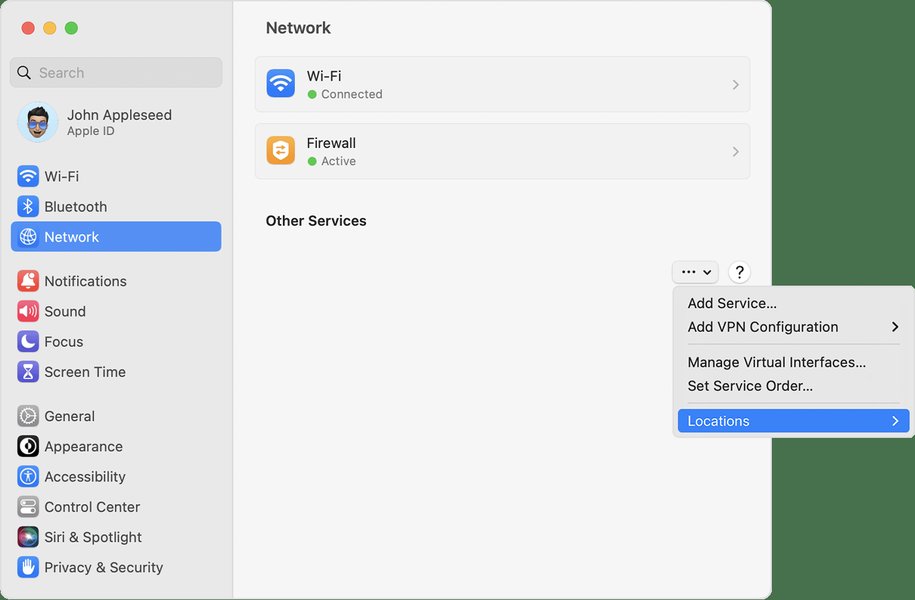
A screenshot showing the Network settings in macOS Ventura, illustrating where to manage network services.
Advanced Network Details
Within the Network settings, clicking "Details..." for a specific service (like Ethernet or Wi-Fi) provides access to advanced configurations:
- TCP/IP: Here you can configure IPv4 and IPv6 settings. Most home users will use "Using DHCP" for IPv4, but static IP addresses can be set if required by your network administrator. As mentioned, setting IPv6 to "Link-local only" can sometimes help.
- DNS: You can manually specify DNS servers (e.g., Google DNS, Cloudflare DNS) if you suspect your ISP's DNS is causing issues or to improve browsing speed and privacy.
- Proxies: If your network requires proxy servers for internet access, these settings are configured here.
- Hardware: This tab allows manual configuration of speed and duplex settings for Ethernet, as well as MTU size.
Network Performance Comparison: Wired vs. Wireless
While Wi-Fi offers convenience, wired Ethernet connections typically provide superior speed, stability, and lower latency, especially for a powerful machine like the Mac Studio designed for demanding tasks. The 10 Gigabit Ethernet port is a testament to this, offering speeds far beyond what most Wi-Fi networks can achieve, particularly for internal network transfers.
The radar chart above illustrates a comparative analysis of different network connection types for the Mac Studio across key performance metrics. 10 Gigabit Ethernet (represented by the yellow shaded area) excels in speed, stability, and resistance to interference, while offering extremely low latency. Wi-Fi 6E (green shaded area) scores highly on ease of setup and offers competitive speeds, but is more susceptible to latency and interference. Gigabit Ethernet (light green shaded area), a more common wired standard, provides a good balance of stability and speed, outperforming Wi-Fi in many aspects but falling short of 10 Gigabit Ethernet's raw throughput. This chart visually reinforces why a wired connection, particularly 10 Gigabit Ethernet, is often the preferred choice for professional workflows on the Mac Studio.
Connecting to Network-Attached Storage (NAS)
Many Mac Studio users integrate NAS devices for backups (like Time Machine) and centralized file storage. Efficient connectivity to a NAS is crucial for creative professionals. While SMB (Server Message Block) is now the recommended protocol over the deprecated AFP (Apple Filing Protocol) for macOS, issues can still arise.
- SMB Configuration: Ensure your NAS is configured to use SMB. Sometimes, adjusting SMB signing or other advanced SMB settings on the NAS can improve stability.
- Direct Connection: For maximum performance, particularly with 10GbE NAS devices, consider connecting your Mac Studio directly to the NAS using an Ethernet cable, or via a 10GbE switch. This bypasses potential bottlenecks in your main router.
- Time Machine Issues: If Time Machine backups to NAS are frequently "ejected improperly," this can sometimes be an issue with macOS itself rather than the NAS or network. While often ignorable if backups complete successfully, ensuring a stable connection is key.
Detailed Comparison of Mac Studio Ethernet Connectivity
To further illustrate the capabilities and common issues, the table below provides a comprehensive overview of Mac Studio Ethernet performance scenarios and their typical solutions.
| Scenario / Issue | Observed Speed / Symptom | Common Cause | Recommended Solution |
|---|---|---|---|
| Optimal Performance (10GbE) | Up to 10 Gbit/s upload/download | Compatible 10GbE switch/router, Cat6a/Cat7 cable | Ensure all network hardware supports 10GbE and use appropriate cabling. |
| Optimal Performance (1GbE) | Up to 1 Gbit/s upload/download | Compatible 1GbE switch/router, Cat5e/Cat6 cable | Verify network hardware supports Gigabit Ethernet. |
| Speed Restriction (100Mbps) | Ethernet link at 100 Mbps, not 1 Gbps or 10 Gbps | 1. Incompatible 100 Mbps switch/router port. 2. Faulty or low-quality Ethernet cable. 3. Auto-negotiation issues with certain switches. |
1. Upgrade switch/router to 1GbE or 10GbE. 2. Replace cable with Cat6 or Cat7. 3. Manually set Ethernet speed to 1000baseT/Full-Duplex in macOS Network settings. |
| Intermittent Connection | Frequent disconnects or no connection | 1. Loose cable connection. 2. Wi-Fi/Ethernet conflict. 3. Firewall/Antivirus interference. 4. Faulty Mac Studio Ethernet port (rare). |
1. Re-seat cable, try different port. 2. Disable Wi-Fi when using Ethernet. 3. Temporarily disable security software. 4. Contact Apple Support for hardware diagnosis. |
| Poor Upload Speeds (1-7 Mbps on Symmetric Gigabit) | Download is fine, but upload is very slow | Specific incompatibility with certain network switches (e.g., Ubiquiti UniFi Switch 24 PoE). | Try a different switch or force port speed settings on the switch if it's managed. Consider an external Thunderbolt to Ethernet adapter as a workaround. |
Understanding Power and Connectivity
Proper power delivery is fundamental for any computer system, and the Mac Studio is no exception. While not directly linked to network speed, ensuring the Mac Studio is correctly powered is a prerequisite for stable operation, including its network interfaces. Simply plug the power cord into the back of the Mac Studio and into a power outlet, then press the power button on the back right side to turn it on. For initial setup, while an internet connection isn't strictly required to activate an already installed macOS, connecting to a Wi-Fi network or Ethernet is necessary for services like iCloud, iMessage, and Find My Mac.
Integrating with Peripherals and Displays
The Mac Studio's connectivity extends beyond basic internet access. It features numerous Thunderbolt 5 (USB-C) ports and USB-C ports, which can be used for high-speed data transfer, connecting displays, and charging devices. Interestingly, the Mac Studio's integration with peripherals like the Apple Studio Display can sometimes create confusion in network settings. The Studio Display itself contains an A13 Bionic chip and can appear as a network adapter with a self-assigned IP address in macOS Network settings. This is typically normal for internal communication (e.g., for firmware updates or certain functionalities related to the A13 chip) and should generally be ignored, rather than disabled.
Video Deep Dive: Achieving High-Speed Internet with Mac Studio
For users looking to truly maximize their Mac Studio's internet speeds, especially beyond standard Gigabit Ethernet, understanding more advanced network setups is key. The video titled "How I Got 2 Gbps Internet Speeds at Home! | Ubiquiti Setup..." provides an excellent real-world example of achieving multi-gigabit speeds on a Mac Studio. This video delves into the specifics of using Cat 6 Ethernet cables, SFP+ ports, and Ubiquiti UniFi network equipment to build a high-speed home network infrastructure. It highlights the importance of matching your Mac Studio's 10GbE capabilities with a network environment that can fully support it, often involving managed switches and appropriate cabling. Watching this video can be particularly insightful for those aiming for professional-grade network performance for tasks like large media production workflows or rapid data synchronization.
Frequently Asked Questions (FAQ)
Why is my Mac Studio Ethernet speed stuck at 100 Mbps?
Can I use both Wi-Fi and Ethernet on my Mac Studio simultaneously?
How do I improve my Mac Studio's Wi-Fi performance?
Does the Mac Studio's Ethernet port support speeds higher than 1 Gigabit?
Is it normal for the Studio Display to appear as a network adapter on my Mac Studio?
Conclusion
The Mac Studio is designed with high-performance networking at its core, offering both a powerful 10 Gigabit Ethernet port and advanced Wi-Fi capabilities. While these features generally provide excellent connectivity, users may occasionally encounter issues related to speed limitations, intermittent connections, or configuration challenges. By systematically troubleshooting common culprits such as incompatible network hardware, faulty cabling, and incorrect macOS settings, users can often resolve these problems. Understanding the nuances of wired versus wireless performance, optimizing network service order, and leveraging advanced settings within macOS are key to unlocking the Mac Studio's full networking potential, ensuring a smooth and efficient workflow for even the most demanding professional tasks.
Recommended Searches
- Explore the performance of Thunderbolt to Ethernet adapters with Mac Studio.
- Learn best practices for optimizing Mac Studio connections to network-attached storage.
- Discover advanced techniques for diagnosing and resolving macOS network issues.
- Understand the requirements and steps for building a 10 Gigabit Ethernet home network.