
Securely Managing Encryption Keys for MacBook SSD Encryption
Essential Strategies for Storing Encryption Keys Externally
Key Takeaways
- FileVault provides robust encryption for MacBook SSDs.
- Recovery keys can be securely stored externally for enhanced security.
- Implementing best practices in key management is crucial to prevent data loss.
Introduction to SSD Encryption on MacBooks
Protecting the data on your MacBook’s Solid State Drive (SSD) is paramount in today’s digital age. Encryption serves as a critical barrier against unauthorized access, ensuring that sensitive information remains secure even if the device is lost or stolen. macOS offers built-in encryption solutions, with FileVault being the most prominent among them. Understanding how to effectively manage encryption keys, especially storing them externally, is essential for maintaining both security and accessibility.
What is SSD Encryption?
SSD encryption involves converting data into a secure format that cannot be easily accessed by unauthorized individuals. This process uses cryptographic techniques to transform readable data into an encoded version, which requires a specific key to decode and access the original information. On MacBooks, SSD encryption can be seamlessly implemented using macOS’s built-in FileVault feature.
Importance of Encryption Keys
Encryption keys are the cornerstone of the encryption and decryption processes. They ensure that only individuals with the correct key can access the encrypted data. Proper management of these keys is crucial; losing them can result in permanent loss of access to your data, while improper storage can expose your system to security breaches.
Understanding FileVault Encryption
FileVault is Apple’s native disk encryption program available on macOS. It provides full-disk encryption, protecting all the data on your MacBook’s SSD. FileVault uses the AES (Advanced Encryption Standard) algorithm with a 128-bit key and a block size of 128 bits, ensuring robust security.
Enabling FileVault
To enable FileVault, navigate to System Preferences > Security & Privacy > FileVault. Turning on FileVault initiates the encryption process, safeguarding your data against unauthorized access. During this setup, you will be prompted to create a recovery key, which is vital for accessing your data in case you forget your login password.
FileVault Recovery Key
The recovery key is a 24-character alphanumeric code generated during FileVault setup. It serves as a backup mechanism to unlock your encrypted disk if you forget your primary login credentials. Proper storage of this key is essential to ensure data accessibility while maintaining security.
Encryption Keys and Their Management
Effective management of encryption keys is a balancing act between security and accessibility. Understanding the different methods available for storing and safeguarding these keys is critical for maintaining the integrity and availability of your encrypted data.
Operational Encryption Keys vs. Recovery Keys
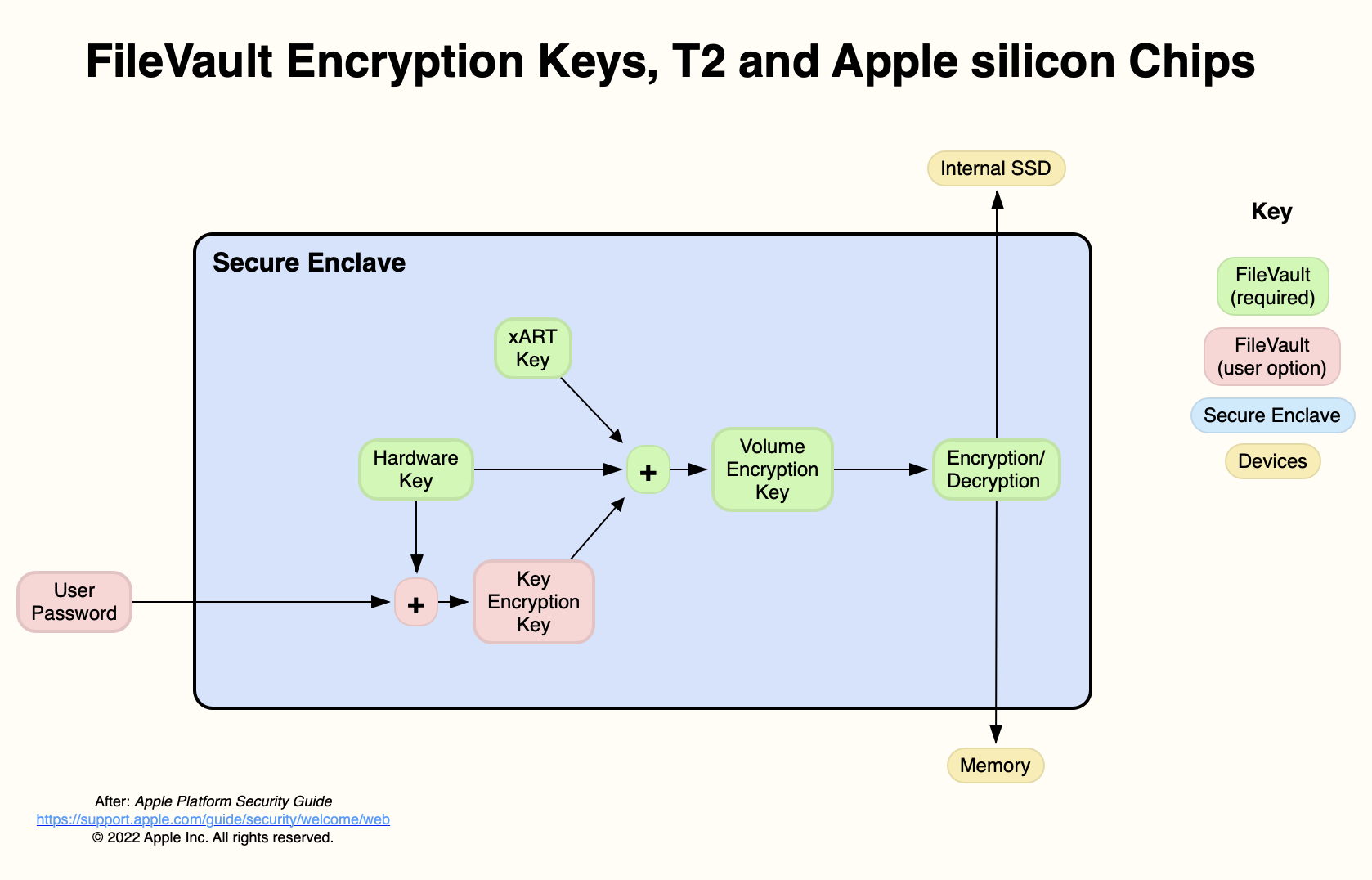
It’s important to distinguish between operational encryption keys and recovery keys. The operational encryption key is used by FileVault to encrypt and decrypt data on the fly, ensuring seamless access during regular use. This key is managed internally by macOS and the Secure Enclave, providing robust protection without user intervention.
On the other hand, the recovery key is a user-accessible backup that allows data access if the primary key is lost. Unlike the operational key, the recovery key can be stored externally, offering an additional layer of security and accessibility.
Storing Recovery Keys Externally
While FileVault does not support storing the operational encryption key externally, it does allow users to store the recovery key in various secure locations. Storing the recovery key externally can provide peace of mind, ensuring that you have access to your data even if the primary key is compromised or forgotten.
Methods to Store Recovery Keys
There are several secure methods to store your FileVault recovery key externally:
1. External Storage Devices
You can manually save the recovery key to an external storage device, such as a USB flash drive, external SSD, or external hard drive. It is recommended to store the key in an encrypted file or secure note on the external device to prevent unauthorized access.
2. Password Managers
Using a reputable password manager to store your recovery key provides an additional layer of security. Password managers encrypt stored data, ensuring that your recovery key is protected behind strong encryption and accessible from multiple devices if necessary.
3. Secure Physical Locations
Storing the recovery key in a secure physical location, such as a safe or a safety deposit box, ensures that it is protected from digital threats. This method also allows for easy access in case of digital device failure.
4. Encrypted Disk Images
Creating an encrypted disk image on an external drive offers a secure container for your recovery key. This approach ensures that the key is stored in an encrypted format, adding another layer of protection against unauthorized access.
Best Practices for External Storage of Recovery Keys
When storing your recovery key externally, consider the following best practices to enhance security:
- Use Encryption: Always encrypt the file or medium where the recovery key is stored to prevent unauthorized access.
- Multiple Backups: Maintain multiple copies of the recovery key in different secure locations to prevent data loss.
- Access Control: Restrict access to the external storage devices to trusted individuals only.
- Regular Updates: Periodically review and update the storage locations to ensure continued security and accessibility.
Security Considerations
While storing the recovery key externally adds a layer of security, it also introduces potential vulnerabilities. Understanding and mitigating these risks is essential to maintain the integrity of your encrypted data.
Risks of External Storage
Storing the recovery key on external devices can create additional points of vulnerability if those devices are lost, stolen, or compromised. It is crucial to ensure that external storage devices themselves are secured and protected against unauthorized access.
Securing External Devices
When using external devices to store your recovery key, consider the following measures:
- Use Strong Passwords: Protect encrypted files or disk images with strong, unique passwords to prevent unauthorized access.
- Physical Security: Keep external devices in secure locations, such as safes or locked drawers, to mitigate the risk of physical theft.
- Encryption: Utilize encryption tools to add an extra layer of security to the storage medium, ensuring that even if the device is compromised, the data remains protected.
Balancing Security and Accessibility
While enhancing security is vital, it is equally important to ensure that you can access your data when needed. Striking the right balance between safeguarding your recovery key and maintaining accessibility involves thoughtful planning and implementation of secure storage practices.
Third-Party Encryption Solutions
For users seeking more control over their encryption key storage, third-party disk encryption solutions offer alternative approaches. These solutions can provide greater flexibility in managing encryption keys, including options to store them externally.
Advantages of Third-Party Solutions
Third-party encryption tools may offer features not available in FileVault, such as customizable key management and enhanced encryption algorithms. These features can be beneficial for users with specialized security requirements.
Considerations and Trade-Offs
While third-party solutions offer additional flexibility, they come with their own set of trade-offs:
- Complexity: These tools may require more technical knowledge to set up and manage effectively.
- Compatibility: Ensuring compatibility with macOS updates and system features is essential to maintain system stability and security.
- Security: Not all third-party solutions provide the same level of security as FileVault. It is crucial to research and choose reputable tools with strong security track records.
Evaluating Third-Party Options
When considering third-party encryption solutions, evaluate them based on the following criteria:
-
Reputation: Choose tools from reputable developers with positive user reviews and a history of security.
-
Support and Updates: Ensure that the tool is regularly updated to address security vulnerabilities and maintain compatibility with macOS.
-
Feature Set: Assess whether the tool provides the desired key management features, such as external storage options and multi-factor authentication.
Best Practices for Key Management
Implementing best practices in encryption key management is crucial for maintaining data security and accessibility. Proper key management ensures that your encrypted data remains protected while allowing you to regain access when necessary.
Creating Strong Recovery Keys
When generating a recovery key, ensure it is strong and unique. Avoid using easily guessable patterns or information that can be easily associated with you. A strong, random recovery key significantly reduces the risk of unauthorized access.
Regularly Updating and Reviewing Keys
Periodically update your recovery keys and review their storage locations to ensure continued security. Regular audits help identify and mitigate potential vulnerabilities in your key management strategy.
Using Multi-Factor Authentication
Incorporate multi-factor authentication (MFA) to add an extra layer of security to your key management process. MFA requires additional verification steps, making it more difficult for unauthorized individuals to access your recovery keys.
Provisioning for Key Recovery
Establish a clear and secure process for key recovery to prevent data loss. This includes having multiple secure backups of your recovery key stored in different locations, ensuring that you can access your data even if one copy is compromised or lost.
Comparison of Recovery Key Storage Options
| Storage Method | Security Level | Accessibility | Pros | Cons |
|---|---|---|---|---|
| External Storage Devices | High (if encrypted) | Moderate | Physical separation, ease of use | Vulnerability if device is lost or stolen |
| Password Managers | Very High | High | Encrypted storage, accessible from multiple devices | Dependent on the security of the password manager |
| Secure Physical Locations | High | Low | Protection from digital threats | Requires physical access, not convenient for frequent access |
| Encrypted Disk Images | Very High | Moderate | Additional encryption layer, secure container | Requires additional steps to access |
Conclusion
Encrypting your MacBook’s SSD using FileVault is a robust method to safeguard your data against unauthorized access. While FileVault efficiently manages the operational encryption keys internally, users have the flexibility to store the recovery key externally, providing an important backup mechanism in case of password loss. By carefully selecting secure storage methods, implementing best practices in key management, and considering third-party encryption solutions where necessary, you can enhance the security of your encrypted data while maintaining necessary accessibility. Always prioritize the security of external storage devices and regularly review your key management strategies to adapt to evolving security landscapes.
References
Last updated February 16, 2025