
Build Your Custom macOS Attendance Tracker with Keyboard Maestro
Effortlessly log arrivals, departures, and see who's present in real-time for your small team.
Managing employee attendance for a small team of six on macOS can be streamlined significantly by leveraging the power of Keyboard Maestro. Instead of manual logs or complex systems, you can create a tailored solution where Keyboard Maestro triggers capture when employees arrive or leave, feeding this information into a central log or database. This allows you to track attendance history and view who is currently present.
This guide outlines how to set up such a system, integrating Keyboard Maestro with various logging methods available on macOS. Our knowledge cutoff is Sunday, 2025-05-04.
Key Insights
- Keyboard Maestro as the Trigger: Utilize Keyboard Maestro's automation capabilities to detect 'arrival' and 'departure' events based on user actions (like hotkeys, app launches, or manual triggers).
- Flexible Logging Options: Choose between dedicated attendance software, a custom SQLite database, or a simple text file to store attendance data, depending on your technical comfort and feature needs.
- Real-Time Presence Tracking: Implement logic or use software features to query your logs and instantly see which of your six employees are currently marked as 'IN'.
Leveraging Keyboard Maestro for Event Capture
How Keyboard Maestro Detects "Come and Go"
Keyboard Maestro is the engine that will capture the moments your employees start and stop their work sessions. The key is to define reliable triggers within Keyboard Maestro that correspond to these actions. Here are several approaches:
Manual Triggers (Most Reliable)
The simplest and often most accurate method involves employees manually triggering macros:
- Hotkeys: Assign specific hotkeys for each employee, or a single set of hotkeys (e.g.,
Ctrl+Option+Ifor IN,Ctrl+Option+Ofor OUT) that prompts for the employee's name or uses a pre-configured identifier. - Macro Palette/Menu: Create dedicated "Clock In" and "Clock Out" macros accessible via a Keyboard Maestro palette or the menu bar.
Automated Triggers (Less Direct)
While potentially less precise for exact clock-in/out times, you could explore:
- Application Triggers: Trigger a macro when a specific work-related application (like Mail, Slack, or a project management tool) is launched ('arrival') or quit ('departure'). This is less ideal as app usage doesn't always align perfectly with work start/end times.
- Login/Logout Triggers: Triggering macros directly upon macOS login or logout is complex with Keyboard Maestro alone. It might require supplementary launch agents or login item scripts, adding complexity.
- Idle Detection: Keyboard Maestro can detect system inactivity. You could potentially trigger an 'OUT' event after a prolonged period of idle time, though this requires careful configuration to avoid false positives.
Identifying the Employee
Crucially, each logged event must be associated with the correct employee. This can be handled by:
- Separate Macros Per Employee: If each employee has their own Mac user account and Keyboard Maestro setup, macros can be personalized.
- Prompts: A single macro can prompt the user to select their name from a list or enter an identifier.
- Configuration Files: More advanced setups could read an employee identifier from a local configuration file.
For a team of six, manual triggers via hotkeys or a palette often provide the best balance of simplicity and reliability.
Choosing Your Attendance Logging Method
Where to Store the Data
Once Keyboard Maestro captures an IN or OUT event, the information (employee, action, timestamp) needs to be stored. You have several options on macOS:
Option 1: Dedicated Attendance Tracking Software
Numerous attendance tracking applications are available for Mac, some offering free tiers suitable for small teams. These often provide user-friendly interfaces, reporting features, and sometimes mobile access.
- Examples: Clockify, Jibble, Monitask, TimeCamp. (Check their current pricing and features for macOS).
- Integration with Keyboard Maestro:
- Web Interface Automation: If the software has a web portal for clocking in/out, Keyboard Maestro can automate opening the page, filling in the details (employee ID, time), and submitting the form. Resources on the Keyboard Maestro forums discuss web form automation.
- API Interaction: Some services offer APIs. A Keyboard Maestro macro could execute a shell script (e.g., using
curl) or an AppleScript to send data directly to the software's API. - Desktop App UI Scripting: Keyboard Maestro could potentially interact with the GUI elements of a native macOS attendance app, simulating clicks and keystrokes, though this can be fragile if the app's interface changes.
- Pros: Rich features (dashboards, reports, leave management), often easier for end-users, cloud backup, potentially built-in presence view.
- Cons: May involve subscription costs for full features, integration might require workarounds (web automation, API scripting), potentially less customizable than a bespoke solution.
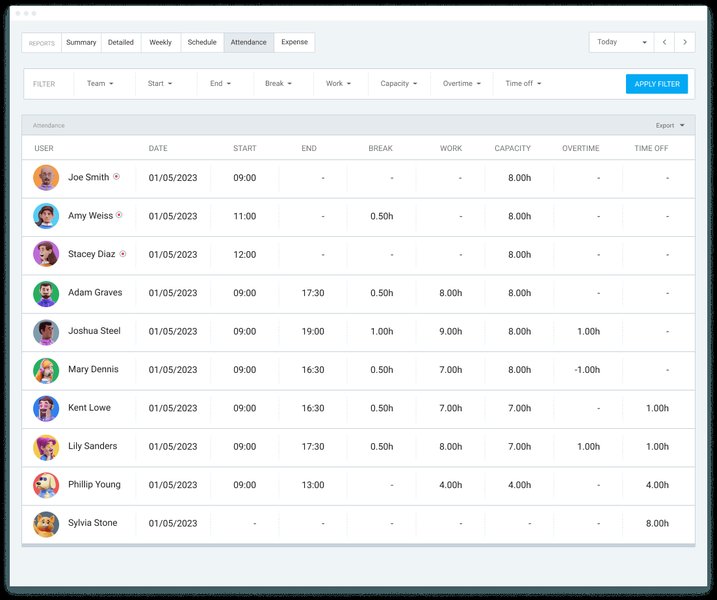
Example of an attendance report generated by software like Clockify.
Option 2: Custom SQLite Database
For maximum control and zero cost, use SQLite, a lightweight database engine built into macOS. You can interact with it directly from Keyboard Maestro using shell scripts.
- Setup (One-time via Terminal):
# Open or create the database file sqlite3 ~/attendance_log.db # Inside sqlite3, create the table CREATE TABLE attendance ( id INTEGER PRIMARY KEY AUTOINCREMENT, employee_name TEXT NOT NULL, event TEXT NOT NULL CHECK(event IN ('IN', 'OUT')), -- 'IN' or 'OUT' timestamp DATETIME DEFAULT CURRENT_TIMESTAMP ); # Exit sqlite3 .quit - Logging Event with Keyboard Maestro: Use the "Execute Shell Script" action. The script would insert a new record.
Remember to replace `'Employee Name'` with the actual employee's identifier, potentially passed as a variable within Keyboard Maestro.# Example script for an "IN" event for "Employee Name" # Replace 'Employee Name' dynamically or have separate macros /usr/bin/sqlite3 ~/attendance_log.db "INSERT INTO attendance (employee_name, event) VALUES ('Employee Name', 'IN');" - Pros: Free, highly customizable, runs locally, direct and reliable integration with Keyboard Maestro scripts, data stays private.
- Cons: Requires some command-line/SQL knowledge, no built-in graphical interface (requires separate scripts or tools for viewing/reporting), manual backup needed.
Option 3: Simple Text/CSV File Log
The most basic approach is appending log entries to a plain text or CSV file.
- Logging Event with Keyboard Maestro: Use the "Append Text to File" action. Format each line consistently, e.g., `Timestamp,EmployeeName,Event`.
# Example format for a line in the log file 2025-05-04 09:00:00,Alice,IN - Pros: Extremely simple setup, human-readable file.
- Cons: Querying (especially for current presence) is less efficient, harder to generate reports, potential for file corruption or concurrency issues (though less likely with only 6 users and distinct triggers).
Visualizing Your Attendance System
System Architecture Mindmap
This mindmap illustrates the flow of information in your custom attendance system, starting from the employee action triggered via Keyboard Maestro, through the logging mechanism, to finally querying the data to see who is currently present.
(Clock IN/OUT)"] id1_1["Keyboard Maestro"] id1_1_1["Trigger
(Hotkey, Palette, etc.)"] id1_1_2["Macro Execution"] id1_1_2_1["Identify Employee"] id1_1_2_2["Get Timestamp"] id1_1_2_3["Log Event Data"] id1_1_2_3_1 --> id2["Logging Method"] id2["Logging Method"] id2_1["Attendance Software"] id2_1_1["Web Automation"] id2_1_2["API Call (Script)"] id2_1_3["UI Scripting"] id2_1_4 --> id3["Query/View Presence"] id2_2["SQLite Database"] id2_2_1["Execute Shell Script
(INSERT Record)"] id2_2_2 --> id3["Query/View Presence"] id2_3["Text/CSV File"] id2_3_1["Append Text to File"] id2_3_2 --> id3["Query/View Presence"] id3["Query/View Presence"] id3_1["Software Dashboard"] id3_2["Custom Script
(SQL Query / File Parse)"] id3_2_1["Display Results
(Notification, Window)"]
Comparing Logging Methods
Choosing the right logging method depends on your priorities. This radar chart compares the three main options discussed based on several factors (scores are subjective, 1=Low/Difficult, 5=High/Easy):
This chart helps visualize the trade-offs: Software offers features but potentially higher cost and trickier integration. SQLite provides high customization and low cost but requires more setup. A simple file log is easiest to set up but lacks features and robustness.
Determining "Who Is Actually Here?"
Querying for Current Presence
Knowing who is currently clocked in is a primary goal. How you achieve this depends on your chosen logging method:
Using Attendance Software
Most dedicated attendance software includes a dashboard or real-time view that automatically shows who is currently clocked in based on their latest status. This is typically the easiest way to see current presence.
Querying an SQLite Database
You need a query that finds employees whose most recent log entry is 'IN'. You can run this query using another Keyboard Maestro macro with an "Execute Shell Script" action.
SQL Query Logic: For each employee, find their latest timestamp. If the event associated with that latest timestamp is 'IN', then they are currently present.
# Shell command to execute the SQL query and display names of 'IN' employees
sqlite3 ~/attendance_log.db "
SELECT employee_name
FROM attendance
WHERE (employee_name, timestamp) IN (
    SELECT employee_name, MAX(timestamp)
    FROM attendance
    GROUP BY employee_name
) AND event = 'IN';
"
The output of this command will be a list of names of employees currently clocked in. Keyboard Maestro can display this result in a notification, a window, or save it to a variable.
Parsing a Text/CSV File
This is more complex and less efficient. You would need a script (e.g., Shell, Python, AppleScript) triggered by Keyboard Maestro to:
- Read the entire log file.
- Process it line by line, keeping track of the latest entry for each employee.
- Filter for employees whose latest entry was 'IN'.
While possible, this approach becomes slow with larger logs and is more prone to errors than using a database.
Potential Software Options Compared
Mac-Compatible Attendance Tools
If you opt for dedicated software, several options work well on macOS and are suitable for small teams. Here's a comparison based on common features (verify details on their official websites as offerings change):
| Software | Typical Free Tier | Native Mac App | Potential KM Integration Path | Key Features |
|---|---|---|---|---|
| Clockify | Often generous (unlimited users, basic features) | Yes | Web Automation, API (requires scripting) | Time tracking, Timesheets, Reporting, Basic Presence |
| Jibble | Often very generous (claims "100% Free Forever" for core features) | Yes | Web Automation, API (requires scripting) | Time tracking, GPS (optional), Facial Recognition (optional), Real-time dashboard, Offline mode |
| Monitask | May have limited free trial or basic free tier | Yes | Likely via Web Automation or potential API | Time tracking, Activity monitoring (screenshots optional), Real-time dashboard, Reporting |
| TimeCamp | Often offers a free tier for solo users or basic tracking | Yes | Web Automation, API, Browser Extensions | Automatic time tracking, Reporting, Attendance, Invoicing integrations |
Note: "Potential KM Integration Path" indicates how Keyboard Maestro *might* interact. Direct integration is rare; usually, it involves scripting or automating the software's existing interfaces (web or desktop). Always check the software's documentation for API availability or automation possibilities.
Illustrating Basic Logging Concepts
Simple Logging with Apple Numbers
While not a database and lacking the automation potential when directly integrated with Keyboard Maestro compared to SQLite or dedicated software, understanding basic logging principles can be helpful. Some users might start with simpler tools like spreadsheets. This video demonstrates creating a basic log sheet in Apple Numbers, which conceptually mirrors the data you'd capture (Timestamp, Employee, Event), albeit manually.
Creating a Log Sheet in Apple Numbers (Illustrates basic time logging concepts).
Your Keyboard Maestro setup would automate the *creation* of these entries into a more robust system like SQLite or dedicated software, rather than requiring manual entry into a spreadsheet.
Frequently Asked Questions (FAQ)
What happens if an employee forgets to clock IN or OUT using the Keyboard Maestro trigger?
This is a common issue with manual systems. You'll need a process for corrections.
- Manual Correction: A designated person (e.g., manager) could manually edit the log (database record or file entry) based on communication with the employee. This is easier with dedicated software that often has editing features. With SQLite, it requires running an UPDATE or INSERT SQL command.
- Reminder Macros: Keyboard Maestro could potentially run periodic checks (e.g., end of day) if an 'IN' exists without a corresponding 'OUT' and notify the employee or manager, although this adds complexity.
- Policy: Establish a clear company policy on handling missed clock-ins/outs.
How accurate is this system?
Accuracy depends heavily on the chosen triggers and employee diligence:
- Manual Triggers (Hotkeys/Palette): Accuracy depends on employees triggering the macro precisely when they start/stop work.
- Automated Triggers (App Launch/Idle): These are generally less accurate for payroll purposes, as app usage or idle time doesn't always perfectly match work start/end times.
- System Time: Ensure all employee Macs have their system clocks synchronized accurately (e.g., using Apple's time servers).
For precise time tracking, manual triggers initiated by the employee are usually best, coupled with a clear policy and correction process.
Can this system also calculate total hours worked?
Yes, but it requires additional logic:
- Dedicated Software: Most attendance software automatically calculates total hours based on paired IN/OUT entries and provides reports.
- SQLite Database: You would need to write more complex SQL queries to pair up consecutive IN and OUT events for each employee within a specific period (e.g., daily, weekly) and calculate the time difference.
- Text/CSV File: This would require a script to parse the file, pair entries, calculate durations, and sum them up – significantly more complex than using a database or software.
What about employee privacy?
This system primarily logs IN/OUT times based on explicit triggers, which is standard practice for attendance tracking. However:
- Transparency: Be transparent with your employees about how the system works, what data is collected (timestamps, employee ID, IN/OUT status), and why.
- Avoid Intrusive Methods: Stick to triggers initiated by the employee (hotkeys, manual clicks) rather than background monitoring or idle detection if privacy is a major concern. Some dedicated software offers features like screenshotting or activity monitoring – decide if these are necessary and ensure they comply with local regulations and company policy.
- Data Security: If using a local SQLite database or file, ensure it's stored securely. If using cloud software, review their privacy policy and security measures.
How should I back up the attendance data?
- Dedicated Software: Cloud-based software usually handles backups automatically. Check their policy.
- SQLite Database / Text File: You are responsible for backups. Use macOS Time Machine, manual copying to an external drive or cloud storage (like iCloud Drive, Dropbox), or automated backup scripts. Regular backups are crucial to prevent data loss.
Recommended Next Steps
- Explore how to write an AppleScript for Keyboard Maestro to interact with specific applications.
- Find detailed comparisons of free attendance tracking software suitable for Mac-based small businesses.
- Learn the basic SQL commands needed to manage an SQLite database directly from the macOS Terminal.
- Discover best practices for configuring Keyboard Maestro triggers to ensure they fire reliably for your workflow.
References
Last updated May 4, 2025