
Unlock Nested macOS Settings: Mastering Key Paths with the Defaults Command
Dive deep into macOS preferences and learn how to precisely target settings hidden within complex structures using the command line.
The defaults command is a powerful tool in macOS for managing application and system preferences directly from the Terminal. While handling simple settings is straightforward, modifying preferences nested within dictionaries or arrays—often referred to as using a "key path"—requires a nuanced approach. This guide will walk you through how to specify and manipulate these nested keys effectively.
Highlights: Key Concepts for Using Defaults with Key Paths
- Understanding the Structure: macOS preferences (defaults) are stored in property list (.plist) files, often using nested dictionaries and arrays. The
defaultscommand interacts with these structures via domains (likecom.apple.finder) and keys. - No Direct Deep Path Syntax: The
defaultscommand itself doesn't typically support a simple dot-notation (e.g.,ParentKey.ChildKey.GrandchildKey) or colon-notation for directly targeting deeply nested keys in a single argument. Instead, you use specific flags or helper tools. - Leveraging Flags and Tools: For writing nested values, flags like
-dict,-dict-add, and-array-addare essential. For reading specific nested values, the companion toolplutilis often more precise thandefaults readalone.
Decoding the Defaults System
Domains, Keys, and the Need for Key Paths
Every application and many system services on macOS store their preferences in dedicated files, usually located within ~/Library/Preferences/. The defaults command accesses these preferences through "domains." A domain typically corresponds to an application's bundle identifier (e.g., com.apple.TextEdit for TextEdit) or can be a global domain like NSGlobalDomain.
Within each domain, preferences are stored as key-value pairs. The keys are strings, and the values can be various data types:
- Strings (
-string) - Integers (
-int) - Floating-point numbers (
-float) - Booleans (
-bool) - Arrays (
-array,-array-add) - Dictionaries (
-dict,-dict-add)
A "key path" comes into play when a value associated with a key is itself a complex data structure, like a dictionary containing other keys or an array holding multiple items. Accessing or modifying an item *within* that dictionary or array requires specifying its path relative to the top-level key.
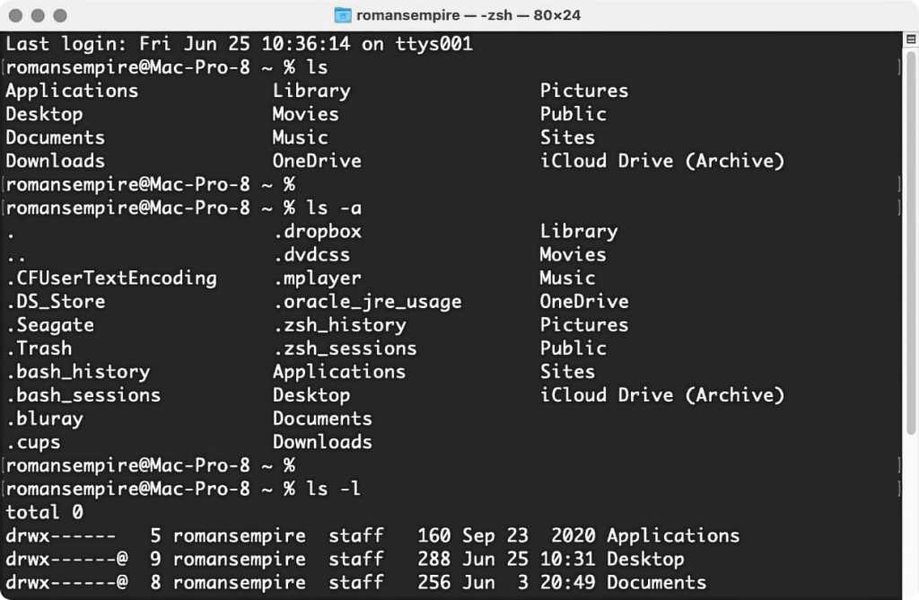
The Terminal is where the defaults command is used to manage preferences.
The Limits of Direct Key Path Specification
It's crucial to understand that the defaults command, while powerful, doesn't natively interpret complex path notations like defaults read com.apple.finder SomeDict.NestedKey in the way you might expect from some programming languages. While some very simple nesting might occasionally appear to work with specific syntax (like the colon notation mentioned in some sources, though not universally documented or reliable), generally, you cannot directly target deep sub-keys with a single, simple path string in the key argument.
Reading Nested Preference Keys
Using defaults read and plutil
Reading Top-Level Keys or Entire Dictionaries
For top-level keys, the command is straightforward:
defaults read <domain> <key>If the key's value is a dictionary or array, this command will output the entire structure. You can then visually inspect it or parse it with other command-line tools (like grep, awk, or jq if the output is formatted as JSON).
# Example: Read Finder view settings (might be a dictionary)
defaults read com.apple.finder StandardViewSettings
Extracting Specific Nested Values with plutil
When you need to pinpoint a specific value deep within a nested structure, the plutil (property list utility) command is often more effective. It allows you to extract a value using a dot-notation key path.
The syntax is:
plutil -extract "<Key.Path.To.Value>" <format> -o - <path/to/plist/file.plist>"<Key.Path.To.Value>": The path to the nested key, using dots as separators. Enclose in quotes.<format>: Output format (e.g.,xml1,json).-o -: Output to standard output.<path/to/plist/file.plist>: The full path to the preferences file.
# Example: Extract the cursor color from Terminal preferences
plutil -extract "Window Settings.Basic.CursorColor" xml1 -o - ~/Library/Preferences/com.apple.Terminal.plist
This command directly retrieves the value associated with CursorColor inside the Basic dictionary, which is itself inside the Window Settings dictionary within the Terminal preferences file.
Writing and Modifying Nested Preference Keys
Using defaults write with Structure Flags
Writing to nested keys with defaults write involves specifying the structure using flags like -dict, -dict-add, or -array-add. You typically target the top-level key containing the nested structure and provide the modifications.
Writing or Overwriting a Dictionary (-dict)
The -dict flag allows you to set the value of a key to be a dictionary, defining its sub-keys and values simultaneously. Caution: This overwrites any existing dictionary at that key.
# Example: Set a dictionary for a key named 'MySettings'
defaults write com.mycompany.myapp MySettings -dict \
    FontSize -int 14 \
    Theme -string "Dark" \
    AutoSave -bool TRUE
If MySettings already existed, its previous content would be replaced entirely by this new dictionary.
Adding Keys to an Existing Dictionary (-dict-add)
To add new key-value pairs to an *existing* dictionary without overwriting it, use -dict-add. You specify the parent key (whose value is the dictionary) and then the new sub-key/value pairs to add.
# Example: Add a 'SidebarWidth' key to the existing 'MySettings' dictionary
defaults write com.mycompany.myapp MySettings -dict-add SidebarWidth -int 250
This is useful for modifying specific parts of a nested structure.
Adding Items to an Array (-array-add)
Similarly, -array-add appends items to an existing array associated with a key.
# Example: Add '/Applications/NewApp.app' to a list of favorite apps
defaults write com.mycompany.myapp FavoriteApps -array-add "/Applications/NewApp.app"
Modifying Deeply Nested Values
For modifying a value several levels deep (e.g., a key within a dictionary within another dictionary), the defaults command doesn't offer a direct path. The common strategies are:
- Read, Modify, Write Back: Use
defaults readto get the entire top-level structure, modify it using scripting tools (likeplutil, Python'splistlib, or even text processing if the output is simple enough), and then usedefaults write ... -dictor-arrayto write the entire modified structure back. This is safer but more complex. - Use
PlistBuddy:** A more specialized command-line tool,/usr/libexec/PlistBuddy, is designed for finer-grained manipulation of plist files, including direct setting of nested keys using a colon-based path syntax within its own interactive or command-based environment. This tool offers more precision thandefaultsfor complex edits.
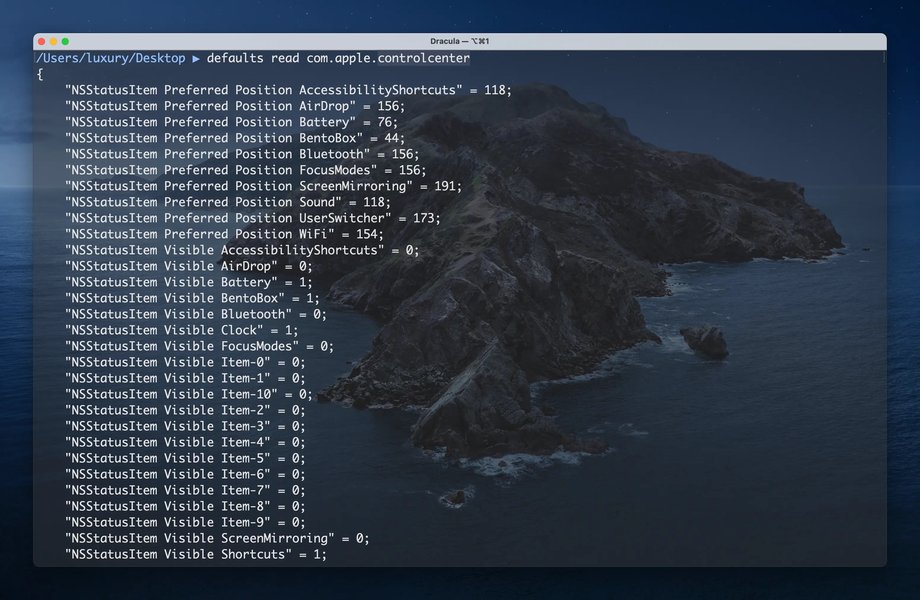
Visualizing the nested structure common in macOS preference files.
Comparing Tools for Managing Nested Preferences
Choosing the right tool depends on the complexity of the task. The defaults command is excellent for simple key-value pairs and moderately nested structures using its flags. For more complex reading and modification, plutil and PlistBuddy offer greater precision.
This radar chart compares these tools based on several factors relevant to managing nested preferences:
As the chart suggests, defaults is easiest for basic tasks but less direct for complex nesting. plutil excels at reading nested values, while PlistBuddy offers the most power for direct modification of deep keys.
Mindmap: Navigating macOS Defaults and Key Paths
This mindmap provides a visual overview of the concepts and techniques involved in using the defaults command with key paths in macOS.
defaults Command Usage"]
id2a["Actions"]
id2a1["read [key]"]
id2a2["write [-type]"]
id2a3["delete [key]"]
id2b["Limitations with Deep Paths"]
id2b1["No direct dot/colon notation for deep nesting"]
id3["Handling Nested Keys"]
id3a["Reading Nested Keys"]
id3a1["defaults read domain parent_key (Outputs entire structure)"]
id3a2["plutil -extract 'key.path' (Precise extraction)"]
id3b["Writing/Modifying Nested Keys"]
id3b1["-dict: Overwrite/create dictionary"]
id3b2["-dict-add: Add to existing dictionary"]
id3b3["-array-add: Append to existing array"]
id3b4["Modify Deeply: Read -> Script Edit -> Write Back"]
id4["Alternative Tools"]
id4a["plutil (Property List Utility)"]
id4b["PlistBuddy (Advanced plist editor)"]
id5["Best Practices"]
id5a["Verify changes with defaults read"]
id5b["Restart affected apps/services"]
id5c["Understand data types"]
id5d["Be cautious: can break settings"]
This mindmap illustrates the relationships between the core concepts, the specific defaults command actions, the methods for handling nested structures, alternative tools, and essential best practices.
Practical Summary Table: defaults Actions for Nested Keys
This table summarizes the key defaults actions and flags relevant to working with nested preferences:
| Command / Flag | Purpose | Use Case for Nested Keys |
|---|---|---|
defaults read <domain> <key> |
Read the value of a key. | Reads the entire dictionary/array if the key holds one. Useful for inspection but not for isolating sub-keys. |
defaults write <domain> <key> -dict ... |
Set the value of a key to a dictionary. | Creates or overwrites a dictionary at the specified key, allowing definition of its immediate sub-keys. |
defaults write <domain> <key> -dict-add <subkey> <value> ... |
Add key-value pairs to an existing dictionary. | Modifies an existing dictionary by adding new sub-keys without replacing the entire structure. Targets the dictionary via its parent key. |
defaults write <domain> <key> -array ... |
Set the value of a key to an array. | Creates or overwrites an array at the specified key. |
defaults write <domain> <key> -array-add <value> ... |
Append items to an existing array. | Adds elements to an existing array without replacing it. Targets the array via its parent key. |
defaults delete <domain> <key> |
Delete a key and its value. | Removes the entire key, including any nested structures it contains. Does not directly delete a sub-key within a structure. |
Video Insight: Setting Up Your Mac Environment
While not exclusively about the defaults command, understanding how power users and developers configure their macOS environment often involves scripting and command-line adjustments, including manipulating preferences. This video provides context on setting up a Mac, which can include using commands like defaults for customization.
This video covers OS settings, productivity apps, and terminal setup, aspects where defaults commands are frequently employed for automation and fine-tuning beyond the standard System Settings interface.
Frequently Asked Questions (FAQ)
What is a 'domain' in the context of the defaults command?
A domain is essentially a unique identifier for a set of preferences, usually corresponding to an application or a system component. It's typically formatted in reverse DNS notation (e.g., com.apple.finder, com.google.Chrome). You can also use NSGlobalDomain for some system-wide settings or provide a direct path to a .plist file (without the extension).
How can I find the correct domain and key names for a setting?
Finding the exact domain and key can be tricky. Here are a few methods:
- Use
defaults domainsto list all known domains. - Search online resources and forums for specific application settings.
- Use a "diff" approach: run
defaults read <domain>before and after changing a setting in the application's GUI, then compare the outputs to identify the changed key. - Inspect the
.plistfiles directly in~/Library/Preferences/usingplutilor a text editor (be careful not to corrupt them).
Do changes made with `defaults` take effect immediately?
Not always. Many applications read their preferences only on launch. For changes to take effect, you often need to restart the affected application (e.g., using killall Finder for Finder settings). Some system-wide settings might require logging out and back in, or even a full system restart.
What happens if I try to write to a key that doesn't exist?
If you use defaults write for a key that doesn't exist in the specified domain, the command will typically create the key and set its value. However, when using flags like -dict-add or -array-add, the parent key (whose value is the dictionary or array) must already exist and be of the correct type (dictionary or array, respectively) for the command to succeed.
Recommended Reading
- How can I use the plutil command to modify macOS plist files from the Terminal?
- What are some useful examples of macOS `defaults write` commands for customization?
- What is the difference between using the `defaults` command and `PlistBuddy` for editing preferences?
- How can I reset the preferences for a specific macOS application back to their default state?
References
Last updated April 29, 2025