
Unveiling macOS's Built-in Powerhouse for PDF Creation
Discover the core frameworks macOS uses to seamlessly generate and manage PDF documents.
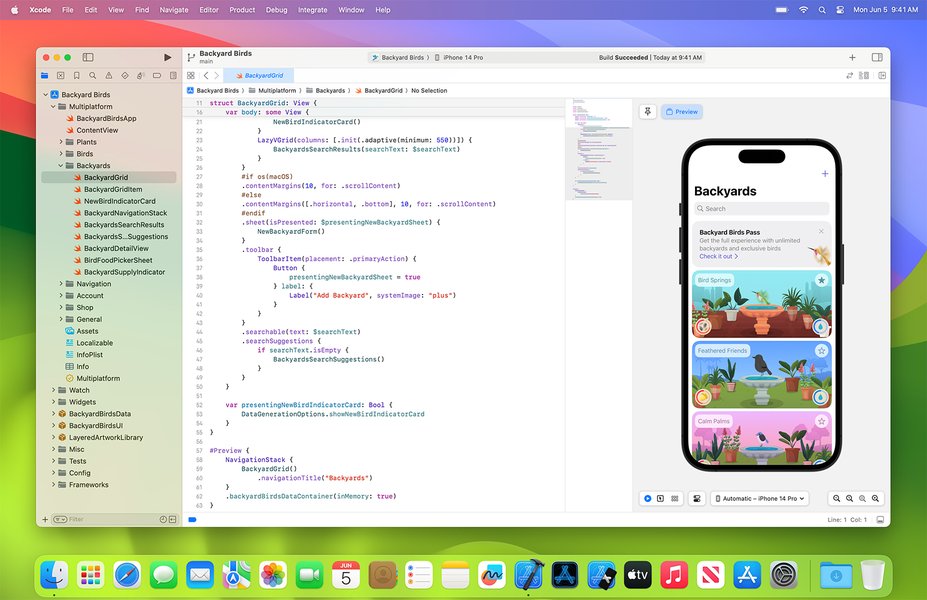
Yes, macOS is equipped with sophisticated graphics libraries and frameworks specifically designed to produce and manipulate Portable Document Format (PDF) files. These capabilities are deeply integrated into the operating system, providing both developers and users with powerful tools for handling PDFs.
Highlights
- Core Graphics (Quartz 2D): This low-level framework forms the foundation of 2D drawing in macOS and inherently uses a PDF-like imaging model, enabling direct PDF generation.
- PDFKit: A higher-level framework introduced later, PDFKit simplifies the process of displaying, creating, editing, and annotating PDF documents within applications.
- Integrated User Experience: Users commonly interact with these underlying frameworks through features like the "Print to PDF" option available system-wide and the versatile Preview application.
The Core Frameworks for PDF Handling
macOS leverages several key technologies to work with PDFs. The most prominent are Core Graphics (often associated with Quartz 2D) and PDFKit.
Core Graphics (Quartz 2D)
The Foundation of macOS Drawing
Core Graphics is the fundamental, low-level 2D drawing API (Application Programming Interface) within macOS. It's part of the larger Quartz technologies. A crucial aspect of Core Graphics is that its imaging model is based on the Adobe PDF specification. This means that the way macOS draws graphics to the screen, printers, or other outputs is inherently similar to how content is described within a PDF document.
Because of this PDF-based model, Core Graphics can naturally create PDF output. When an application draws using Core Graphics functions, it can direct that drawing output into a "PDF graphics context." This context translates the drawing commands directly into PDF data, effectively generating a PDF file or data stream that represents the drawn content.
- Low-Level Control: Offers fine-grained control over drawing operations.
- PDF Imaging Model: Uses a drawing model based on the PDF specification, making PDF creation a native capability.
- Versatile Output: Can render to screen, printers, bitmaps, and PDF contexts.
- Performance: Optimized for high-fidelity and efficient 2D rendering.
Essentially, almost everything rendered on a Mac screen utilizes this engine, making PDF generation a seamless extension of its core rendering pipeline.
PDFKit
High-Level PDF Manipulation
Introduced in macOS 10.4 Tiger, PDFKit provides a much higher level of abstraction specifically for working with PDF documents. While Core Graphics deals with the fundamental drawing operations that *can* produce a PDF, PDFKit offers dedicated tools to interact with PDF files as documents.
PDFKit simplifies tasks that would be complex to implement using only Core Graphics. It allows developers to easily:
- Display PDF documents (providing views like `PDFView`).
- Navigate through pages and outlines.
- Select and search text.
- Add, remove, and modify annotations (like notes, links, highlights).
- Fill out PDF forms.
- Create new PDF documents from images or existing PDF pages.
- Modify existing PDFs (e.g., adding or removing pages, rotating pages).
- Add custom graphics and watermarks.
PDFKit works on top of Core Graphics, leveraging its underlying rendering power but presenting a more convenient, object-oriented API tailored for PDF-specific tasks.
Quartz
The Umbrella Technology
Quartz is the name for the overall graphics and windowing environment in macOS. Quartz 2D is the specific part responsible for two-dimensional drawing, and Core Graphics is the primary API used to interact with Quartz 2D. Often, the terms are used somewhat interchangeably when discussing 2D graphics, but Core Graphics refers to the API framework, while Quartz 2D refers to the rendering engine itself, which includes capabilities like anti-aliasing, transparency, and PDF generation.
Comparing Core Graphics and PDFKit
While both frameworks can be used to produce PDFs, they serve different purposes and operate at different levels of abstraction. Developers choose between them based on the specific requirements of their task.
This chart visualizes the relative strengths and focus areas of Core Graphics and PDFKit across several dimensions, rated on a scale of 1 (Low) to 10 (High). Core Graphics excels at fundamental drawing control and performance, while PDFKit offers higher-level, easier-to-use features specifically for PDF document manipulation.
| Feature | Core Graphics (Quartz 2D) | PDFKit |
|---|---|---|
| Primary Purpose | Low-level 2D drawing and rendering | High-level PDF viewing, creation, and manipulation |
| Abstraction Level | Low | High |
| PDF Creation Method | Drawing to a PDF graphics context | Creating `PDFDocument` objects (from data, files, images) |
| PDF Viewing | No built-in viewing components | Provides `PDFView` for display |
| Annotations/Forms | Requires manual implementation | Built-in support for reading, displaying, and modifying |
| Ease of Use (Simple Tasks) | More complex setup | Simpler for common PDF tasks |
| Use Case Example | Generating a PDF report with custom vector graphics drawn from scratch. | Building a PDF reader app, merging PDF files, adding highlights to an existing PDF. |
Developer Perspective: Creating PDFs
For developers building macOS applications, these frameworks provide robust APIs to programmatically generate PDFs.
Using Core Graphics
Creating a PDF with Core Graphics involves setting up a PDF graphics context and then using standard Core Graphics drawing functions to draw content onto pages within that context. Here's a conceptual example in Objective-C (as provided in one of the sources):
// Define document metadata (optional)
NSDictionary *docDictionary = @{
    (__bridge NSString *)kCGPDFContextTitle : @"MyDocument",
    (__bridge NSString *)kCGPDFContextCreator : @"MyCompany"
};

// Define the output file path URL
CFURLRef urlRef = (__bridge CFURLRef)self.filePath; // Assuming self.filePath is an NSURL

// Create the PDF graphics context
// The second parameter (NULL) defines the default page size/location (media box)
CGContextRef pdfContext = CGPDFContextCreateWithURL(urlRef, NULL, (__bridge CFDictionaryRef)docDictionary);

// --- Begin PDF Page ---
// You might need to define page boundaries here using CGPDFContextBeginPage, e.g.,
// CGRect mediaBox = CGRectMake(0, 0, 612, 792); // Standard US Letter size
// CGPDFContextBeginPage(pdfContext, &mediaBox);
CGPDFContextBeginPage(pdfContext, NULL); // Use default page boundary

// Get an NSGraphicsContext wrapper for easier drawing (optional but common in AppKit)
NSGraphicsContext *nsContext = [NSGraphicsContext graphicsContextWithCGContext:pdfContext flipped:NO]; // Use YES if coordinate system needs flipping
[NSGraphicsContext saveGraphicsState];
[NSGraphicsContext setCurrentContext:nsContext];

// --- Draw Content Here ---
// Use standard Cocoa/AppKit or Core Graphics drawing commands.
// For example: draw text, images, shapes (NSBezierPath, CGPath)
// [[NSColor redColor] set];
// NSRectFill(NSMakeRect(100, 100, 200, 150));
// NSString *myString = @"Hello, PDF!";
// [myString drawAtPoint:NSMakePoint(120, 120) withAttributes:nil];

// Restore graphics state
[NSGraphicsContext restoreGraphicsState];

// --- End PDF Page ---
CGPDFContextEndPage(pdfContext);

// --- (Repeat Begin/End Page for multiple pages) ---

// Finalize and close the PDF context
CGPDFContextClose(pdfContext);

// Release the context reference
CFRelease(pdfContext);
This code snippet illustrates the process: create a context linked to a file URL, start a page, perform drawing operations using either Core Graphics or AppKit's drawing methods (leveraging the `NSGraphicsContext` wrapper), end the page, and finally close the context to save the file.
Using PDFKit
Creating a simple PDF, perhaps by combining images, is often much simpler with PDFKit. While a full code example is beyond this scope, the process generally involves creating a `PDFDocument` object and adding `PDFPage` objects to it. You can initialize pages from images or draw onto them using methods that eventually call down to Core Graphics.
This video from Apple's Worldwide Developers Conference (WWDC) discusses updates and features within the PDFKit framework, showcasing its capabilities for developers.
User Experience: Interacting with PDF Generation
Most macOS users interact with these underlying PDF generation capabilities through intuitive, built-in features:
- Print Dialog: Nearly any application that supports printing allows users to "Save as PDF" directly from the standard print dialog. This leverages the Core Graphics PDF context creation behind the scenes.
- Preview App: The Preview application is a powerful tool built using these frameworks. It allows users to view, annotate, edit (merge, split, reorder pages), and create PDFs (e.g., by combining images via File > Export as PDF or creating a new PDF from the clipboard).
- Quick Actions: Finder's Quick Actions can be configured to perform tasks like creating a single PDF from multiple selected images.
Frequently Asked Questions (FAQ)
What's the main difference between Core Graphics and PDFKit for PDF creation?
Core Graphics is a low-level drawing framework where you create PDFs by issuing drawing commands to a special PDF context. PDFKit is a high-level framework specifically for PDFs, offering easier ways to create, display, and manipulate PDF documents as objects (like pages, annotations) without managing drawing commands directly.
Can I create PDFs on macOS without coding?
Yes. The most common way is using the "Print" function in any application and choosing "Save as PDF" from the PDF dropdown menu in the lower-left corner of the print dialog. The built-in Preview app also allows you to open images or documents and export them as PDFs, or combine multiple files into one PDF.
Is Quartz the same as Core Graphics?
Not exactly. Quartz is the overall graphics rendering engine in macOS. Quartz 2D is the part dealing with 2D graphics. Core Graphics is the C-based API framework that developers use to interact with the Quartz 2D engine. So, Core Graphics is the API, Quartz 2D is the engine that does the work.
Are there third-party libraries for PDF generation on macOS?
Yes, while macOS provides powerful built-in frameworks (Core Graphics, PDFKit), there are also third-party libraries available. Some might offer different features, cross-platform compatibility beyond Apple's ecosystem, or specific functionalities like advanced HTML-to-PDF conversion (e.g., `swift-html-to-pdf` mentioned in sources, or libraries based on PDFium).
References
- Core Graphics | Apple Developer Documentation - Apple Developer
- PDFKit | Apple Developer Documentation - Apple Developer
- Does macOS's Core Graphic Rendering convert everything into PDF? - Ask Different (Apple Stack Exchange)
- Generating PDF Content - Apple Developer (Archived Documentation)
- Save a document as a PDF on Mac - Apple Support
- Why does CoreGraphics support PDF and why is the format so pivotal to Apple? - Stack Overflow
Recommended
Last updated April 3, 2025