
Unlock Certificate Secrets within Your macOS CMS Signed Messages
Discover how to use the native /usr/bin/security tool to decode messages and reveal embedded certificate details.
When you sign data using the /usr/bin/security cms -S command on macOS, the resulting Cryptographic Message Syntax (CMS) file bundles the original data, the digital signature, and crucial information about the certificate used for signing. Extracting these certificate details—such as the issuer, subject, and validity period—can be essential for verification, auditing, or automation. Fortunately, macOS provides the tools you need, primarily within the same /usr/bin/security utility.
Key Insights at a Glance
- Use
security cms -D: This command is the primary tool within the/usr/bin/securitysuite to decode a CMS signed message and display its internal structure, including embedded certificate information. - Inspect the Output: The decoded output reveals details like the certificate's Subject, Issuer, Serial Number, Validity Period, and signing algorithms directly in your terminal.
- Combine Tools for Specifics: While
cms -Dshows the information, extracting specific fields often requires parsing the output (manually or with scripts) or querying the macOS Keychain using othersecuritycommands if the certificate is present there.
Understanding the Process: From Signing to Decoding
Cryptographic Message Syntax (CMS) is a standard used for digitally signing, digesting, authenticating, or encrypting arbitrary message content. When you use security cms -S, macOS creates a standard CMS SignedData structure. This structure typically contains:
- The original content (or a reference to it, if detached).
- Information about the algorithms used (e.g., SHA-256 for hashing, RSA for signing).
- The signer's certificate(s), often including the intermediate and root CAs to form a chain.
- The digital signature itself, computed over the content.
To access the certificate information embedded within this structure, you need to decode the CMS message. The security cms -D command is designed for this purpose. It parses the ASN.1 structure of the CMS message and presents it in a more human-readable format.
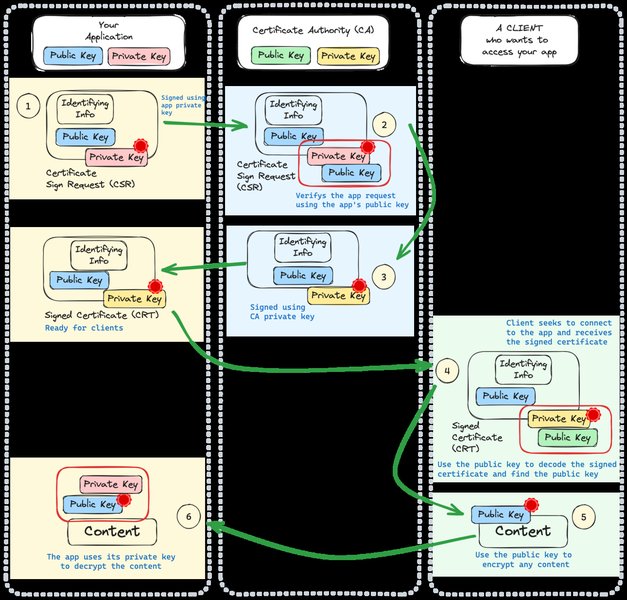
Diagram illustrating the relationships between Certificate Authorities, Signing Requests, and Certificates.
Prerequisites: The Role of the Keychain
For the security cms -D command (especially when used with verification options like -v) to function correctly and potentially display richer information or verify the signature, the signing certificate (and potentially its issuing chain) often needs to be present and trusted in one of your macOS Keychains (commonly the login or System Keychain). The initial signing process (cms -S) also requires the certificate and its corresponding private key to be in a Keychain.
Decoding the CMS Message with security cms -D
The core step to view the contents of your CMS signed message, including certificate details, is using the -D (Decode) option:
/usr/bin/security cms -D -i /path/to/your/signed_message.cmsCommand Breakdown:
security cms: Invokes the CMS utility within the security framework.-D: Specifies the decode operation.-i /path/to/your/signed_message.cms: Specifies the input file path to your CMS signed message (which might have a.cms,.p7s,.der, or other extension).
Interpreting the Output:
The command will print the decoded structure to your standard output. Look for sections related to certificates or signerInfo. Within the certificates array, you'll typically find detailed information for each certificate embedded in the message. Key fields include:
- Subject: Identifies the entity the certificate belongs to (e.g.,
CN=My Name, OU=My Unit, O=My Org, C=US). - Issuer: Identifies the Certificate Authority (CA) that issued the certificate (e.g.,
CN=My Signing CA, O=My Org, C=US). - Serial Number: A unique number assigned by the CA to the certificate.
- Validity: The dates defining the certificate's operational period (
Not Before,Not After). - Signature Algorithm: The algorithm used to sign the certificate itself (e.g.,
sha256WithRSAEncryption). - Subject Public Key Info: Details about the public key contained in the certificate (e.g., algorithm like
rsaEncryption, key size).
The output format is usually a textual representation of the ASN.1 structure. Here's a simplified example snippet of what you might see within the output:
   certificates: [
       Certificate:
           Data:
               Version: 3 (0x2)
               Serial Number: 0x0123456789ABCDEF
               Signature Algorithm: sha256WithRSAEncryption
               Issuer: C=US, O=Example CA, CN=Example Signing CA G2
               Validity
                   Not Before: May  1 00:00:00 2024 GMT
                   Not After : May  1 23:59:59 2026 GMT
               Subject: C=US, O=Example Org, OU=Example Unit, CN=signer.example.com
               Subject Public Key Info:
                   Public Key Algorithm: rsaEncryption
                       Public-Key: (2048 bit)
                       Modulus: ...
                       Exponent: 65537 (0x10001)
               X509v3 extensions:
                   X509v3 Key Usage: critical
                       Digital Signature
                   X509v3 Basic Constraints: critical
                       CA:FALSE
                   ...
   ]
   signerInfos: [
       SignerInfo:
           version: 1
           sid: issuerAndSerialNumber:
               issuer: C=US, O=Example CA, CN=Example Signing CA G2
               serialNumber: 0x0123456789ABCDEF
           digestAlgorithm: sha256
           signedAttrs: ...
           signatureAlgorithm: rsaEncryption
           signature: ...
   ]
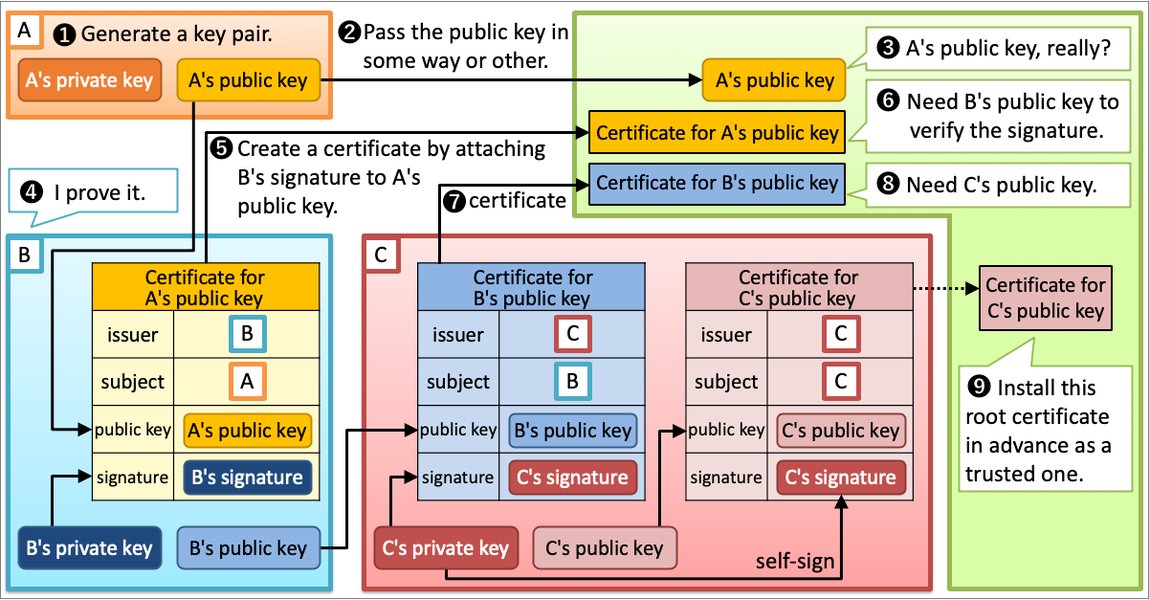
An illustration detailing the various fields within a standard X.509 certificate.
Visualizing the Extraction Workflow
This mindmap outlines the process of obtaining certificate information from a CMS signed message using macOS tools.
(Created via security cms -S)"] id2["Primary Tool: /usr/bin/security"] id3["Core Command: security cms -D"] id3a["Option: -i <input_file>"] id3b["Option: -v (for verification)"] id4["Output: Decoded CMS Structure"] id4a["Contains Certificate Details"] id4a1["Subject"] id4a2["Issuer"] id4a3["Serial Number"] id4a4["Validity Period"] id4a5["Public Key Info"] id4a6["Algorithms"] id4b["Contains Signer Information"] id5["Extraction/Parsing Methods"] id5a["Manual Inspection of Output"] id5b["Scripting (grep, awk, etc.)"] id5c["Keychain Query (if cert present)"] id5c1["security find-certificate"] id5c2["Pipe to openssl x509 (optional)"] id5d["Alternative: OpenSSL Tools"] id5d1["openssl cms"] id5d2["openssl pkcs7"] id6["Prerequisite: Certificate in Keychain?"] id6a["Often needed for verification (-v)"] id6b["Required for initial signing (-S)"]
Comparing Certificate Extraction Approaches
While using security cms -D is the most direct macOS-native approach, different methods offer varying levels of detail and ease of use. This radar chart provides a comparative perspective on common techniques for accessing certificate information from CMS messages.
Note: This chart reflects a qualitative assessment of different approaches based on typical usage scenarios. "Direct Cert Extraction" refers to easily obtaining the certificate as a separate file (e.g., PEM/DER).
Methods for Extracting Specific Details Using /usr/bin/security
While security cms -D displays the information, getting specific fields often requires further steps:
1. Parsing the cms -D Output
You can manually read the output or use standard command-line text processing tools to isolate the data you need:
- Manual Inspection: Simply run
security cms -D -i file.cmsand visually locate the Subject, Issuer, etc. - Using
grep(Example): To find the Subject line:security cms -D -i file.cms | grep "Subject:" - Using
awkorsed: For more complex parsing to extract specific values from lines.
2. Querying the Keychain
If you can identify the certificate from the cms -D output (e.g., by its Subject Common Name or Issuer/Serial Number) and it exists in your Keychain, you can use security find-certificate for more structured access. You can even pipe its PEM output to openssl x509 (if available) for detailed, formatted parsing.
- Find by Common Name (CN) and Print PEM:
(Thesecurity find-certificate -c "signer.example.com" -p /path/to/keychain > cert.pem-pflag outputs the certificate in PEM format). - Find and Parse with OpenSSL (Example):
This command finds the certificate by CN, outputs its PEM data, and pipes it tosecurity find-certificate -c "signer.example.com" -p | openssl x509 -noout -subject -issuer -datesopenssl x509to display only the subject, issuer, and validity dates. Note: This step usesopenssl, complementingsecurity.
3. Using Verification (-v)
Adding the -v flag to the decode command attempts to verify the signature:
security cms -D -v -i /path/to/your/signed_message.cmsSuccessful verification implies that the signer's certificate is valid (not expired, revoked, and trusted based on the root CAs in your Keychain). While it doesn't extract details differently, it confirms the signature's integrity using the embedded certificate.
Key security Commands Summary
This table summarizes the relevant /usr/bin/security commands and options discussed:
| Command | Option(s) | Purpose in this Context |
|---|---|---|
security cms |
-S |
Creates the initial CMS signed message (the input file). |
security cms |
-D -i <file> |
Decodes the CMS message, displaying its structure including certificate details. |
security cms |
-D -v -i <file> |
Decodes the CMS message and verifies the signature using embedded certificates and Keychain trust. |
security find-certificate |
-c <name>, -Z <hash>, -p, -a |
Searches Keychains for certificates (by name, hash, etc.) and can print their details or PEM format (-p). Useful if the certificate from the CMS message is identifiable and stored locally. |
security import |
<file> -k <keychain> |
Imports certificates or keys into a specified Keychain. Might be needed if the required certificate isn't already present. |
security verify-cert |
-c <certfile> |
Verifies a single certificate file against trust settings in the Keychain (less relevant for extracting info *from* CMS, more for validating an *extracted* cert). |
Video Insight: Certificates on macOS
For a broader understanding of how certificates are managed and utilized within the macOS ecosystem, including the role of the Keychain which is central to security tool operations, this presentation from the MacAdmins Conference provides valuable context.
Using Certificates on macOS - Presentation by Tim Perfitt (MacAdmins Conference 2018)
This video discusses certificate concepts, management via Keychain Access and the command line (security), profiles, and common use cases on macOS, helping contextualize the operations involved in handling CMS messages and their associated certificates.
Handling Potential Issues
Certificate Not Found Errors
If security cms -D -v fails with errors related to missing certificates or inability to verify the chain, ensure the signer's certificate and its issuing CAs are present and trusted in the appropriate Keychain (usually System or login). You might need to import them using Keychain Access or security import.
Parsing Complex Output
The cms -D output can be verbose. For automated processing, robust parsing scripts using tools like awk, python, or perl might be necessary to reliably extract specific fields, especially if the structure varies.
Limitations of security for Direct Extraction
While security cms -D displays certificate *information*, it doesn't have a direct option to extract the embedded certificate(s) into separate .pem or .cer files. Achieving that typically requires parsing the base64-encoded certificate data from the cms -D output or using alternative tools like openssl cms or openssl pkcs7 which have dedicated options (e.g., -print_certs, -certsout).
Frequently Asked Questions (FAQ)
Can I extract the certificate to a separate file using only /usr/bin/security?
What if the certificate isn't in the Keychain? Can `security cms -D` still show information?
What's the difference between `security cms -D` and `security cms -V`?
Recommended Further Exploration
- How can I parse specific X.509 certificate details (like expiration date or subject components) from a PEM file using command-line tools on macOS?
- What are the key `security` commands for managing macOS Keychains, such as listing items, deleting certificates, or creating new keychains?
- How do I rigorously verify a CMS signature on macOS, ensuring the check includes certificate expiration and revocation status?
- Can I automate the process of decoding CMS messages and extracting signer certificate information using shell scripting on macOS?
References
 anandmpandit.blogspot.com
Last updated May 5, 2025