
Unmasking Digital Deceivers: Are Your Online Ads Hiding a Nasty Surprise?
Learn to spot the cyber traps in online advertising before they snare you!
Welcome, savvy internet surfer! Ever been browsing your favorite news site or scrolling through social media, and an ad pops up that just feels… off? Maybe it's promising a prize that's too good to be true, or it urgently warns you about a non-existent virus. You might be looking at a case of "malvertising." It's a sneaky trick where cybercriminals use online advertisements to sneak malware onto your computer or phone. The tricky part? Even legitimate, well-known websites can accidentally host these malicious ads because they often rely on third-party ad networks, and sometimes, a bad apple slips through the cracks. Think of it as a digital wolf in sheep's clothing, lurking where you least expect it!
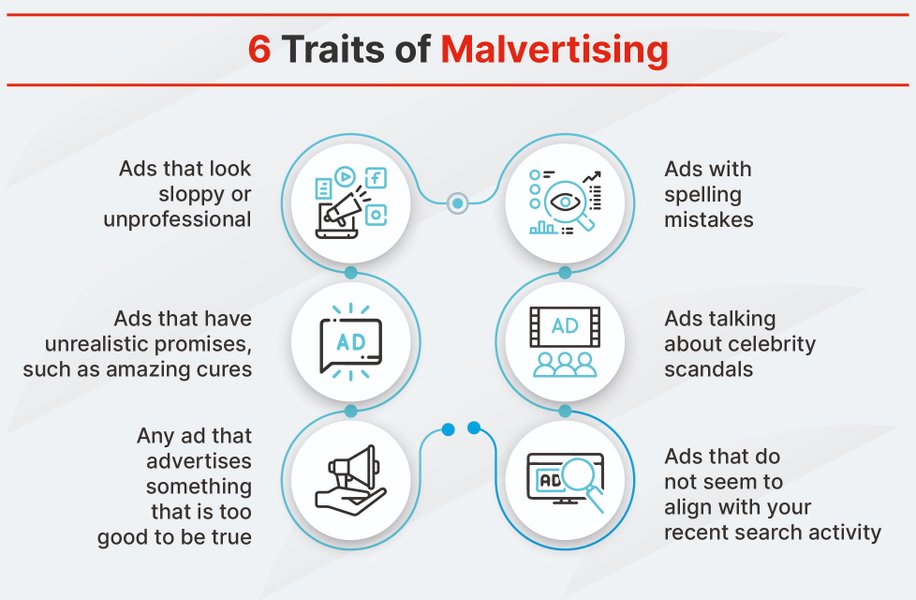
Malvertising uses online ads to distribute malware, often on legitimate websites.
But don't you worry! Arming yourself with a bit of knowledge can help you dodge these digital bullets like a pro. Let's dive into the common red flags that scream "malvertising!" so you can keep your online adventures safe and sound.
Key Takeaways: Spotting Malvertising at a Glance
- Unrealistic Promises & Urgent Warnings: If an ad offers a free luxury car for a click or screams that your device is critically infected (out of the blue), be extremely skeptical.
- Suspicious Detours & Odd Links: Clicking an ad that takes you to a bizarre, misspelled, or unsecured website is a major red flag. Always check where a link is headed before you click.
- Shoddy Appearance & Data Demands: Ads riddled with errors, poor graphics, or those asking for your personal information directly are highly suspicious.
Red Flag #1: The "Too Good to Be True" Offer & Fear-Mongering Frenzy
If It Sounds Like a Fantasy, It's Probably a Trap!
You're casually browsing, and an ad pops up: "Congratulations! You've won a brand new SuperPhone X2000! Click here to claim!" Or perhaps, "Exclusive Offer! 90% off everything for the next 5 minutes!" While we all love a good bargain, malvertisers prey on this desire by crafting offers that are simply unbelievable. These ads are designed to make you click impulsively, often leading you to a site that installs malware or tricks you into giving up personal information.
Remember that timeless advice: if it sounds too good to be true, it almost certainly is. Legitimate companies rarely offer such outlandish giveaways through random pop-up ads.
Panic Buttons: The Fake Urgent Alert
On the other side of the coin are ads designed to instill panic. "WARNING! Your PC is infected with 37 viruses! Call this number IMMEDIATELY for free support!" These fake alerts, often mimicking notifications from your operating system or antivirus software, aim to scare you into rash actions. Clicking on them or calling the provided number can connect you with scammers who will try to sell you useless software, gain remote access to your device, or steal your financial details. Real tech companies and security software will notify you through their official interfaces, not through a random ad on a website.
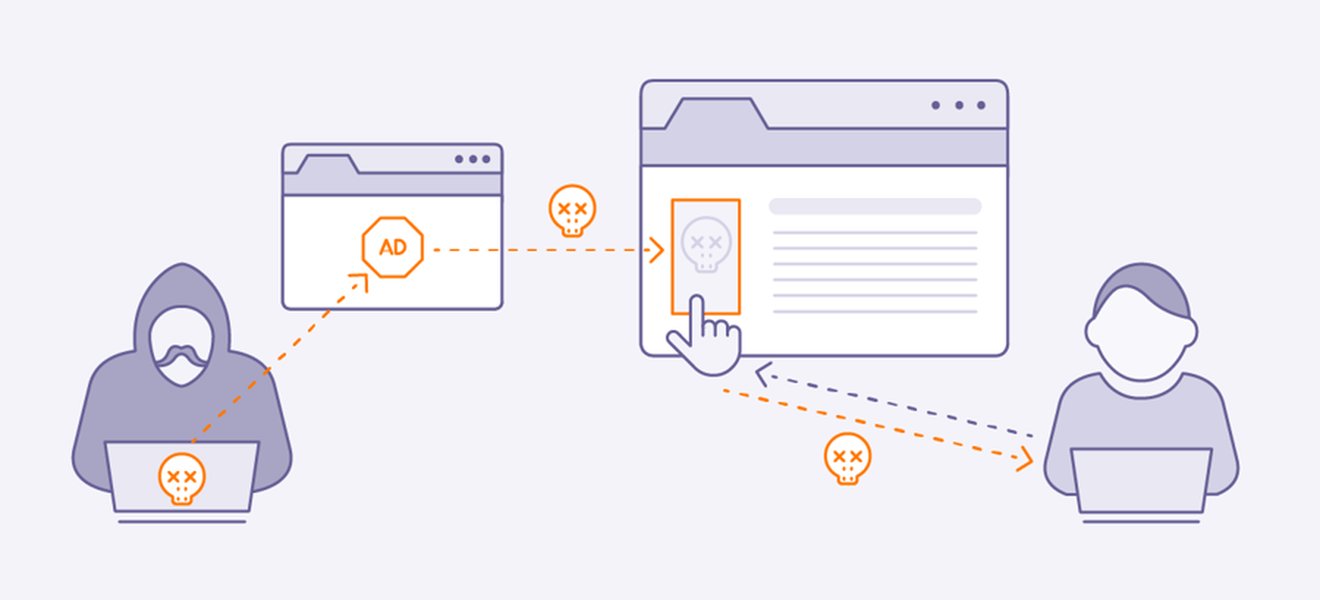
Misleading ads often create a false sense of urgency or offer unrealistic rewards.
Red Flag #2: Suspicious Redirects, Unfamiliar URLs, and Strange Behavior
Taking an Unexpected Digital Detour? Abort Mission!
You click on an ad for, say, discounted sneakers, but instead of landing on a reputable shoe store's website, your browser takes you to a completely unrelated, often poorly designed page. Or worse, it might bounce you through several different URLs before landing on a suspicious site. This is a classic malvertising tactic. These redirections can lead to phishing pages designed to steal your login credentials or directly to malware downloads.
The Dreaded Drive-By Download
Sometimes, you don't even need to click! A "drive-by download" can occur if you simply visit a webpage that hosts a malicious ad. The ad exploits vulnerabilities in your browser or its plugins to automatically download and install malware onto your device without any interaction from your side. This is particularly common if your browser or operating system is outdated. It’s like catching a digital cold just by walking past someone sneezing malware!
URL Vigilance
Always pay attention to the URL in your browser's address bar. If an ad claims to be from a well-known brand, but the URL is a jumble of random characters, a misspelled version of the brand name (e.g., "Amaz0n-deals.xyz"), or doesn't use HTTPS (look for the padlock icon and "https://" at the start of the URL), it's a strong indicator of a malicious site. Hovering your mouse cursor over an ad (without clicking!) will often display the destination URL at the bottom of your browser window – if it looks fishy, don't click it.
Red Flag #3: Poor Ad Quality, Demands for Sensitive Info, and Fake Clones
Shoddy Workmanship and Nosy Questions Are Big No-Nos!
Legitimate businesses usually invest in professional, high-quality advertisements. So, if you encounter an ad that's riddled with spelling mistakes, grammatical errors, blurry or low-resolution images, or just looks amateurish and unprofessional, be wary. While not every poorly designed ad is malicious, it's a common trait of malvertisements, as attackers often prioritize speed and volume over polish.
Ads Asking for Your Secrets
A massive red flag is an ad that directly prompts you to enter sensitive information like your credit card number, social security number, login credentials, or other personal data within the ad itself. Reputable companies will direct you to their secure, official website for any such transactions or information requests. Never provide personal details directly into an ad banner or pop-up.
The Imposter Software
Another common tactic is "fake installer" malvertising. You might see an ad for a popular app, a system utility, or a software update. Clicking it leads to a page that looks like a legitimate download portal. However, the file you download is not the software you wanted but rather a bundle of malware. Always download software directly from the official vendor's website or trusted app stores.
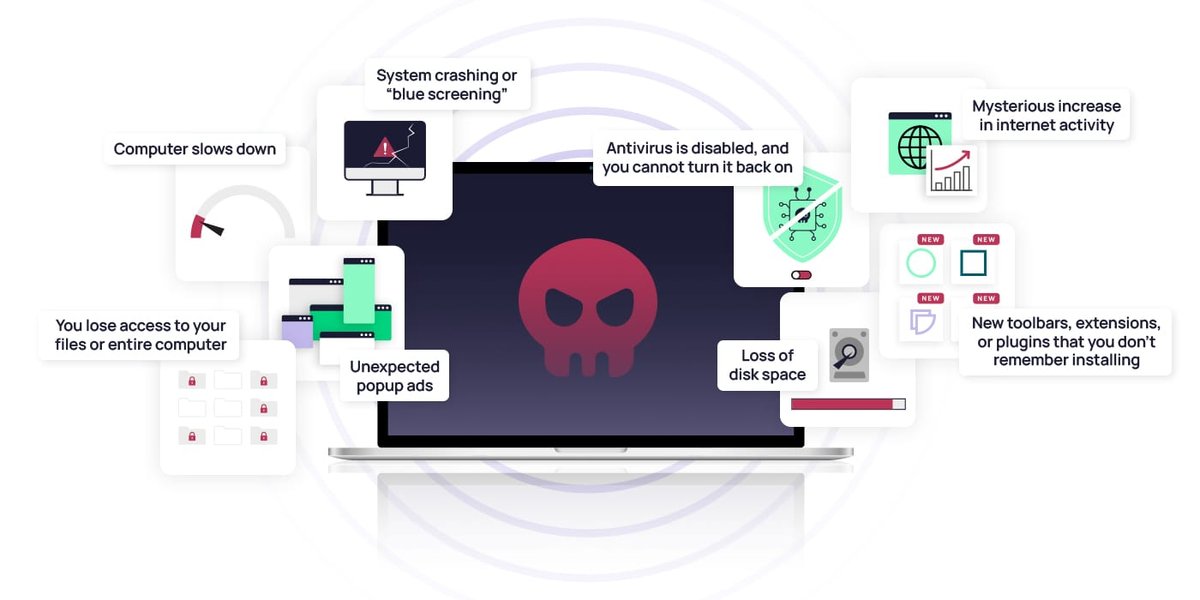
Malvertising can deliver various types of malware, each with its own harmful capabilities.
The Evolving Threat Landscape in 2025
Cybercriminals Are Getting Craftier!
As we navigate 2025, malvertising isn't standing still. Cybercriminals are leveraging increasingly sophisticated techniques, including AI-generated content, to make their malicious ads more convincing and harder to detect. Ads impersonating well-known brands or promoting fake AI tools that promise revolutionary features (but deliver malware instead) are on the rise. The global cost of cybercrime continues to escalate, and malvertising plays a significant role in this trend, affecting both desktop and mobile users. Staying informed about these evolving tactics is crucial for your digital safety.
Comparative Risk Factors of Malvertising Tactics
Understanding the Danger Levels
Different malvertising techniques pose varying levels of risk and employ distinct strategies. The radar chart below visualizes some of these characteristics across common malvertising types. "Deceptiveness" refers to how well the ad mimics legitimate content, "Urgency Created" indicates how much it pressures the user, "Technical Sophistication" reflects the complexity of the attack, "Potential Harm" shows the severity of possible consequences, and "Stealth Level" indicates how difficult it is to detect before it strikes.
This chart helps illustrate that while some tactics like "Fake Urgent Alerts" rely heavily on creating panic, others like "Drive-By Downloads" excel in stealth and technical sophistication, posing significant harm without needing high deceptiveness or user interaction.
Malvertising Red Flags & Prevention: A Mindmap Overview
Visualizing Your Defense Strategy
To help you remember the key malvertising red flags and how to protect yourself, here's a mindmap summarizing the core concepts. Understanding these points can significantly reduce your risk of falling victim to malicious ads.
(e.g., free luxury items, unrealistic discounts)"] id1b["Fake Urgent Alerts
(e.g., 'Your PC is infected! Call now!')"] id1c["Suspicious Redirects & URLs
(e.g., unexpected sites, misspelled domains, no HTTPS)"] id1d["Poor Ad Quality
(e.g., typos, bad grammar, blurry images)"] id1e["Demands for Sensitive Information
(e.g., asking for passwords/credit cards in the ad)"] id1f["Fake Software Installers/Clones
(e.g., disguised as legitimate app downloads)"] id1g["Drive-By Downloads
(malware installs without clicking, via outdated browsers)"] id2["Prevention Strategies"] id2a["Keep Software Updated
(OS, browser, antivirus)"] id2b["Use Ad Blockers & Security Extensions
(filter out malicious ads)"] id2c["Verify Downloads
(go to official websites directly)"] id2d["Be Skeptical of Pop-Ups & Alerts
(especially those demanding immediate action)"] id2e["Hover to Check URLs
(before clicking any ad or link)"] id2f["Type URLs Directly
(for known sites, instead of clicking ads)"] id2g["Educate Yourself & Others
(share knowledge about these threats)"]
This mindmap outlines the primary warning signs to look for and the proactive steps you can take to safeguard your digital environment from malvertising threats.
Navigating the Dangers: A Deeper Dive into Malvertising
Understanding the Hidden Threat
Malvertising is a complex issue that affects everyone from individual users to large corporations. The following video provides further insights into how malvertising works, the various forms it can take, and additional strategies to protect yourself in an increasingly interconnected digital world. Understanding the mechanisms behind these attacks can empower you to make safer choices online.
This video, "Malvertising Unveiled: Navigating the Hidden Dangers of Online Ads," explores the sophisticated nature of malvertising campaigns and how they serve as gateways for various cyber threats, including malware and ransomware. It emphasizes the importance of recognizing the signs of malicious ads and implementing security layers to protect your digital environment.
Quick Reference: Malvertising Red Flags & Actions
Your Cheat Sheet to Staying Safe
Here's a table summarizing the common malvertising red flags, what they typically look like, and the recommended actions to take if you encounter them. Keep these in mind as you navigate the web.
| Red Flag Type | Description | What to Do |
|---|---|---|
| Too Good to Be True Offers | Ads promising unrealistic rewards, free luxury items, or unbelievable discounts (e.g., "Win a free iPhone!"). | Be highly skeptical. If it sounds too good, it almost certainly is. Verify any legitimate-sounding offers on the company's official website. |
| Fake Urgent Alerts & Pop-Ups | Sudden warnings appearing on your screen, often mimicking system alerts, claiming your PC is infected, your data is at risk, or you need to call "tech support" immediately. | Legitimate tech companies or security software providers do not use random web pop-ups for such critical alerts. Close the pop-up (use Task Manager if needed). Do not call any numbers or click any links provided. |
| Suspicious Redirects & Unfamiliar URLs | Clicking an ad takes you to an unexpected website, or the URL looks strange, misspelled, uses HTTP instead of HTTPS, or is a jumble of random characters. | Hover your mouse over ads to preview the destination URL. If it looks suspicious or doesn't match the ad's claim, do not click. If redirected, close the tab immediately. |
| Poor Ad Quality & Typos | Advertisements containing obvious spelling errors, bad grammar, low-quality or blurry images, or an overall unprofessional design. | While not always malicious, poor quality is a common sign of hastily created malvertisements. Treat such ads with extra caution. |
| Demands for Sensitive Information | An ad directly asks you to input personal or financial information (e.g., passwords, credit card details, social security number) within the ad banner itself. | Never enter sensitive information directly into an online ad. Legitimate transactions or information requests will occur on a secure, official website. |
| Fake Software Installers / Cloned Sites | Ads that mimic legitimate software download prompts or direct you to websites that look like official vendor pages but are designed to distribute malware disguised as popular applications or updates. | Always download software directly from the official vendor's website or trusted app stores. Be wary of download links in ads. |
| Drive-By Downloads | Malware is downloaded and installed on your device simply by visiting a webpage containing a malicious ad, often without any click or interaction from you. | Keep your operating system, web browser, and all plugins (like Java, Flash - though less common now) fully updated. Use reputable security software with real-time protection and consider using an ad blocker. |
Frequently Asked Questions (FAQ)
What exactly is malvertising?
Can I get infected even if I don't click on the ad?
Are well-known websites safe from malvertising?
How can I protect myself from malvertising?
What should I do if I suspect I've encountered malvertising?
Conclusion: Surf Smart, Stay Secure!
Malvertising is a sneaky and persistent threat, but by learning to recognize these red flags, you can significantly boost your defenses. Remember to approach online ads with a healthy dose of skepticism, especially those that make extravagant promises or try to scare you into immediate action. Keep your software updated, consider using security tools like ad blockers, and always think twice before you click. Your digital safety is worth the extra moment of caution!
I'll see you again soon. Bye-bye and thanks for reading watching and listening.
Recommended Further Exploration
Expand Your Cyber Safety Knowledge
- How do ad blockers work and which are most effective against malvertising?
- What are the latest AI-driven malvertising techniques in 2025?
- How can businesses protect their websites from hosting malicious ads?
- What are the differences between malvertising, adware, and ransomware?
References
Sources for Further Reading
Last updated May 21, 2025