
Managing Lists in JPEG Format: Comprehensive Solutions
Efficiently Convert and Edit Your JPEG-Based Lists with Proven Methods
Key Takeaways
- Optical Character Recognition (OCR) Tools: Utilize reliable OCR platforms to extract text from JPEG images effectively.
- Conversion Methods: Choose between online tools, software applications, or programming techniques based on your specific needs.
- Accuracy and Quality: Ensure high-quality images and proper formatting to enhance text extraction and conversion results.
Understanding JPEG and List Formats
JPEG (Joint Photographic Experts Group) is a widely used image file format known for its efficient compression of photographic content. However, it is not inherently designed to store text-based information such as lists. When a list is saved as a JPEG image, it becomes a static visual representation, making it challenging to edit or manipulate the text directly. To work with the textual content of a JPEG-based list, it is essential to employ methods that can either extract the text from the image or convert the text list into a JPEG format as needed.
Extracting Text from a JPEG List
Utilizing Optical Character Recognition (OCR) Technology
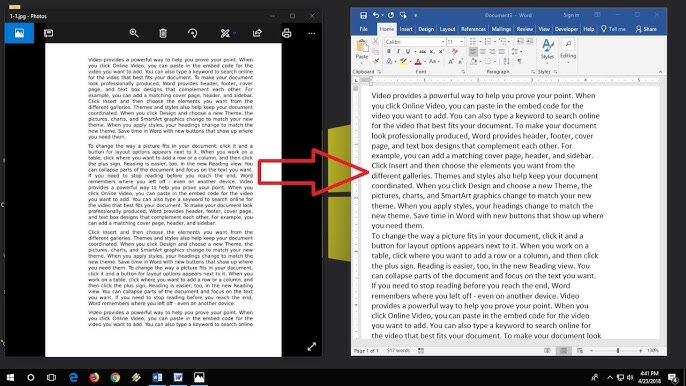
Optical Character Recognition (OCR) is a technology that enables the conversion of different types of documents, such as scanned paper documents or images captured by a digital camera, into editable and searchable data. When dealing with a list in JPEG format, OCR tools can be employed to extract the textual content efficiently.
Steps to Convert a JPEG List to Text
- Choose an OCR Tool: Select a reliable OCR platform that supports JPEG format. Popular options include MyFreeOCR, JPGtoText, ImageResizer, FreeConvert, ImageToText.info, and OnlineOCR.net.
- Upload Your Image: Navigate to the chosen OCR tool's website and upload your JPEG image. Most platforms offer a straightforward interface where you can drag and drop the file or select it from your device.
- Initiate the Conversion: Click on the "Convert," "Extract," or similar button to start the OCR process. The tool will analyze the image and extract the embedded text.
- Review and Save the Extracted Text: After the conversion is complete, carefully review the extracted text for any inaccuracies. You can typically copy the text directly or download it as a text file.
- Make Necessary Edits: Depending on the image quality and text complexity, you might need to manually correct errors in the extracted text to ensure accuracy.
Factors Affecting OCR Accuracy
The accuracy of OCR tools can be influenced by several factors, including:
- Image Quality: High-resolution images with clear text yield better OCR results.
- Font and Text Size: Standard fonts and larger text sizes are easier for OCR tools to recognize.
- Text Orientation: Text that is properly aligned horizontally improves extraction accuracy.
- Language Support: Ensure the OCR tool supports the language used in your list.
Recommended OCR Tools
| Tool | Features | Link |
|---|---|---|
| MyFreeOCR | Supports multiple languages, free to use, simple interface | Visit MyFreeOCR |
| JPGtoText | Fast processing, supports various image formats, no registration required | Visit JPGtoText |
| ImageResizer | Batch processing, image editing features, free and premium versions | Visit ImageResizer |
| FreeConvert | Wide format support, secure file handling, additional conversion tools | Visit FreeConvert |
| ImageToText.info | User-friendly interface, supports multiple languages, free usage | Visit ImageToText.info |
| OnlineOCR.net | High accuracy, supports over 40 languages, free for limited use | Visit OnlineOCR.net |
Converting a Text List to JPEG Format
Reasons to Convert Text to Image
There are scenarios where converting a text-based list into a JPEG image is desirable. Reasons include:
- Visual Presentation: Enhancing the visual appeal of lists for presentations or social media.
- Security: Preventing easy editing or copying of the list content.
- Compatibility: Sharing lists with recipients who may not have the appropriate software to view text files.
Methods to Convert Text to JPEG
Using Online Tools
Numerous online platforms allow users to convert text into image formats like JPEG effortlessly. These tools often provide customization options for styling the text.
- Browserling: Offers a simple interface to paste your list, customize appearance, and download the image.
- Other Platforms: Websites like Convertio and Online-Convert.com also offer text to image conversion services.
Using Software Applications
Graphic design software provides more control over the appearance of the converted list.
- Adobe Photoshop: Allows for comprehensive customization, including fonts, colors, and layout before saving the list as a JPEG.
- GIMP: A free alternative to Photoshop that offers similar features for text styling and image conversion.
Using Programming Techniques
For users comfortable with programming, scripts can automate the conversion process, especially useful for bulk operations.
- Python Scripts: Libraries like PIL (Pillow) can be used to programmatically render text into an image format.
- VBA Macros in Excel: Automate the creation of images from lists stored in spreadsheets.
Step-by-Step Conversion Using an Online Tool
- Access the Conversion Tool: Navigate to an online text-to-image converter such as Browserling.
- Input Your List: Paste your text list into the provided text box.
- Customize Appearance: Adjust settings like font style, size, background color, and text color to your preference.
- Generate the Image: Click on the "Convert" or "Generate" button to create the JPEG image.
- Download the JPEG: Once the image is generated, download it to your device for use.
Editing and Correcting Extracted Text
After extracting text from a JPEG image, it is crucial to ensure the accuracy and formatting of the content. Even with high-quality OCR tools, some errors may persist due to image clarity or text complexity.
- Manual Proofreading: Carefully review the extracted text to identify and correct any mistakes.
- Use Text Editing Software: Utilize applications like Microsoft Word or Google Docs to format and edit the text efficiently.
- Re-run OCR if Necessary: If significant errors are found, consider reprocessing the image with a different OCR tool or adjusting the image quality.
Additional Tips for Handling Lists in Images
Optimizing Image Quality for Better Results
To enhance the efficiency and accuracy of both text extraction and conversion processes, consider the following image optimization strategies:
- High Resolution: Ensure the image has a high resolution to make the text clearer for OCR tools.
- Proper Lighting: Avoid shadows or glare that can obscure text visibility.
- Clear Contrast: Use images with high contrast between text and background for better readability.
- Consistent Alignment: Keep text aligned horizontally to facilitate accurate OCR processing.
Choosing the Right Tool for Your Needs
Selecting the appropriate tool depends on your specific requirements, such as the complexity of the list, the volume of conversion tasks, and desired customization levels.
- For Simple Tasks: Online OCR tools are ideal for quick and straightforward text extraction.
- For Advanced Customization: Graphic design software provides extensive options for formatting and styling converted lists.
- For Automation: Programming solutions are suitable for repetitive tasks and bulk conversions.
Ensuring Data Security
When using online tools to convert or extract text from images, it's essential to be mindful of data security, especially if your lists contain sensitive information.
-
Choose Reputable Services: Use trusted OCR and conversion platforms that prioritize user data privacy.
-
Review Privacy Policies: Understand how your data is handled, stored, and deleted by the service provider.
-
Opt for Offline Solutions: If privacy is a concern, consider using offline software or local programming scripts to manage conversions without uploading data to the internet.
Conclusion
Managing lists in JPEG format requires a clear understanding of the tools and methods available for both extraction and conversion processes. Whether you're looking to convert a JPEG-based list into editable text using OCR technology or transforming a text list into a visually appealing JPEG image, the right approach depends on your specific needs and the quality of the original image. By leveraging reliable OCR tools, employing effective conversion techniques, and ensuring data accuracy and security, you can efficiently handle lists in JPEG format for a variety of applications.
References
Last updated February 12, 2025